> ## Documentation Index
> Fetch the complete documentation index at: https://docs.famulor.io/llms.txt
> Use this file to discover all available pages before exploring further.
# Testing Assistants with Cledon
> Learn how to test and optimize your voice agents created with Famulor using Cledon’s testing environment
Learn how to easily test and optimize your voice agents (assistants) created with Famulor using the testing environment from [Cledon](https://cledon.ai/?slug=aa5976c9-02e3-4e3b-85bf-866bcae990eb).
## Requirements
• An active Famulor account\
• A Famulor API key (see below)\
• At least one assistant created in Famulor\
• An account on Cledon
***
## Setup Process
### 1. Registration
1. Create an account on the Cledon testing platform.
2. Confirm your email and log in.
3. Optional: Add additional team members with different roles (Admin/Editor/Viewer) for collaborative testing.
***
### 2. Integration: Connect Famulor via API Key
1. Navigate to “Integrations” in Cledon.
2. Connect your Famulor account to Cledon using your API key:
* The key is stored encrypted on the server side.
* You can rotate or remove the key at any time.
Note: You can find or create your Famulor API key in the Famulor dashboard under Settings → API Keys.
***
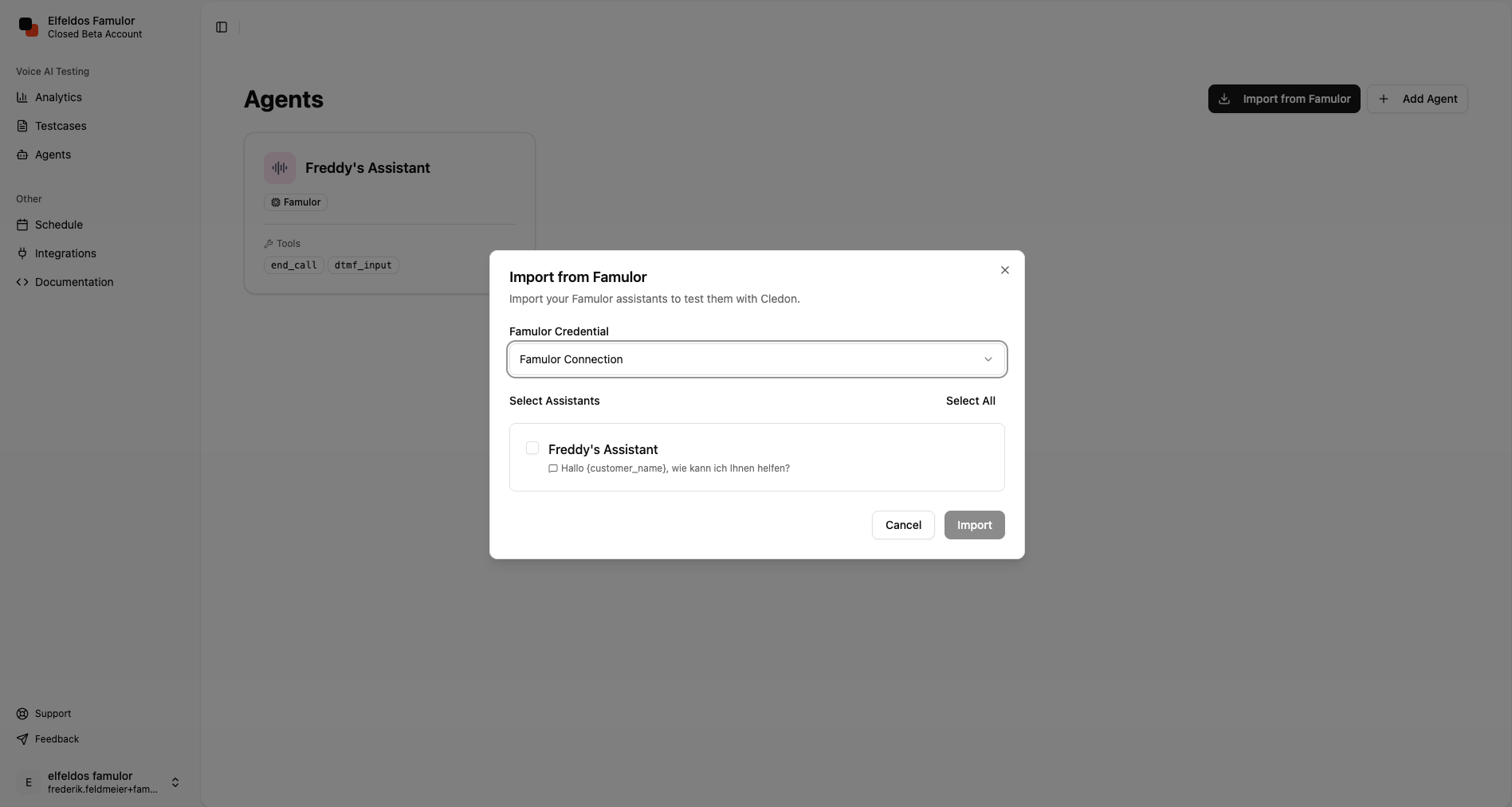
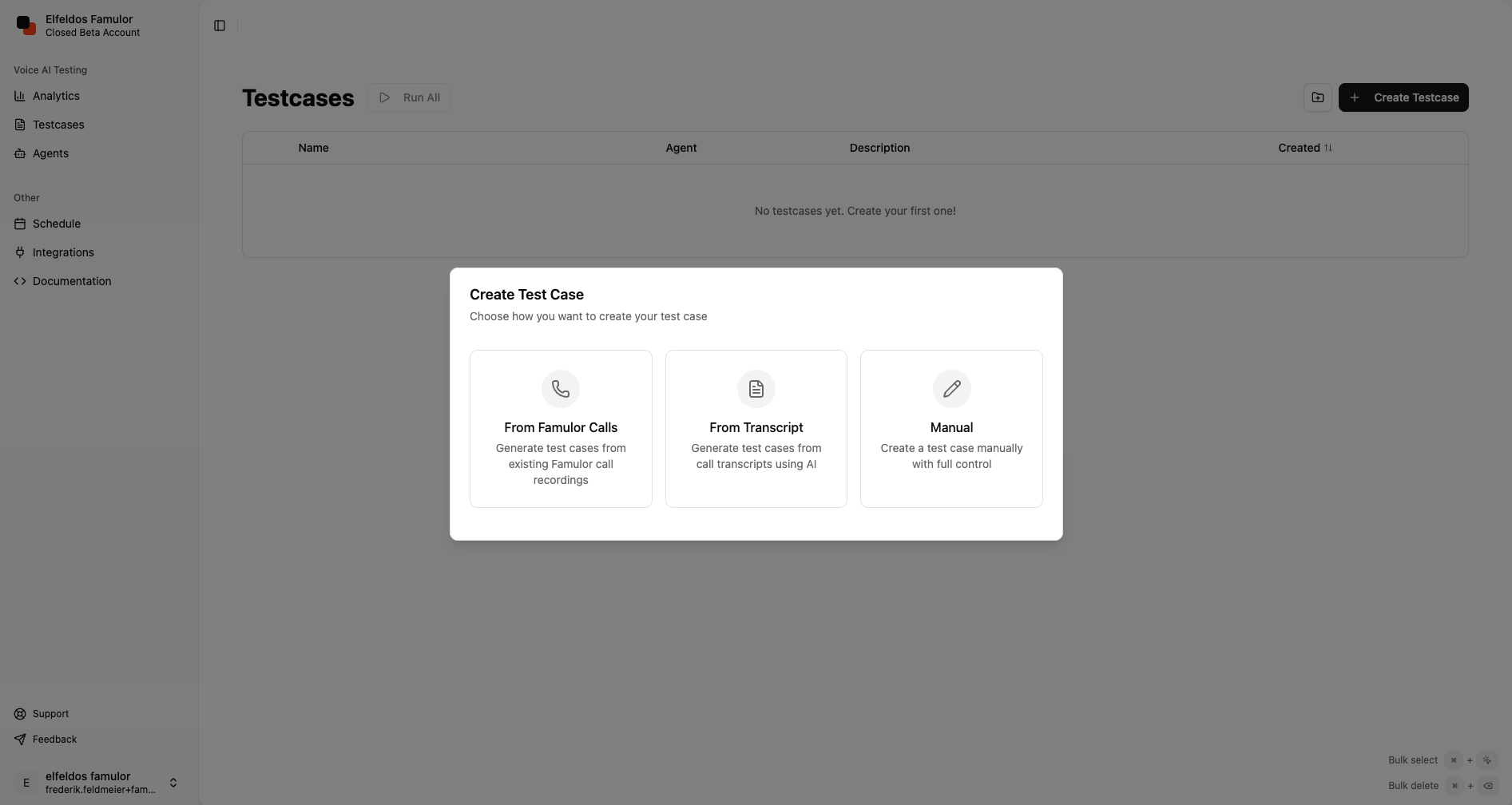
### 3. Import or Manually Create Assistants
You have two options to add your voice agents/assistants in Cledon:
• **Import assistants from Famulor:**
1. Click “Import Assistants.”
2. Select the desired assistants from your Famulor tenant.
3. Metadata such as name, ID, system prompt, tool calls, and relevant configurations are automatically imported.
• **Manually create:**
1. Click “Create New Agent.”
2. Manually link the agent in Cledon to your Famulor assistant by specifying the name and Assistant ID.
***
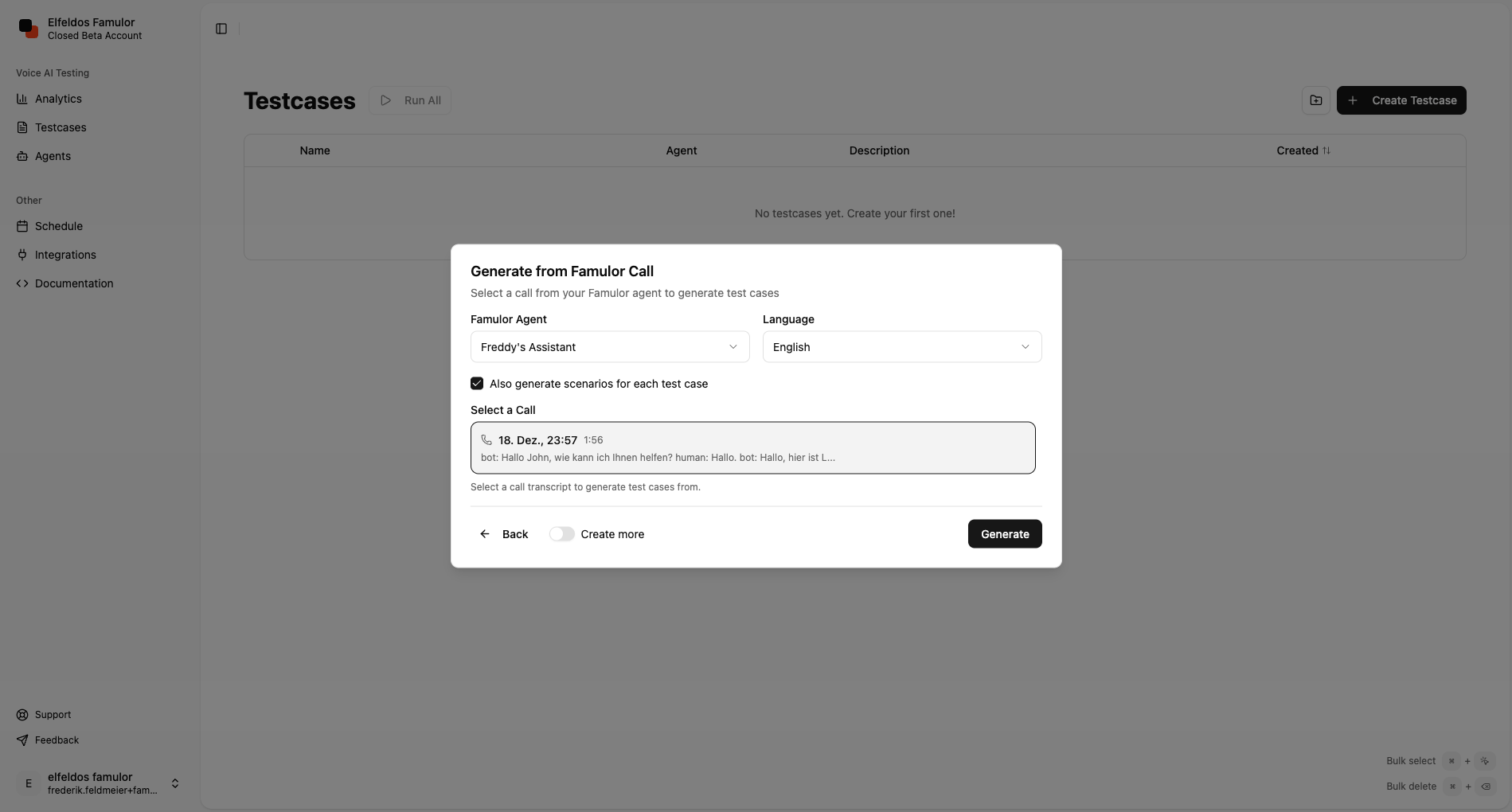
### 4. Creating Test Cases
Create structured test cases that define what, how, and with which expected values will be tested. There are several approaches:
• **Based on existing Famulor calls (automatic import)**
* Import past call transcripts and results directly from Famulor.
* Convert them into repeatable test cases (including expected outcomes, tool calls, and metrics).
• **Based on other telephony transcripts (copy & paste)**
* Paste transcript text from other platforms.
* Highlight relevant sections and define expected outcomes (e.g., “Agent asks for email,” “Appointment is confirmed”).
• **Manual creation**
* Manually define the scenario, inputs (user utterances), expected agent responses/actions, and success criteria.
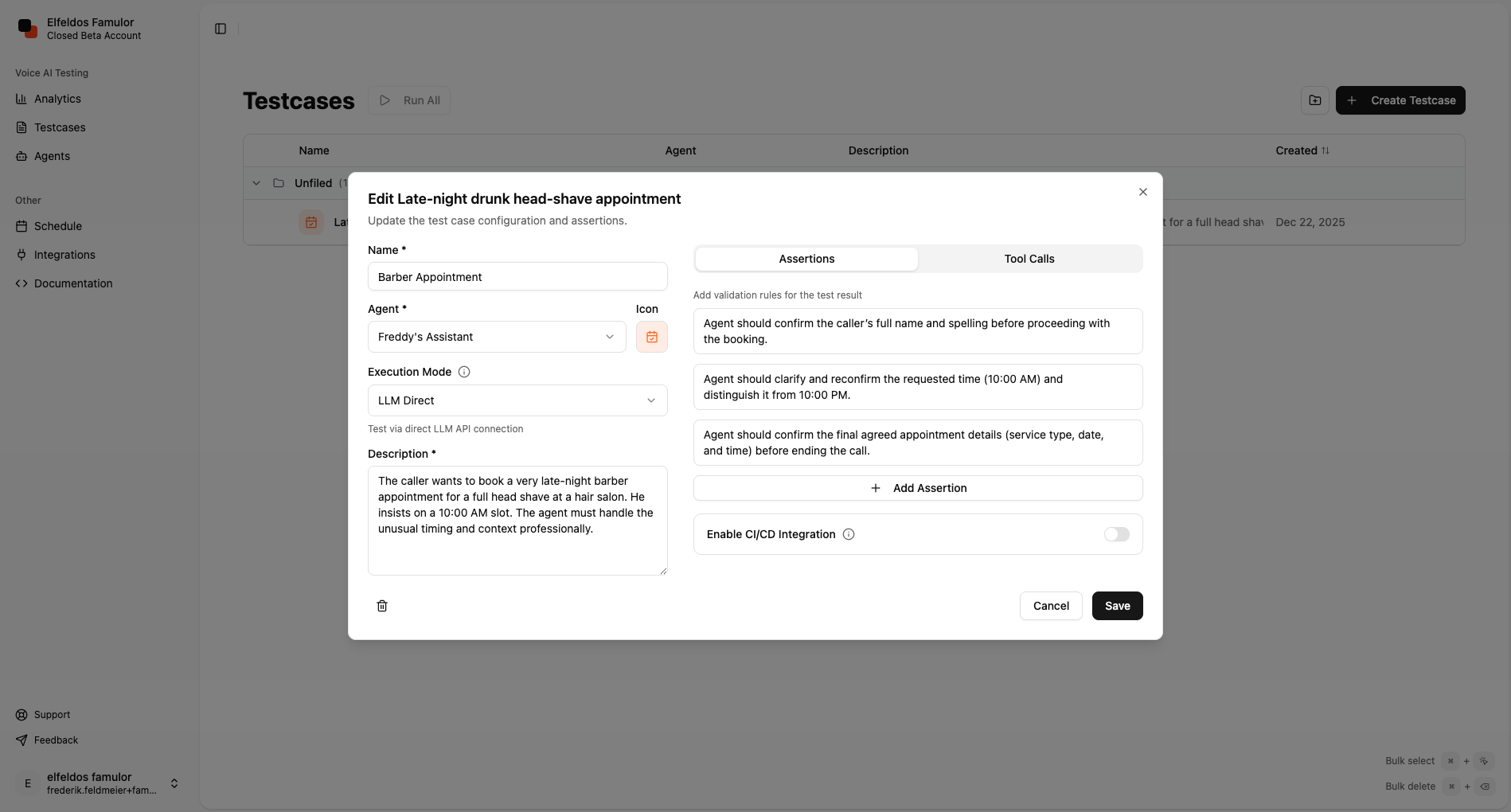
Each test case supports:\
• Input source (LLM text or voice audio)\
• Step sequences (multi-turn dialogues)\
• Assertions (text match, intent recognition, tool calls)
Based on your defined test case, you can automatically generate multiple scenarios to test a variety of possible conversations.
***
## Test Cases and Scenarios
A test case tests one task of your assistant (e.g., booking an appointment), while scenarios represent different variations of possible situations for that task (e.g., Appointment booking: Scenario 1 - booking for an older person with hearing difficulties; Scenario 2 - booking for a grumpy young man).
***
## Testing Modes
You can test on two levels:
• **LLM level**
* Direct testing of text logic: prompts, tools, decision trees, and response formats.
* Ideal for rapid iteration, deterministic checks, and prompt fine-tuning.
• **Voice-to-Voice**
* End-to-end telephony with audio: STT → LLM → TTS, including pauses, interruptions, pronunciation, latency.
* Realistic testing of voices, accents, background noise, and timing.
***
## Execution & Reporting
• Run individual tests or test suites\
• Configurable repetitions and randomization\
• Detailed logs: turn-by-turn transcripts, tool calls, variables\
• Result metrics: easily test everything and get an overview of how your voice agents perform after changes
***
## Best Practices
• Use real transcripts as a basis for regression tests.\
• Define clear success criteria for each use case (e.g., “Appointment created” or “Qualification complete”).\
• Test multi-turn conversations including interruptions and clarifications.\
• Measure latency and error resilience (handling noise, dialects, background sounds).
More information here: [Cledon](https://cledon.ai/?slug=aa5976c9-02e3-4e3b-85bf-866bcae990eb)
Related pages: [What Is AI Assistant](/en/ai-assistants/what-is-ai-assistant) and [Prompt And Tools](/en/ai-assistants/prompt-and-tools), and [Assistant Best Practices](/en/ai-assistants/assistant-best-practices).
 ***
### 3. Import or Manually Create Assistants
You have two options to add your voice agents/assistants in Cledon:
• **Import assistants from Famulor:**
1. Click “Import Assistants.”
2. Select the desired assistants from your Famulor tenant.
3. Metadata such as name, ID, system prompt, tool calls, and relevant configurations are automatically imported.
• **Manually create:**
1. Click “Create New Agent.”
2. Manually link the agent in Cledon to your Famulor assistant by specifying the name and Assistant ID.
***
### 3. Import or Manually Create Assistants
You have two options to add your voice agents/assistants in Cledon:
• **Import assistants from Famulor:**
1. Click “Import Assistants.”
2. Select the desired assistants from your Famulor tenant.
3. Metadata such as name, ID, system prompt, tool calls, and relevant configurations are automatically imported.
• **Manually create:**
1. Click “Create New Agent.”
2. Manually link the agent in Cledon to your Famulor assistant by specifying the name and Assistant ID.
 ***
### 4. Creating Test Cases
Create structured test cases that define what, how, and with which expected values will be tested. There are several approaches:
• **Based on existing Famulor calls (automatic import)**
* Import past call transcripts and results directly from Famulor.
* Convert them into repeatable test cases (including expected outcomes, tool calls, and metrics).
• **Based on other telephony transcripts (copy & paste)**
* Paste transcript text from other platforms.
* Highlight relevant sections and define expected outcomes (e.g., “Agent asks for email,” “Appointment is confirmed”).
• **Manual creation**
* Manually define the scenario, inputs (user utterances), expected agent responses/actions, and success criteria.
Each test case supports:\
• Input source (LLM text or voice audio)\
• Step sequences (multi-turn dialogues)\
• Assertions (text match, intent recognition, tool calls)
Based on your defined test case, you can automatically generate multiple scenarios to test a variety of possible conversations.
***
### 4. Creating Test Cases
Create structured test cases that define what, how, and with which expected values will be tested. There are several approaches:
• **Based on existing Famulor calls (automatic import)**
* Import past call transcripts and results directly from Famulor.
* Convert them into repeatable test cases (including expected outcomes, tool calls, and metrics).
• **Based on other telephony transcripts (copy & paste)**
* Paste transcript text from other platforms.
* Highlight relevant sections and define expected outcomes (e.g., “Agent asks for email,” “Appointment is confirmed”).
• **Manual creation**
* Manually define the scenario, inputs (user utterances), expected agent responses/actions, and success criteria.
Each test case supports:\
• Input source (LLM text or voice audio)\
• Step sequences (multi-turn dialogues)\
• Assertions (text match, intent recognition, tool calls)
Based on your defined test case, you can automatically generate multiple scenarios to test a variety of possible conversations.
 ***
## Test Cases and Scenarios
A test case tests one task of your assistant (e.g., booking an appointment), while scenarios represent different variations of possible situations for that task (e.g., Appointment booking: Scenario 1 - booking for an older person with hearing difficulties; Scenario 2 - booking for a grumpy young man).
***
## Testing Modes
You can test on two levels:
• **LLM level**
* Direct testing of text logic: prompts, tools, decision trees, and response formats.
* Ideal for rapid iteration, deterministic checks, and prompt fine-tuning.
• **Voice-to-Voice**
* End-to-end telephony with audio: STT → LLM → TTS, including pauses, interruptions, pronunciation, latency.
* Realistic testing of voices, accents, background noise, and timing.
***
## Execution & Reporting
• Run individual tests or test suites\
• Configurable repetitions and randomization\
• Detailed logs: turn-by-turn transcripts, tool calls, variables\
• Result metrics: easily test everything and get an overview of how your voice agents perform after changes
***
## Best Practices
• Use real transcripts as a basis for regression tests.\
• Define clear success criteria for each use case (e.g., “Appointment created” or “Qualification complete”).\
• Test multi-turn conversations including interruptions and clarifications.\
• Measure latency and error resilience (handling noise, dialects, background sounds).
More information here: [Cledon](https://cledon.ai/?slug=aa5976c9-02e3-4e3b-85bf-866bcae990eb)
***
## Test Cases and Scenarios
A test case tests one task of your assistant (e.g., booking an appointment), while scenarios represent different variations of possible situations for that task (e.g., Appointment booking: Scenario 1 - booking for an older person with hearing difficulties; Scenario 2 - booking for a grumpy young man).
***
## Testing Modes
You can test on two levels:
• **LLM level**
* Direct testing of text logic: prompts, tools, decision trees, and response formats.
* Ideal for rapid iteration, deterministic checks, and prompt fine-tuning.
• **Voice-to-Voice**
* End-to-end telephony with audio: STT → LLM → TTS, including pauses, interruptions, pronunciation, latency.
* Realistic testing of voices, accents, background noise, and timing.
***
## Execution & Reporting
• Run individual tests or test suites\
• Configurable repetitions and randomization\
• Detailed logs: turn-by-turn transcripts, tool calls, variables\
• Result metrics: easily test everything and get an overview of how your voice agents perform after changes
***
## Best Practices
• Use real transcripts as a basis for regression tests.\
• Define clear success criteria for each use case (e.g., “Appointment created” or “Qualification complete”).\
• Test multi-turn conversations including interruptions and clarifications.\
• Measure latency and error resilience (handling noise, dialects, background sounds).
More information here: [Cledon](https://cledon.ai/?slug=aa5976c9-02e3-4e3b-85bf-866bcae990eb)