> ## Documentation Index
> Fetch the complete documentation index at: https://docs.famulor.io/llms.txt
> Use this file to discover all available pages before exploring further.
# Building Flows
> Learn how to build automation flows with triggers and actions to automate your AI call workflows
## What is a Flow?
A **flow** is an automation workflow that connects triggers (events that start the flow) with actions (tasks that execute when triggered). Flows help you automate post-call processing, integrate with external systems, and enhance your AI calling capabilities.
## Understanding Flow Components
### Trigger: The Starting Point
The **trigger** is the event that starts your flow. It determines when and how often the flow executes.
**Available Trigger Types:**
* **Call Ended Trigger**: Activates when an AI call completes
* **Inbound Call Variable Injection**: Triggers before the AI assistant picks up an incoming call
* **Schedule Trigger**: Runs at specific times or intervals
* **Webhook Trigger**: Activates when an external system sends a webhook
* **Event Trigger**: Responds to specific service events
Each trigger provides different data and context. For example, the "Call Ended" trigger gives you access to the full conversation transcript, call duration, and outcome.
### Action: What Happens Next
**Actions** define what occurs when the flow is activated. They control the automation tasks that execute after the trigger fires.
**Common Action Types:**
* **CRM Updates**: Update HubSpot, Salesforce, or other CRM systems
* **Data Storage**: Save call data to Google Sheets, databases, or files
* **Notifications**: Send emails, SMS, or Slack messages
* **Webhooks**: Trigger external APIs or custom integrations
* **Campaign Management**: Add leads to campaigns or update lead status
* **Code Execution**: Run custom JavaScript code for complex logic
## Real-World Flow Example
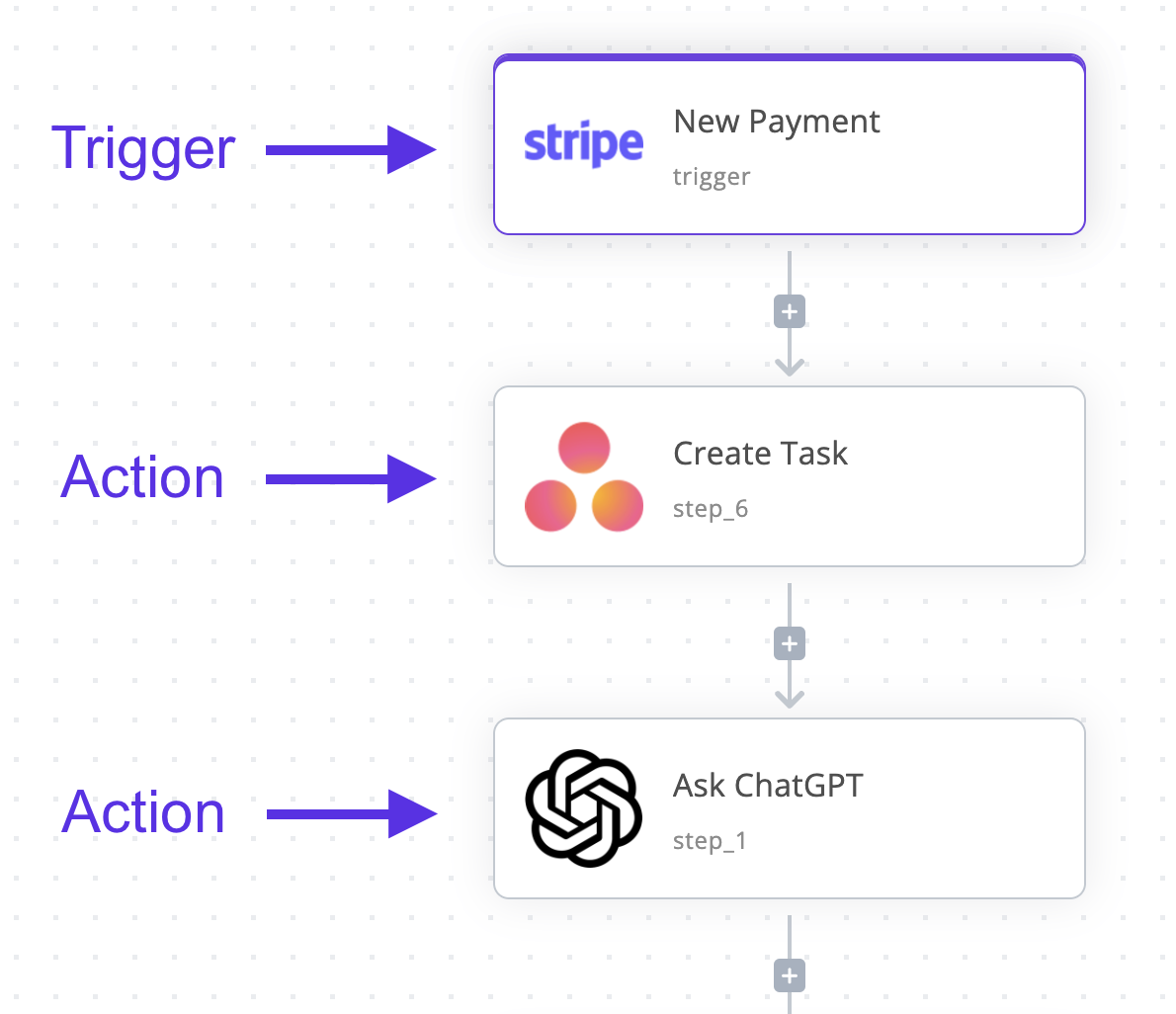 **Example: Post-Call CRM Update Flow**
1. **Trigger**: Call Ended
2. **Action 1**: Extract key information from transcript (e.g., customer name, inquiry type)
3. **Action 2**: Update HubSpot contact with call outcome
4. **Action 3**: Send email notification to sales team if lead is qualified
## Best Practices for Building Flows
### Start Simple
Begin with a single trigger and one action. Test thoroughly before adding complexity.
### Use Variables Effectively
Leverage data from triggers (like call transcripts or lead information) to personalize actions.
### Handle Errors
Add error handling for actions that might fail (API timeouts, invalid data, etc.).
### Test Your Flows
Use the debugging tools to test flows before deploying them to production.
***
**Next Steps**
* Learn about [Passing Data Between Actions](/en/automation-platform/passing-data)
* Explore [Publishing and Versioning Flows](/en/automation-platform/publishing-flows)
* Check [Common Integrations](/en/automation-platform/calls-related/common-integrations) for ready-made actions
**Example: Post-Call CRM Update Flow**
1. **Trigger**: Call Ended
2. **Action 1**: Extract key information from transcript (e.g., customer name, inquiry type)
3. **Action 2**: Update HubSpot contact with call outcome
4. **Action 3**: Send email notification to sales team if lead is qualified
## Best Practices for Building Flows
### Start Simple
Begin with a single trigger and one action. Test thoroughly before adding complexity.
### Use Variables Effectively
Leverage data from triggers (like call transcripts or lead information) to personalize actions.
### Handle Errors
Add error handling for actions that might fail (API timeouts, invalid data, etc.).
### Test Your Flows
Use the debugging tools to test flows before deploying them to production.
***
**Next Steps**
* Learn about [Passing Data Between Actions](/en/automation-platform/passing-data)
* Explore [Publishing and Versioning Flows](/en/automation-platform/publishing-flows)
* Check [Common Integrations](/en/automation-platform/calls-related/common-integrations) for ready-made actions