> ## Documentation Index
> Fetch the complete documentation index at: https://docs.famulor.io/llms.txt
> Use this file to discover all available pages before exploring further.
# Claude & ChatGPT Connector (MCP)
> Build and run your AI phone agents straight from Claude or ChatGPT — over a secure, one-time OAuth connection.
# Claude & ChatGPT Connector (MCP)
> Build and run your AI phone agents straight from Claude or ChatGPT — over a secure, one-time OAuth connection.
The Famulor connector lets you **build and operate your AI phone agents straight from Claude or
ChatGPT**. Instead of clicking through the dashboard, you just describe what you want — and your AI
assistant does it on your account:
* *"Create an inbound receptionist that books appointments."*
* *"Show me why my last campaign call failed."*
* *"Add three leads to my follow-up campaign and start it."*
It's a **remote MCP server** secured with **OAuth 2.0**. You connect once, sign in to approve, and
every action stays scoped to **your own Famulor account** — the connector only ever sees and
changes your data.
## What you can do
Inbound and outbound: system prompt, voice, language, model and call behaviour. Attach
knowledge bases (your documents) and mid-call tools (live API lookups during a call).
Create campaigns, add and manage leads, and start, pause or resume them.
List calls, read full transcripts and post-call evaluations, then update the assistant or its
tools — a complete build → review → improve loop.
Knowledge bases & documents, phone numbers & SIP trunks, WhatsApp senders & templates,
conversations, folders, labels, API keys and your blacklist.
Read and write are separate tools. Actions that **spend balance** (placing a call, sending
SMS/WhatsApp, buying a number) or **delete data** always ask for confirmation first. Integration
secrets (e.g. auth tokens on your mid-call tools) are **masked** in responses.
## Before you start
* A **Famulor account** at [app.famulor.de](https://app.famulor.de).
* An **active plan** for the features you use (some actions consume call minutes or chat credits).
### Your connection link
This is the secure address Claude and ChatGPT use to reach your account. Copy it — you'll paste it
during setup, then sign in to approve.
```
https://app.famulor.de/mcp
```
## Add the connector
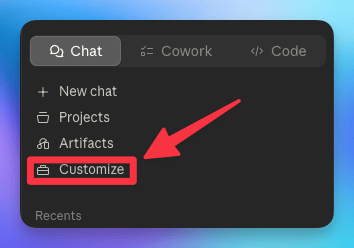
In Claude, open the left sidebar and click **Customize**.
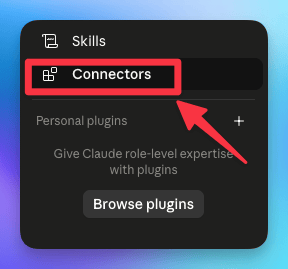
 In the Customize panel, click **Connectors**.
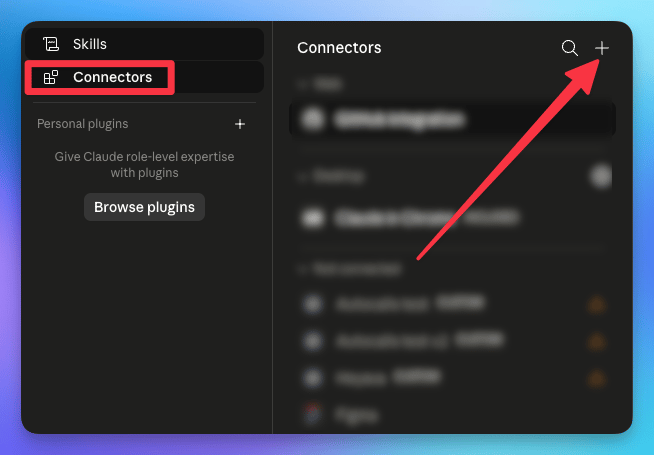
 Click the **+** button in the top-right of the Connectors panel, then choose **Add custom
connector**.
Click the **+** button in the top-right of the Connectors panel, then choose **Add custom
connector**.
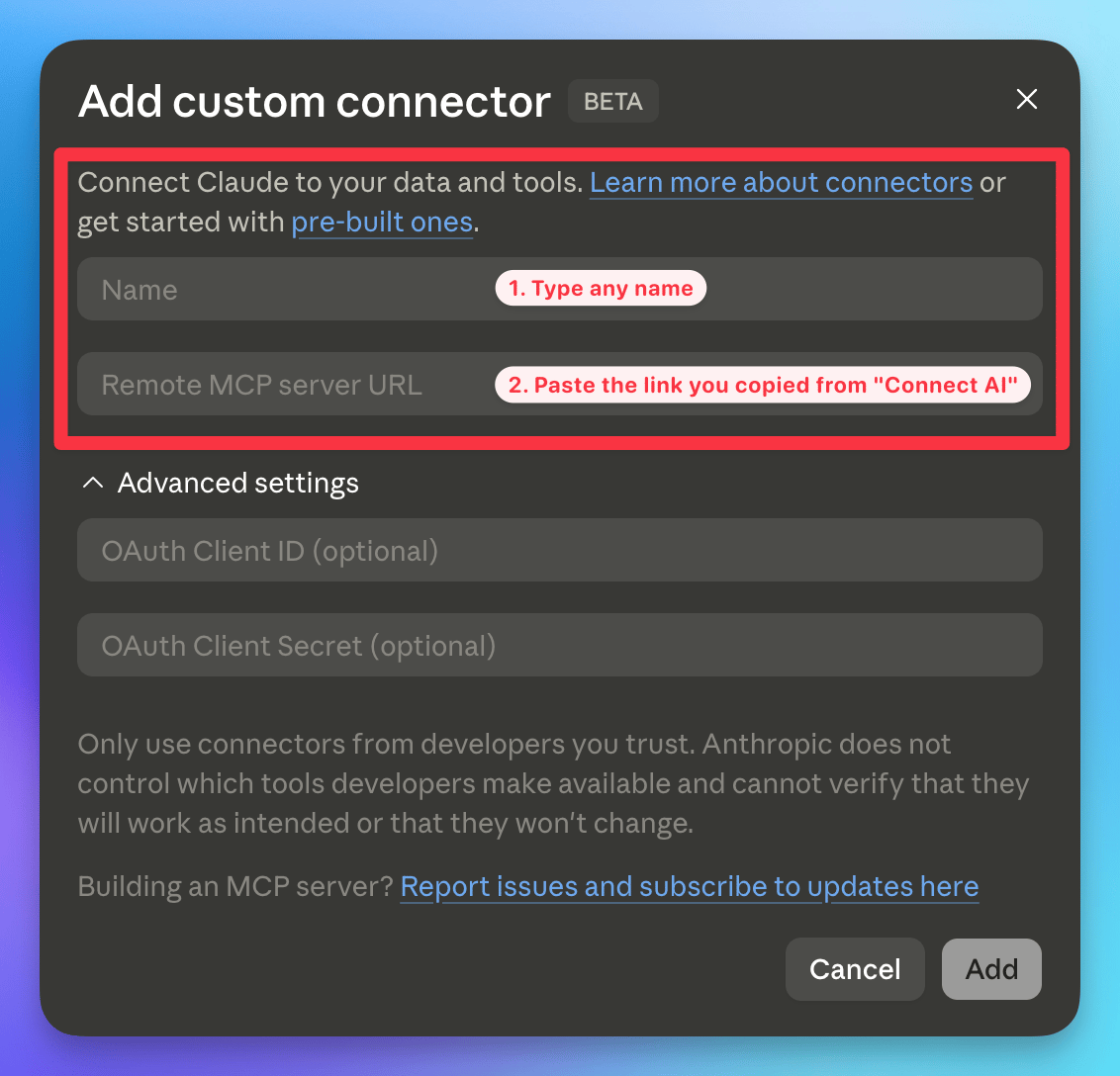
 Type any name (e.g. *Famulor*), paste your connection link into **Remote MCP server URL**,
leave the OAuth fields empty, then click **Add**.
Type any name (e.g. *Famulor*), paste your connection link into **Remote MCP server URL**,
leave the OAuth fields empty, then click **Add**.
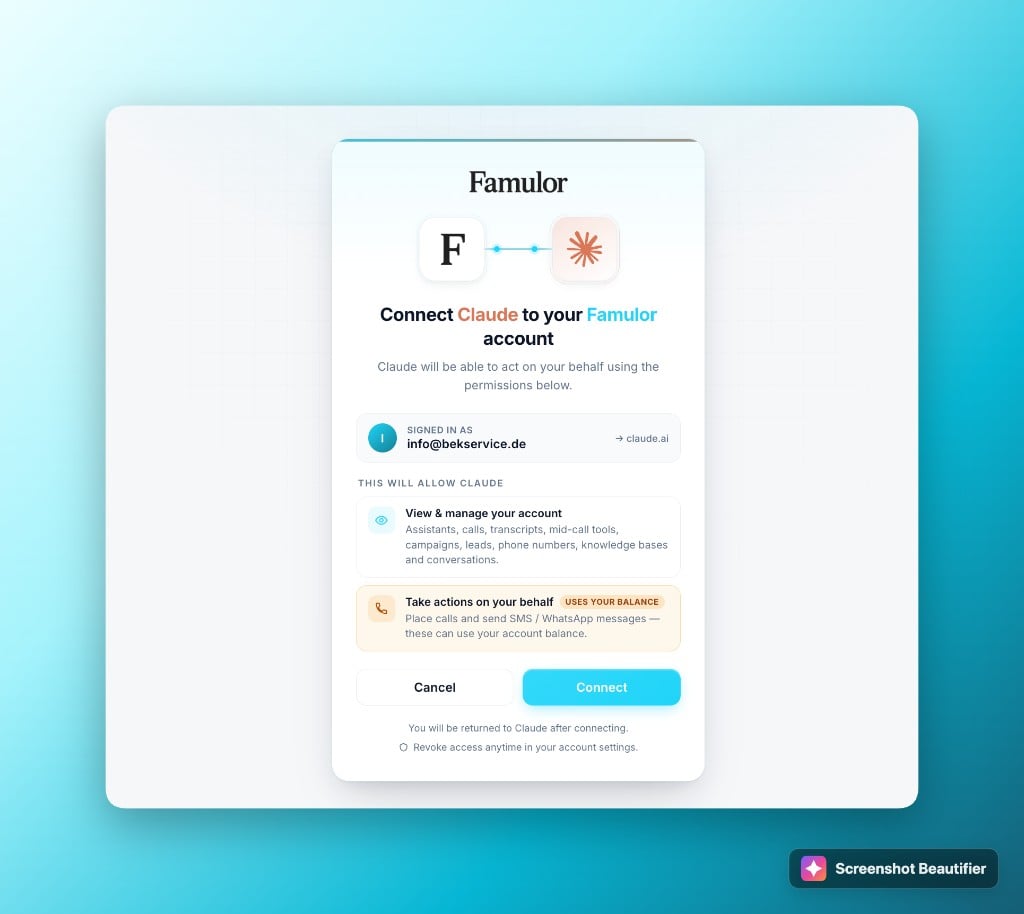
 After you click **Add**, your browser opens Famulor's OAuth consent screen. Review the
permissions, then click **Connect**. Your tools then appear in Claude — you're connected.
After you click **Add**, your browser opens Famulor's OAuth consent screen. Review the
permissions, then click **Connect**. Your tools then appear in Claude — you're connected.
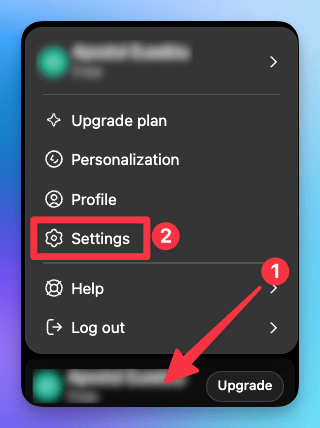
 In ChatGPT, click your name at the bottom-left, then **Settings**.
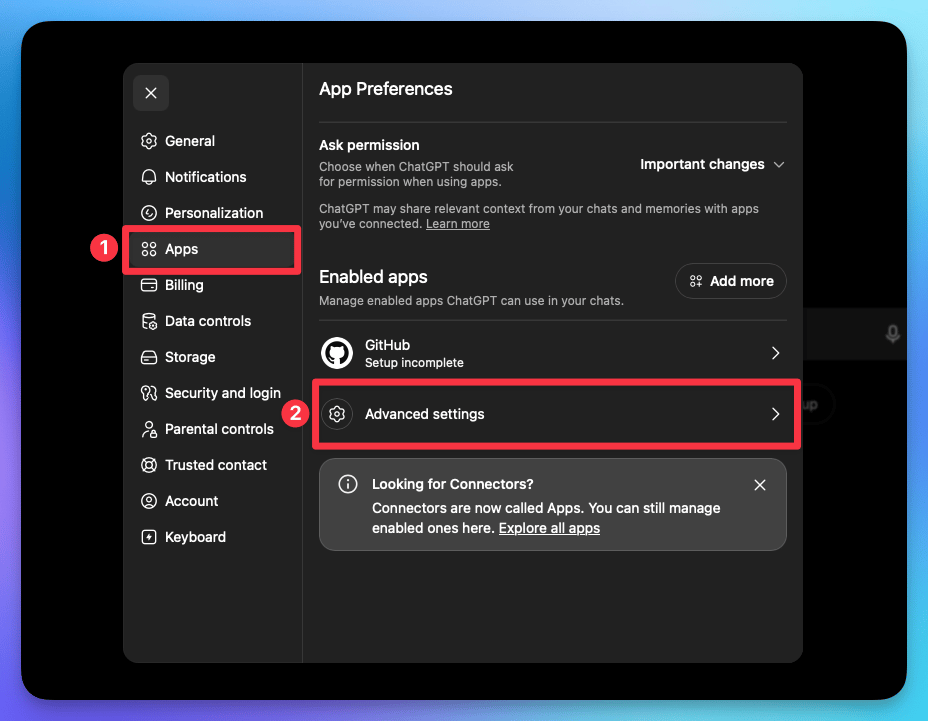
 Open the **Apps** tab (connectors now live under "Apps"), then open **Advanced settings**.
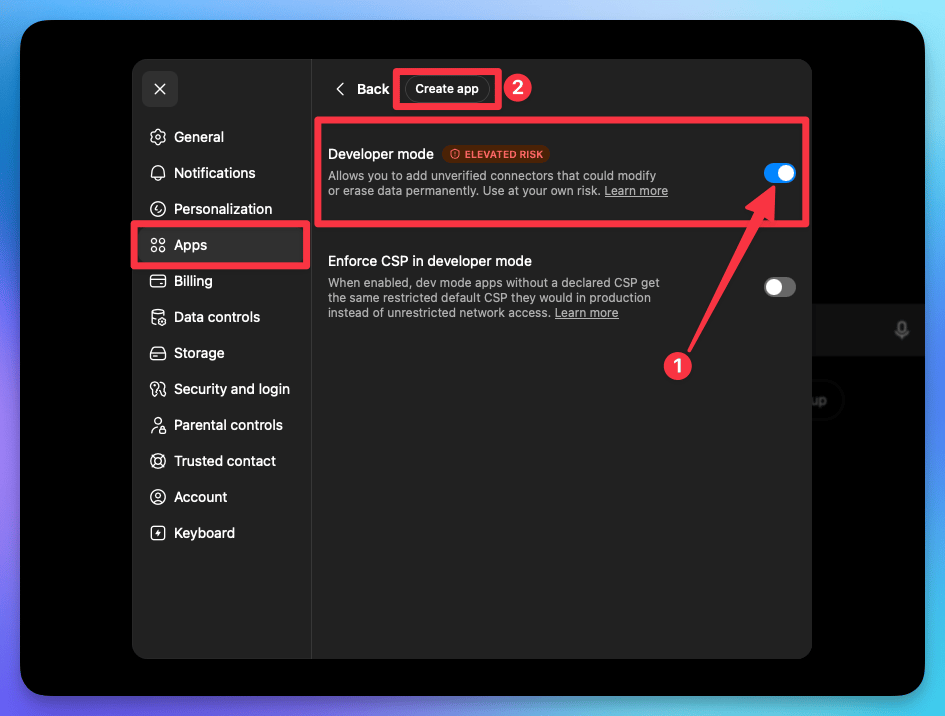
 Switch on **Developer mode** (this lets you add a custom connector), then click **Create app**
at the top.
Switch on **Developer mode** (this lets you add a custom connector), then click **Create app**
at the top.
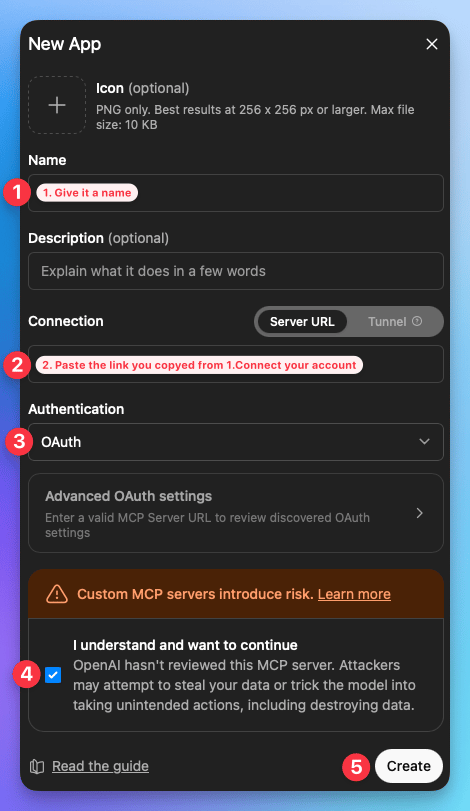
 Give it a name, paste your connection link into the **Server URL** field, set
**Authentication** to **OAuth**, tick *"I understand and want to continue"*, then **Create**.
Give it a name, paste your connection link into the **Server URL** field, set
**Authentication** to **OAuth**, tick *"I understand and want to continue"*, then **Create**.
 Your browser opens Famulor's OAuth consent screen. Review the permissions, then click
**Connect**.
Once the connector is listed in the Claude and ChatGPT directories, you'll also be able to add it in
one click by searching for **Famulor** under Settings → Connectors — no manual URL needed.
## Try it
Start a new chat in Claude or ChatGPT and ask, for example:
"Create an inbound receptionist for my dental clinic that books appointments and answers FAQs."
"Read my last 5 calls and tell me what my assistant got wrong."
"Create a mid-call tool that looks up an order by number from our API."
"Set up an outbound campaign for this week's leads and start it."
## Security & privacy
* **OAuth 2.0** with a branded consent screen — no API key is ever pasted into the chat client.
* **Scoped to your account** — the connector can only see and change your own data.
* **Secrets masked** — auth tokens stored on your tools are never returned in plain text.
* **No chat-history harvesting** — the connector acts only on your Famulor resources.
* Privacy policy: [famulor.io/privacy](https://www.famulor.io/privacy).
## FAQ
This guide covers **Claude** and **ChatGPT**. The connector is a standard remote MCP server, so it
also works with any other MCP-compatible client (for example Cursor or VS Code) — the setup is the
same: add a custom connector and paste your connection link. See also [MCP Client](/en/mcp/client).
No. Connection is handled by **OAuth** — you simply sign in to your Famulor account and approve.
No key is pasted into the chat app.
Yes. Every tool is scoped to your own authenticated account, write and destructive actions ask for
confirmation, and any integration secrets you've stored are masked in responses.
Only when you explicitly ask it to place a call or send an SMS/WhatsApp — and it confirms first.
Building and editing assistants, reading calls, and managing your account don't place calls.
This block comes from **OpenAI's own safety layer inside ChatGPT**, not from Famulor. When ChatGPT is
about to trigger a tool that places a real outbound phone call, OpenAI's policy on AI agents
initiating phone calls stops it before the request ever reaches us. We can't override OpenAI's
decision from our side, and it mainly affects the **ChatGPT browser**.
Things that work:
* **ChatGPT desktop app** or an **OpenAI agent** — the same call goes through there.
* **Claude** — the call works there too, including placing a reminder call through the assistant.
* **Schedule an outbound campaign** — for reminder calls ("call John at 16:00"), set up a
[scheduled outbound campaign](/en/outbound-calls/campaigns) (assistant + contact + time) from the dashboard or via the [API](/en/api-reference/introduction) /
[Automate](/en/automation-platform/introduction). It never goes through ChatGPT's safety layer, so it's never blocked.
A native ChatGPT integration is in review with OpenAI and coming soon.
## Support
Questions? Email [support@famulor.io](mailto:support@famulor.io) or browse the rest of the
[documentation](/en/introduction/what-is-Famulor).
Your browser opens Famulor's OAuth consent screen. Review the permissions, then click
**Connect**.
Once the connector is listed in the Claude and ChatGPT directories, you'll also be able to add it in
one click by searching for **Famulor** under Settings → Connectors — no manual URL needed.
## Try it
Start a new chat in Claude or ChatGPT and ask, for example:
"Create an inbound receptionist for my dental clinic that books appointments and answers FAQs."
"Read my last 5 calls and tell me what my assistant got wrong."
"Create a mid-call tool that looks up an order by number from our API."
"Set up an outbound campaign for this week's leads and start it."
## Security & privacy
* **OAuth 2.0** with a branded consent screen — no API key is ever pasted into the chat client.
* **Scoped to your account** — the connector can only see and change your own data.
* **Secrets masked** — auth tokens stored on your tools are never returned in plain text.
* **No chat-history harvesting** — the connector acts only on your Famulor resources.
* Privacy policy: [famulor.io/privacy](https://www.famulor.io/privacy).
## FAQ
This guide covers **Claude** and **ChatGPT**. The connector is a standard remote MCP server, so it
also works with any other MCP-compatible client (for example Cursor or VS Code) — the setup is the
same: add a custom connector and paste your connection link. See also [MCP Client](/en/mcp/client).
No. Connection is handled by **OAuth** — you simply sign in to your Famulor account and approve.
No key is pasted into the chat app.
Yes. Every tool is scoped to your own authenticated account, write and destructive actions ask for
confirmation, and any integration secrets you've stored are masked in responses.
Only when you explicitly ask it to place a call or send an SMS/WhatsApp — and it confirms first.
Building and editing assistants, reading calls, and managing your account don't place calls.
This block comes from **OpenAI's own safety layer inside ChatGPT**, not from Famulor. When ChatGPT is
about to trigger a tool that places a real outbound phone call, OpenAI's policy on AI agents
initiating phone calls stops it before the request ever reaches us. We can't override OpenAI's
decision from our side, and it mainly affects the **ChatGPT browser**.
Things that work:
* **ChatGPT desktop app** or an **OpenAI agent** — the same call goes through there.
* **Claude** — the call works there too, including placing a reminder call through the assistant.
* **Schedule an outbound campaign** — for reminder calls ("call John at 16:00"), set up a
[scheduled outbound campaign](/en/outbound-calls/campaigns) (assistant + contact + time) from the dashboard or via the [API](/en/api-reference/introduction) /
[Automate](/en/automation-platform/introduction). It never goes through ChatGPT's safety layer, so it's never blocked.
A native ChatGPT integration is in review with OpenAI and coming soon.
## Support
Questions? Email [support@famulor.io](mailto:support@famulor.io) or browse the rest of the
[documentation](/en/introduction/what-is-Famulor).