> ## Documentation Index
> Fetch the complete documentation index at: https://docs.famulor.io/llms.txt
> Use this file to discover all available pages before exploring further.
# MCP Servers
> Connect remote Model Context Protocol (MCP) servers so your AI assistant can use external tools during voice and chat conversations
MCP servers let your AI assistant pull live data and trigger actions in external systems — like HubSpot, your internal APIs, or knowledge tools — right in the middle of a conversation. Connect a server once, assign it to any assistant, and its tools become available to the AI automatically.
## What is an MCP server?
The [Model Context Protocol](https://modelcontextprotocol.io) (MCP) is an open standard for exposing tools to AI models. An **MCP server** is simply a remote HTTP endpoint that speaks this protocol. You don't install anything — you paste the server's URL (and optional authentication headers), and the assistant can call its tools while talking to your customer.
* Add whole toolsets (e.g. a HubSpot or Notion integration) in one step instead of building tools one by one
* Tools, descriptions and parameters are discovered automatically from the server
* Works across voice calls, the web widget, and chat
* Reuse one server across many assistants
## Mid-call tools vs. MCP servers
Both live under the **Tools** page. Use whichever fits:
A single custom HTTP endpoint you define by hand (URL, method, parameters). Best for one-off calls to your own API. See [Custom Mid-Call Tools](/en/ai-assistants/custom-mid-call-tools).
A remote server that exposes **many** tools at once, discovered automatically. Best for connecting to a platform or a shared integration.
## Connecting a server
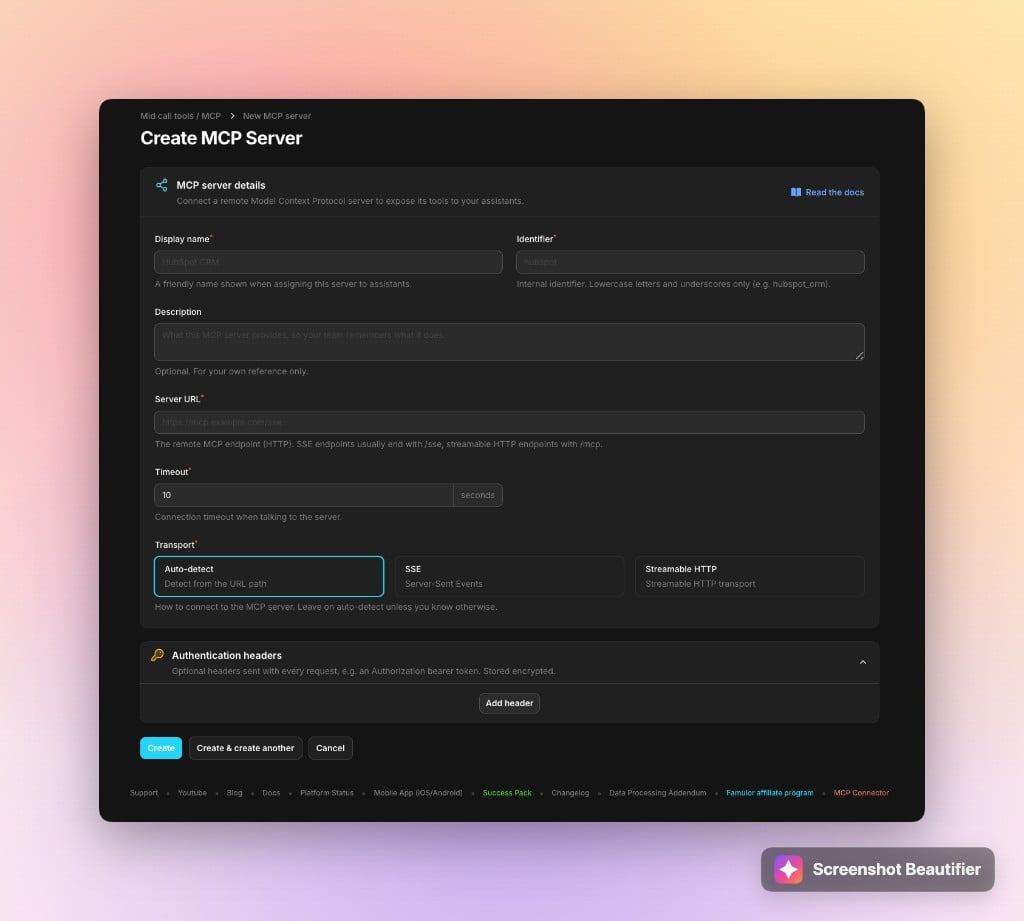 Go to **Tools** in the sidebar and switch to the **MCP servers** tab, then click **New MCP server**.
* **Display name**: a friendly name shown when assigning the server (e.g. `HubSpot CRM`)
* **Identifier**: an internal id, lowercase letters and underscores only (e.g. `hubspot`)
* **Description**: optional, for your own reference
* **Server URL**: the remote MCP endpoint
* **Timeout**: how long to wait when connecting to the server
Leave this on **Auto-detect** unless you know otherwise. Auto-detect picks the right transport from the URL:
```
URL ends with /mcp → Streamable HTTP
URL ends with /sse → SSE (Server-Sent Events)
```
If the server requires a token, add it as a header. Headers are **stored encrypted**.
```
Authorization: Bearer your_token_here
```
When you save, the server is tested automatically and a notification lists the tools it exposes.
### Try it for free
**Example 1 — DeepWiki (no authentication)**
Want to test MCP without any setup? Connect the public **DeepWiki** server:
* **Display name**: `DeepWiki`
* **Identifier**: `deepwiki`
* **Server URL**: `https://mcp.deepwiki.com/mcp`
* **Headers**: (none)
Then ask your assistant something like *"Use DeepWiki to summarize the facebook/react repository."*
**Example 2 — [AllAIThink](https://allaithink.com) (API key required)**
Connect the public AllAIThink MCP server for AI council, architecture review, code review, and more:
* **Display name**: `AllAIThink`
* **Identifier**: `allaithink`
* **Server URL**: `https://www.allaithink.com/mcp`
* **Headers**:
```
Authorization: Bearer
```
Available tools include `consult-council`, `design-architecture`, `review-code`, `debug-issue`, `plan-implementation`, `assess-tradeoffs`, `list-models`, and `check-usage`.
Then ask your assistant something like *"Use AllAIThink to review this architecture decision."*
## Connection status & discovered tools
Each server is shown as a card with a live connection status.
Go to **Tools** in the sidebar and switch to the **MCP servers** tab, then click **New MCP server**.
* **Display name**: a friendly name shown when assigning the server (e.g. `HubSpot CRM`)
* **Identifier**: an internal id, lowercase letters and underscores only (e.g. `hubspot`)
* **Description**: optional, for your own reference
* **Server URL**: the remote MCP endpoint
* **Timeout**: how long to wait when connecting to the server
Leave this on **Auto-detect** unless you know otherwise. Auto-detect picks the right transport from the URL:
```
URL ends with /mcp → Streamable HTTP
URL ends with /sse → SSE (Server-Sent Events)
```
If the server requires a token, add it as a header. Headers are **stored encrypted**.
```
Authorization: Bearer your_token_here
```
When you save, the server is tested automatically and a notification lists the tools it exposes.
### Try it for free
**Example 1 — DeepWiki (no authentication)**
Want to test MCP without any setup? Connect the public **DeepWiki** server:
* **Display name**: `DeepWiki`
* **Identifier**: `deepwiki`
* **Server URL**: `https://mcp.deepwiki.com/mcp`
* **Headers**: (none)
Then ask your assistant something like *"Use DeepWiki to summarize the facebook/react repository."*
**Example 2 — [AllAIThink](https://allaithink.com) (API key required)**
Connect the public AllAIThink MCP server for AI council, architecture review, code review, and more:
* **Display name**: `AllAIThink`
* **Identifier**: `allaithink`
* **Server URL**: `https://www.allaithink.com/mcp`
* **Headers**:
```
Authorization: Bearer
```
Available tools include `consult-council`, `design-architecture`, `review-code`, `debug-issue`, `plan-implementation`, `assess-tradeoffs`, `list-models`, and `check-usage`.
Then ask your assistant something like *"Use AllAIThink to review this architecture decision."*
## Connection status & discovered tools
Each server is shown as a card with a live connection status.
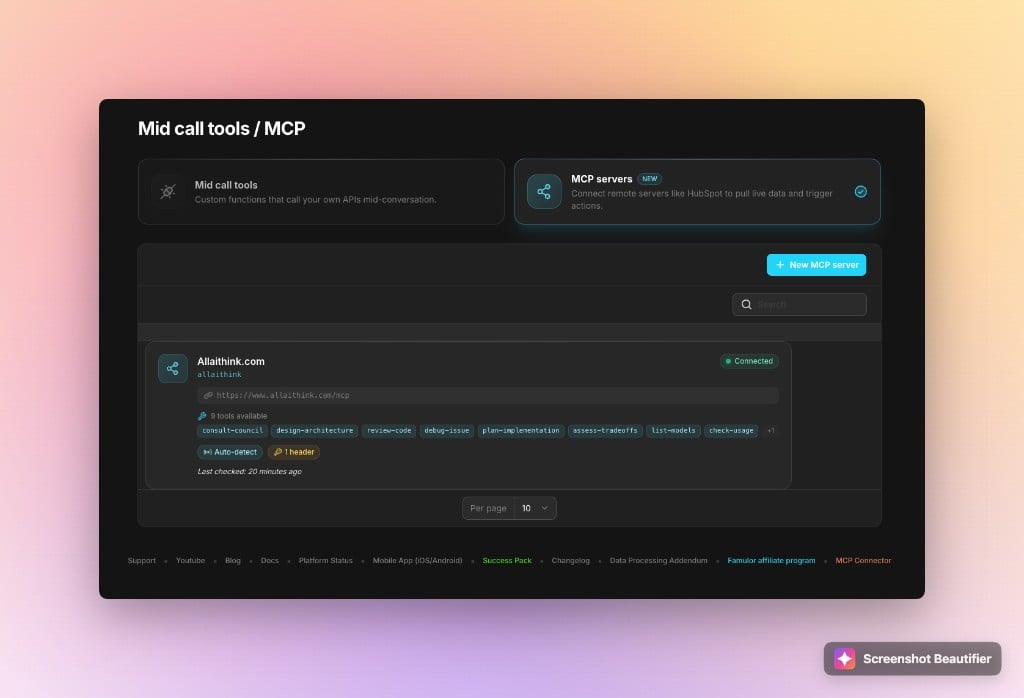 The server is reachable. Its available tools are listed on the card.
The server couldn't be reached. The error is shown so you can fix the URL or headers.
The server hasn't been checked yet.
Use **Test connection** at any time to re-check a server and refresh its tool list.
## Choosing which tools are exposed
By default, **all** of a server's tools are available to your assistants. Open **Manage tools** (on the server's edit page) to view each tool's description and parameters, and enable or disable individual tools.
Disabled tools are hidden from the AI. To expose **no** tools at all, simply remove the server from the assistant instead.
## Assigning a server to an assistant
Edit an assistant and go to the **Prompt & Tools** step.
In the **MCP servers** section, select one or more servers. The list shows each server's connection status and tool count.
The assistant can now use the server's enabled tools during voice calls, the web widget, and chat.
## Authentication
The integration sends **static headers** with each request. It does not perform an interactive OAuth login.
| Server authentication | Supported | How |
| ------------------------------------------------- | --------- | ----------------------------------------------- |
| No authentication | ✅ | Nothing to configure |
| API key / token | ✅ | Add an `Authorization` (or custom) header |
| Token embedded in the URL (e.g. Zapier, Composio) | ✅ | Paste the full URL |
| Interactive OAuth login | ❌ | Use a personal access token in a header instead |
## Real-world examples
```
Display name: DeepWiki
Identifier: deepwiki
Server URL: https://mcp.deepwiki.com/mcp
Headers: (none)
Tools: read_wiki_structure, read_wiki_contents, ask_question
```
The assistant can answer questions about any public GitHub repository.
```
Display name: AllAIThink
Identifier: allaithink
Server URL: https://www.allaithink.com/mcp
Headers:
Authorization: Bearer
Tools: consult-council, design-architecture, review-code, debug-issue,
plan-implementation, assess-tradeoffs, list-models, check-usage
```
The assistant can run multi-model reviews, architecture checks, and debugging workflows mid-conversation. Get an API key at [allaithink.com](https://allaithink.com).
```
Display name: HubSpot CRM
Identifier: hubspot
Server URL: https://your-mcp-host.example.com/mcp
Headers:
Authorization: Bearer pat-xxxxxxxx
```
The assistant can look up contacts, create deals, or update records during a call.
## Best practices & security
Only connect MCP servers you trust. The tools and the data they return are provided by the remote server and are passed to the AI during live conversations.
* Keep tokens scoped to the minimum permissions the assistant needs.
* Use **Manage tools** to expose only the tools an assistant actually requires.
* Give each tool a clear name and description on the server so the AI knows when to use it.
* Mention the available capabilities in your assistant's [system prompt](/en/ai-assistants/system-prompt) so it uses them at the right moments.
Test with simple conversations first and confirm the assistant calls the right tool with the right parameters before going live.
Related pages: [Custom Mid-Call Tools](/en/ai-assistants/custom-mid-call-tools), [Prompt & Tools](/en/ai-assistants/prompt-and-tools), and [MCP Client](/en/mcp/client).
The server is reachable. Its available tools are listed on the card.
The server couldn't be reached. The error is shown so you can fix the URL or headers.
The server hasn't been checked yet.
Use **Test connection** at any time to re-check a server and refresh its tool list.
## Choosing which tools are exposed
By default, **all** of a server's tools are available to your assistants. Open **Manage tools** (on the server's edit page) to view each tool's description and parameters, and enable or disable individual tools.
Disabled tools are hidden from the AI. To expose **no** tools at all, simply remove the server from the assistant instead.
## Assigning a server to an assistant
Edit an assistant and go to the **Prompt & Tools** step.
In the **MCP servers** section, select one or more servers. The list shows each server's connection status and tool count.
The assistant can now use the server's enabled tools during voice calls, the web widget, and chat.
## Authentication
The integration sends **static headers** with each request. It does not perform an interactive OAuth login.
| Server authentication | Supported | How |
| ------------------------------------------------- | --------- | ----------------------------------------------- |
| No authentication | ✅ | Nothing to configure |
| API key / token | ✅ | Add an `Authorization` (or custom) header |
| Token embedded in the URL (e.g. Zapier, Composio) | ✅ | Paste the full URL |
| Interactive OAuth login | ❌ | Use a personal access token in a header instead |
## Real-world examples
```
Display name: DeepWiki
Identifier: deepwiki
Server URL: https://mcp.deepwiki.com/mcp
Headers: (none)
Tools: read_wiki_structure, read_wiki_contents, ask_question
```
The assistant can answer questions about any public GitHub repository.
```
Display name: AllAIThink
Identifier: allaithink
Server URL: https://www.allaithink.com/mcp
Headers:
Authorization: Bearer
Tools: consult-council, design-architecture, review-code, debug-issue,
plan-implementation, assess-tradeoffs, list-models, check-usage
```
The assistant can run multi-model reviews, architecture checks, and debugging workflows mid-conversation. Get an API key at [allaithink.com](https://allaithink.com).
```
Display name: HubSpot CRM
Identifier: hubspot
Server URL: https://your-mcp-host.example.com/mcp
Headers:
Authorization: Bearer pat-xxxxxxxx
```
The assistant can look up contacts, create deals, or update records during a call.
## Best practices & security
Only connect MCP servers you trust. The tools and the data they return are provided by the remote server and are passed to the AI during live conversations.
* Keep tokens scoped to the minimum permissions the assistant needs.
* Use **Manage tools** to expose only the tools an assistant actually requires.
* Give each tool a clear name and description on the server so the AI knows when to use it.
* Mention the available capabilities in your assistant's [system prompt](/en/ai-assistants/system-prompt) so it uses them at the right moments.
Test with simple conversations first and confirm the assistant calls the right tool with the right parameters before going live.
Related pages: [Custom Mid-Call Tools](/en/ai-assistants/custom-mid-call-tools), [Prompt & Tools](/en/ai-assistants/prompt-and-tools), and [MCP Client](/en/mcp/client).