> ## Documentation Index
> Fetch the complete documentation index at: https://docs.famulor.io/llms.txt
> Use this file to discover all available pages before exploring further.
# 3CX Integration
> Connect your 3CX phone system with Famulor AI voice agents via SIP trunking. Step-by-step setup for inbound and outbound calls handled by an AI assistant.
**Done for you — any region, any country (our EU partner carrier)**
If you prefer not to configure a SIP trunk or import numbers yourself, our **EU partner carrier** can supply **local numbers in any region and any country**, set up the **SIP trunk**, and **import the connection into Famulor** for you. Provisioning runs **end-to-end through the partner** (carrier-side), so you skip DIY trunk and number import in Famulor.
* **Custom number region / full-service onboarding:** [Famulor Custom Number Region form](https://tally.so/r/w4bN2Y)
* **More detail or bespoke options:** [support@famulor.de](mailto:support@famulor.de)
# 3CX
> How to connect your 3CX system with Famulor
**Important:** 3CX systems include many hosting-level and carrier-level settings that can affect the connection.
We do our best to support you at [support@famulor.io](mailto:support@famulor.io), but due to limited settings available on our side, we cannot guarantee every setup.
### Create a trunk in 3CX
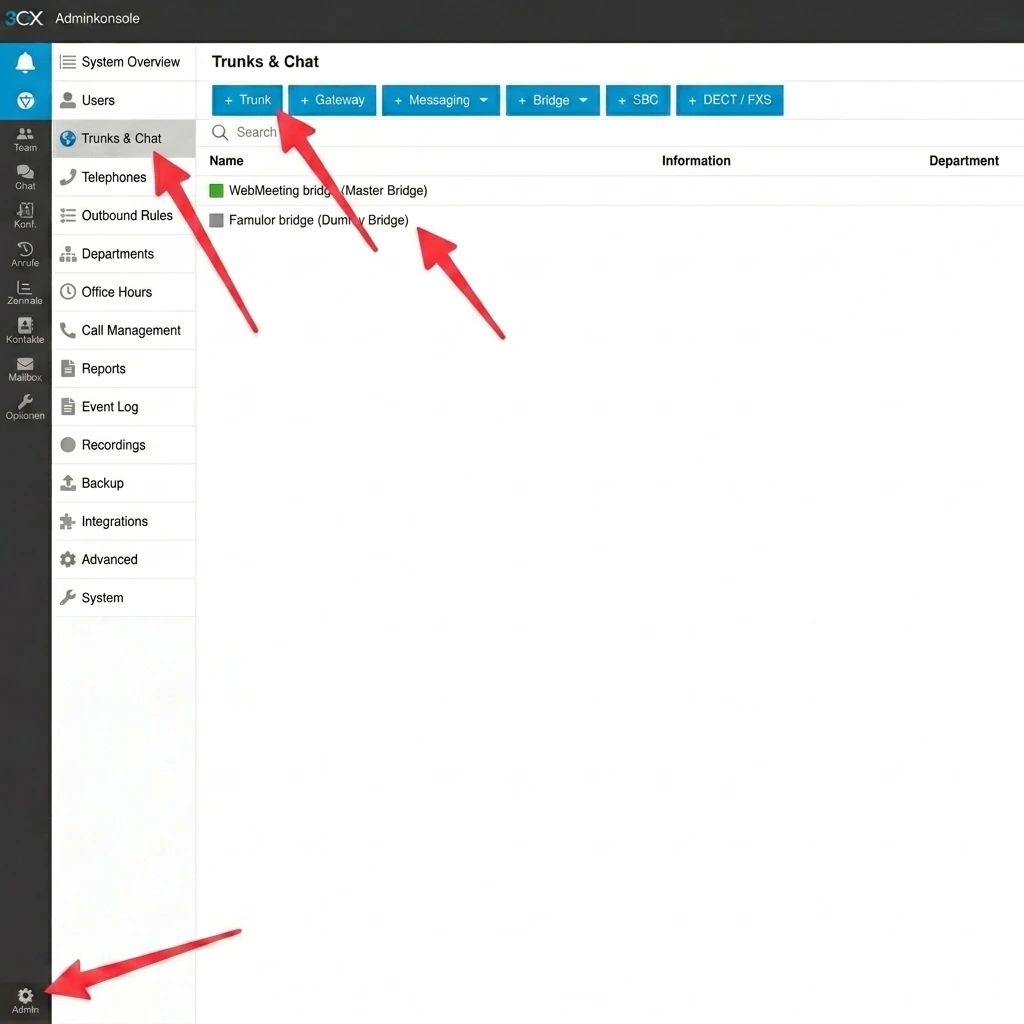
In the 3CX admin interface, go to **"Trunks & Chat"** and create a new trunk using **+Trunk**.
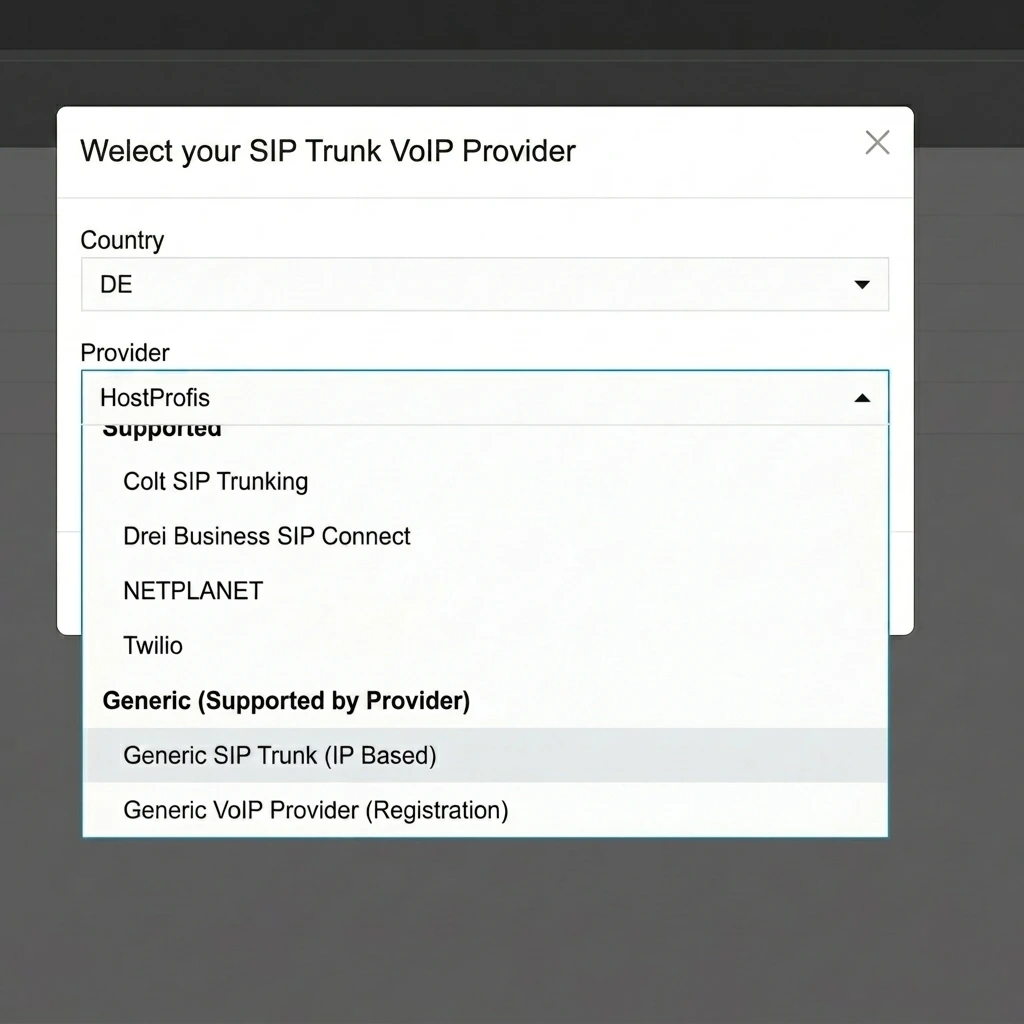
 Choose **"Generic SIP Trunk (IP Based)"**.
**Plan tier:** Generic SIP Trunk (IP Based) is exposed on hosted 3CX **StartUP Pro** and self-managed/Dedicated installs. The entry-level **StartUP** tier does not expose this template — you'll need to upgrade or use 3CX's SBC.
Choose **"Generic SIP Trunk (IP Based)"**.
**Plan tier:** Generic SIP Trunk (IP Based) is exposed on hosted 3CX **StartUP Pro** and self-managed/Dedicated installs. The entry-level **StartUP** tier does not expose this template — you'll need to upgrade or use 3CX's SBC.
 ### Configure the 3CX trunk
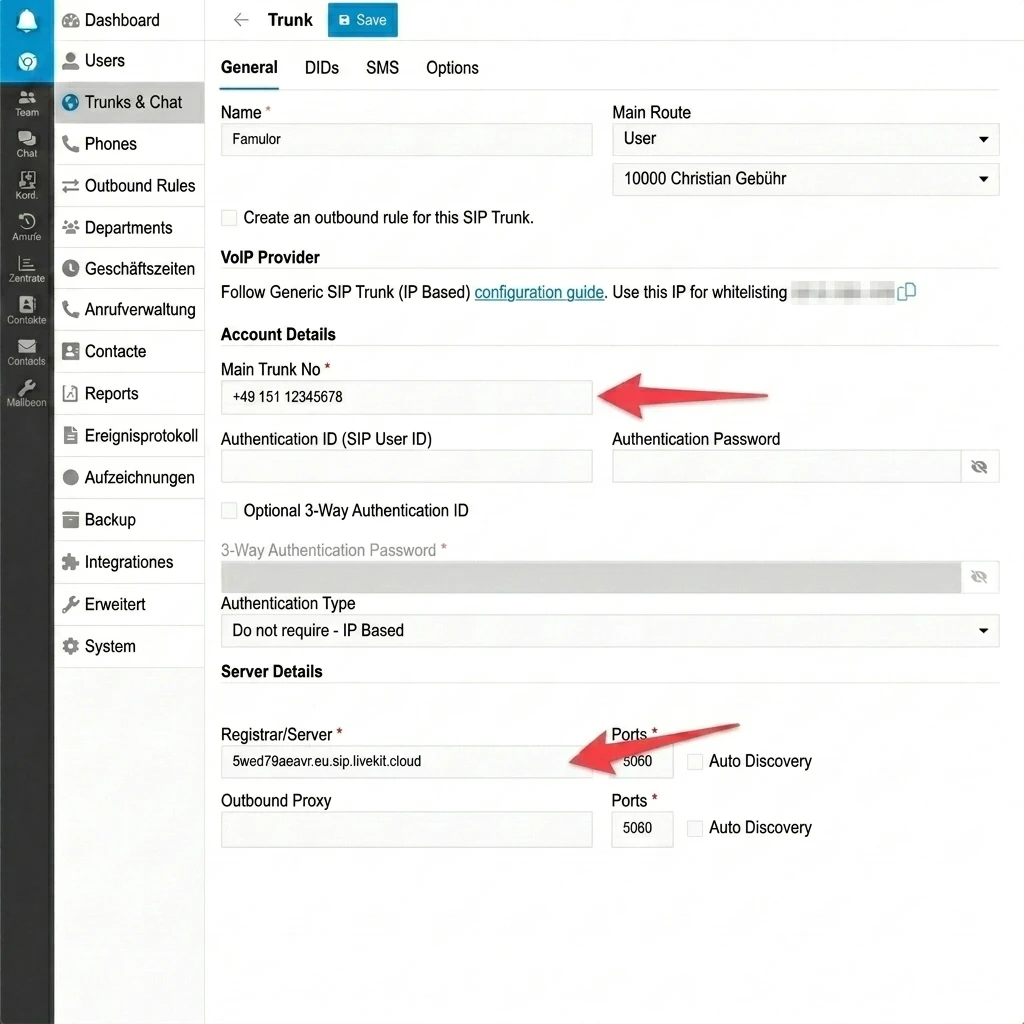
1. Choose any trunk name.
2. Add the number through which Famulor should be reachable internally (you will use a prefix in routing later).
3. Set **Registrar** to your individual Famulor SIP address.
**Where to find your SIP address in Famulor:**\
`Phone Numbers` → `Integrate SIP Trunk` → `Our SIP Address`
### Configure the 3CX trunk
1. Choose any trunk name.
2. Add the number through which Famulor should be reachable internally (you will use a prefix in routing later).
3. Set **Registrar** to your individual Famulor SIP address.
**Where to find your SIP address in Famulor:**\
`Phone Numbers` → `Integrate SIP Trunk` → `Our SIP Address`
 ### Restrict transport protocol to TCP
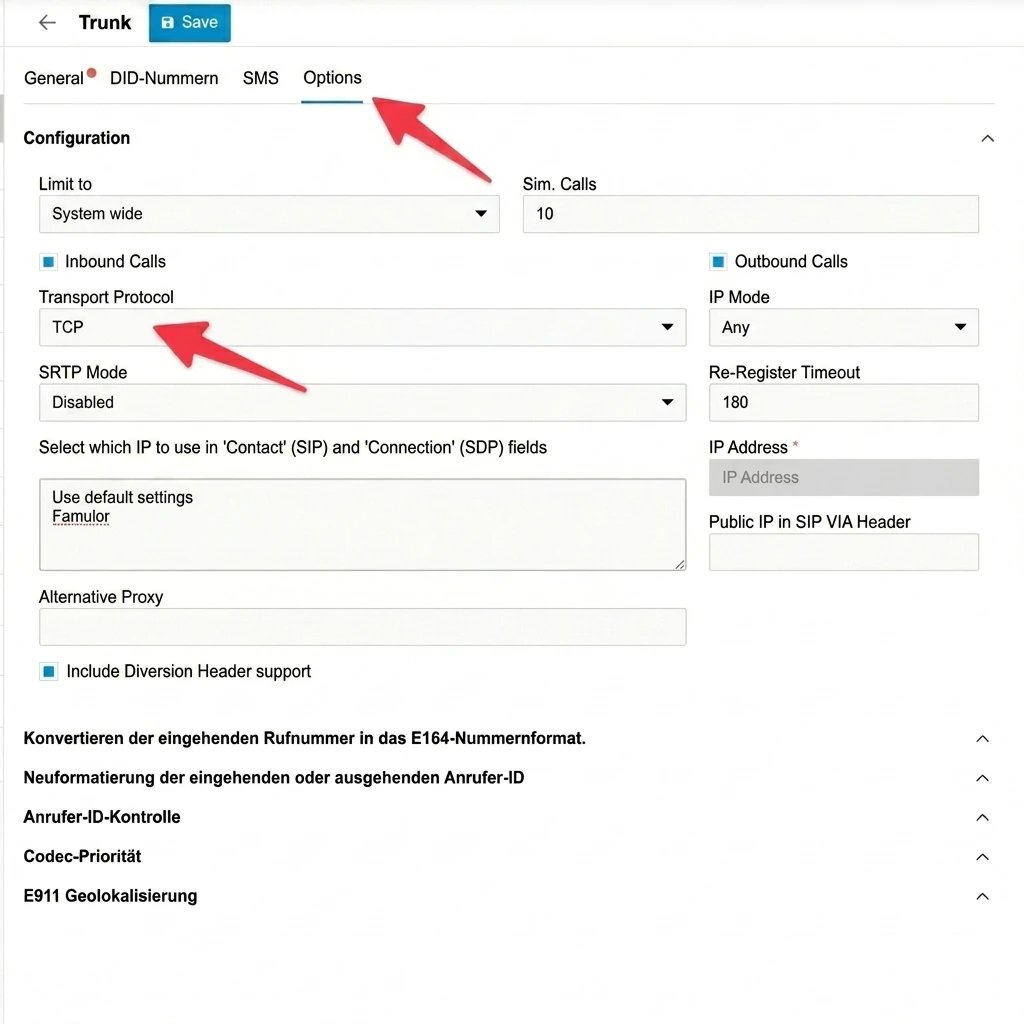 TCP is the safe minimum for LiveKit-based SIP. If your Famulor project advertises a TLS endpoint (`*.sip.livekit.cloud:5061`), you can use TLS for encrypted signaling — but UDP should be avoided because Opus/ICE INVITEs frequently fragment.
### Required trunk settings
A few non-default settings on the 3CX side are critical for the trunk to work reliably with Famulor:
* **Type of Authentication:** `Do not require - IP based` (no SIP REGISTER).
* **Disable Registration:** ON. Famulor never sends REGISTER — leaving registration enabled produces silent retries and confuses the trunk state.
* **Audio Codecs:** `PCMA`, `PCMU`, plus RFC2833 / `telephone-event` for DTMF. **Disable Opus and G.722** on this trunk — LiveKit's SIP gateway handles G.711 cleanly, and Opus through 3CX commonly causes one-way audio.
* **No SRV record needed.** A standard A-record resolution of `xxx.sip.livekit.cloud` is sufficient.
* **Self-hosted 3CX behind NAT:** set **Public IP** + **STUN** under SBC settings and forward the RTP UDP range (default `9000–10999`) — even when signaling uses TCP, RTP is UDP.
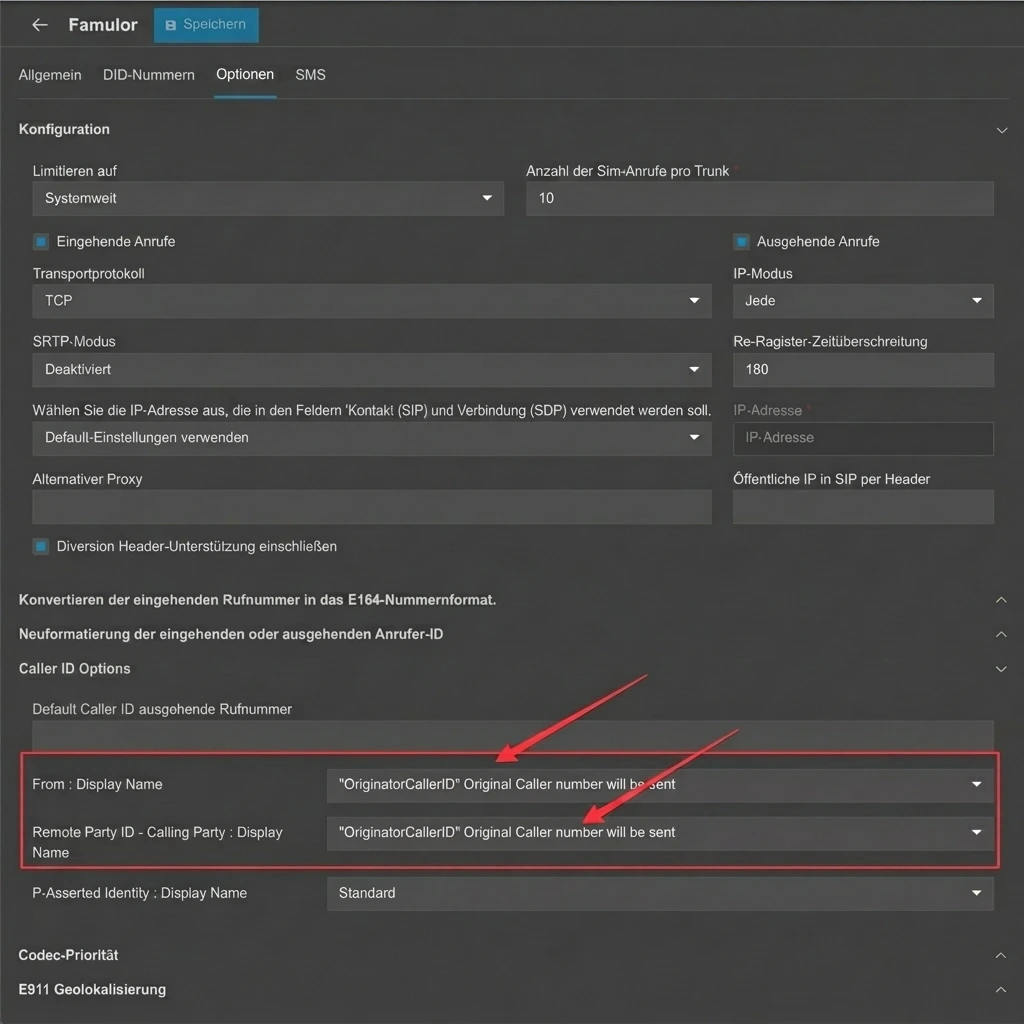
### Optional: Ensure the correct caller number reaches Famulor
If Famulor is used behind a 3CX phone system, the assistant may receive the 3CX system number instead of the real caller number.\
To avoid this, set **"From: Display-Name"** and **"Remote-Party-ID"** to `OriginatorCallerID` in the SIP trunk.
TCP is the safe minimum for LiveKit-based SIP. If your Famulor project advertises a TLS endpoint (`*.sip.livekit.cloud:5061`), you can use TLS for encrypted signaling — but UDP should be avoided because Opus/ICE INVITEs frequently fragment.
### Required trunk settings
A few non-default settings on the 3CX side are critical for the trunk to work reliably with Famulor:
* **Type of Authentication:** `Do not require - IP based` (no SIP REGISTER).
* **Disable Registration:** ON. Famulor never sends REGISTER — leaving registration enabled produces silent retries and confuses the trunk state.
* **Audio Codecs:** `PCMA`, `PCMU`, plus RFC2833 / `telephone-event` for DTMF. **Disable Opus and G.722** on this trunk — LiveKit's SIP gateway handles G.711 cleanly, and Opus through 3CX commonly causes one-way audio.
* **No SRV record needed.** A standard A-record resolution of `xxx.sip.livekit.cloud` is sufficient.
* **Self-hosted 3CX behind NAT:** set **Public IP** + **STUN** under SBC settings and forward the RTP UDP range (default `9000–10999`) — even when signaling uses TCP, RTP is UDP.
### Optional: Ensure the correct caller number reaches Famulor
If Famulor is used behind a 3CX phone system, the assistant may receive the 3CX system number instead of the real caller number.\
To avoid this, set **"From: Display-Name"** and **"Remote-Party-ID"** to `OriginatorCallerID` in the SIP trunk.
 ### Create the SIP number in Famulor
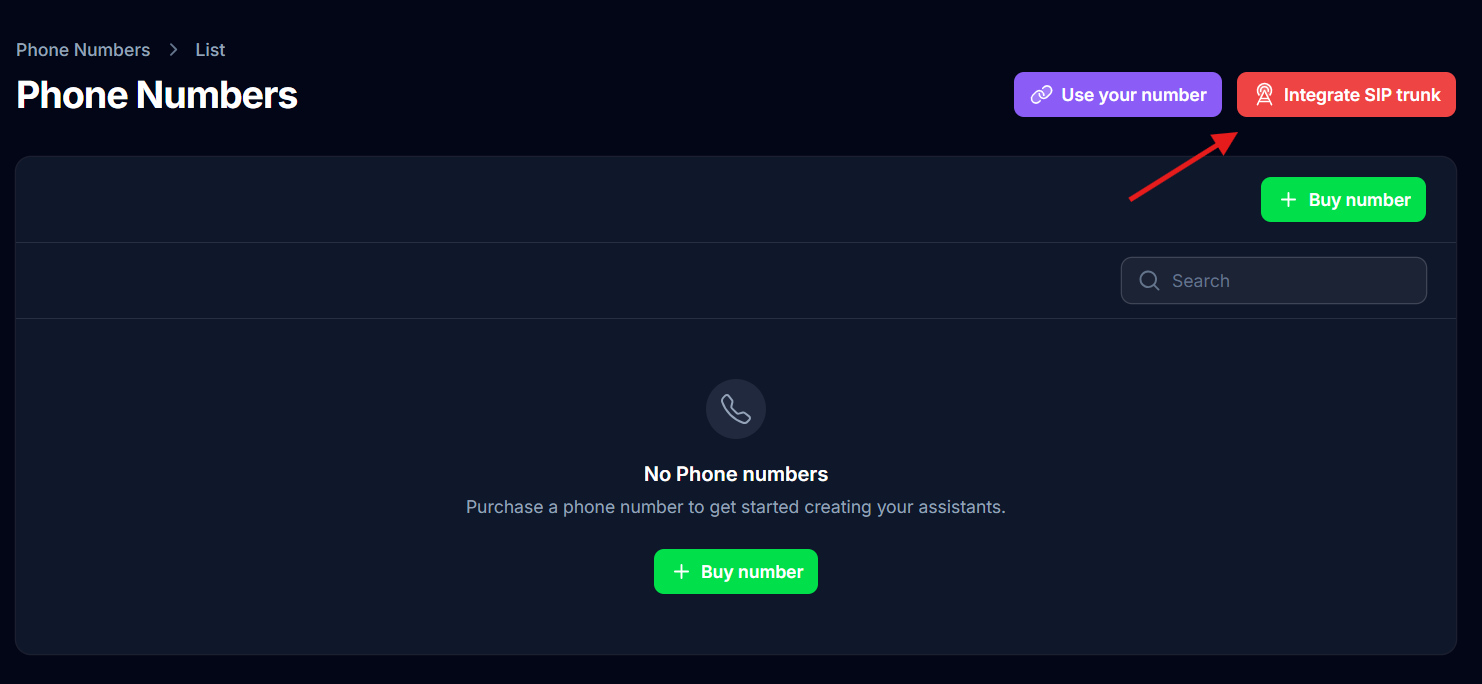
After the trunk is set up with your 3CX configuration, you need to import the number into Famulor so we know how to route the call.
1. Open your Famulor.ai Dashboard
2. Navigate to **Phone Numbers**
3. Click on "Integrate SIP trunk"
### Create the SIP number in Famulor
After the trunk is set up with your 3CX configuration, you need to import the number into Famulor so we know how to route the call.
1. Open your Famulor.ai Dashboard
2. Navigate to **Phone Numbers**
3. Click on "Integrate SIP trunk"
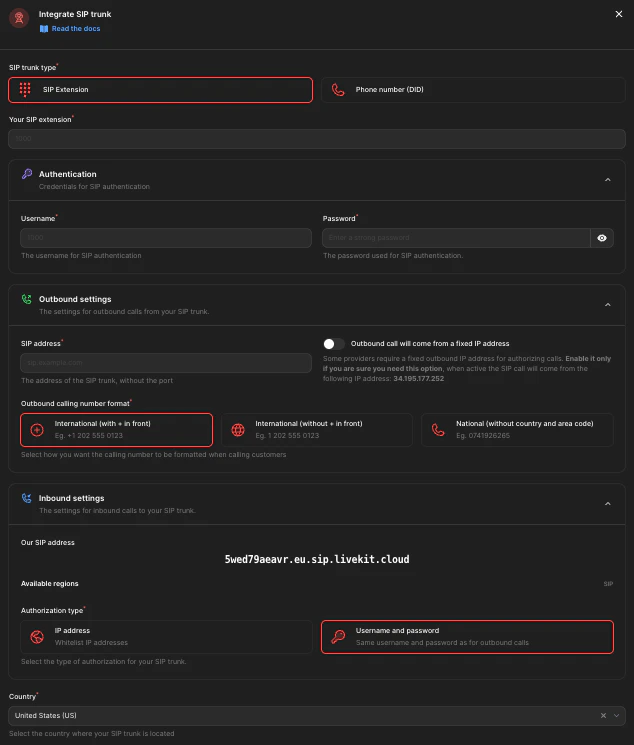
 4. Enter your details according to your 3CX configuration:
```
Number / Name: Use exactly the same number as in your 3CX configuration (e.g., +49 151 12345678).
Termination URL: The address of your 3CX system, if you want to make outbound calls.
Username: Leave blank if no username was configured.
Password: Leave blank if no password was configured.
```
4. Enter your details according to your 3CX configuration:
```
Number / Name: Use exactly the same number as in your 3CX configuration (e.g., +49 151 12345678).
Termination URL: The address of your 3CX system, if you want to make outbound calls.
Username: Leave blank if no username was configured.
Password: Leave blank if no password was configured.
```
 If the number is already taken, choose another one.
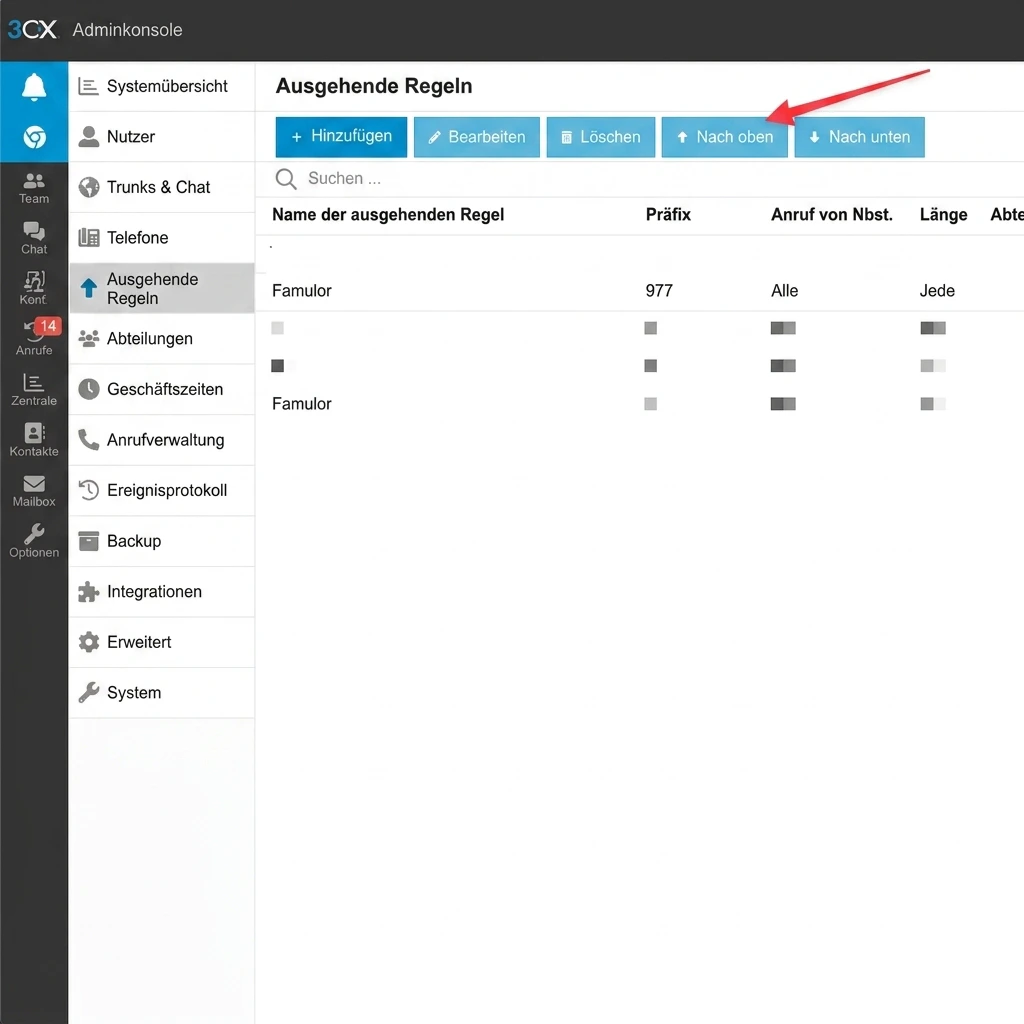
### Create an outbound rule in 3CX
Now create an outbound rule that defines when this trunk should be used.\
For example, you can use `999` as a prefix; just make sure those digits are stripped before dialing.
If the number is already taken, choose another one.
### Create an outbound rule in 3CX
Now create an outbound rule that defines when this trunk should be used.\
For example, you can use `999` as a prefix; just make sure those digits are stripped before dialing.
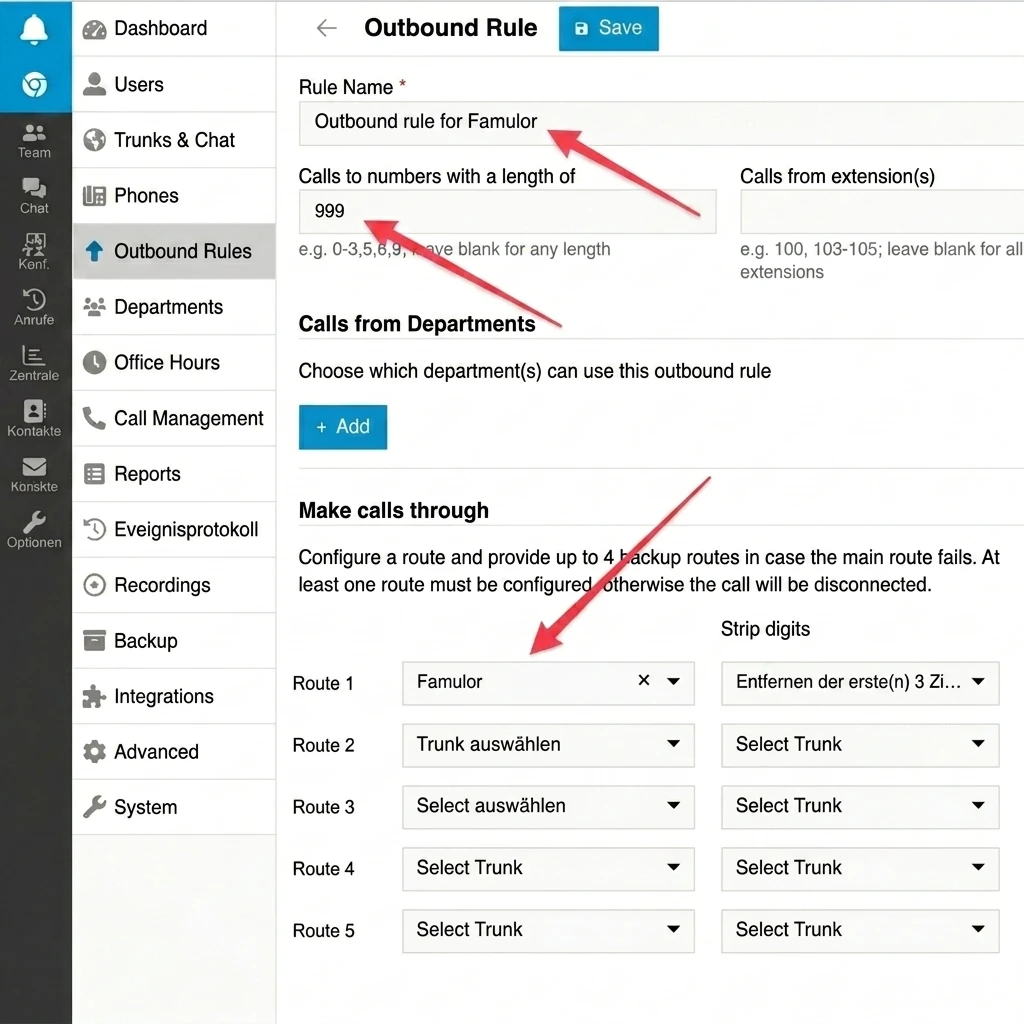 **Important:** Place this outbound rule above other rules that could otherwise override it.
 ### Inbound DID routing
To make an external call to a 3CX-hosted DID actually reach Famulor, route the DID through the outbound trunk you just created. In 3CX:
1. Go to the DID's **Inbound Rule** (or the user/queue that owns the DID).
2. Set **"Office Hours"** and **"Out of Office"** routing destinations to **"External"** with the dial string `999` (using the prefix from the outbound rule above).
3. The outbound rule strips the `999` prefix and sends the call to Famulor.
This is what actually closes the loop — without it, the outbound rule exists but no inbound traffic ever uses it.
### Outbound from Famulor → 3CX
When Famulor places an outbound call (for example a Make-phone-calls assistant), it talks to your 3CX trunk over the same SIP host. Make sure 3CX accepts those INVITEs:
* Either add Famulor's current SIP egress IP ranges to the trunk's allow-list (request the list from Famulor support), or
* Provision Digest credentials on the 3CX side and enter them in Famulor's **Username / Password** fields when importing the number.
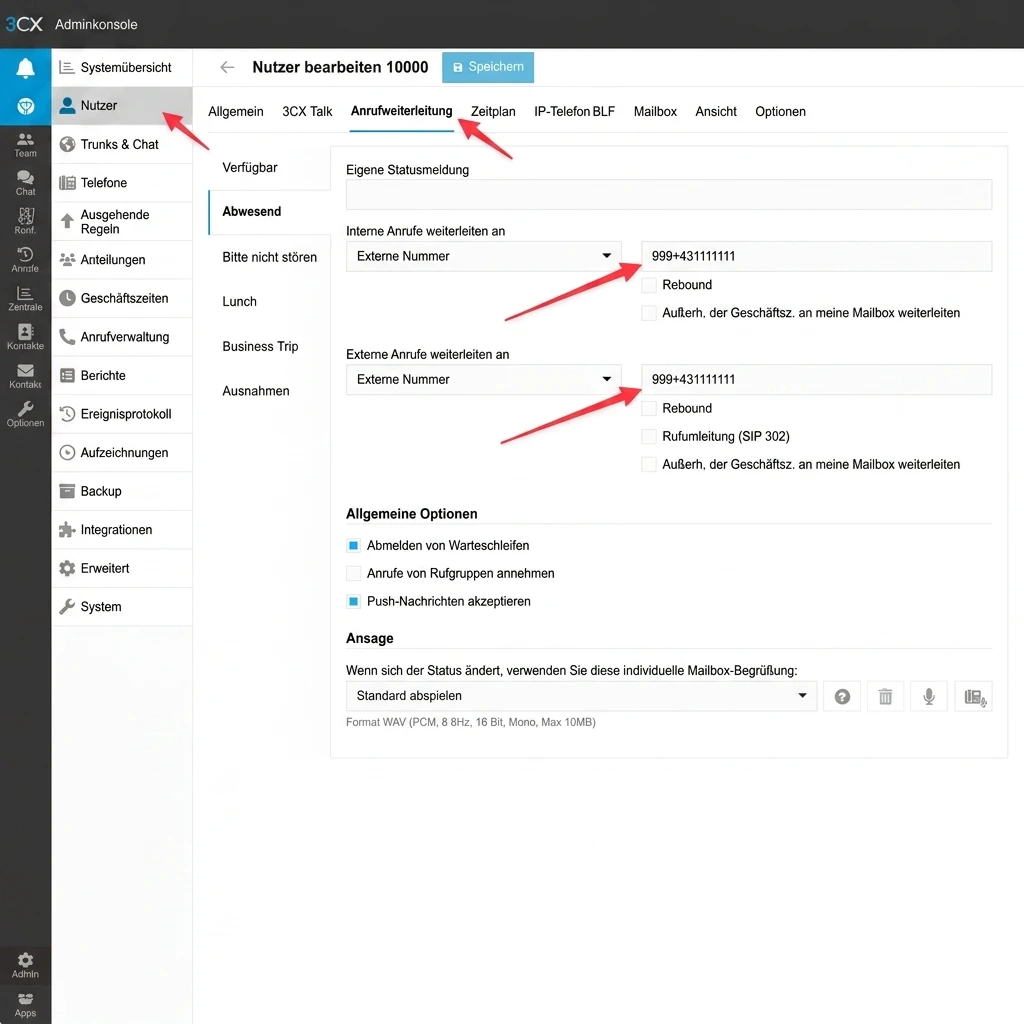
### Using the number
You can now use this number, for example, in absence routing or other 3CX routing rules.
### Inbound DID routing
To make an external call to a 3CX-hosted DID actually reach Famulor, route the DID through the outbound trunk you just created. In 3CX:
1. Go to the DID's **Inbound Rule** (or the user/queue that owns the DID).
2. Set **"Office Hours"** and **"Out of Office"** routing destinations to **"External"** with the dial string `999` (using the prefix from the outbound rule above).
3. The outbound rule strips the `999` prefix and sends the call to Famulor.
This is what actually closes the loop — without it, the outbound rule exists but no inbound traffic ever uses it.
### Outbound from Famulor → 3CX
When Famulor places an outbound call (for example a Make-phone-calls assistant), it talks to your 3CX trunk over the same SIP host. Make sure 3CX accepts those INVITEs:
* Either add Famulor's current SIP egress IP ranges to the trunk's allow-list (request the list from Famulor support), or
* Provision Digest credentials on the 3CX side and enter them in Famulor's **Username / Password** fields when importing the number.
### Using the number
You can now use this number, for example, in absence routing or other 3CX routing rules.
 Related pages: [SIP Integration](/en/provisioning/sip-ai/sip-integration) and [SIP Troubleshooting](/en/provisioning/sip-ai/sip-troubleshooting).