> ## Documentation Index
> Fetch the complete documentation index at: https://docs.famulor.io/llms.txt
> Use this file to discover all available pages before exploring further.
# DIDLogic Integration
> A step-by-step guide to connect your DIDLogic account via SIP trunking
**Done for you — any region, any country (our EU partner carrier)**
If you prefer not to configure a SIP trunk or import numbers yourself, our **EU partner carrier** can supply **local numbers in any region and any country**, set up the **SIP trunk**, and **import the connection into Famulor** for you. Provisioning runs **end-to-end through the partner** (carrier-side), so you skip DIY trunk and number import in Famulor.
* **Custom number region / full-service onboarding:** [Famulor Custom Number Region form](https://tally.so/r/w4bN2Y)
* **More detail or bespoke options:** [support@famulor.de](mailto:support@famulor.de)
Follow these steps to connect DIDLogic with Famulor for inbound and outbound calling.
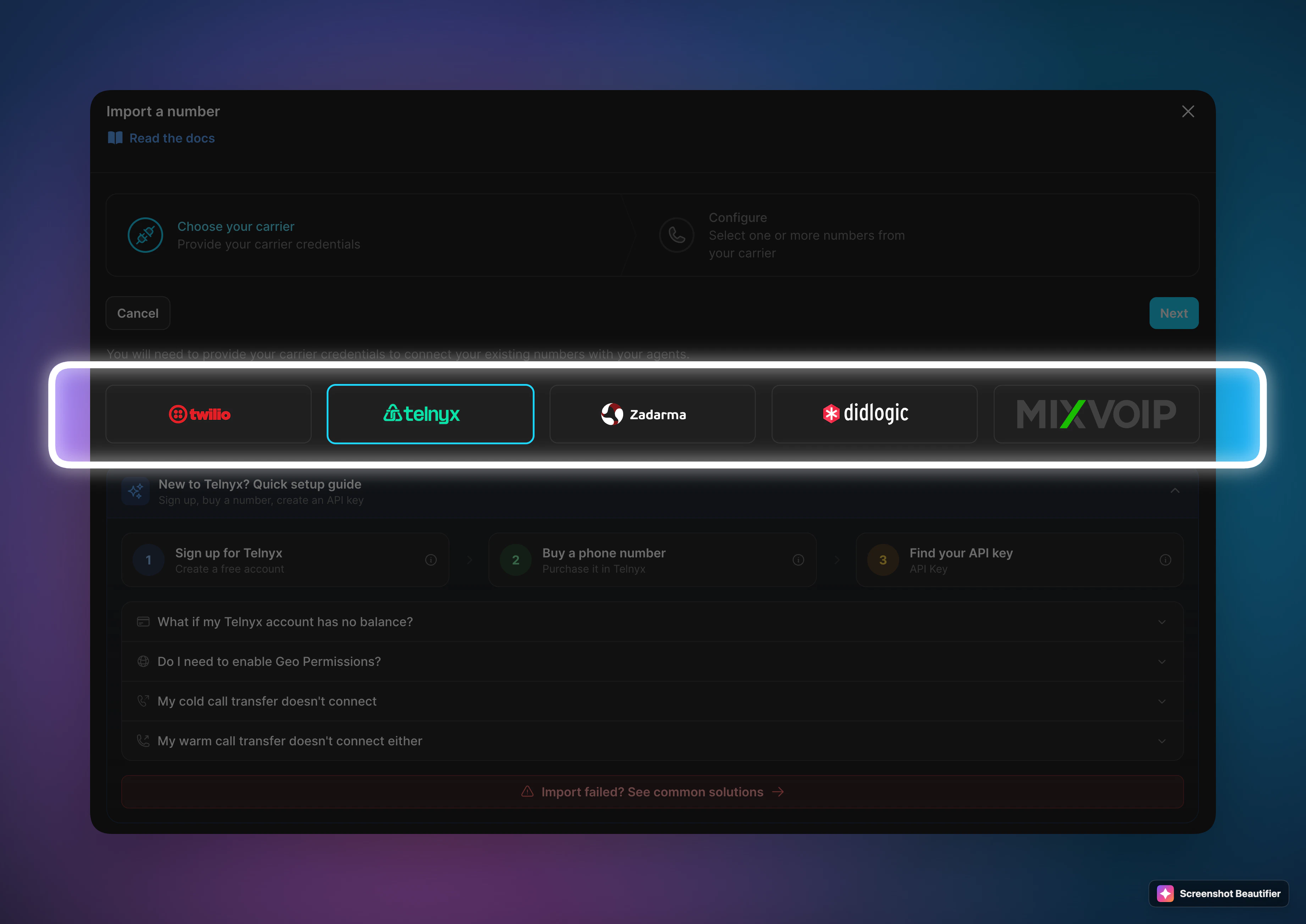
**Phone number import (BYOC):** Open **Your Phone Numbers → Integrate SIP trunk** in the Famulor dashboard. The wizard lists **Twilio**, **Telnyx**, **Zadarma**, and **DIDLogic**. **Import number** creates what you need on Famulor’s side and imports your numbers from the carrier once your account is linked—you do not need to fill every SIP field by hand. Use **Import number**, or **follow this guide below** for full manual setup. Overview: [SIP Integration](/en/provisioning/sip-ai/sip-integration). The steps below document **manual DIDLogic** SIP trunking.
 **Pricing snapshot:** DIDLogic publishes public DID and SIP termination pricing, but the country coverage on the live pricing pages is not equally detailed for every market.
* **Inbound / number rental examples:** United States/Canada from `$0.99/month` + `$0.0059/min`, United Kingdom from `$2.50/month` + `$0.012/min`
* **Outbound / SIP trunking:** SIP channels are free; outbound rates are pay-as-you-go via the live call-rate table and CSV
* **Germany / Switzerland:** No reliable public DID example was visible on the live pricing page at the time of writing
* **Official pricing:** [DID pricing](https://didlogic.com/pricing/origination/local-dids/) and [call rates](https://didlogic.com/pricing/wholesale-international-voice/call-rates)
Log in to your DIDLogic dashboard at [app.didlogic.com](https://app.didlogic.com) and go to the **BUY** tab.
Search by country and area code, add a number to your cart, and complete checkout.
**Pricing snapshot:** DIDLogic publishes public DID and SIP termination pricing, but the country coverage on the live pricing pages is not equally detailed for every market.
* **Inbound / number rental examples:** United States/Canada from `$0.99/month` + `$0.0059/min`, United Kingdom from `$2.50/month` + `$0.012/min`
* **Outbound / SIP trunking:** SIP channels are free; outbound rates are pay-as-you-go via the live call-rate table and CSV
* **Germany / Switzerland:** No reliable public DID example was visible on the live pricing page at the time of writing
* **Official pricing:** [DID pricing](https://didlogic.com/pricing/origination/local-dids/) and [call rates](https://didlogic.com/pricing/wholesale-international-voice/call-rates)
Log in to your DIDLogic dashboard at [app.didlogic.com](https://app.didlogic.com) and go to the **BUY** tab.
Search by country and area code, add a number to your cart, and complete checkout.
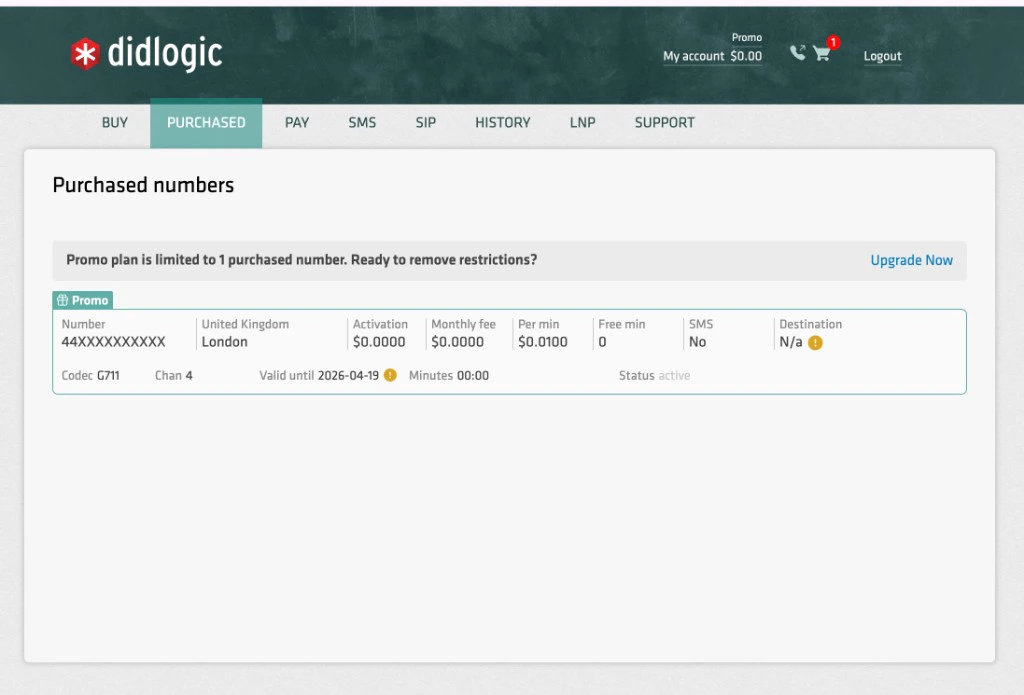
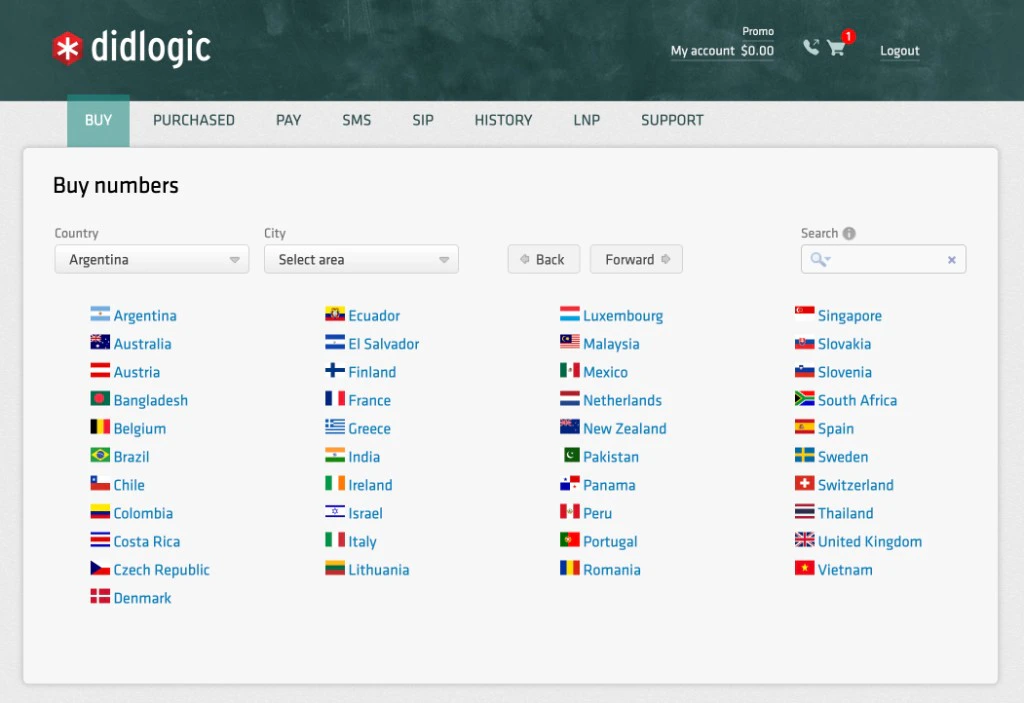 Your new number appears under the **PURCHASED** tab.
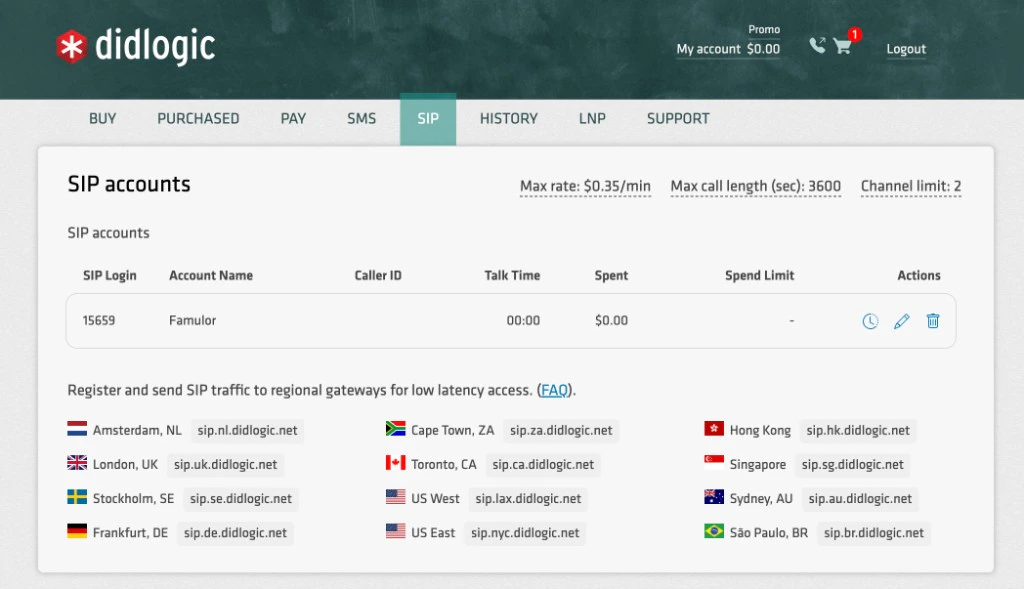
 Go to the **SIP** tab and click **Edit** on your SIP account.
 In the SIP settings:
* Enable **Restrict to authorized IPs**
* Add `34.195.177.252`
* Click **Add** and then **Update**
In the SIP settings:
* Enable **Restrict to authorized IPs**
* Add `34.195.177.252`
* Click **Add** and then **Update**
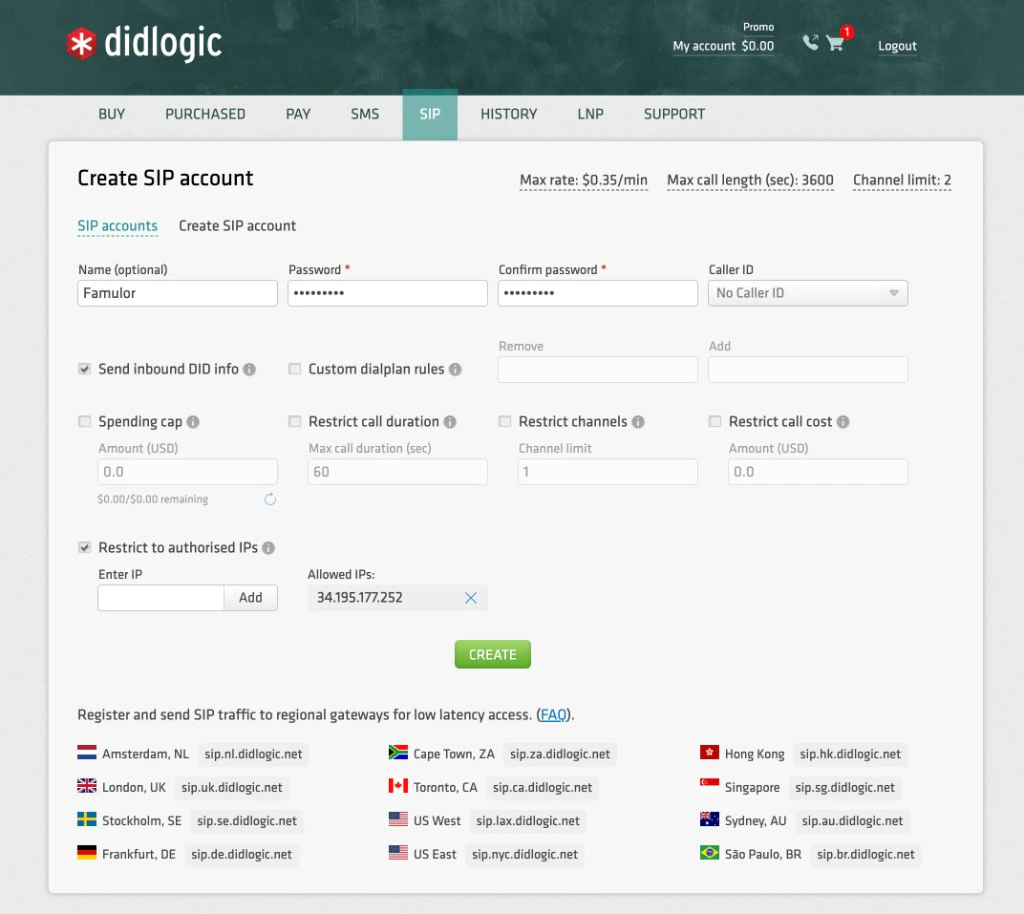
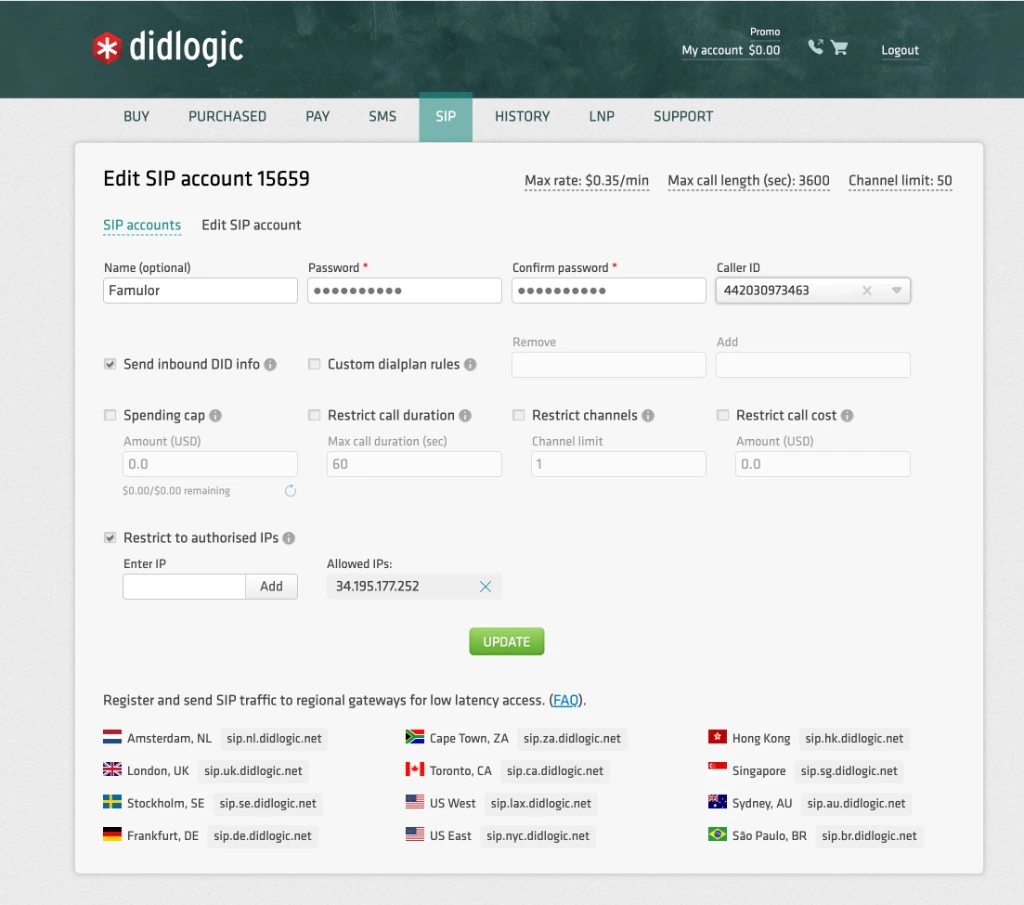 Scroll to the regional gateway list and copy the SIP URI for your region. You will use it later in Famulor outbound settings.
Go to **PURCHASED** and click **Destination** next to your phone number.
* Remove any existing destination
* Change the selector from **SIP device** to **SIP URI**
* Enter this format:
```bash theme={null}
@yourfamulor.sip.livekit.cloud
```
Example:
```bash theme={null}
15551234567@yourfamulor.sip.livekit.cloud
```
Scroll to the regional gateway list and copy the SIP URI for your region. You will use it later in Famulor outbound settings.
Go to **PURCHASED** and click **Destination** next to your phone number.
* Remove any existing destination
* Change the selector from **SIP device** to **SIP URI**
* Enter this format:
```bash theme={null}
@yourfamulor.sip.livekit.cloud
```
Example:
```bash theme={null}
15551234567@yourfamulor.sip.livekit.cloud
```
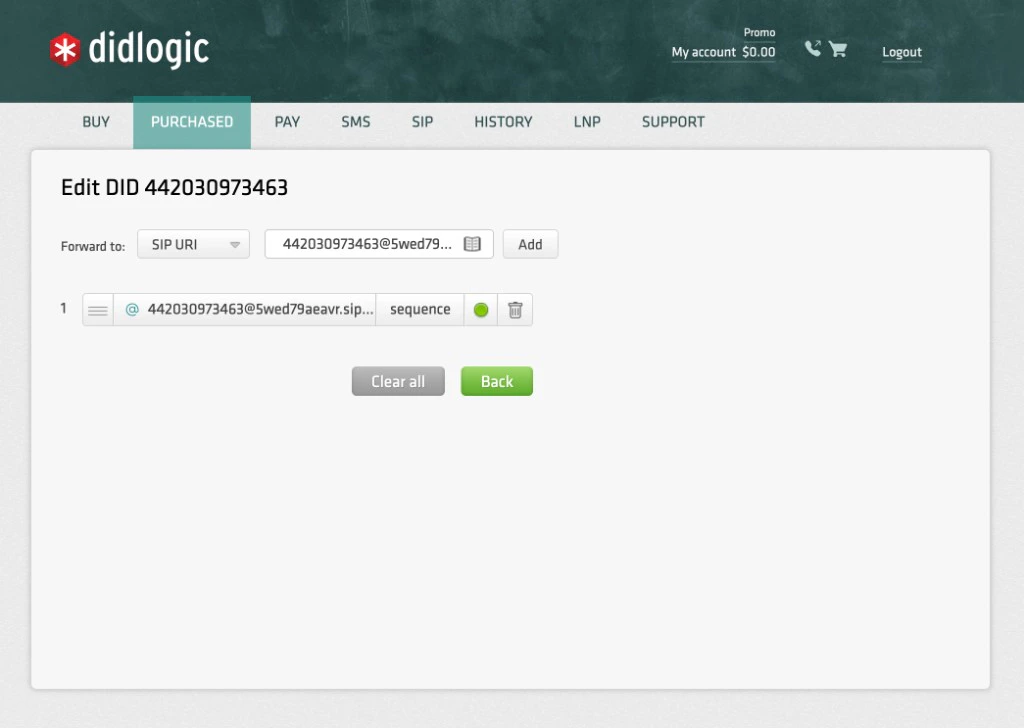 Click **Add** to save.
Go to your Famulor dashboard: **Your Phone Numbers** -> **Integrate SIP trunk**.
Click **Add** to save.
Go to your Famulor dashboard: **Your Phone Numbers** -> **Integrate SIP trunk**.
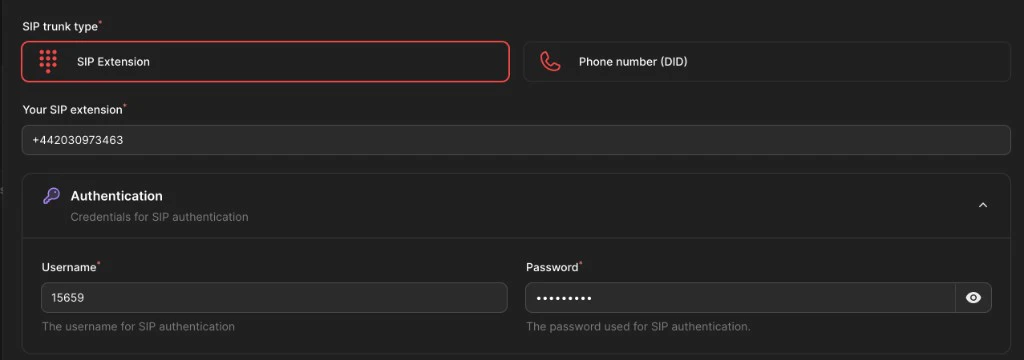 Fill in:
* **Phone number:** DIDLogic number in E.164 (example `+15551234567`)
* **Username:** SIP account number from Step 2 (example `12345`)
* **Password:** The password set in Step 2
For **Outbound settings**:
Fill in:
* **Phone number:** DIDLogic number in E.164 (example `+15551234567`)
* **Username:** SIP account number from Step 2 (example `12345`)
* **Password:** The password set in Step 2
For **Outbound settings**:
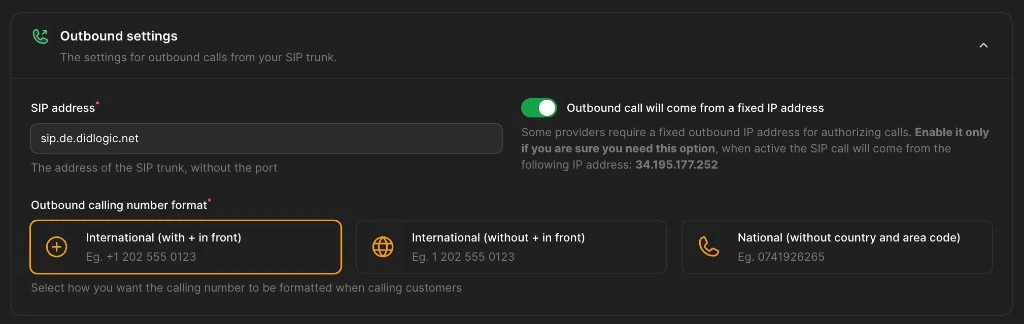 * Paste the regional SIP URI copied in Step 2
* Set number format to **International with + in front**
* Enable **Outbound call will come from a fixed IP address**
For **Inbound settings**:
* Paste the regional SIP URI copied in Step 2
* Set number format to **International with + in front**
* Enable **Outbound call will come from a fixed IP address**
For **Inbound settings**:
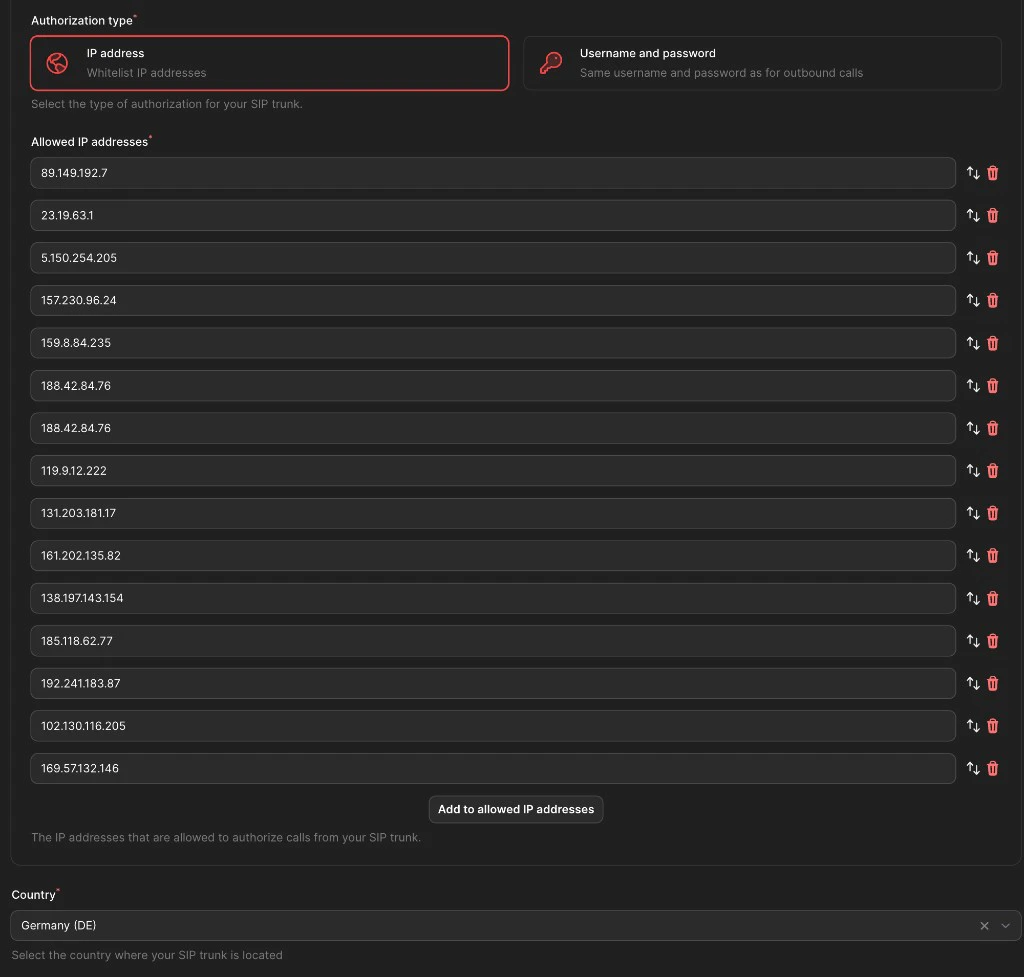 * Set authorization type to **IP Address**
* Add the gateway IP for your selected DIDLogic region:
| Gateway | IP Address |
| -------------------- | --------------- |
| sip.nl.didlogic.net | 89.149.192.7 |
| sip.uk.didlogic.net | 23.19.63.1 |
| sip.se.didlogic.net | 5.150.254.205 |
| sip.de.didlogic.net | 157.230.96.24 |
| sip.fr.didlogic.net | 159.8.84.235 |
| sip.hk.didlogic.net | 188.42.84.76 |
| sip.sg.didlogic.net | 188.42.84.76 |
| sip.au.didlogic.net | 119.9.12.222 |
| sip.nz.didlogic.net | 131.203.181.17 |
| sip.ir.didlogic.net | 161.202.135.82 |
| sip.ca.didlogic.net | 138.197.143.154 |
| sip.lax.didlogic.net | 185.118.62.77 |
| sip.nyc.didlogic.net | 192.241.183.87 |
| sip.za.didlogic.net | 102.130.116.205 |
| sip.br.didlogic.net | 169.57.132.146 |
Select the country where your SIP trunk is located.
* Make a test inbound call to your number
* Use Famulor test call for outbound verification
## Security Requirements
Your SIP credentials must be secure:
* Minimum 12 characters
* Include numbers
* Include uppercase and lowercase letters
* Special characters are recommended
## Common Issues
* Verify the regional SIP URI copied in Step 2 and remove trailing spaces.
* Confirm the username is the numeric SIP account number (example: `12345`), not your email or account name.
* Confirm the password in Famulor exactly matches DIDLogic SIP settings.
* Verify `34.195.177.252` is added in DIDLogic authorized IPs.
* In DIDLogic, destination must be **SIP URI** (not SIP device).
* Verify destination format:
```bash theme={null}
@yourfamulor.sip.livekit.cloud
```
* In Famulor inbound settings, verify the added IP matches your selected DIDLogic regional gateway.
Related pages: [Index](/en/index) and [Support](/en/support), and [FAQ](/en/faq).
* Set authorization type to **IP Address**
* Add the gateway IP for your selected DIDLogic region:
| Gateway | IP Address |
| -------------------- | --------------- |
| sip.nl.didlogic.net | 89.149.192.7 |
| sip.uk.didlogic.net | 23.19.63.1 |
| sip.se.didlogic.net | 5.150.254.205 |
| sip.de.didlogic.net | 157.230.96.24 |
| sip.fr.didlogic.net | 159.8.84.235 |
| sip.hk.didlogic.net | 188.42.84.76 |
| sip.sg.didlogic.net | 188.42.84.76 |
| sip.au.didlogic.net | 119.9.12.222 |
| sip.nz.didlogic.net | 131.203.181.17 |
| sip.ir.didlogic.net | 161.202.135.82 |
| sip.ca.didlogic.net | 138.197.143.154 |
| sip.lax.didlogic.net | 185.118.62.77 |
| sip.nyc.didlogic.net | 192.241.183.87 |
| sip.za.didlogic.net | 102.130.116.205 |
| sip.br.didlogic.net | 169.57.132.146 |
Select the country where your SIP trunk is located.
* Make a test inbound call to your number
* Use Famulor test call for outbound verification
## Security Requirements
Your SIP credentials must be secure:
* Minimum 12 characters
* Include numbers
* Include uppercase and lowercase letters
* Special characters are recommended
## Common Issues
* Verify the regional SIP URI copied in Step 2 and remove trailing spaces.
* Confirm the username is the numeric SIP account number (example: `12345`), not your email or account name.
* Confirm the password in Famulor exactly matches DIDLogic SIP settings.
* Verify `34.195.177.252` is added in DIDLogic authorized IPs.
* In DIDLogic, destination must be **SIP URI** (not SIP device).
* Verify destination format:
```bash theme={null}
@yourfamulor.sip.livekit.cloud
```
* In Famulor inbound settings, verify the added IP matches your selected DIDLogic regional gateway.
Related pages: [Index](/en/index) and [Support](/en/support), and [FAQ](/en/faq).