> ## Documentation Index
> Fetch the complete documentation index at: https://docs.famulor.io/llms.txt
> Use this file to discover all available pages before exploring further.
# Easybell Integration
> Connect your Easybell telephone system with Famulor via SIP Trunking or the Cloud Phone System
**Done for you — any region, any country (our EU partner carrier)**
If you prefer not to configure a SIP trunk or import numbers yourself, our **EU partner carrier** can supply **local numbers in any region and any country**, set up the **SIP trunk**, and **import the connection into Famulor** for you. Provisioning runs **end-to-end through the partner** (carrier-side), so you skip DIY trunk and number import in Famulor.
* **Custom number region / full-service onboarding:** [Famulor Custom Number Region form](https://tally.so/r/w4bN2Y)
* **More detail or bespoke options:** [support@famulor.de](mailto:support@famulor.de)
# Easybell Integration
With Famulor, you can connect your **Easybell** telephony to an AI assistant. There are **two ways** – choose your path below and follow the corresponding step-by-step guide.
## Which path to choose?
| You have … | Then follow … |
| -------------------------------------------------------- | -------------------------------------------------------------------- |
| **Only Easybell SIP Trunk** (without Cloud Phone System) | [Step-by-step: SIP Trunk](#step-by-step-sip-trunk) |
| **Easybell Cloud Phone System Pro** | [Step-by-step: Cloud Phone System](#step-by-step-cloud-phone-system) |
* **SIP Trunk:** The FQDN feature must be requested from Easybell (email to [support@easybell.de](mailto:support@easybell.de), approx. €10/month).
* **Cloud Phone System Pro:** The FQDN is already included, no separate request necessary.
***
## How it works in detail
Calls run from Easybell to Famulor and are assigned to your AI assistant. Flow of an **incoming call**:
```mermaid theme={null} theme={null}
sequenceDiagram
participant C as Customer
participant E as Easybell
participant F as Famulor
participant A as AI Assistant
C->>E: Call to your Easybell number
E->>F: SIP call (FQDN / allowed IPs)
F->>A: Call to assigned assistant
A->>F: Voice response (real-time)
F->>E: Media stream (RTP/SRTP)
E->>C: Conversation with AI assistant
Note over C,A: Customer and AI assistant in dialogue
A->>F: Optional: forwarding, tool invocation
F->>E: Forwarding e.g., to extension
E->>C: Connection to employee
```
***
## Step-by-step: SIP Trunk
Use **only** the Easybell SIP Trunk (without Cloud Phone System). Follow the steps in order.
### Step 1: Request FQDN feature from Easybell
The FQDN feature cannot be booked via the Easybell customer portal. Send an email to **[support@easybell.de](mailto:support@easybell.de)** with your **Easybell customer number** and request activation of the SIP Trunking FQDN feature for Famulor.
**Example email:**
```text theme={null}
Dear Easybell team,
Could you please activate the SIP Trunking FQDN feature for use with Famulor?
Thank you very much and best regards
```
**Cost (as of August 2025):** €10 / month. It may take several days to receive confirmation from support.
### Step 2: Configure in Famulor
1. Log in at [app.famulor.de](https://app.famulor.de).
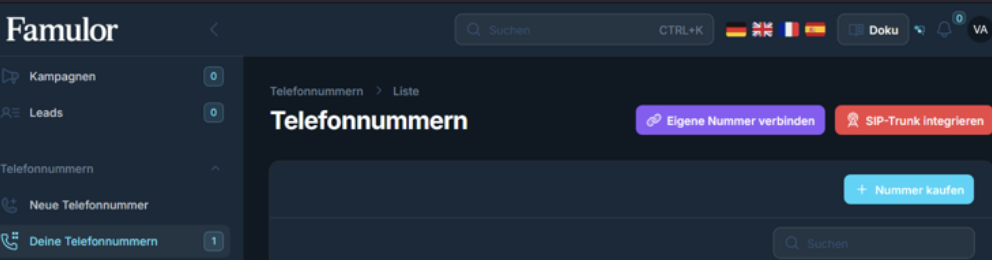
2. Select **“Your Phone Numbers”** on the left, then click **“Integrate SIP Trunk”**.
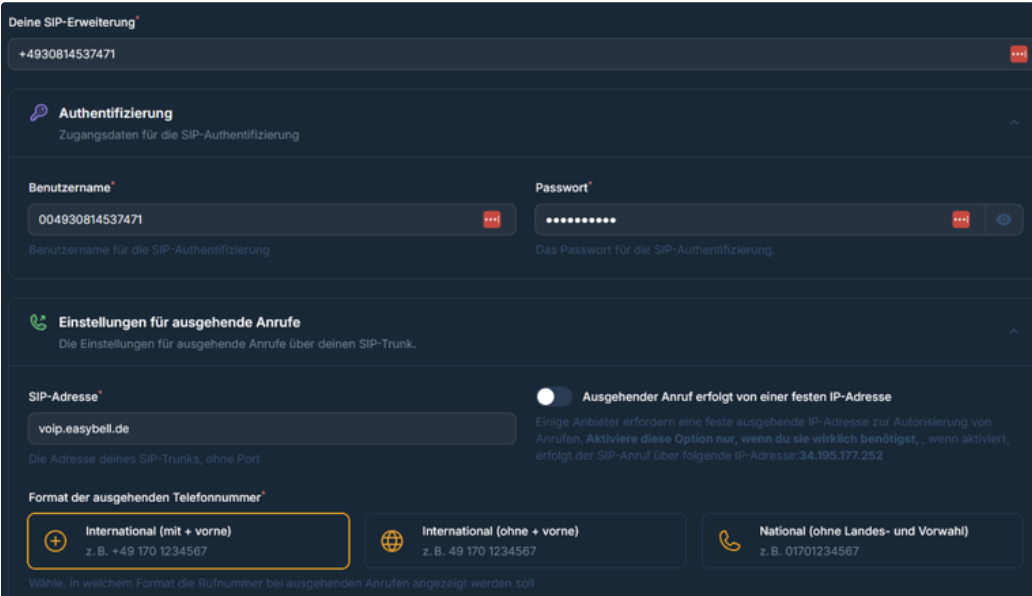
 3. Fill in the **SIP Trunk configuration**:
* **Authentication:** username and password (from Easybell).
* **Outbound Telephony:** SIP address e.g. `voip.easybell.de`, number format (e.g., “International with +”).
3. Fill in the **SIP Trunk configuration**:
* **Authentication:** username and password (from Easybell).
* **Outbound Telephony:** SIP address e.g. `voip.easybell.de`, number format (e.g., “International with +”).
 4. Set up **Inbound Telephony**:
* Enter **allowed IP addresses** (see box below).
* Note **“Our SIP address”** – you will need this in Step 3 for Easybell.
4. Set up **Inbound Telephony**:
* Enter **allowed IP addresses** (see box below).
* Note **“Our SIP address”** – you will need this in Step 3 for Easybell.
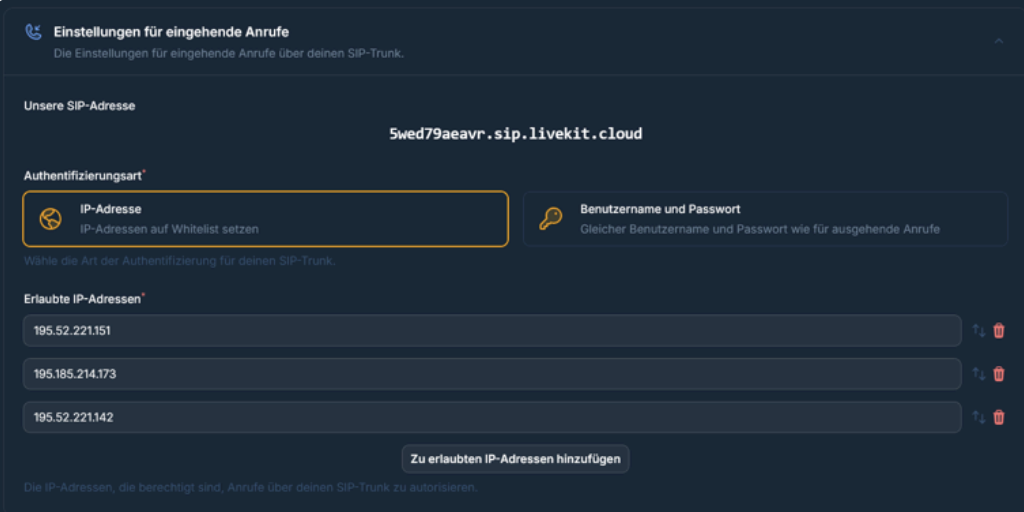 **IPs to whitelist at Famulor (SIP Trunk):**
* **TCP/UDP:** 195.52.221.151, 195.185.214.173, 195.52.221.142
* **TLS:** 212.172.204.95, 212.172.58.207
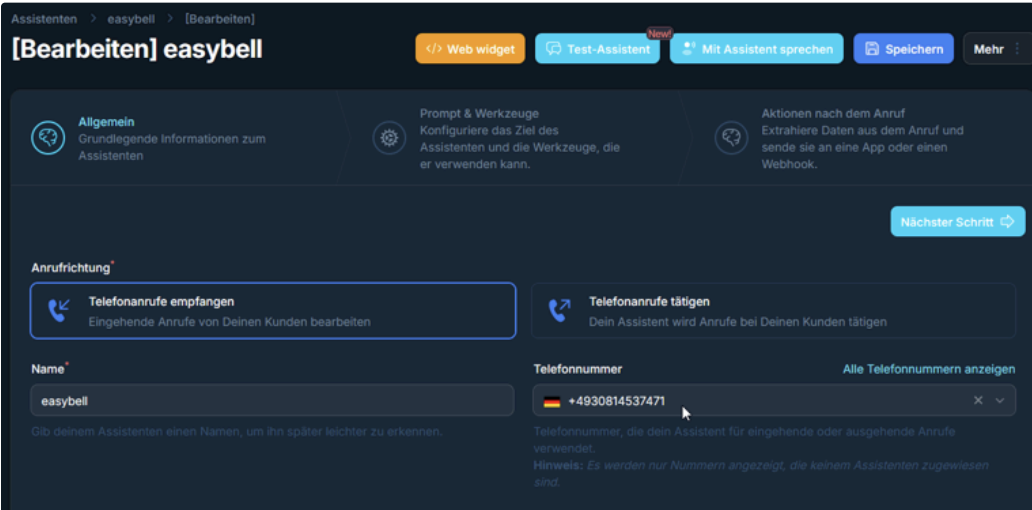
5. Confirm the configuration. Then create an **AI assistant** and **assign this phone number** to them.
**IPs to whitelist at Famulor (SIP Trunk):**
* **TCP/UDP:** 195.52.221.151, 195.185.214.173, 195.52.221.142
* **TLS:** 212.172.204.95, 212.172.58.207
5. Confirm the configuration. Then create an **AI assistant** and **assign this phone number** to them.
 ### Step 3: Enter details in Easybell customer portal
Enter the **Famulor SIP address** as call destination/domain in the Easybell customer portal – **without** the `sip:` prefix.
**Example:** `XXXXX.sip.livekit.cloud` (your address can be found in Famulor under “Our SIP address”).
UDP, TCP, and TLS are supported. For the **number format**, choose E.164 **with** a leading “+”.
#### Authentication via FQDN in “Trunk” mode
If you operate Easybell in **“Trunk”** mode, configure authentication as follows:
* **Authenticate by:** select `fully qualified domain name (FQDN)`.
* **FQDN:** enter exactly the value shown in Famulor under **“Our SIP address”** (without `sip:`).
* **Use SRTP:** keep **disabled** (checkbox must **not** be checked).
The configuration then looks like the example screenshot below:
### Step 3: Enter details in Easybell customer portal
Enter the **Famulor SIP address** as call destination/domain in the Easybell customer portal – **without** the `sip:` prefix.
**Example:** `XXXXX.sip.livekit.cloud` (your address can be found in Famulor under “Our SIP address”).
UDP, TCP, and TLS are supported. For the **number format**, choose E.164 **with** a leading “+”.
#### Authentication via FQDN in “Trunk” mode
If you operate Easybell in **“Trunk”** mode, configure authentication as follows:
* **Authenticate by:** select `fully qualified domain name (FQDN)`.
* **FQDN:** enter exactly the value shown in Famulor under **“Our SIP address”** (without `sip:`).
* **Use SRTP:** keep **disabled** (checkbox must **not** be checked).
The configuration then looks like the example screenshot below:
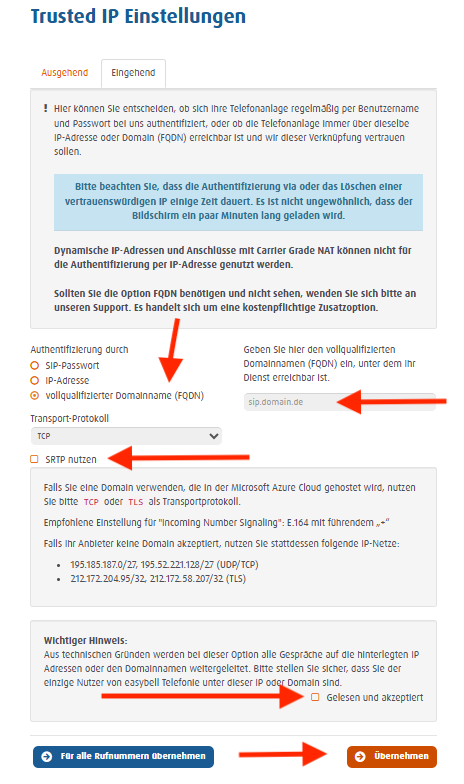 Details: [Easybell Help SIP Trunk FQDN](https://www.easybell.de/hilfe/fragen/fragen-zum-telefonanschluss/antwort/sip-trunk-authentifizierung-per-fqdn-domain-einrichten/).
### Step 4: Test
* Test an incoming call to your Easybell number.
* Check whether the AI assistant responds and the number format is correct.
***
## Step-by-step: Cloud Phone System
You use the **Easybell Cloud Phone System Pro**. The FQDN is already included – no email to Easybell required. First set up in Famulor (same as for SIP Trunk), then in the Cloud Phone System.
### Step 1: Configure in Famulor (as SIP Trunk)
* As described in [Step 2: Configure in Famulor](#step-2-configure-in-famulor) (login → “Your Phone Numbers” → “Integrate SIP Trunk” → authentication, outbound and inbound telephony).
* **Important:** For **Inbound Telephony** enter different IPs than for the pure SIP Trunk (see box below).
**IPs to whitelist at Famulor (Cloud Phone System):**
* 62.144.211.104
* 195.52.221.134
* 195.52.221.137
Note “Our SIP address” from Famulor – this is needed in Step 2 at Easybell.
### Step 2: Set up Cloud Phone System at Easybell
1. **Open Cloud Phone System**\
Log into the [Easybell customer portal](https://www.easybell.de) → **Phone Functions** → **Cloud Phone System**.
Details: [Easybell Help SIP Trunk FQDN](https://www.easybell.de/hilfe/fragen/fragen-zum-telefonanschluss/antwort/sip-trunk-authentifizierung-per-fqdn-domain-einrichten/).
### Step 4: Test
* Test an incoming call to your Easybell number.
* Check whether the AI assistant responds and the number format is correct.
***
## Step-by-step: Cloud Phone System
You use the **Easybell Cloud Phone System Pro**. The FQDN is already included – no email to Easybell required. First set up in Famulor (same as for SIP Trunk), then in the Cloud Phone System.
### Step 1: Configure in Famulor (as SIP Trunk)
* As described in [Step 2: Configure in Famulor](#step-2-configure-in-famulor) (login → “Your Phone Numbers” → “Integrate SIP Trunk” → authentication, outbound and inbound telephony).
* **Important:** For **Inbound Telephony** enter different IPs than for the pure SIP Trunk (see box below).
**IPs to whitelist at Famulor (Cloud Phone System):**
* 62.144.211.104
* 195.52.221.134
* 195.52.221.137
Note “Our SIP address” from Famulor – this is needed in Step 2 at Easybell.
### Step 2: Set up Cloud Phone System at Easybell
1. **Open Cloud Phone System**\
Log into the [Easybell customer portal](https://www.easybell.de) → **Phone Functions** → **Cloud Phone System**.
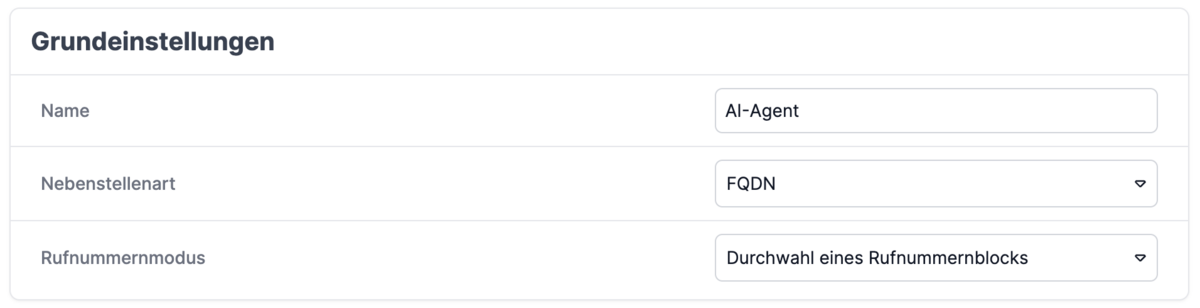
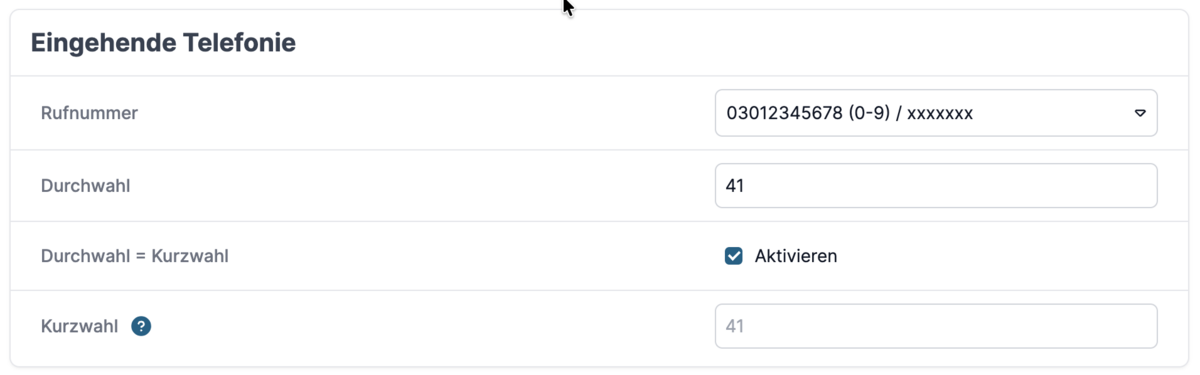
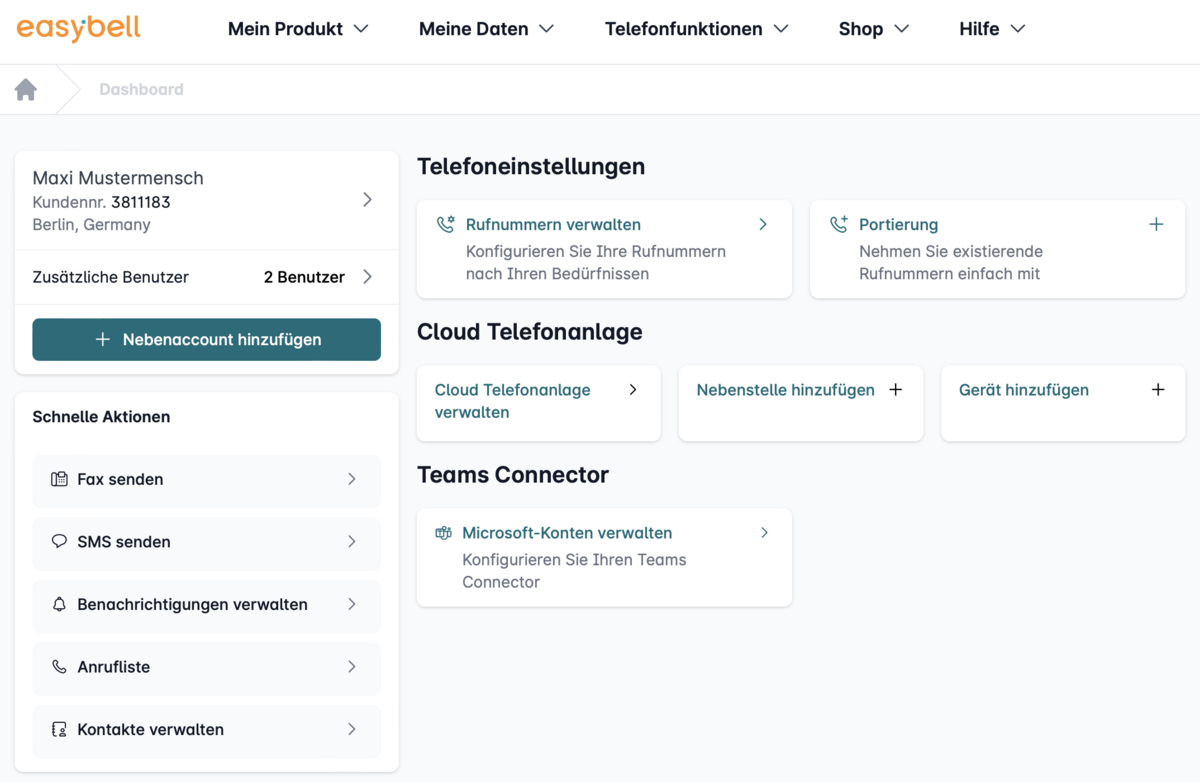 2. **Create a new FQDN extension**\
In **Extensions and Call Groups**, click **+ Add**. Extension type: **FQDN connection**. Under **Incoming Telephony**, assign the number and extension where Famulor should be reachable.
2. **Create a new FQDN extension**\
In **Extensions and Call Groups**, click **+ Add**. Extension type: **FQDN connection**. Under **Incoming Telephony**, assign the number and extension where Famulor should be reachable.
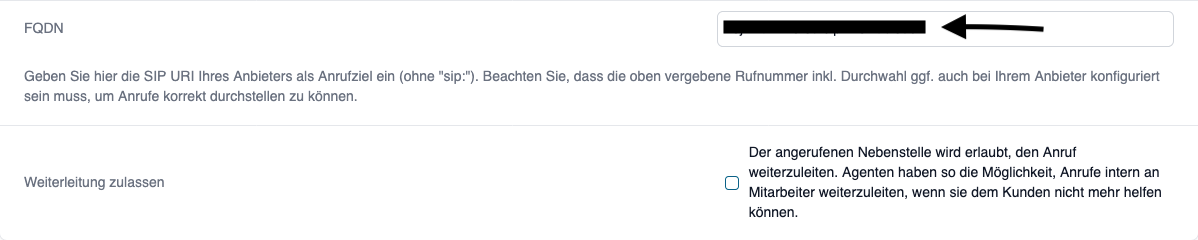
 3. **Enter FQDN**\
Enter the **Famulor SIP URI** (“Our SIP address”) **without** `sip:` – e.g., `your-unique-id.sip.livekit.cloud`.
4. **Allow forwarding (optional)**\
In the FQDN extension settings enable **“Allow forwarding”** if the AI assistant should forward calls to internal extensions. Only available with **Cloud Phone System Pro**; forwarding only allowed internally.
3. **Enter FQDN**\
Enter the **Famulor SIP URI** (“Our SIP address”) **without** `sip:` – e.g., `your-unique-id.sip.livekit.cloud`.
4. **Allow forwarding (optional)**\
In the FQDN extension settings enable **“Allow forwarding”** if the AI assistant should forward calls to internal extensions. Only available with **Cloud Phone System Pro**; forwarding only allowed internally.
 ### Step 3: Forwarding in Famulor (optional)
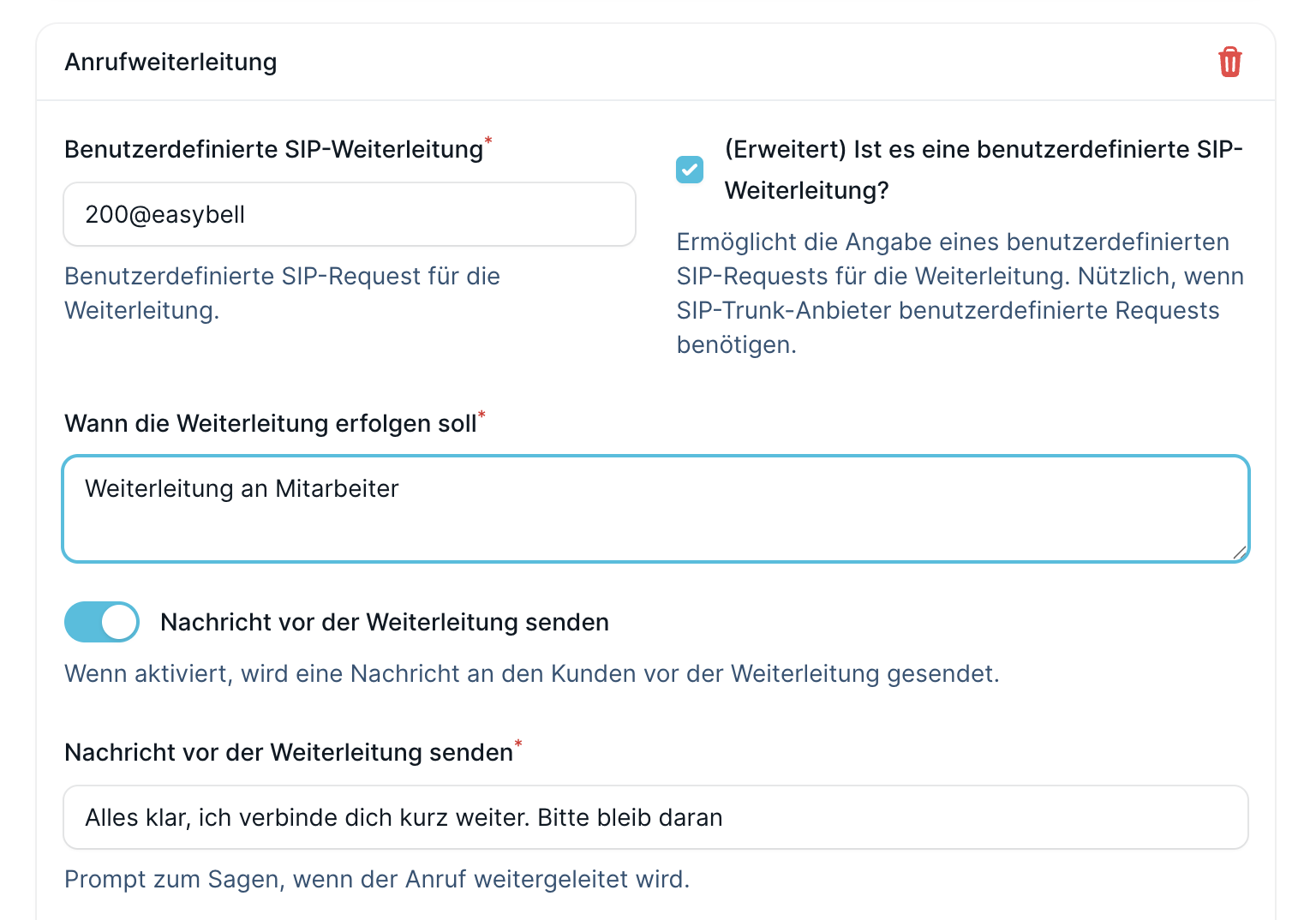
If calls should be forwarded to employees (extensions):
* Create a **cold** or **warm forwarding** under **Tools** in Famulor and use it in your prompt.
* Choose type **“SIP”** (not “phone number”).
* **SIP URL:** internal short number in the format **extension\@easybell**, e.g., `200@easybell`. The **“@easybell”** is mandatory.
### Step 3: Forwarding in Famulor (optional)
If calls should be forwarded to employees (extensions):
* Create a **cold** or **warm forwarding** under **Tools** in Famulor and use it in your prompt.
* Choose type **“SIP”** (not “phone number”).
* **SIP URL:** internal short number in the format **extension\@easybell**, e.g., `200@easybell`. The **“@easybell”** is mandatory.
 ### Step 4: Test
Test an incoming call and check if the AI assistant answers and forwarding works if configured.
***
## Important notes
* **Number format:** Set E.164 **with** leading “+” in Easybell.
* **SIP credentials:** Keep username/password secure; password at least 12 characters with numbers, uppercase/lowercase letters, and optionally special characters.
* **Domain:** Always use the SIP address shown by Famulor (e.g., `… .sip.livekit.cloud`).
## Common issues
The SIP Trunking FQDN feature must be requested from Easybell. Send an email to **[support@easybell.de](mailto:support@easybell.de)** with your **Easybell customer number** and a request for activation for Famulor. Activation may take several days.
Check the **allowed IP addresses** in Famulor under “Inbound Telephony” (enter SIP Trunk or Cloud IPs according to your setup). Make sure Easybell uses the number format **E.164 with leading “+”**.
Enter the **exact SIP address** from Famulor (“Our SIP address” under Phone Numbers → Integrate SIP Trunk). **Without** `sip:` prefix, **without** spaces – use only the displayed value (e.g., `… .sip.livekit.cloud`).
Only works with **Cloud Phone System Pro** and only for **internal** extensions. In the FQDN extension, enable the option **“Allow forwarding”**. Use forwarding type **“SIP”** in Famulor and SIP URL format **extension\@easybell** (e.g., `200@easybell`).
## Help
Our support will assist you with setup: [support@famulor.io](mailto:support@famulor.io). For questions about FQDN/products: [support@easybell.de](mailto:support@easybell.de).
Related pages: [Index](/en/index) and [Support](/en/support), and [FAQ](/en/faq).
### Step 4: Test
Test an incoming call and check if the AI assistant answers and forwarding works if configured.
***
## Important notes
* **Number format:** Set E.164 **with** leading “+” in Easybell.
* **SIP credentials:** Keep username/password secure; password at least 12 characters with numbers, uppercase/lowercase letters, and optionally special characters.
* **Domain:** Always use the SIP address shown by Famulor (e.g., `… .sip.livekit.cloud`).
## Common issues
The SIP Trunking FQDN feature must be requested from Easybell. Send an email to **[support@easybell.de](mailto:support@easybell.de)** with your **Easybell customer number** and a request for activation for Famulor. Activation may take several days.
Check the **allowed IP addresses** in Famulor under “Inbound Telephony” (enter SIP Trunk or Cloud IPs according to your setup). Make sure Easybell uses the number format **E.164 with leading “+”**.
Enter the **exact SIP address** from Famulor (“Our SIP address” under Phone Numbers → Integrate SIP Trunk). **Without** `sip:` prefix, **without** spaces – use only the displayed value (e.g., `… .sip.livekit.cloud`).
Only works with **Cloud Phone System Pro** and only for **internal** extensions. In the FQDN extension, enable the option **“Allow forwarding”**. Use forwarding type **“SIP”** in Famulor and SIP URL format **extension\@easybell** (e.g., `200@easybell`).
## Help
Our support will assist you with setup: [support@famulor.io](mailto:support@famulor.io). For questions about FQDN/products: [support@easybell.de](mailto:support@easybell.de).
Related pages: [Index](/en/index) and [Support](/en/support), and [FAQ](/en/faq).