> ## Documentation Index
> Fetch the complete documentation index at: https://docs.famulor.io/llms.txt
> Use this file to discover all available pages before exploring further.
# Sinch Integration
> Connect a Sinch phone number to Famulor via Elastic SIP Trunking
**Done for you — any region, any country (our EU partner carrier)**
If you prefer not to configure a SIP trunk or import numbers yourself, our **EU partner carrier** can supply **local numbers in any region and any country**, set up the **SIP trunk**, and **import the connection into Famulor** for you. Provisioning runs **end-to-end through the partner** (carrier-side), so you skip DIY trunk and number import in Famulor.
* **Custom number region / full-service onboarding:** [Famulor Custom Number Region form](https://tally.so/r/w4bN2Y)
* **More detail or bespoke options:** [support@famulor.de](mailto:support@famulor.de)
# Connect a Sinch Number to Famulor
This guide connects a **Sinch** phone number to Famulor via **Elastic SIP Trunking (EST)**.
Famulor has **no** dedicated Sinch import feature. You set up an **Elastic SIP Trunk** in Sinch and connect it through **Integrate SIP trunk** in Famulor.
* **Termination** (outbound calls): Famulor sends calls to your **Sinch EST trunk domain**.
* **Origination** (inbound calls): Sinch forwards calls to **Famulor's SIP address**.
## How it works
```mermaid theme={null} theme={null}
sequenceDiagram
participant C as Caller
participant S as Sinch
participant FA as Famulor
participant A as AI assistant
Note over S,FA: Inbound – origination to „Our SIP address"
C->>S: Call to your Sinch number
S->>FA: SIP call to „Our SIP address"
FA->>A: Call routed to assigned assistant
A->>FA: Voice response (real time)
FA->>C: Conversation with AI assistant
Note over FA,S: Outbound – termination to your EST trunk domain
```
* **Inbound:** Famulor does **not** register via SIP REGISTER. Sinch sends calls through the **origination** to „Our SIP address".
* **Outbound:** Famulor sends calls to your Sinch **termination** domain.
## Prerequisites
* An active **Sinch** account with **Elastic SIP Trunking**
* At least one Sinch phone number (DID)
* A Famulor account
***
## Step 1: Create an Elastic SIP Trunk in Sinch
1. In your Sinch dashboard, create an **Elastic SIP Trunk**.
2. Note your trunk's **EST trunk domain (FQDN)** – you need it as the outbound SIP address in Famulor.
3. Assign your **phone number (DID)** to the trunk.
You'll find the exact **EST trunk domain** and its authentication method (IP ACL or digest) in your Sinch dashboard.
***
## Step 2: Set up the SIP trunk in Famulor
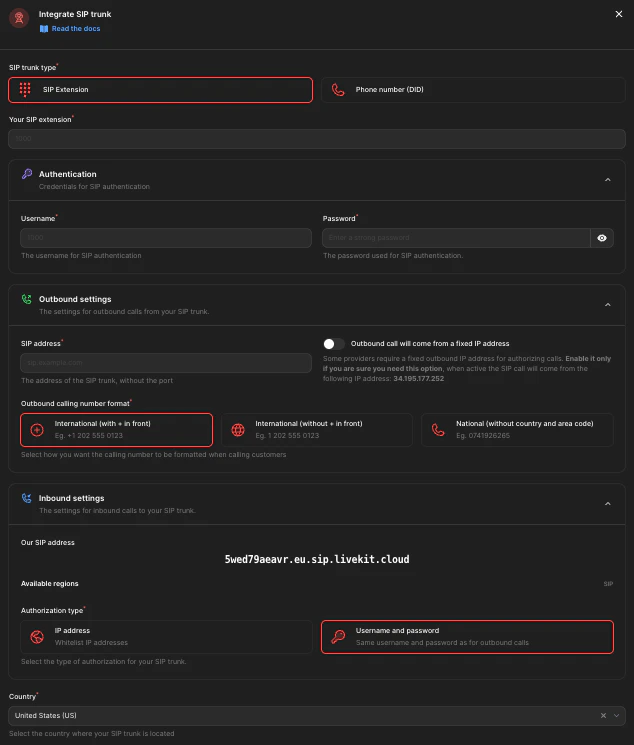
1. Open Famulor at [app.famulor.de/phone-numbers?lang=en](https://app.famulor.de/phone-numbers?lang=en) → **Your phone numbers** → **+ Integrate SIP trunk**.
2. Enter the data as follows:
| Field | Value |
| -------------------------------- | ------------------------------------------------------------------------------------ |
| **SIP trunk type** | **Phone number (DID)** |
| **Phone number** | Your Sinch number in E.164 format (e.g. `+12025550123`) |
| **SIP address** (outbound) | Your **Sinch EST trunk domain** from Step 1 (without port) |
| **Outgoing phone number format** | **International (with leading +)** |
| **Authentication method** | Matching your Sinch trunk – **IP address** or **Username and password** (see Step 3) |
| **Country** | The country of your Sinch trunk |
3. Under **Incoming call settings**, copy the value **Our SIP address** (e.g. `xxxxxx.eu.sip.livekit.cloud`). You need it in Step 3.
4. Click **Add SIP number**.
 ***
## Step 3: Configure origination and authentication in Sinch
### Origination (inbound calls)
In your Sinch trunk's **inbound settings**, add a **static endpoint** that points to Famulor's SIP address:
```text theme={null}
:5060;transport=udp
```
**Example:** `xxxxxx.eu.sip.livekit.cloud:5060;transport=udp`
### Termination authentication (outbound calls)
Choose one of the two methods – matching Step 2:
* **IP ACL (recommended):** add Famulor's **fixed outbound IP** to your Sinch trunk's termination ACL (currently `34.195.177.252/32`). To use it, enable **„Outbound call will come from a fixed IP address"** in Famulor.
* **Digest (username/password):** if your Sinch trunk uses digest auth, enter the credentials in Famulor under **Authentication**.
Confirm the **fixed outbound IP** currently shown in the Famulor dialog („Integrate SIP trunk" → outbound settings) in case it differs from `34.195.177.252`.
***
## Step 4: Assign an assistant and test
1. Open **Assistants** in Famulor and edit the assistant you want to use.
2. Select the correct **inbound type** (incoming calls).
3. Choose your connected Sinch phone number from the list.
4. Click **Save assistant**.
5. Place a **test call** to your Sinch number and check that the AI assistant answers.
***
## Common issues
Check the **origination** in Sinch (Step 3): the static endpoint must point to the **exact** „Our SIP address" from Famulor. Make sure the **DID is assigned to the trunk**.
Check the **EST trunk domain** as the SIP address in Famulor and the **authentication**: for **IP ACL**, Famulor's **fixed outbound IP** (`34.195.177.252/32`) must be allowed on the Sinch trunk and the fixed IP enabled in Famulor. Set the number format to **International (with leading +)**.
Always use the **exact** „Our SIP address" from Famulor (Phone numbers → Integrate SIP trunk → Incoming call settings).
***
## Help
If you need help, contact our support team at [support@famulor.io](mailto:support@famulor.io). For general guidance, see [SIP Integration](/en/provisioning/sip-ai/sip-integration) and [SIP integration issues](/en/troubleshooting/sip-integration-issues).
***
## Step 3: Configure origination and authentication in Sinch
### Origination (inbound calls)
In your Sinch trunk's **inbound settings**, add a **static endpoint** that points to Famulor's SIP address:
```text theme={null}
:5060;transport=udp
```
**Example:** `xxxxxx.eu.sip.livekit.cloud:5060;transport=udp`
### Termination authentication (outbound calls)
Choose one of the two methods – matching Step 2:
* **IP ACL (recommended):** add Famulor's **fixed outbound IP** to your Sinch trunk's termination ACL (currently `34.195.177.252/32`). To use it, enable **„Outbound call will come from a fixed IP address"** in Famulor.
* **Digest (username/password):** if your Sinch trunk uses digest auth, enter the credentials in Famulor under **Authentication**.
Confirm the **fixed outbound IP** currently shown in the Famulor dialog („Integrate SIP trunk" → outbound settings) in case it differs from `34.195.177.252`.
***
## Step 4: Assign an assistant and test
1. Open **Assistants** in Famulor and edit the assistant you want to use.
2. Select the correct **inbound type** (incoming calls).
3. Choose your connected Sinch phone number from the list.
4. Click **Save assistant**.
5. Place a **test call** to your Sinch number and check that the AI assistant answers.
***
## Common issues
Check the **origination** in Sinch (Step 3): the static endpoint must point to the **exact** „Our SIP address" from Famulor. Make sure the **DID is assigned to the trunk**.
Check the **EST trunk domain** as the SIP address in Famulor and the **authentication**: for **IP ACL**, Famulor's **fixed outbound IP** (`34.195.177.252/32`) must be allowed on the Sinch trunk and the fixed IP enabled in Famulor. Set the number format to **International (with leading +)**.
Always use the **exact** „Our SIP address" from Famulor (Phone numbers → Integrate SIP trunk → Incoming call settings).
***
## Help
If you need help, contact our support team at [support@famulor.io](mailto:support@famulor.io). For general guidance, see [SIP Integration](/en/provisioning/sip-ai/sip-integration) and [SIP integration issues](/en/troubleshooting/sip-integration-issues).