> ## Documentation Index
> Fetch the complete documentation index at: https://docs.famulor.io/llms.txt
> Use this file to discover all available pages before exploring further.
# Starface Integration
> Connect your Starface PBX to Famulor AI voice agents via SIP trunk — line setup, phone number, time-based forwarding, and SIP transfers step by step.
**Done for you — any region, any country (our EU partner carrier)**
If you prefer not to configure a SIP trunk or import numbers yourself, our **EU partner carrier** can supply **local numbers in any region and any country**, set up the **SIP trunk**, and **import the connection into Famulor** for you. Provisioning runs **end-to-end through the partner** (carrier-side), so you skip DIY trunk and number import in Famulor.
* **Custom number region / full-service onboarding:** [Famulor Custom Number Region form](https://tally.so/r/w4bN2Y)
* **More detail or bespoke options:** [support@famulor.de](mailto:support@famulor.de)
# Connect Starface to Famulor
This guide shows how to connect your **Starface** phone system to **Famulor** using a **SIP trunk**. Your AI assistant answers inbound calls; transfers from Famulor must use **SIP** to avoid call loops.
The Starface line may show as **“not registered”** — that is **expected** for IP/host-based SIP to Famulor and is not an error.
## Prerequisites
* Starface system with admin access to **Configuration → Lines (Leitungen)**
* Famulor account
* A **free phone number** not already used elsewhere in Starface
* Your **Famulor SIP address** from the dashboard
***
## Step 1: Create a line in Starface
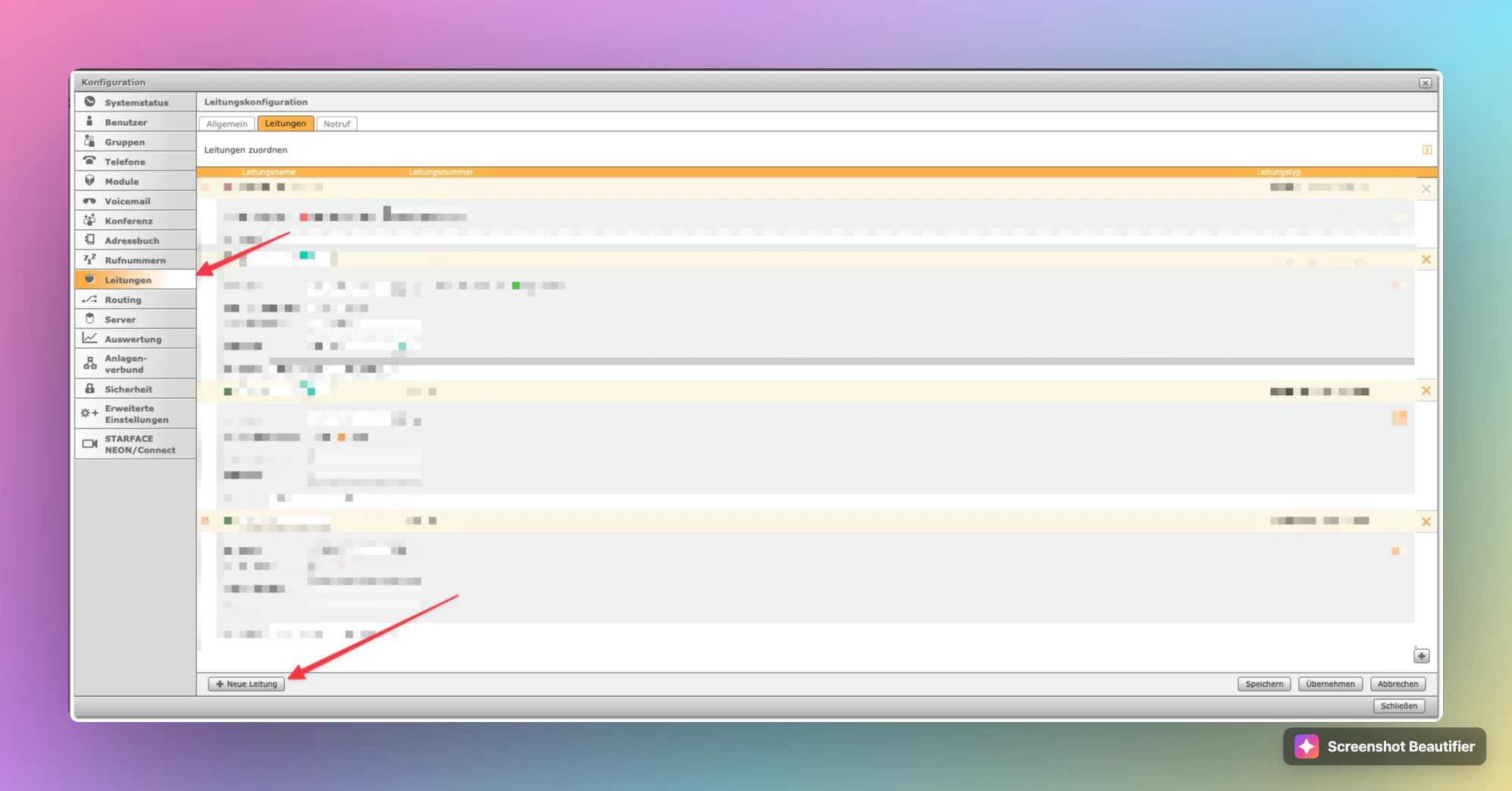
### 1.1 Add a new line
1. In Starface, open **Configuration → Lines (Leitungen)**.
2. Open the **Leitungen** tab.
3. Click **+ Neue Leitung** (New line) at the bottom left.
 ### 1.2 Find your Famulor SIP address
Use this address for **host** and **fromdomain** in Starface:
1. Open [app.famulor.de/phone-numbers](https://app.famulor.de/phone-numbers?lang=en).
2. Click **+ Integrate SIP trunk** (or open **SIP integration** on an existing number).
3. Under **Inbound settings**, copy **Our SIP address** (for Germany/Europe, usually the **France, Germany, Zurich** region).
### 1.2 Find your Famulor SIP address
Use this address for **host** and **fromdomain** in Starface:
1. Open [app.famulor.de/phone-numbers](https://app.famulor.de/phone-numbers?lang=en).
2. Click **+ Integrate SIP trunk** (or open **SIP integration** on an existing number).
3. Under **Inbound settings**, copy **Our SIP address** (for Germany/Europe, usually the **France, Germany, Zurich** region).
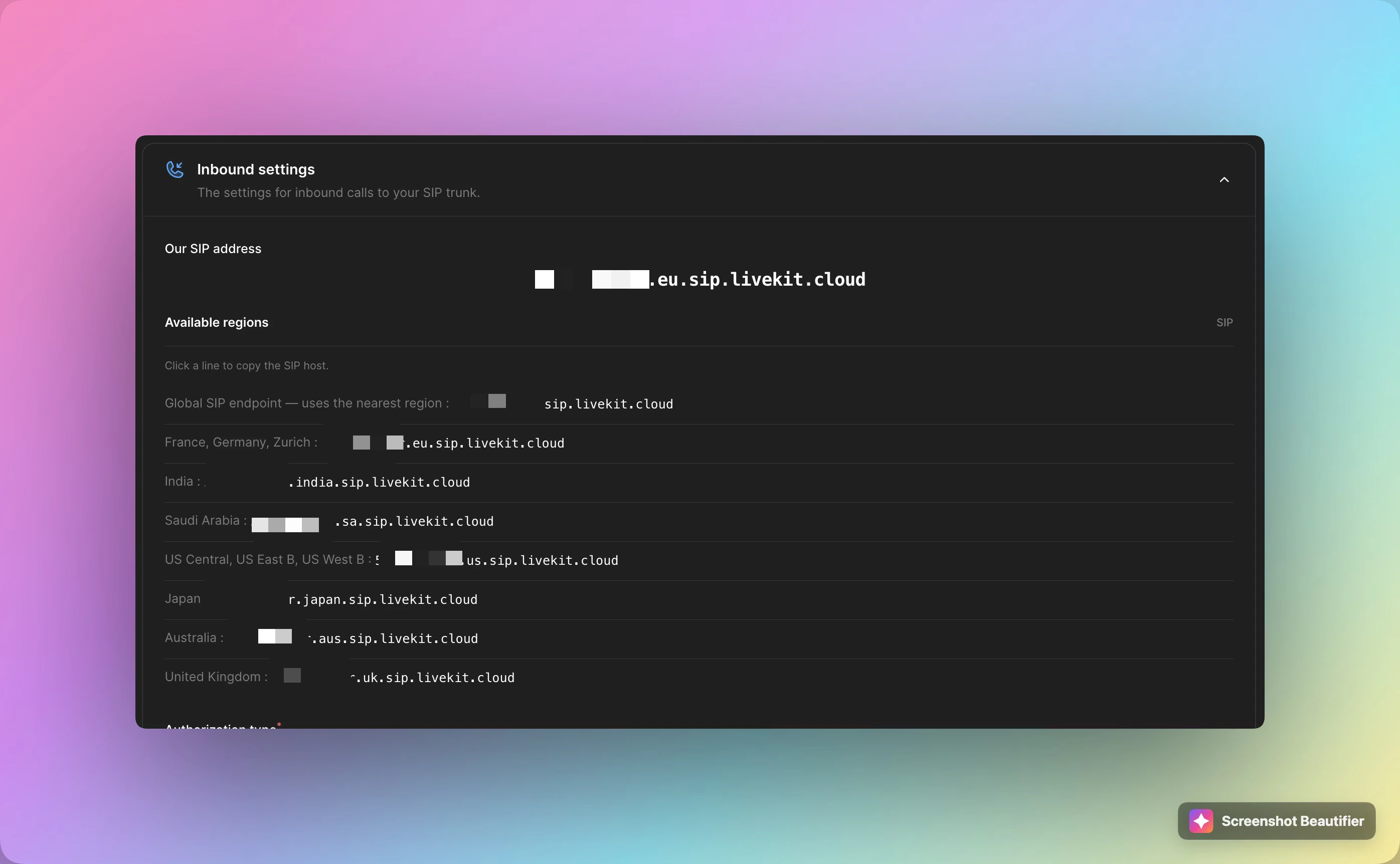 In Starface, enter only the hostname (e.g. `yourproject.eu.sip.livekit.cloud`) — **without** a `sip:` prefix.
### 1.3 Configure the SIP provider in Starface
1. Select the new line and open the **Provider** sub-tab.
2. Under **SIP configuration**, set:
| Field | Value |
| -------------- | ---------------------------------------------------------------------------- |
| **host** | **Our SIP address** copied from Famulor |
| **fromdomain** | Same value as **host** |
| **transport** | **tcp** |
| **nat** | **Yes** (recommended; see [Troubleshooting](#troubleshooting-no-audio--nat)) |
In Starface, enter only the hostname (e.g. `yourproject.eu.sip.livekit.cloud`) — **without** a `sip:` prefix.
### 1.3 Configure the SIP provider in Starface
1. Select the new line and open the **Provider** sub-tab.
2. Under **SIP configuration**, set:
| Field | Value |
| -------------- | ---------------------------------------------------------------------------- |
| **host** | **Our SIP address** copied from Famulor |
| **fromdomain** | Same value as **host** |
| **transport** | **tcp** |
| **nat** | **Yes** (recommended; see [Troubleshooting](#troubleshooting-no-audio--nat)) |
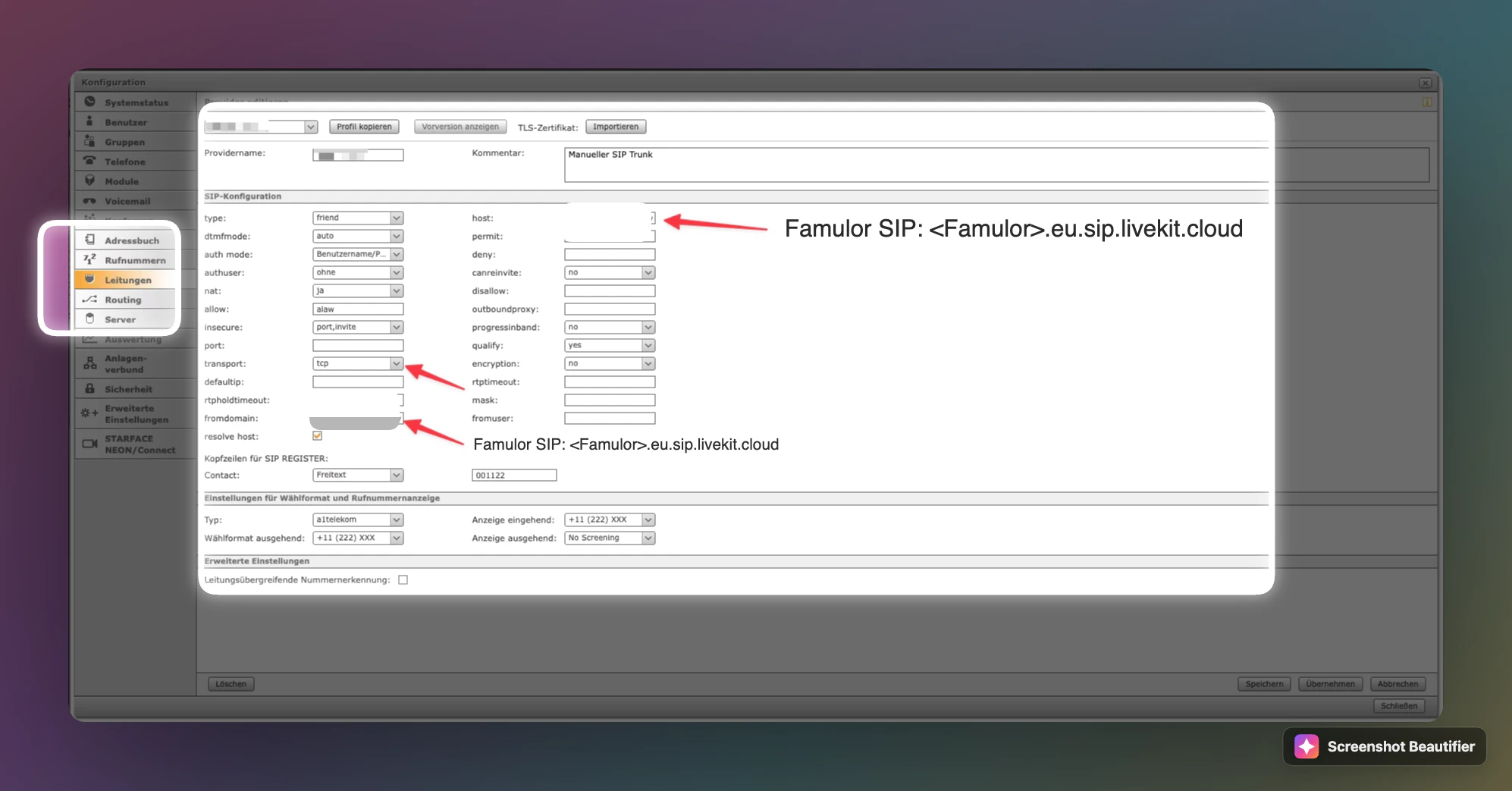 Status **“not registered”** is normal. Famulor does **not** use SIP REGISTER for this setup — connectivity is host/IP-based.
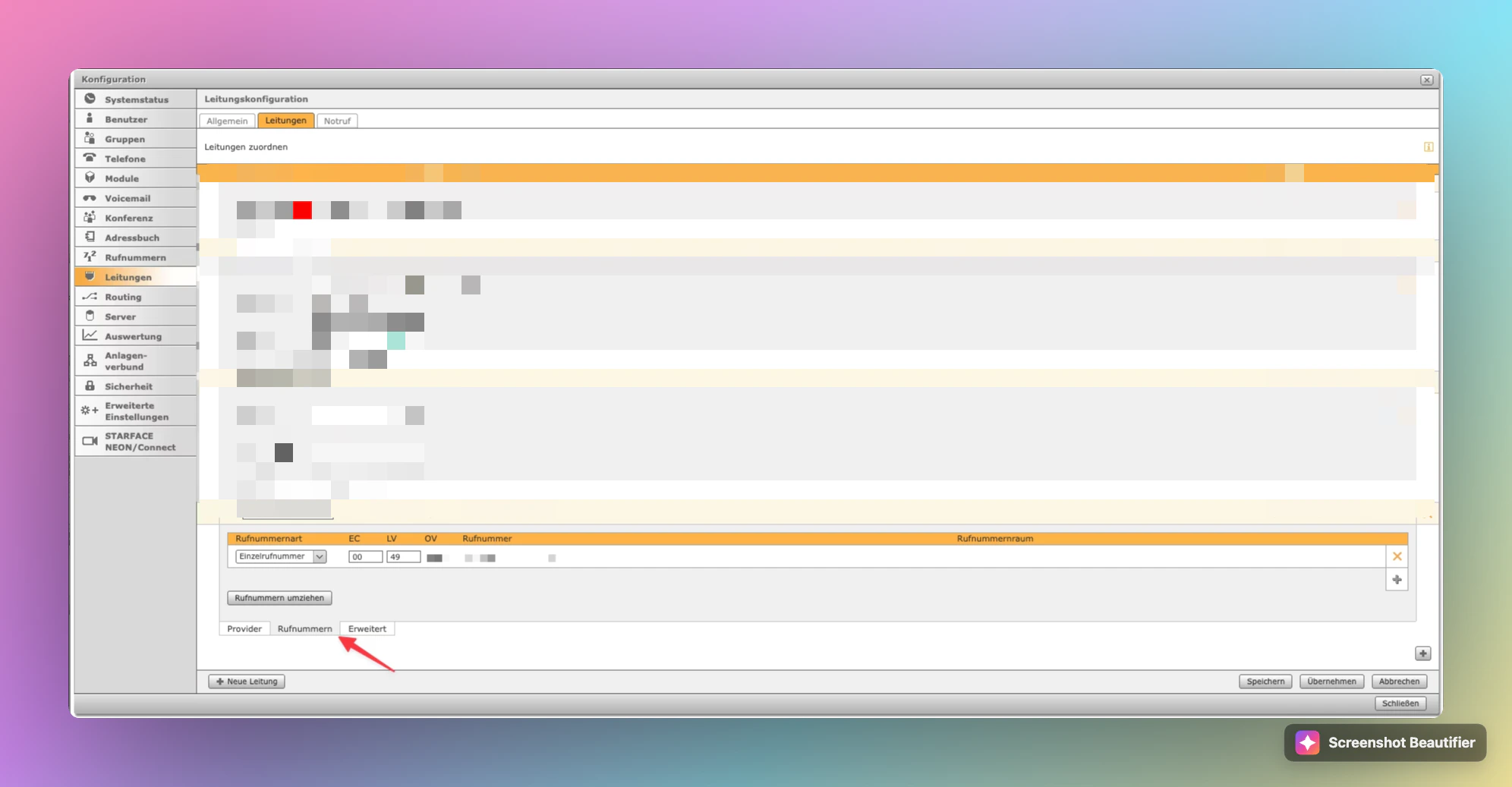
### 1.4 Add a phone number to the line
1. Stay on the line and open the **Rufnummern** (Phone numbers) sub-tab.
2. Add the number as **Einzelrufnummer** (single number) with country code **49** and the correct area code and subscriber number.
3. The number must **not** already be in use on another line or service.
Status **“not registered”** is normal. Famulor does **not** use SIP REGISTER for this setup — connectivity is host/IP-based.
### 1.4 Add a phone number to the line
1. Stay on the line and open the **Rufnummern** (Phone numbers) sub-tab.
2. Add the number as **Einzelrufnummer** (single number) with country code **49** and the correct area code and subscriber number.
3. The number must **not** already be in use on another line or service.
 ### 1.5 Enable CLIP No Screening
1. In line settings ( **Leitungen** tab, line selected), enable **CLIP No Screening**.
2. Note the **line prefix** (e.g. `**2*` or `**3*`) — you need it for time-based forwarding.
### 1.5 Enable CLIP No Screening
1. In line settings ( **Leitungen** tab, line selected), enable **CLIP No Screening**.
2. Note the **line prefix** (e.g. `**2*` or `**3*`) — you need it for time-based forwarding.
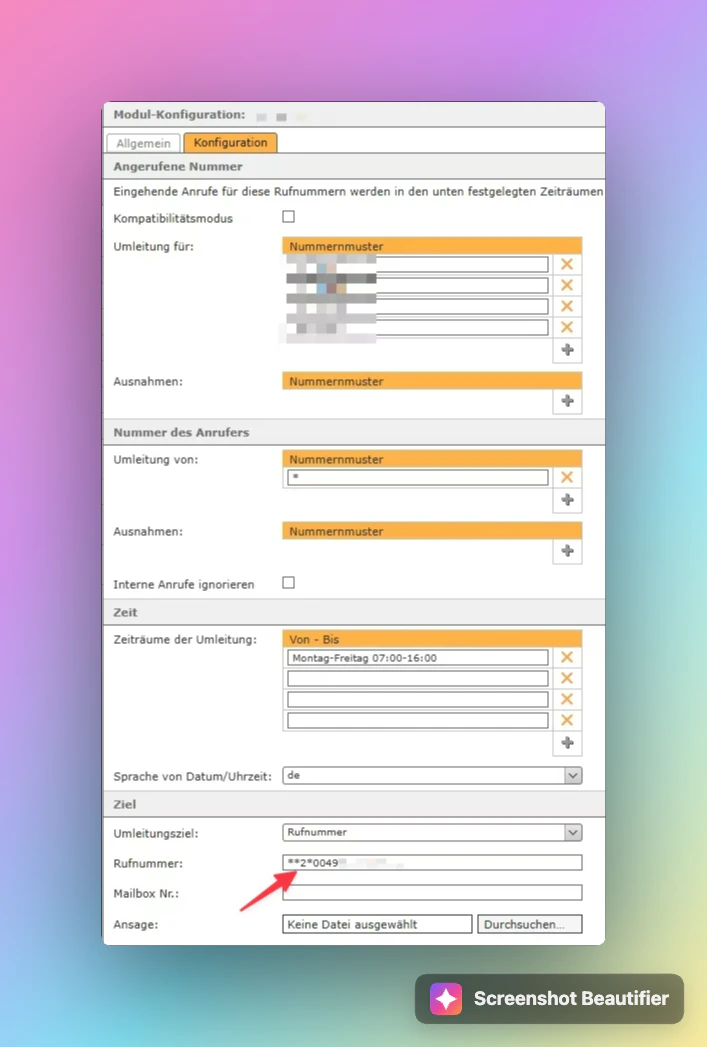
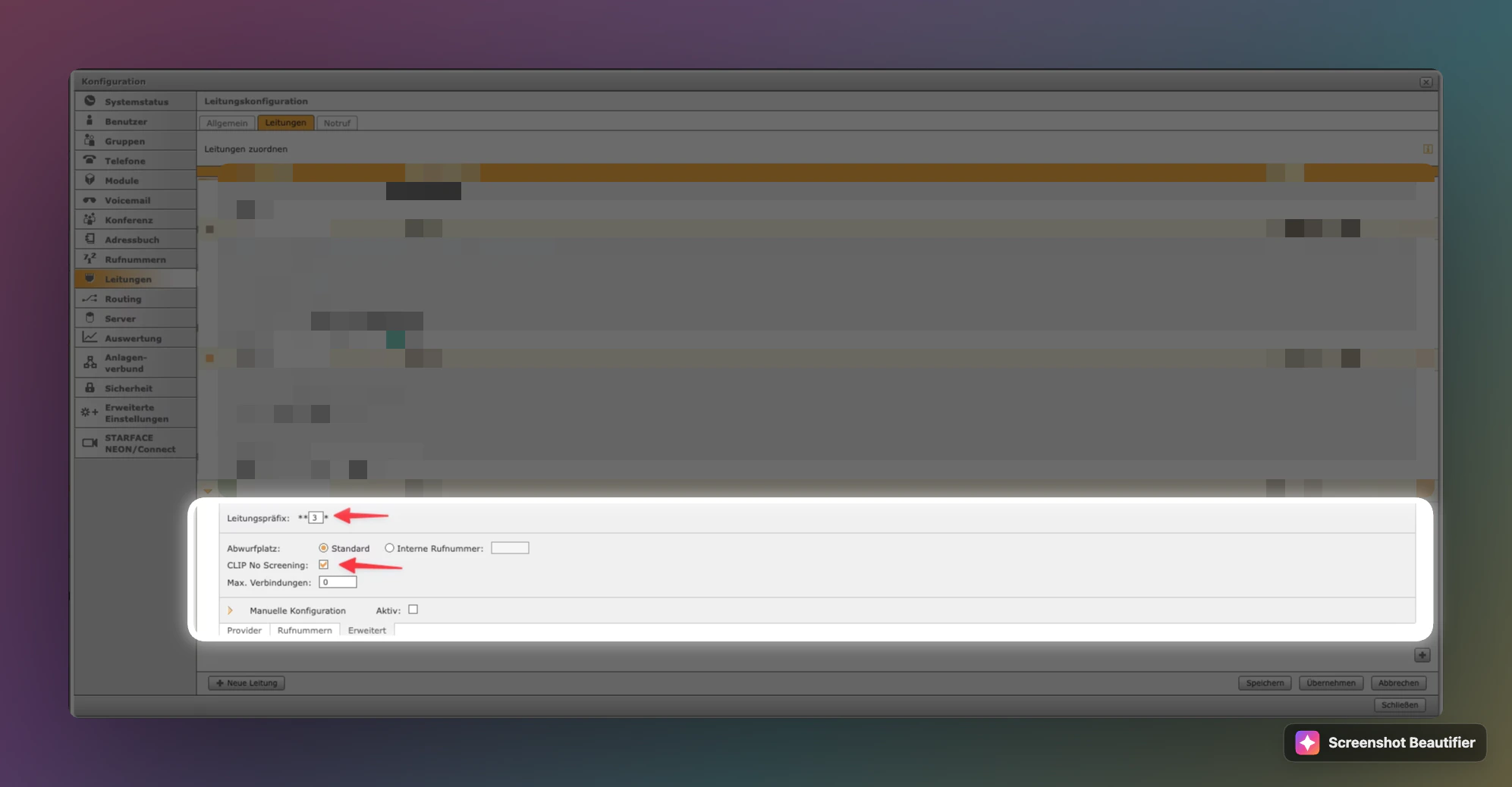 **Save the line prefix:** Forwarding uses the format `***` (example: `**2*004915112345678`).
***
## Step 2: Create the number in Famulor
1. Open [app.famulor.de/phone-numbers](https://app.famulor.de/phone-numbers?lang=en).
2. Click **+ Integrate SIP trunk**.
3. Enter the **same phone number** you configured on the Starface line (E.164, e.g. `+4915112345678`).
4. **SIP address / termination:** only required if Famulor should place **outbound** calls via Starface; otherwise leave blank for inbound-only setups.
5. Save the number and copy **Our SIP address** if needed for Starface routing.
### Use SIP for transfers only
**Do not use PSTN forwarding from the assistant:** Regular call forwarding over the public phone network can create a **loop** with Starface. Configure all assistant transfers as **SIP transfer**.
1. Open the assistant → **Tools** → **Call transfer**.
2. Enable **(Advanced) Is custom SIP transfer?**
3. Under **Custom SIP transfer**, enter the destination (e.g. `tel:…` or Starface format `***`).
4. Set **When to transfer** to define when the handoff happens (e.g. when the caller asks for a human).
**Save the line prefix:** Forwarding uses the format `***` (example: `**2*004915112345678`).
***
## Step 2: Create the number in Famulor
1. Open [app.famulor.de/phone-numbers](https://app.famulor.de/phone-numbers?lang=en).
2. Click **+ Integrate SIP trunk**.
3. Enter the **same phone number** you configured on the Starface line (E.164, e.g. `+4915112345678`).
4. **SIP address / termination:** only required if Famulor should place **outbound** calls via Starface; otherwise leave blank for inbound-only setups.
5. Save the number and copy **Our SIP address** if needed for Starface routing.
### Use SIP for transfers only
**Do not use PSTN forwarding from the assistant:** Regular call forwarding over the public phone network can create a **loop** with Starface. Configure all assistant transfers as **SIP transfer**.
1. Open the assistant → **Tools** → **Call transfer**.
2. Enable **(Advanced) Is custom SIP transfer?**
3. Under **Custom SIP transfer**, enter the destination (e.g. `tel:…` or Starface format `***`).
4. Set **When to transfer** to define when the handoff happens (e.g. when the caller asks for a human).
 More detail: [SIP troubleshooting – call transfer](/en/provisioning/sip-ai/sip-troubleshooting).
***
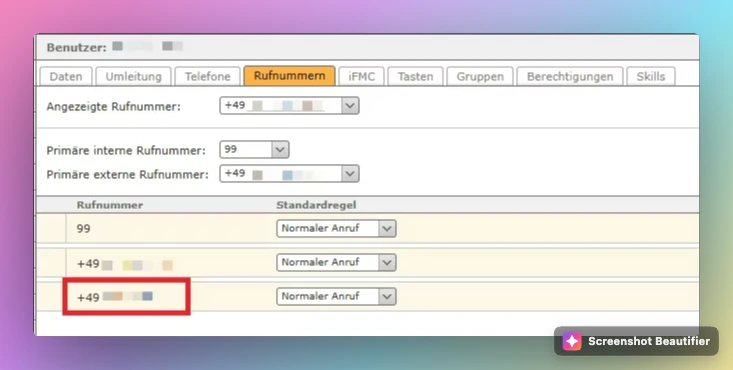
## Step 3: Assign a Starface user
Starface cannot use the SIP number for calls and rules until it is assigned to a user.
1. Go to **Configuration → Users (Benutzer)** and select the user.
2. Open the **Rufnummern** (Phone numbers) tab.
3. Assign the **external SIP number** from the line (e.g. rule **Normaler Anruf** / normal call).
More detail: [SIP troubleshooting – call transfer](/en/provisioning/sip-ai/sip-troubleshooting).
***
## Step 3: Assign a Starface user
Starface cannot use the SIP number for calls and rules until it is assigned to a user.
1. Go to **Configuration → Users (Benutzer)** and select the user.
2. Open the **Rufnummern** (Phone numbers) tab.
3. Assign the **external SIP number** from the line (e.g. rule **Normaler Anruf** / normal call).
 ***
## Step 4: Set up time-based forwarding
Configure routing (e.g. **Modules → Zeitgesteuerte Umleitung** / time-based forwarding) to send calls to Famulor.
1. **Called number:** the Starface number that should reach Famulor.
2. **Destination type:** **Rufnummer** (phone number).
3. **Number** in this exact format: `***`\
Example with prefix `**2*` and number `004915112345678`:\
`**2*004915112345678`
4. Set time windows as needed (e.g. Mon–Fri 07:00–16:00).
***
## Step 4: Set up time-based forwarding
Configure routing (e.g. **Modules → Zeitgesteuerte Umleitung** / time-based forwarding) to send calls to Famulor.
1. **Called number:** the Starface number that should reach Famulor.
2. **Destination type:** **Rufnummer** (phone number).
3. **Number** in this exact format: `***`\
Example with prefix `**2*` and number `004915112345678`:\
`**2*004915112345678`
4. Set time windows as needed (e.g. Mon–Fri 07:00–16:00).
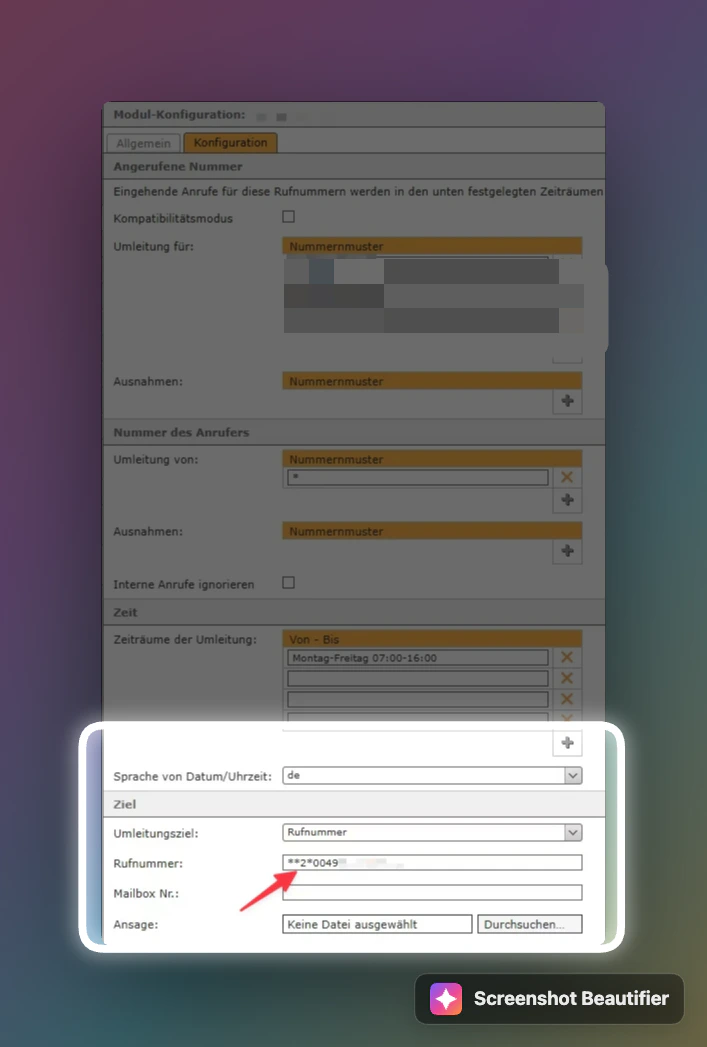 Digits after `*` use the **international dial string without +** (`00` + country code + number). The prefix comes from step 1.5.
***
## Step 5: Assign an assistant and test
1. In Famulor, open **Assistants** and edit the desired assistant.
2. Select the correct **inbound type** and the imported **phone number**.
3. **Save assistant** and place a **test call**.
***
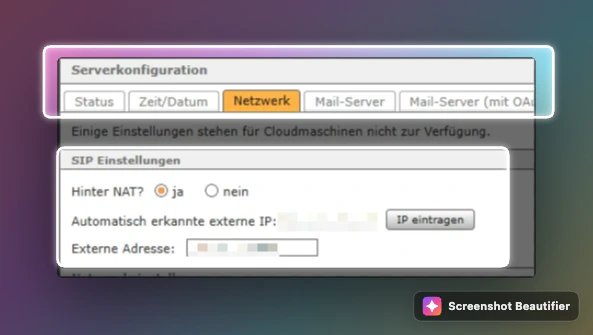
## Troubleshooting: No audio / NAT
**Symptom:** One-way audio or silence on Starface Cloud or with the assistant.
**Fix:** Enable NAT in Starface so RTP (audio) reaches the correct endpoint.
1. Open **Server configuration → Network**.
2. Under **SIP settings**, set **Behind NAT?** to **yes**.
3. Verify **external address** or use **Enter IP** if auto-detection fails.
4. On the line (**Provider**), set **nat** to **Yes**.
Digits after `*` use the **international dial string without +** (`00` + country code + number). The prefix comes from step 1.5.
***
## Step 5: Assign an assistant and test
1. In Famulor, open **Assistants** and edit the desired assistant.
2. Select the correct **inbound type** and the imported **phone number**.
3. **Save assistant** and place a **test call**.
***
## Troubleshooting: No audio / NAT
**Symptom:** One-way audio or silence on Starface Cloud or with the assistant.
**Fix:** Enable NAT in Starface so RTP (audio) reaches the correct endpoint.
1. Open **Server configuration → Network**.
2. Under **SIP settings**, set **Behind NAT?** to **yes**.
3. Verify **external address** or use **Enter IP** if auto-detection fails.
4. On the line (**Provider**), set **nat** to **Yes**.
 More SIP help: [SIP integration troubleshooting](/en/provisioning/sip-ai/sip-troubleshooting).
***
## Help
Starface configuration: [Starface support](https://www.starface.com/en/support/).\
Famulor: [support@famulor.io](mailto:support@famulor.io) or [SIP integration overview](/en/provisioning/sip-ai/sip-integration).
More SIP help: [SIP integration troubleshooting](/en/provisioning/sip-ai/sip-troubleshooting).
***
## Help
Starface configuration: [Starface support](https://www.starface.com/en/support/).\
Famulor: [support@famulor.io](mailto:support@famulor.io) or [SIP integration overview](/en/provisioning/sip-ai/sip-integration).