> ## Documentation Index
> Fetch the complete documentation index at: https://docs.famulor.io/llms.txt
> Use this file to discover all available pages before exploring further.
# Zadarma Integration
> Connect your Zadarma account to Famulor via SIP Trunking
**Done for you — any region, any country (our EU partner carrier)**
If you prefer not to configure a SIP trunk or import numbers yourself, our **EU partner carrier** can supply **local numbers in any region and any country**, set up the **SIP trunk**, and **import the connection into Famulor** for you. Provisioning runs **end-to-end through the partner** (carrier-side), so you skip DIY trunk and number import in Famulor.
* **Custom number region / full-service onboarding:** [Famulor Custom Number Region form](https://tally.so/r/w4bN2Y)
* **More detail or bespoke options:** [support@famulor.de](mailto:support@famulor.de)
# Zadarma Integration
A step-by-step guide to connecting your Zadarma account to Famulor via SIP Trunking
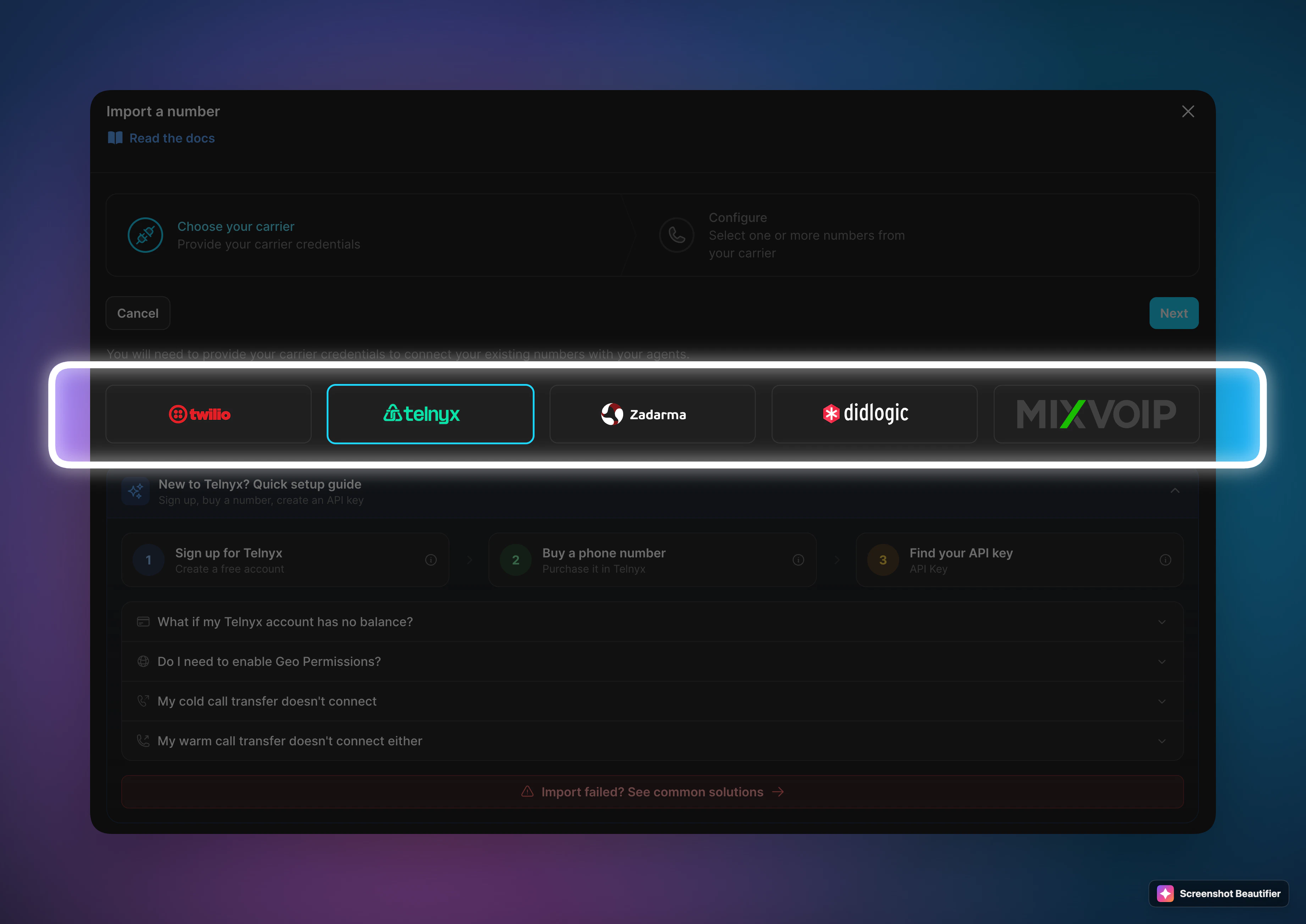
**Phone number import (BYOC):** Open **Your Phone Numbers → Integrate SIP trunk** in the Famulor dashboard. The wizard lists **Twilio**, **Telnyx**, **Zadarma**, and **DIDLogic**. **Import number** creates what you need on Famulor’s side and imports your numbers from the carrier once your account is linked—you do not need to fill every SIP field by hand. Use **Import number**, or **follow this guide below** for full manual setup. Overview: [SIP Integration](/en/provisioning/sip-ai/sip-integration). The steps below document **manual Zadarma** SIP trunking.
 **Pricing snapshot:** Zadarma publishes public virtual-number pricing by country. Outbound calling depends on your selected price plan and the live tariff table.
* **Inbound / number rental examples:** Germany `EUR 4/month` + `EUR 2` connection, Switzerland `EUR 4/month`, United Kingdom `EUR 4/month`, United States `EUR 3.2/month`
* **Outbound / calling:** Live pay-as-you-go rates vary by plan and destination; incoming calls to purchased numbers are generally free except toll-free numbers
* **Official pricing:** [Zadarma number rates](https://zadarma.com/en/tariffs/numbers/) and [Zadarma call rates](https://zadarma.com/en/tariffs/calls/)
Connect your Zadarma phone system to Famulor via SIP Trunking for flexible and scalable telephony integration.
Leverage Zadarma’s robust infrastructure, global reach, and competitive rates alongside our AI assistants.
## What is Zadarma Integration?
Zadarma integration allows you to connect your Zadarma phone system with Famulor. Zadarma offers flexible SIP Trunking solutions for telephony integration.
Use your existing Zadarma phone numbers with our AI assistants
Keep Zadarma’s robust infrastructure and global reach
Make and receive calls through your Zadarma setup
Maintain full control over your numbers
Benefit from Zadarma’s competitive rates and regional endpoints
## How It Works
When you integrate your Zadarma system with Famulor:
Calls to your Zadarma numbers are forwarded via SIP Trunking to our AI assistants
Our AI assistants can make calls that appear to come from your Zadarma numbers
You continue managing your numbers via the Zadarma dashboard
Take advantage of Zadarma’s competitive rates and regional endpoints
## Setting Up Your Zadarma Integration
**Navigate to "My PBX" → "Extensions" on the main page.**
**Pricing snapshot:** Zadarma publishes public virtual-number pricing by country. Outbound calling depends on your selected price plan and the live tariff table.
* **Inbound / number rental examples:** Germany `EUR 4/month` + `EUR 2` connection, Switzerland `EUR 4/month`, United Kingdom `EUR 4/month`, United States `EUR 3.2/month`
* **Outbound / calling:** Live pay-as-you-go rates vary by plan and destination; incoming calls to purchased numbers are generally free except toll-free numbers
* **Official pricing:** [Zadarma number rates](https://zadarma.com/en/tariffs/numbers/) and [Zadarma call rates](https://zadarma.com/en/tariffs/calls/)
Connect your Zadarma phone system to Famulor via SIP Trunking for flexible and scalable telephony integration.
Leverage Zadarma’s robust infrastructure, global reach, and competitive rates alongside our AI assistants.
## What is Zadarma Integration?
Zadarma integration allows you to connect your Zadarma phone system with Famulor. Zadarma offers flexible SIP Trunking solutions for telephony integration.
Use your existing Zadarma phone numbers with our AI assistants
Keep Zadarma’s robust infrastructure and global reach
Make and receive calls through your Zadarma setup
Maintain full control over your numbers
Benefit from Zadarma’s competitive rates and regional endpoints
## How It Works
When you integrate your Zadarma system with Famulor:
Calls to your Zadarma numbers are forwarded via SIP Trunking to our AI assistants
Our AI assistants can make calls that appear to come from your Zadarma numbers
You continue managing your numbers via the Zadarma dashboard
Take advantage of Zadarma’s competitive rates and regional endpoints
## Setting Up Your Zadarma Integration
**Navigate to "My PBX" → "Extensions" on the main page.**
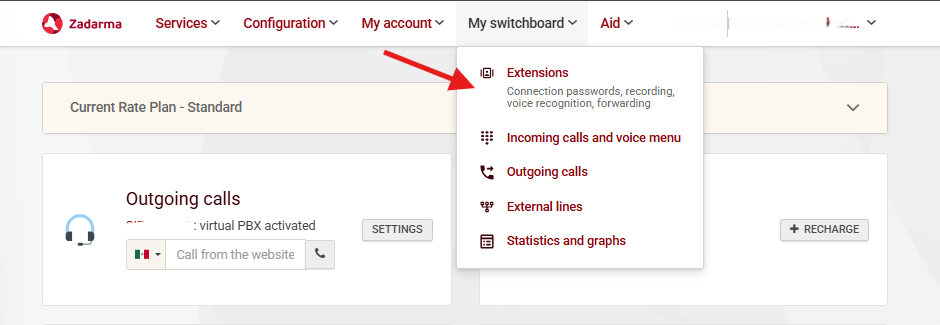 Locate the following information:
```bash theme={null}
Extension Number: e.g. 1000
Server Address: e.g. pbx.zadarma.com
Username: Your extension username
Password: Your extension password
```
Locate the following information:
```bash theme={null}
Extension Number: e.g. 1000
Server Address: e.g. pbx.zadarma.com
Username: Your extension username
Password: Your extension password
```
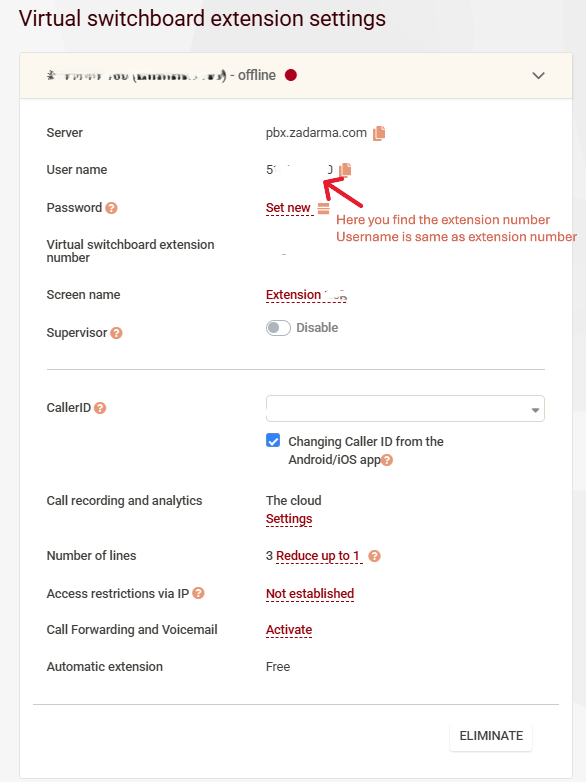 **Go to "Configuration" → "SIP Settings" on the main page.**
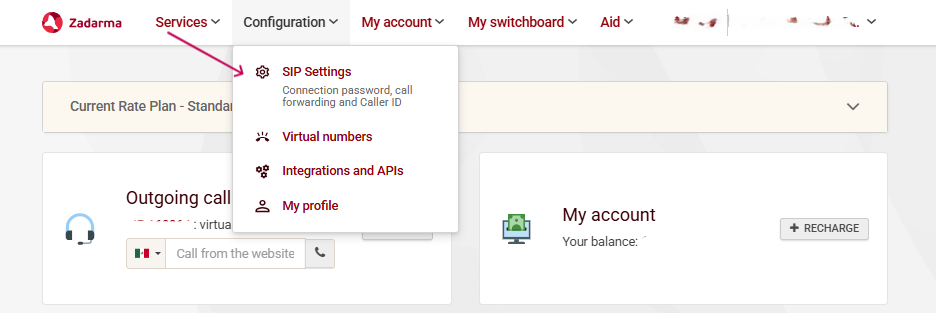 Find the following information:
```bash theme={null}
Phone Number: e.g. +1 555 0123
SIP Server: e.g. sip.zadarma.com
Username: Provided by your phone provider
Password: Provided by your phone provider
```
Find the following information:
```bash theme={null}
Phone Number: e.g. +1 555 0123
SIP Server: e.g. sip.zadarma.com
Username: Provided by your phone provider
Password: Provided by your phone provider
```
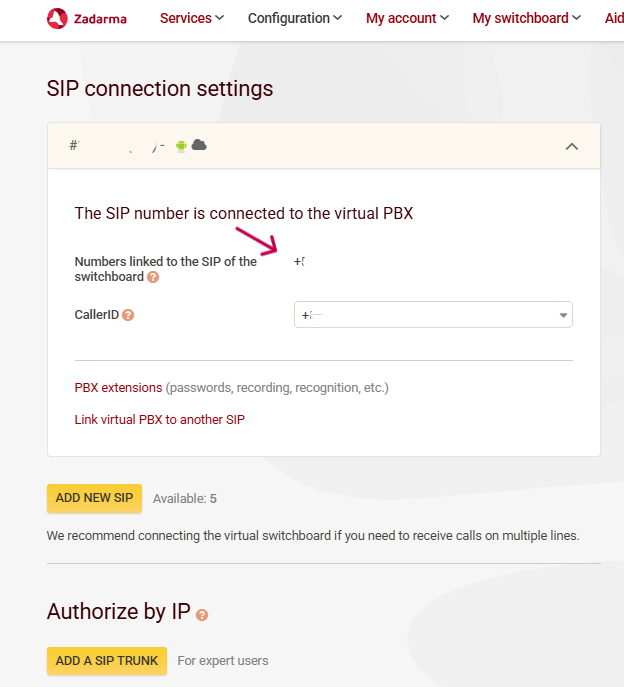 **For IP Authorization Type:**
1. Go to "Services" → "Connect Number" on the main page
**For IP Authorization Type:**
1. Go to "Services" → "Connect Number" on the main page
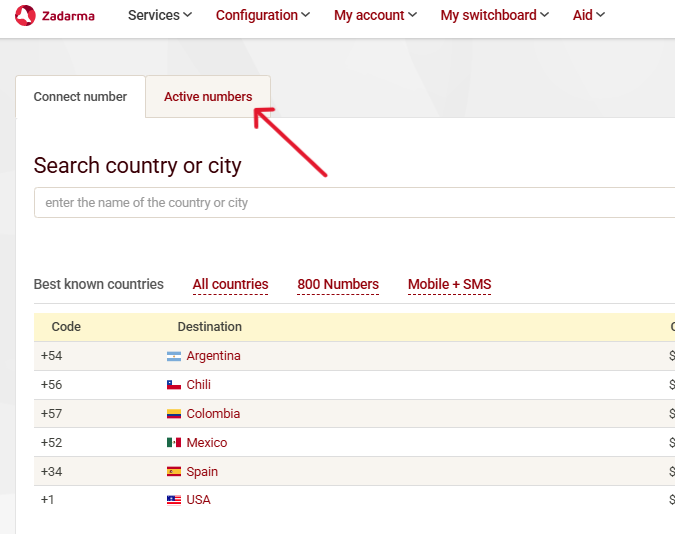
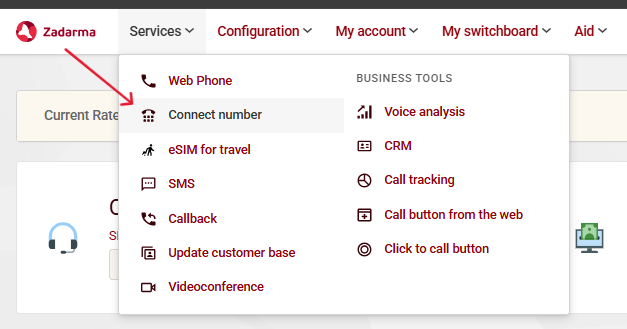 2. Open "Active Numbers"
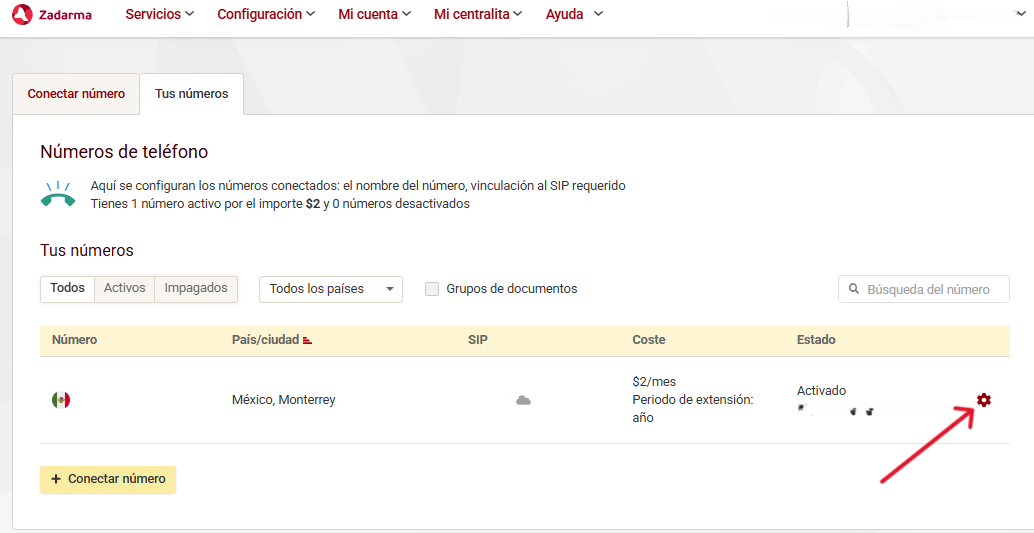
 3\. Click the number you want to connect and press the settings button
 4. Click on "External Services" then enable the SIP URI option
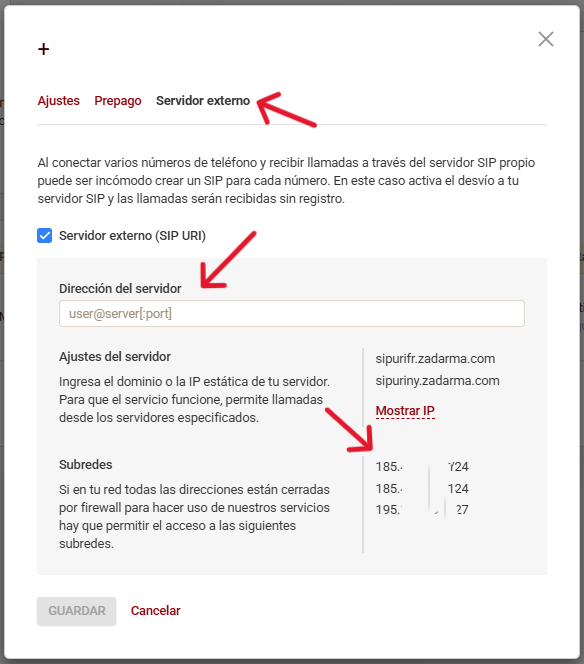 5\. Add `sip:extension@your-unique-id.sip.livekit.cloud` (this is the Famulor SIP server address)
You will need these IPs, which you enter in Step 2 for the incoming authorization type.
**Important:** The specific Famulor SIP address is available in your Famulor dashboard under "Phone Numbers" → "Integrate SIP Trunk" → "Our SIP Address."
You need to import them into Famulor.
1. Go to your Famulor dashboard
2. Navigate to "Your Phone Numbers"
3. Click on "Integrate SIP Trunk"
Fill in your details based on your integration type.
Fill in your details based on your integration type.
Enter the termination SIP URI that you configured in Step 1 here.
```bash theme={null}
Server Address: e.g. pbx.zadarma.com / sip.zadarma.com depending on your integration type
```
Select the authorization type here.
Add the IPs from Zadarma (Step 1).
Choose the country where your SIP trunk is located.
After configuration:
1. Make a test call to your number/extension
2. Verify that the AI assistant answers
3. Use the test call feature to verify outgoing calls
## Security Requirements
Your SIP credentials must be secure:
* **Username:** Your extension number or the username provided by Zadarma
* **Password requirements:**
* 12 or more characters
* Numbers
* Upper and lowercase letters
* Special characters recommended
## Common Issues
**Incoming calls work after connection, but outgoing calls don’t?**
* Remove any spaces if present
* Use a localized termination URI close to your region
* Refer to this documentation to choose one
* Make sure you entered the correct username and credentials
* Note that the username is not the friendly name shown in the credentials list
* The friendly name differs from the username - double-check this
**How do I set up dialing to international countries?**
1. Search for "geo" to find the "Voice Geographic Permissions" setting
2. Select "Elastic SIP Trunking" in the selector
3. Choose the countries you want to dial
## Need Help?
Our support team specializes in helping customers integrate their phone systems. We guide you through the entire process and ensure a smooth setup with your specific Zadarma configuration.
Need further assistance? Contact our support team for personalized help with your Zadarma integration.
Related pages: [Index](/en/index) and [Support](/en/support), and [FAQ](/en/faq).
5\. Add `sip:extension@your-unique-id.sip.livekit.cloud` (this is the Famulor SIP server address)
You will need these IPs, which you enter in Step 2 for the incoming authorization type.
**Important:** The specific Famulor SIP address is available in your Famulor dashboard under "Phone Numbers" → "Integrate SIP Trunk" → "Our SIP Address."
You need to import them into Famulor.
1. Go to your Famulor dashboard
2. Navigate to "Your Phone Numbers"
3. Click on "Integrate SIP Trunk"
Fill in your details based on your integration type.
Fill in your details based on your integration type.
Enter the termination SIP URI that you configured in Step 1 here.
```bash theme={null}
Server Address: e.g. pbx.zadarma.com / sip.zadarma.com depending on your integration type
```
Select the authorization type here.
Add the IPs from Zadarma (Step 1).
Choose the country where your SIP trunk is located.
After configuration:
1. Make a test call to your number/extension
2. Verify that the AI assistant answers
3. Use the test call feature to verify outgoing calls
## Security Requirements
Your SIP credentials must be secure:
* **Username:** Your extension number or the username provided by Zadarma
* **Password requirements:**
* 12 or more characters
* Numbers
* Upper and lowercase letters
* Special characters recommended
## Common Issues
**Incoming calls work after connection, but outgoing calls don’t?**
* Remove any spaces if present
* Use a localized termination URI close to your region
* Refer to this documentation to choose one
* Make sure you entered the correct username and credentials
* Note that the username is not the friendly name shown in the credentials list
* The friendly name differs from the username - double-check this
**How do I set up dialing to international countries?**
1. Search for "geo" to find the "Voice Geographic Permissions" setting
2. Select "Elastic SIP Trunking" in the selector
3. Choose the countries you want to dial
## Need Help?
Our support team specializes in helping customers integrate their phone systems. We guide you through the entire process and ensure a smooth setup with your specific Zadarma configuration.
Need further assistance? Contact our support team for personalized help with your Zadarma integration.
Related pages: [Index](/en/index) and [Support](/en/support), and [FAQ](/en/faq).