> ## Documentation Index
> Fetch the complete documentation index at: https://docs.famulor.io/llms.txt
> Use this file to discover all available pages before exploring further.
# iOS 26 Call Screening
> Pass the iOS 26 call screening on iPhones with your AI assistant
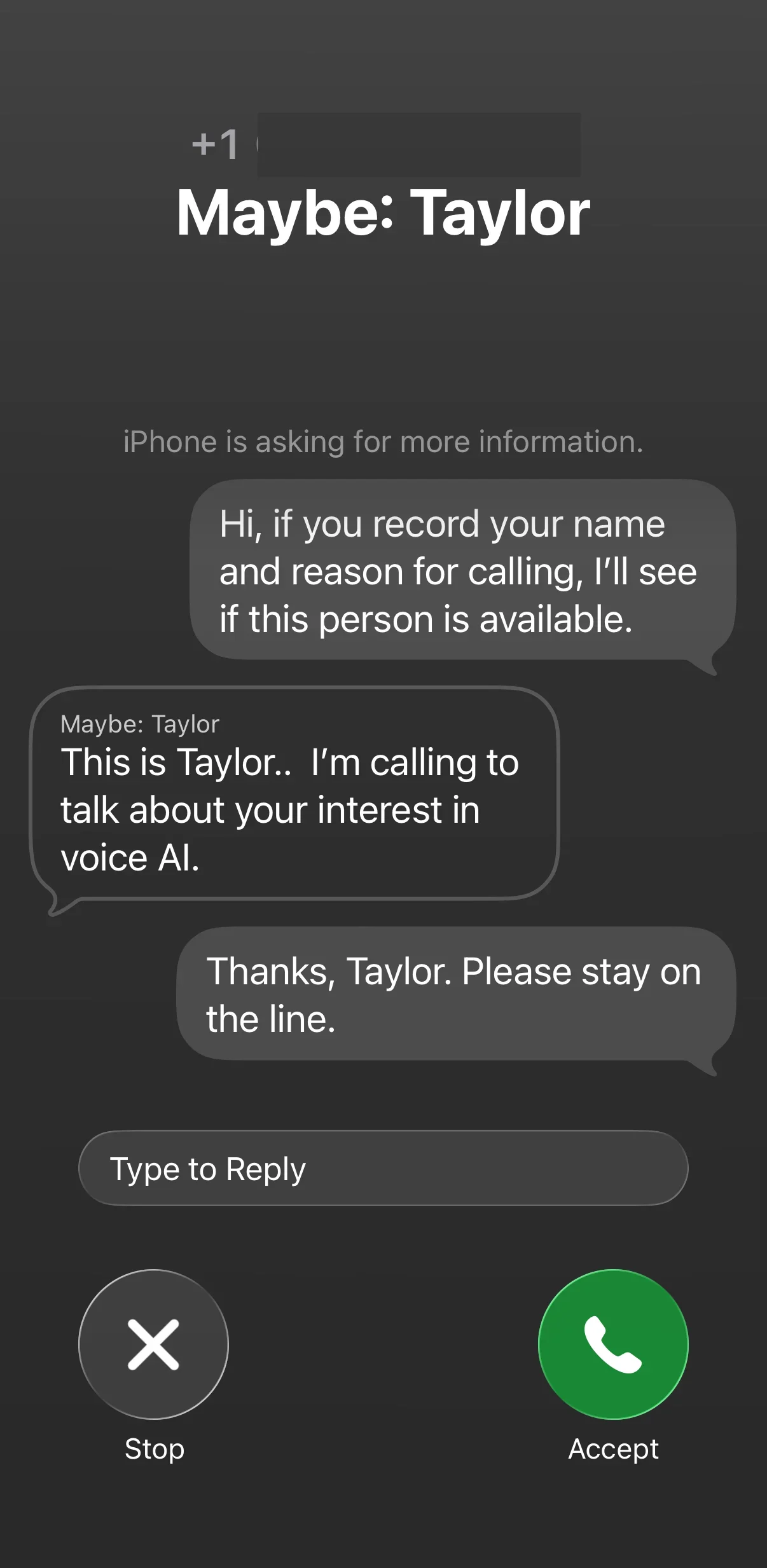
iPhones on **iOS 26** may have [Call Screening](https://support.apple.com/guide/iphone/iphe4b3f7823/ios) enabled. When a call comes in from an **unknown number**, the iPhone answers it first: **Siri** asks the caller for their **name** and **reason for calling** before the recipient's phone even rings.
This mainly affects **outbound calls** from your AI assistant to iPhone users. If your assistant does not respond to Siri's question, the call may **not be put through**.
 ## Fix: add an FAQ block to the system prompt
To pass the call screening smoothly, add a short **FAQ block** to your assistant's **system prompt**. It instructs the assistant to introduce itself in **one sentence** and state the reason for calling as soon as it is asked for a name and reason.
Add the following block to your assistant's **system prompt**:
```text theme={null}
## FAQ
Q: Hi, if you record your name and reason for calling, I'll see if this person is available
A: In one sentence, introduce yourself and explain why you are calling.
```
The call screening appears in the **recipient's language**. If you call German-speaking contacts, also add a German variant of the question, e.g.:
```text theme={null}
Q: Bitte nennen Sie Ihren Namen und den Grund Ihres Anrufs, dann sehe ich, ob die Person verfügbar ist.
A: In one sentence, introduce yourself and explain why you are calling.
```
## Tips for a smooth handoff
* **Keep it short:** a single, clear introduction works best ("Hi, this is \[name] from \[company], I'm calling about \[reason].").
* **Wait for the response:** after the introduction, the assistant waits until the recipient accepts the call – only then does the actual conversation start.
* **Avoid double greetings:** make sure your assistant's normal greeting does not clash with the introduction.
## Test your changes
1. Enable **Call Screening** on an iPhone running iOS 26 (Settings → Apps → Phone → Screen Unknown Callers).
2. Start a **test call** from your assistant to that number.
3. Check that the assistant introduces itself, passes the screening, and the conversation continues normally afterward.
***
## Related topics
Improve the instructions for your assistant
Fine-tune behavior and responses
If problems persist, contact our support team at [support@famulor.io](mailto:support@famulor.io).
## Fix: add an FAQ block to the system prompt
To pass the call screening smoothly, add a short **FAQ block** to your assistant's **system prompt**. It instructs the assistant to introduce itself in **one sentence** and state the reason for calling as soon as it is asked for a name and reason.
Add the following block to your assistant's **system prompt**:
```text theme={null}
## FAQ
Q: Hi, if you record your name and reason for calling, I'll see if this person is available
A: In one sentence, introduce yourself and explain why you are calling.
```
The call screening appears in the **recipient's language**. If you call German-speaking contacts, also add a German variant of the question, e.g.:
```text theme={null}
Q: Bitte nennen Sie Ihren Namen und den Grund Ihres Anrufs, dann sehe ich, ob die Person verfügbar ist.
A: In one sentence, introduce yourself and explain why you are calling.
```
## Tips for a smooth handoff
* **Keep it short:** a single, clear introduction works best ("Hi, this is \[name] from \[company], I'm calling about \[reason].").
* **Wait for the response:** after the introduction, the assistant waits until the recipient accepts the call – only then does the actual conversation start.
* **Avoid double greetings:** make sure your assistant's normal greeting does not clash with the introduction.
## Test your changes
1. Enable **Call Screening** on an iPhone running iOS 26 (Settings → Apps → Phone → Screen Unknown Callers).
2. Start a **test call** from your assistant to that number.
3. Check that the assistant introduces itself, passes the screening, and the conversation continues normally afterward.
***
## Related topics
Improve the instructions for your assistant
Fine-tune behavior and responses
If problems persist, contact our support team at [support@famulor.io](mailto:support@famulor.io).