

MCP Client Setup
Connect the hosted Famulor MCP server to your AI client in a few steps. Instead of clicking through the dashboard, you just describe what you want — and your AI assistant does it on your account:- “Create an inbound receptionist that books appointments.”
- “Show me why my last campaign call failed.”
- “Add three leads to my follow-up campaign and start it.”
MCP Server
Capabilities, auth, and self-hosting
Get API key
Required for OAuth sign-in
Claude & ChatGPT Connector
Full connector guide with screenshots
What you can do
Build & refine assistants
Inbound and outbound: system prompt, voice, language, model and call behaviour. Attach
knowledge bases (your documents) and mid-call tools (live API lookups during a call).
Run outbound campaigns
Create campaigns, add and manage leads, and start, pause or resume them.
Review & improve
List calls, read full transcripts and post-call evaluations, then update the assistant or its
tools — a complete build → review → improve loop.
Manage your account
Knowledge bases & documents, phone numbers & SIP trunks, WhatsApp senders & templates,
conversations, folders, labels, API keys and your blacklist.
Server URL
Canonical endpoint:https://app.famulor.de/mcp
Use https://app.famulor.de/mcp in your client’s connector dialog.
Before you start
- A Famulor account at app.famulor.de.
- An active plan for the features you use (some actions consume call minutes or chat credits).
Quick start
- Add the server in your client (see ChatGPT, Claude, or other clients below).
- When prompted, complete OAuth sign-in in the browser and paste your Famulor API key.
- Ask in natural language, e.g. “Show my last 10 calls” or “List my assistants”.
Authentication uses standard MCP OAuth 2.1 (PKCE). Your API key is never stored in a database — only inside an encrypted access token on your device. Tokens expire after 30 days; your client will prompt you to sign in again.
ChatGPT
Famulor is available as a custom app in ChatGPT (web). You need a ChatGPT plan that supports apps/connectors and Developer mode enabled.Add the Famulor app
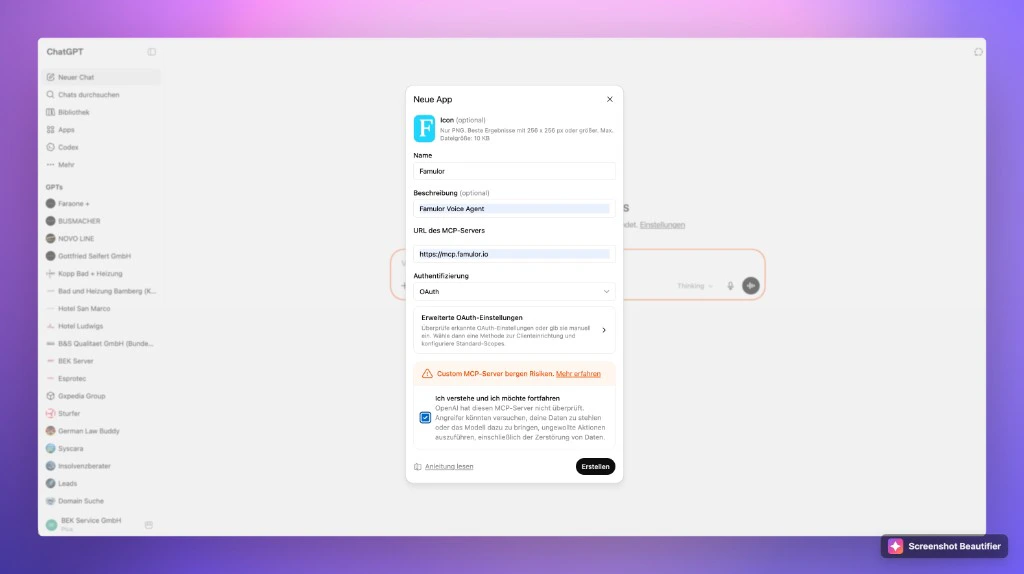
- Open ChatGPT → Settings → Apps (or Connectors).
- Click Create app / New app.
- Fill in:
- Confirm the security notice and click Create.
- Complete OAuth sign-in and paste your API key when asked.
Use Famulor in a chat
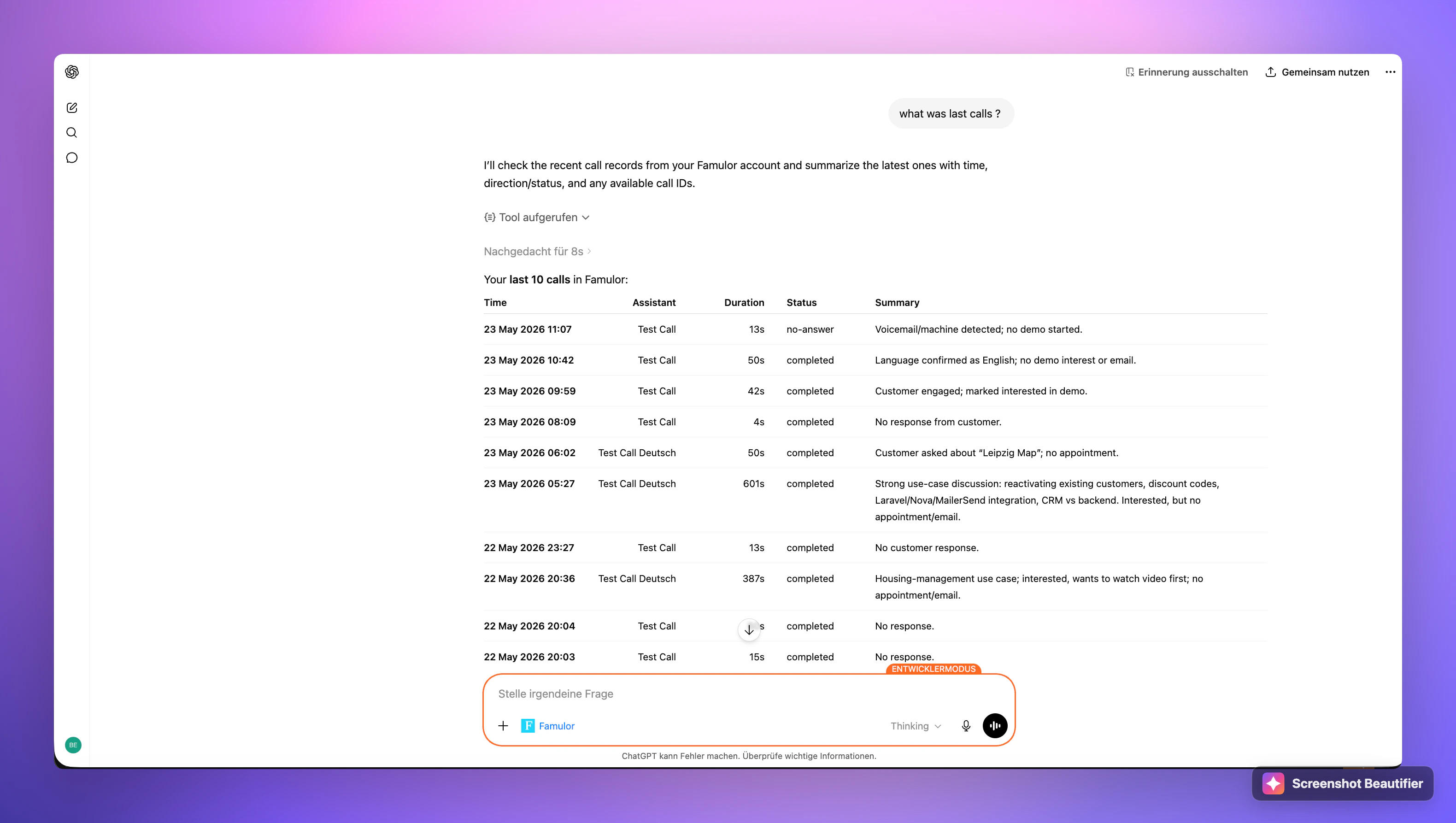
- Start a new chat and enable Developer mode if required.
- Select Famulor from the tools/apps menu in the composer.
- Ask questions about your account — e.g. “What were my last calls?”
Step-by-step with screenshots
1
Open Settings
In ChatGPT, click your name at the bottom-left, then Settings.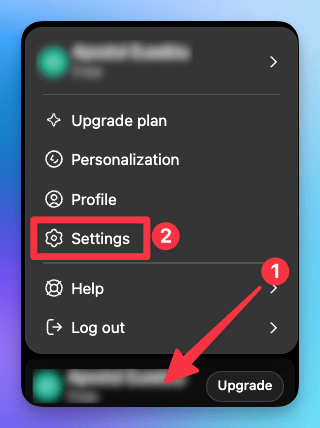
2
Go to Apps → Advanced settings
Open the Apps tab (connectors now live under “Apps”), then open Advanced settings.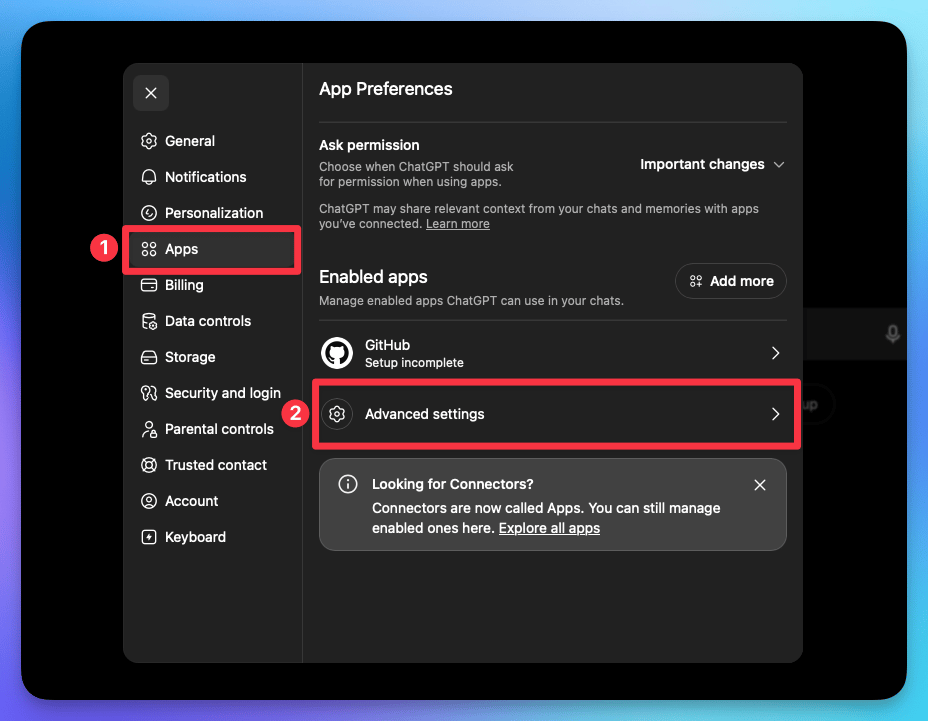
3
Enable Developer mode, then Create app
Switch on Developer mode (this lets you add a custom connector), then click Create app
at the top.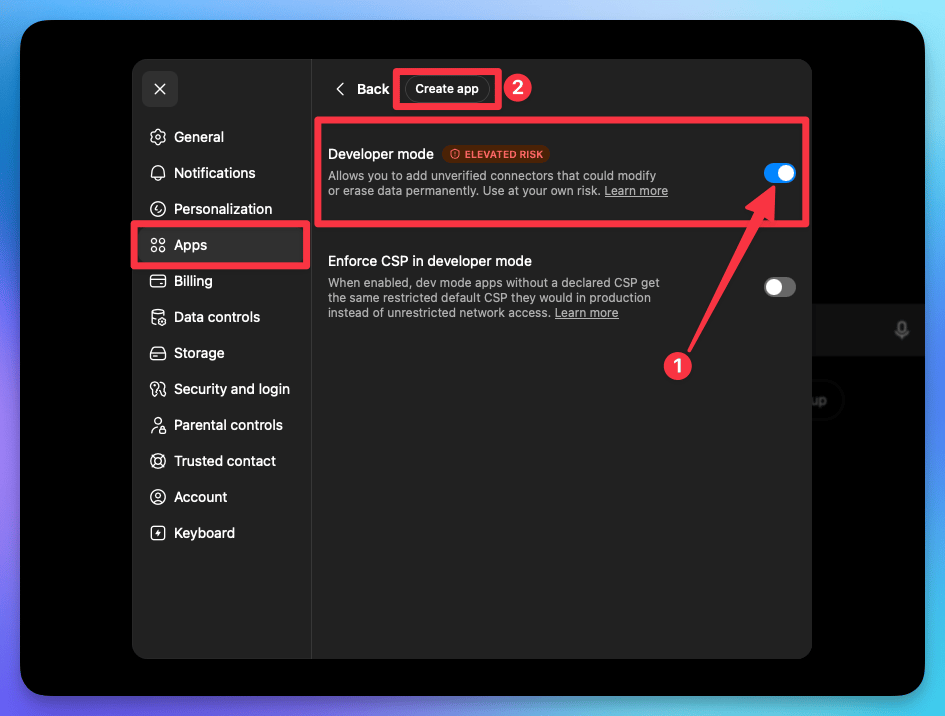
4
Paste your link and create
Give it a name, paste 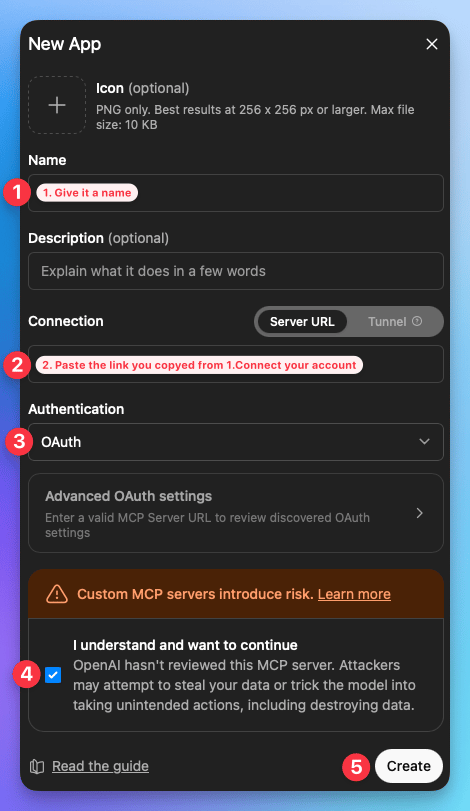
https://app.famulor.de/mcp into the Server URL field, set
Authentication to OAuth, tick “I understand and want to continue”, then Create.5
Sign in and approve
Your browser opens Famulor’s OAuth consent screen. Review the permissions, paste your
API key when asked, then click Connect.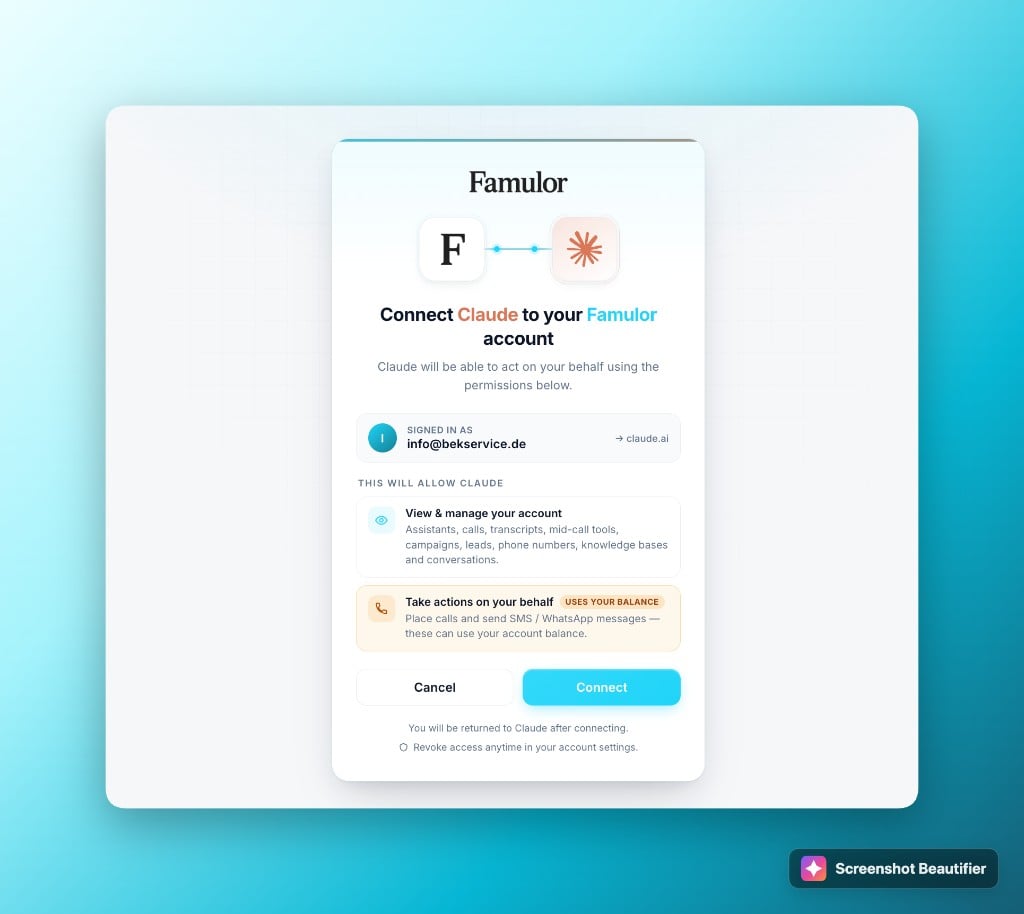
Claude
Famulor works in Claude Desktop (custom connector) and Claude Code (CLI). Both use OAuth — sign in with your API key when prompted.Claude Desktop
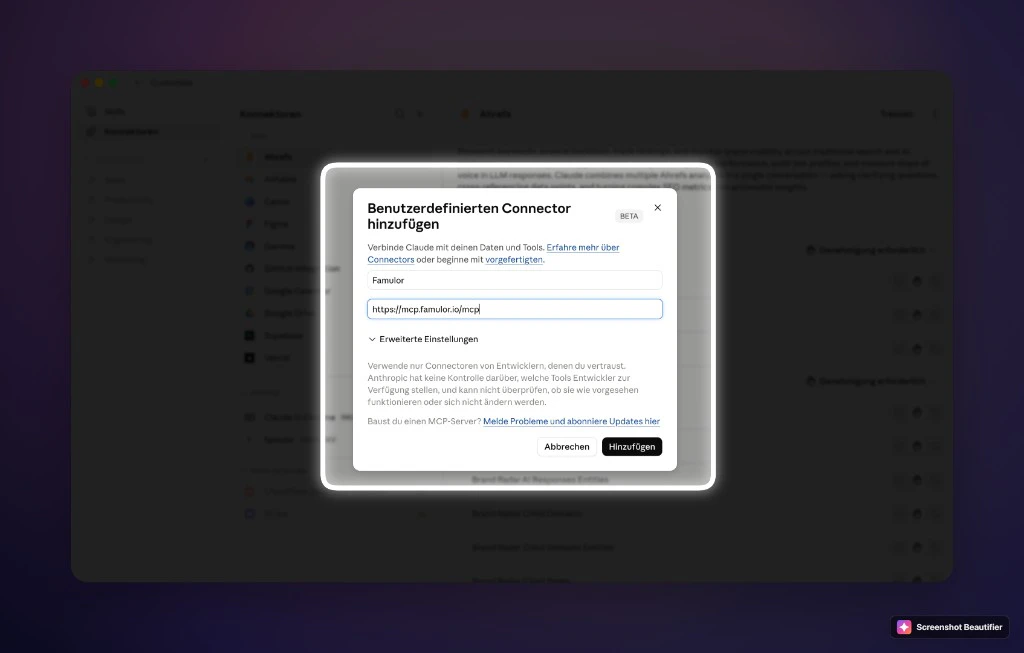
- Open Claude → Settings → Connectors.
- Click Add custom connector.
- Fill in:
- Click Add, then complete OAuth sign-in in the browser.
Use Famulor in Claude
- Start a new chat and enable the Famulor connector for the conversation.
- Ask in natural language — e.g. “Use Famulor and show me my last calls”.
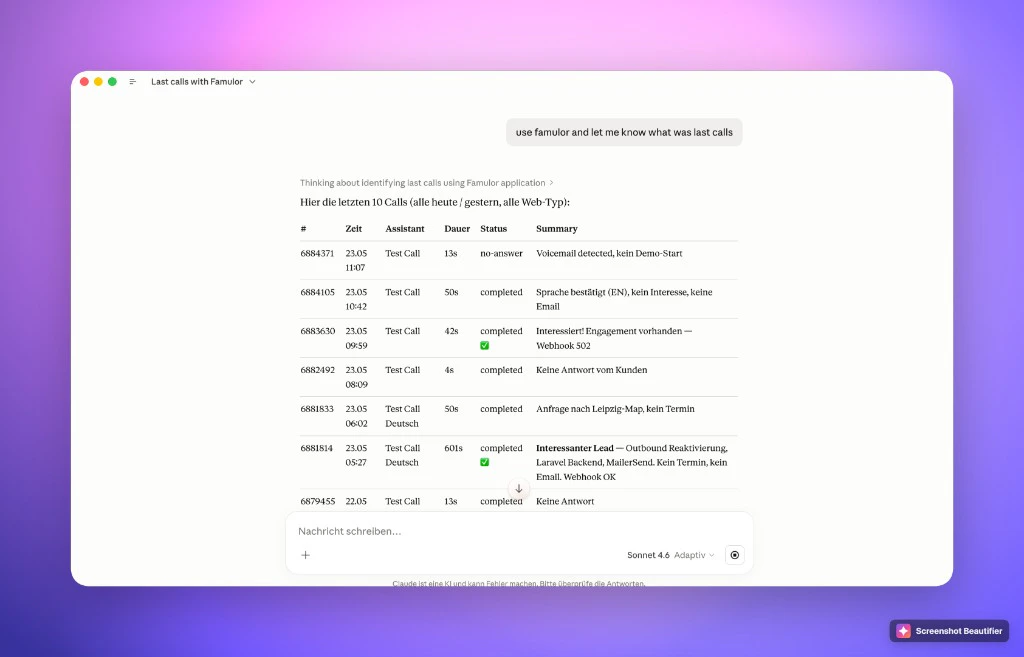
Step-by-step with screenshots
1
Open Customize
In Claude, open the left sidebar and click Customize.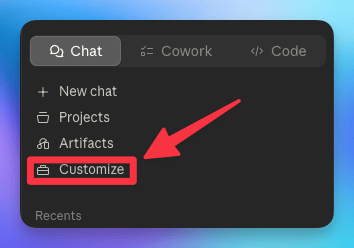
2
Open Connectors
In the Customize panel, click Connectors.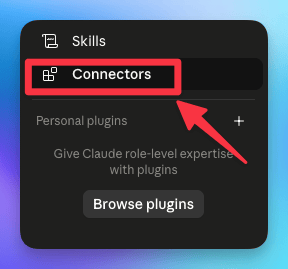
3
Add a custom connector
Click the + button in the top-right of the Connectors panel, then choose Add custom
connector.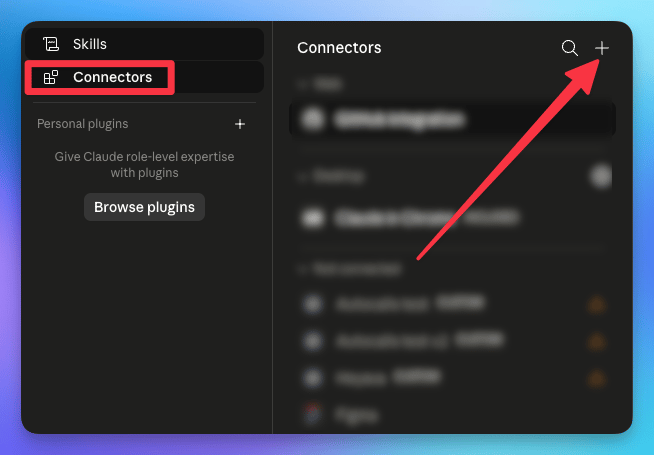
4
Name it and paste your link
Type any name (e.g. Famulor), paste 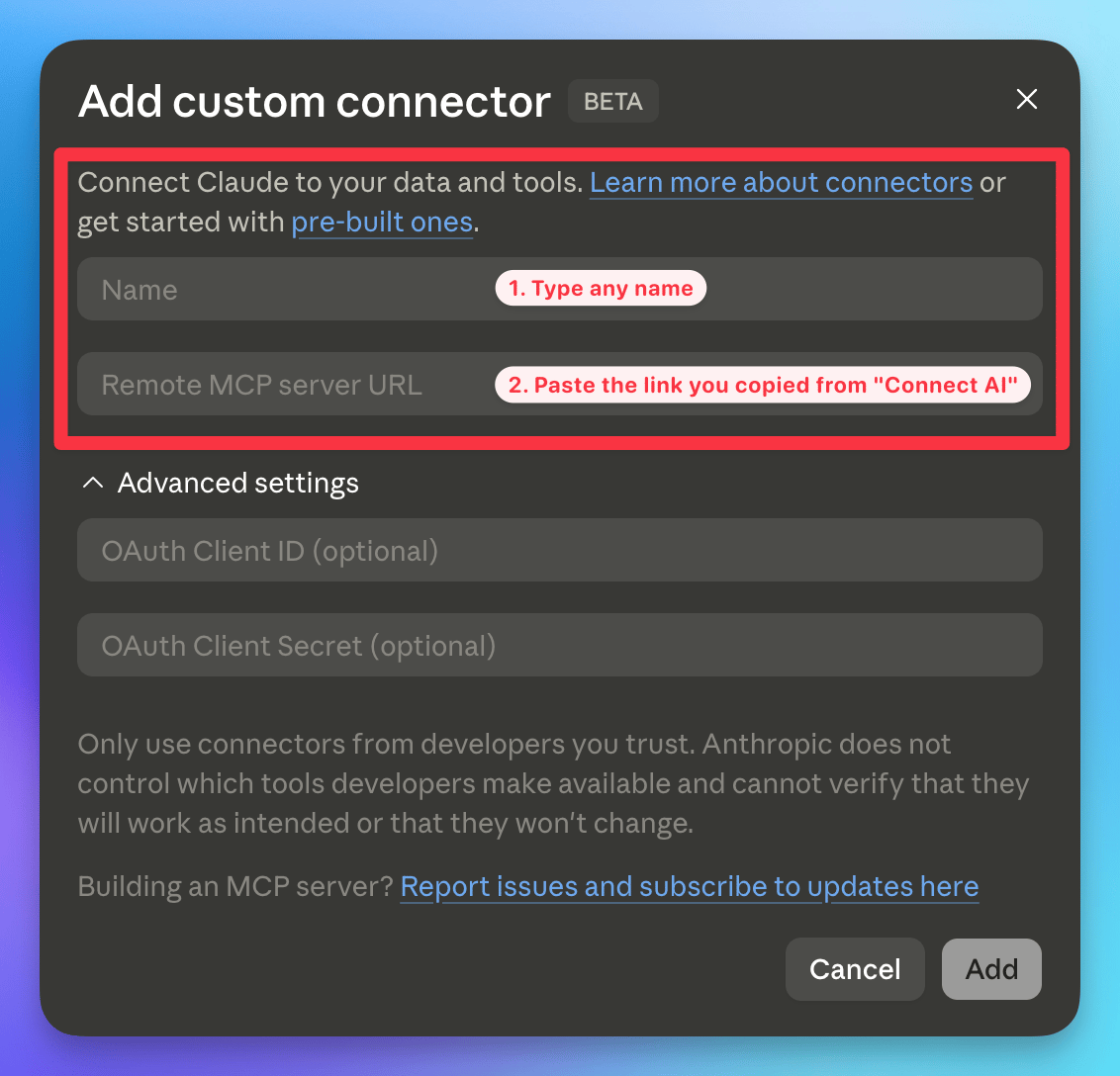
https://app.famulor.de/mcp into Remote MCP server URL,
leave the OAuth fields empty, then click Add.5
Sign in and approve
After you click Add, your browser opens Famulor’s OAuth consent screen. Review the
permissions, paste your API key when asked, then click Connect.
CLI clients — Claude Code, Codex, Gemini CLI
Add the hosted server to a CLI agent, then sign in with your API key when prompted:Other clients
One-click install: Add to Cursor · Add to VS Code Global: Cursor Settings → Tools & MCP → New MCP Server (opens~/.cursor/mcp.json)
Project: create .cursor/mcp.json in your project root.
Windsurf
~/.codeium/windsurf/mcp_config.json
VS Code
.vscode/mcp.json
Cline
Cline extension → MCP Servers → ConfigureContinue
~/.continue/config.yaml
Zed
~/.config/zed/settings.json
Try it
Start a new chat in Claude or ChatGPT and ask, for example:Build
“Create an inbound receptionist for my dental clinic that books appointments and answers FAQs.”
Improve
“Read my last 5 calls and tell me what my assistant got wrong.”
Integrate
“Create a mid-call tool that looks up an order by number from our API.”
Run
“Set up an outbound campaign for this week’s leads and start it.”
- “Create a German sales assistant using GPT-4.1-mini and the Susi voice”
- “Start campaign #42 and add these 50 leads”
- “Show me all calls today where the goal wasn’t reached”
- “What were my last calls?”
Security & privacy
- OAuth 2.0 with a branded consent screen — no API key is ever stored in config files.
- Scoped to your account — the connector can only see and change your own data.
- Secrets masked — auth tokens stored on your tools are never returned in plain text.
- No chat-history harvesting — the connector acts only on your Famulor resources.
- Privacy policy: famulor.io/privacy.
Self-hosting
To run your own instance instead of the hosted server, see MCP Server — Self-hosting.FAQ
Which AI apps can I use it with?
Which AI apps can I use it with?
This page covers ChatGPT, Claude, CLI agents, and other MCP clients such as Cursor or
VS Code. For a full connector walkthrough with screenshots, see
Claude & ChatGPT Connector.
Do I need an API key?
Do I need an API key?
Yes — you paste your Famulor API key during the OAuth consent
flow. It is not stored in config files — only inside an encrypted access token on your device.
Is it safe to connect?
Is it safe to connect?
Yes. Every tool is scoped to your own authenticated account, write and destructive actions ask for
confirmation, and any integration secrets you’ve stored are masked in responses.
Will it spend my balance?
Will it spend my balance?
Only when you explicitly ask it to place a call or send an SMS/WhatsApp — and it confirms first.
Building and editing assistants, reading calls, and managing your account don’t place calls.
My call is blocked in ChatGPT ("blocked by OpenAI safety checks")
My call is blocked in ChatGPT ("blocked by OpenAI safety checks")
This block comes from OpenAI’s own safety layer inside ChatGPT, not from Famulor. When ChatGPT is
about to trigger a tool that places a real outbound phone call, OpenAI’s policy on AI agents
initiating phone calls stops it before the request ever reaches us. We can’t override OpenAI’s
decision from our side, and it mainly affects the ChatGPT browser.Things that work:
- ChatGPT desktop app or an OpenAI agent — the same call goes through there.
- Claude — the call works there too, including placing a reminder call through the assistant.
- Schedule an outbound campaign — for reminder calls (“call John at 16:00”), set up a scheduled outbound campaign (assistant + contact + time) from the dashboard or via the API / Automate. It never goes through ChatGPT’s safety layer, so it’s never blocked.
Troubleshooting
OAuth / sign-in fails
- Confirm your API key is valid and copied without extra spaces.
- Try signing in again — tokens expire after 30 days.
- For ChatGPT, ensure Developer mode is on and OAuth is selected (not API key in headers).
Server not connecting
- Use
https://app.famulor.de/mcp. - Check health: https://app.famulor.de/health
- Restart your client and refresh MCP servers (Cursor: Settings → MCP → Refresh).
Tools not appearing
- Complete OAuth sign-in after adding the server.
- In ChatGPT, ensure the Famulor app is selected for the current chat.