

This page covers connecting an AI client (Claude, ChatGPT, and others) to Famulor. Looking to connect one of your assistants out to an external MCP server mid-call — your own CRM or internal tools? See Tools & webhooks instead.
Connecting clients
- Claude
- ChatGPT
- Other clients
Connect with the Famulor connector in Claude’s directory.
- Open the directory page and choose Connect.
- Sign in to your Famulor account and approve the requested access.
- Start a chat and ask, for example: “Review my support assistant and summarize its recent calls.”
Full access: add a custom connector
Full access: add a custom connector
To create and change assistants, start campaigns, or use a white-label domain, add a custom connector with the URL shown in Settings → API & MCP:
- Customize → Connectors → + Add → Add custom connector.
- Enter
https://app.famulor.io/mcp. - Sign in and approve the requested permissions.
- The approved tools appear in Claude.
Connect from inside Famulor
Choose Connect in the sidebar or open Settings → API & MCP. Both clients offer Custom connector. Claude and ChatGPT use the full MCP URL by default. Platform workspaces can also choose the marketplace connector, marked Limited, for read-only assistants and history. White-label customer workspaces use their own custom connection. Tool-group filtering is optional; the OAuth consent screen controls what you approve. Claude also offers starter tasks. Choose a workspace on the authorization page, then review the tool groups before connecting. Only that workspace is connected; your membership, role and plan still apply. You can optionally filter the MCP URL by tool group.Authentication and consent
Compatible clients start the OAuth sign-in automatically. The consent screen shows the requested tool groups before anything is shared, and your choice is remembered for future connections. Approved connections are listed under Settings → API & MCP, where each one can be revoked at any time. For a manual or server-to-server connection, send a workspace API key instead:
For your own server integration, open Settings → API & MCP → Create a new API key, enter a recognizable name and select Create key.
What a connected client can see
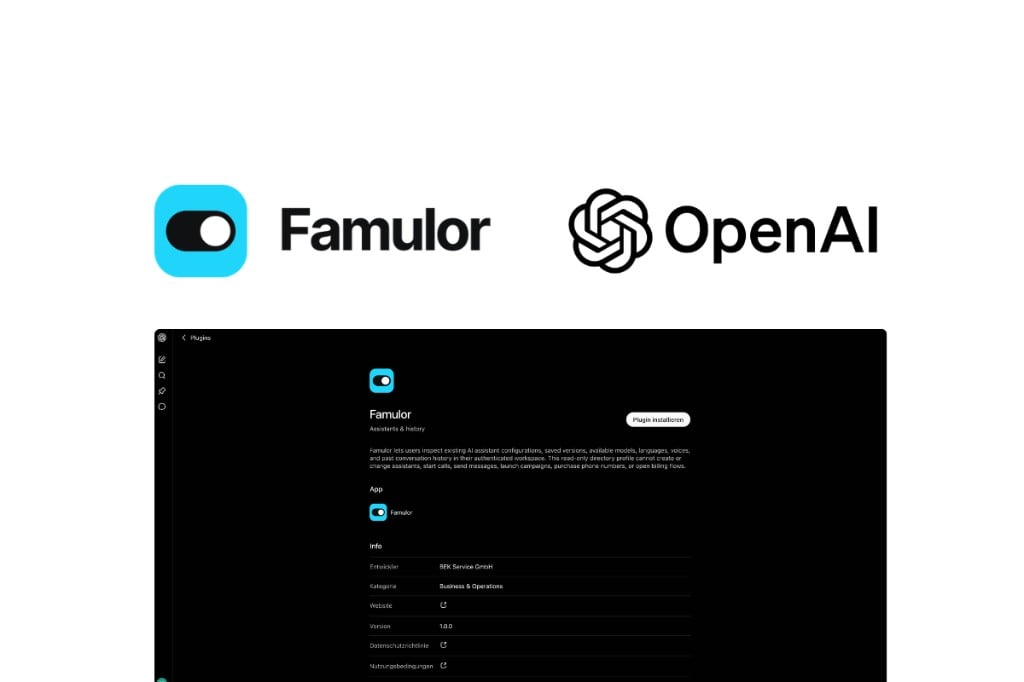
The official ChatGPT plugin uses the read-only public directory profile. Its permissions stay limited to assistant information and conversation history. Custom connections use/mcp by default. When you approve a new connection, all selected tool groups are saved, including an explicit selection of every group. Access still depends on the client’s requested permissions, your approved scopes, workspace role, and plan. A tool appearing in the catalog does not itself authorize an action.
On the approval screen, use Permissions → Edit to choose Read-only, Read & write, or Custom. Only Custom expands the tool groups and lets you turn changes on or off. Read-only grants exclude write permissions; existing tokens keep their current permissions.
Existing connections keep their token permissions. To add missing access, revoke the old connection under Settings → API & MCP, reconnect, and approve the required groups. Refresh the tools or start a new chat in your AI client afterward.
Toolsets remain useful as an optional filter for focused workflows or clients that struggle with a large catalog. URL and header filters cannot expand a token’s explicitly approved groups. Marketplace connections remain limited to their reviewed profile.
Rate limits
MCP requests are rate-limited to keep the platform responsive for every workspace:
A client that exceeds these limits receives a
429 response and should back off before retrying — see Errors.