

Reusable assistant tools
Create tools once on the Tools page, then assign them under Assistant → Settings → Tools or add them to a flow. Updating a reusable tool updates every assignment.API tools
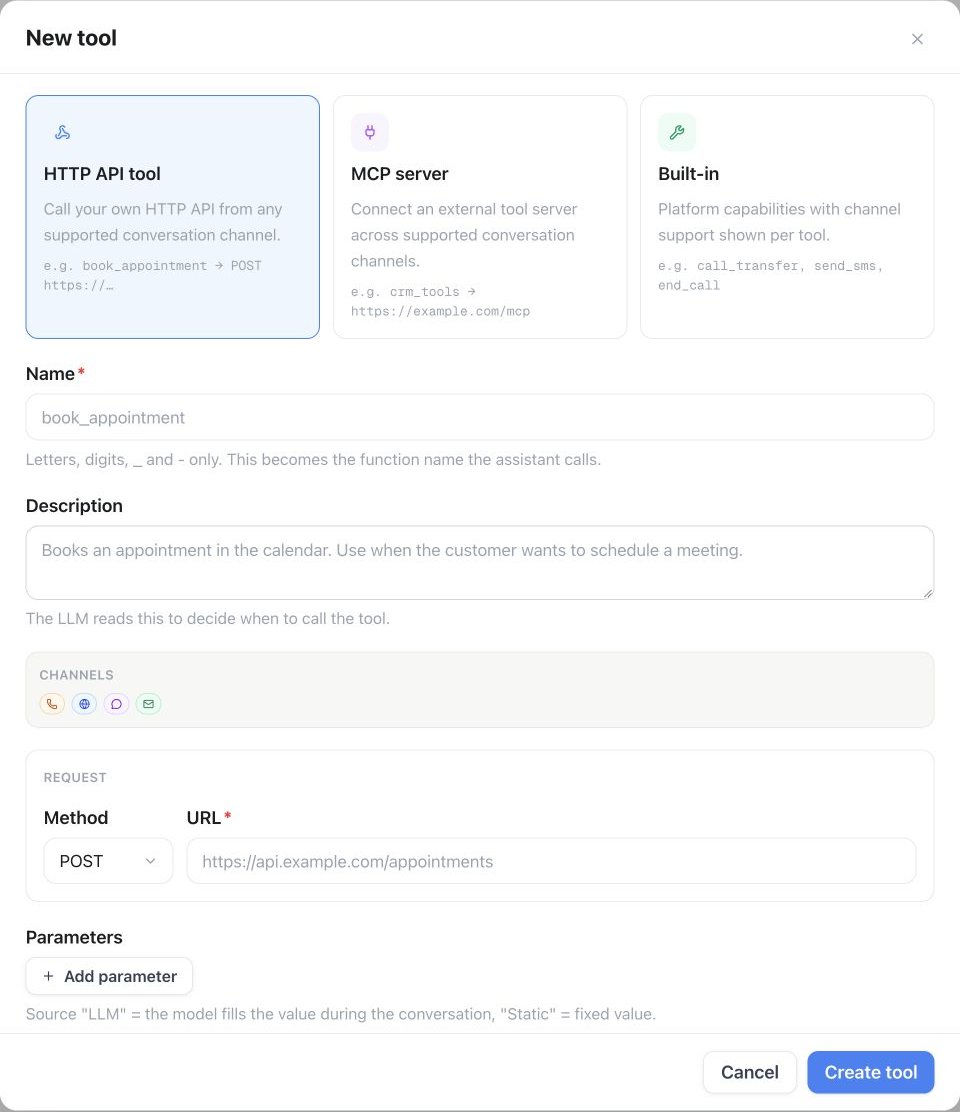
Agent Tools → Installed → API → Custom Agent Tool: select HTTP API tool, name it, describe when to use it, then set the method, URL, and parameters.
- the endpoint and authentication,
- the inputs the assistant should collect,
- any fixed values,
- what the response should contain, and
- whether the caller should hear a short progress phrase.
Requests time out after 10 seconds by default (configurable up to 120), and a response over 2 MB is rejected — keep endpoints fast and replies small. Use a scoped, least-privilege API key rather than a master credential, and keep customer-identifying details out of any error message the assistant might read back.
Build an API tool when the answer changes often and the endpoint answers quickly and reliably. If the information barely changes, a knowledge base or the system prompt is cheaper and can’t fail mid-call.
Example configurations
Each value the assistant collects is a named parameter with a description telling it what to ask for. Parameters travel in the query string on
GET and DELETE, and in the JSON body on POST, PUT, and PATCH. To put one in the path instead, write {{parameter_name}} into the endpoint URL. Set a parameter’s source to Static for a fixed value the assistant never has to ask about, and keep credentials in Headers.
Static values, header values, and the endpoint URL can also contain {{...}} placeholders. They are filled in when the tool runs with the call’s variables — system values such as {{caller_number}} or {{call_id}}, lead and API variables, and values collected during the conversation. So a static body field caller_phone = {{caller_number}} sends the caller’s number without the assistant ever asking for it. In static values and headers, a placeholder with no value becomes an empty string, including for number and boolean parameters. Unknown placeholders in the endpoint URL remain unchanged; provide every value used in the URL. Parameter values take precedence over conversation variables in the URL.
You can use placeholders in text, number, and boolean static parameters. Values are converted to the selected type after substitution. In Test request, enter example values under Call variables; these inputs are only used for that test and do not make the assistant ask for them. Text channels use the available contact and conversation variables when the tool runs. Use Add variable to enter a test value for a placeholder inside a saved, masked header.
The assistant reads the response and answers in its own words, so return short, plainly named fields (
ship_date, confirmed_time) rather than a deep object it has to interpret.
Perplexity Agent Connector
Open Tools → Agent Connectors, choose Perplexity AI, and paste your own API key. Select Load models to validate the key and retrieve the models currently available to your account. The same model selector is available later in Edit and reloads the catalog using the securely stored key. You can add an optional system prompt and adjust temperature (default0.2), Top P (0.9), presence penalty (0), and frequency penalty (1). Maximum tokens is blank by default and is omitted from requests until you set it. The system prompt controls tone, language, style, and answer format; the assistant still supplies the complete research request at runtime. The saved key is masked and is never returned by the tools API.
External MCP servers
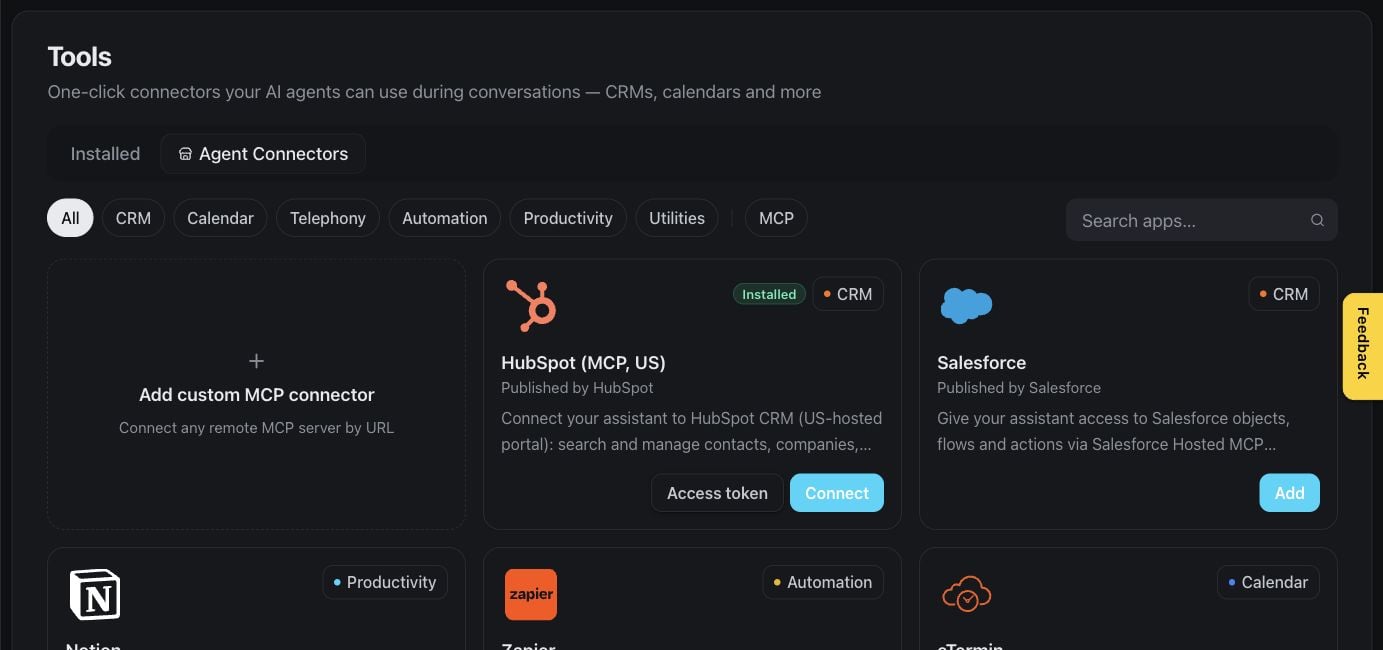
Tools → Agent Connectors → Add custom MCP connector is the entry point for connecting your own MCP server.
/mcp is treated as Streamable HTTP and one ending in /sse as classic SSE; anything else tries Streamable HTTP first, then falls back to SSE. Authentication can be none, a static header or bearer token, or OAuth — when the server supports OAuth, Famulor runs the sign-in flow and stores the resulting token.
The Installed list shows the latest execution result and flags connections that need attention. If OAuth expires, choose Reauthorize on the existing tool. The sign-in flow repairs that tool in place, so assignments, allowed tools, settings, and run history are preserved.
For each selected tool, Execution behavior lets you control cancellation, overlapping calls, and spoken progress updates. Cancellation cannot undo an action the external service has already completed.
Reusable tools and assistant MCP connections share the Tools & MCP workspace limit. A reusable tool assigned to several assistants counts once. Reseller customer workspaces include five tools with plan or prepaid access; paid Extra Tools add-ons provide more capacity. Connect AI (MCP) must also be enabled in the assigned plan or prepaid defaults. Review your allowance under Settings → Plan.
Built-in tools
Built-in tools cover common actions such as call transfer, transfer to another assistant, SMS, email, business-hours checks, callbacks, keypad input, payment-card collection, variables, and ending a call.Manage tools through the API
Use the public API to automate tool management:GET /api/v1/toolsandPOST /api/v1/toolsPOST /api/v1/tools/perplexity/modelsto list available models with either a supplied API key or an existing connector IDGET /api/v1/tools/{id},PATCH /api/v1/tools/{id}, andDELETE /api/v1/tools/{id}POST /api/v1/tools/{id}/reauthorizeto receive a short-lived browser sign-in URL for an existing OAuth MCP toolGET /api/v1/assistants/{id}/toolsandPUT /api/v1/assistants/{id}/toolsGET /api/v1/assistants/{id}/automations,POST /api/v1/assistants/{id}/automations, andDELETE /api/v1/assistants/{id}/automations/{automationId}
reauthorize_tool and list_perplexity_models. Tool-list responses include secret-free connection health and the latest execution result. Secret authentication values are masked after they are saved. Header names stay visible with the value •••. When you update a tool, the configuration you send replaces the stored one: send back every header, keeping ••• for values you don’t change. Omitted headers are removed.
For an automation the assistant should call during a conversation, use the assistant-automation endpoint or MCP create_assistant_automation. Provide a precise description of when it should run. The same assignment is available in voice, web chat, messaging, and email conversations. The platform creates a draft workflow and securely connects the required tool without returning credentials. Build its steps, return a concise result suitable for spoken or written replies, and make the automation Live when it is ready; pausing it also disables the callable tool everywhere. These generated tools are shown as automation-managed and can only be edited or disconnected from Assistant settings. Conversational retries reuse the same run and response, so they do not repeat billing or side effects.
Receive call results with webhooks
When a call finishes, Famulor sends its result to the webhook URL configured on the assistant (Settings → Automations → Call completed). The URL is unsigned and belongs to that one assistant. Per-assistant delivery settings — timeout, retry count, and a test send — live on Post-call webhooks.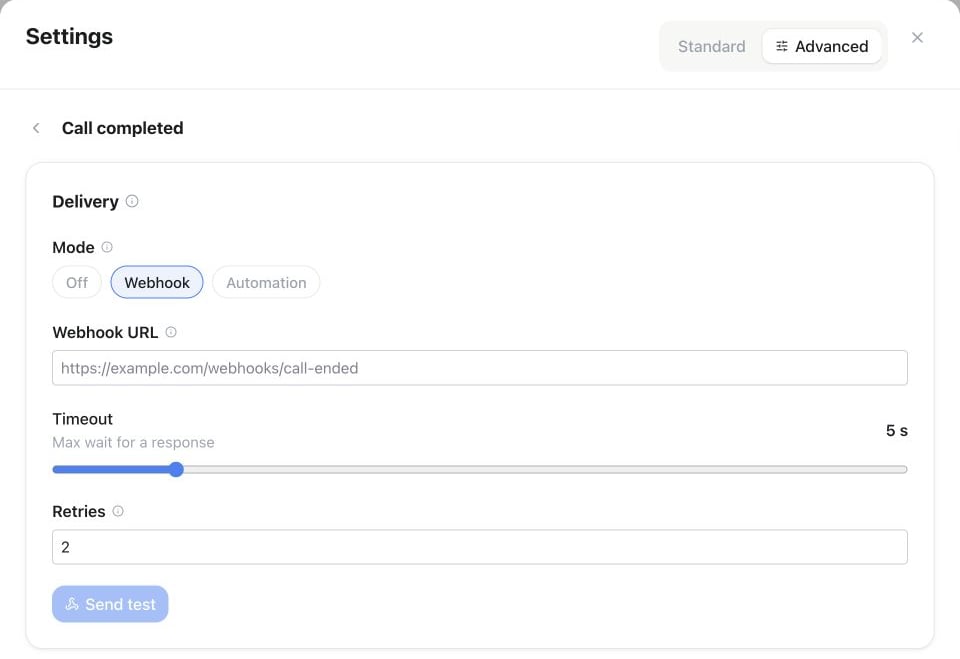
Assistant Settings → Automations → Call completed: choose Webhook, enter the Webhook URL and review Timeout and Retries before using Send test.
conversation.ended event there carrying the thread transcript and its analysis. Telegram, Slack, and the other messaging connectors have their own Conversation ended webhook URL instead, set per connector — see Messaging channels.
Signing works differently for the inbound variable webhook — the per-assistant URL Famulor calls at the start of an inbound call to enrich variables. That request carries an HMAC-SHA256 signature; see Custom variables.
call.completed
The event includes customer-facing call details such as assistant, direction, status, duration, timestamps, transcript, collected flow variables, campaign context, and available recording links.
If the call cannot complete, the payload includes a provider-neutral failure object with a stable code, customer-safe message, retry guidance, and suggested action. Build recovery logic from this object rather than infrastructure-specific details.
Poll instead of receiving a webhook
You can retrieve the same call result withGET /api/v1/calls, GET /api/v1/calls/{id}, or the call-history tools in MCP. A newly created call initially returns its current status; poll until it reaches a final state.