

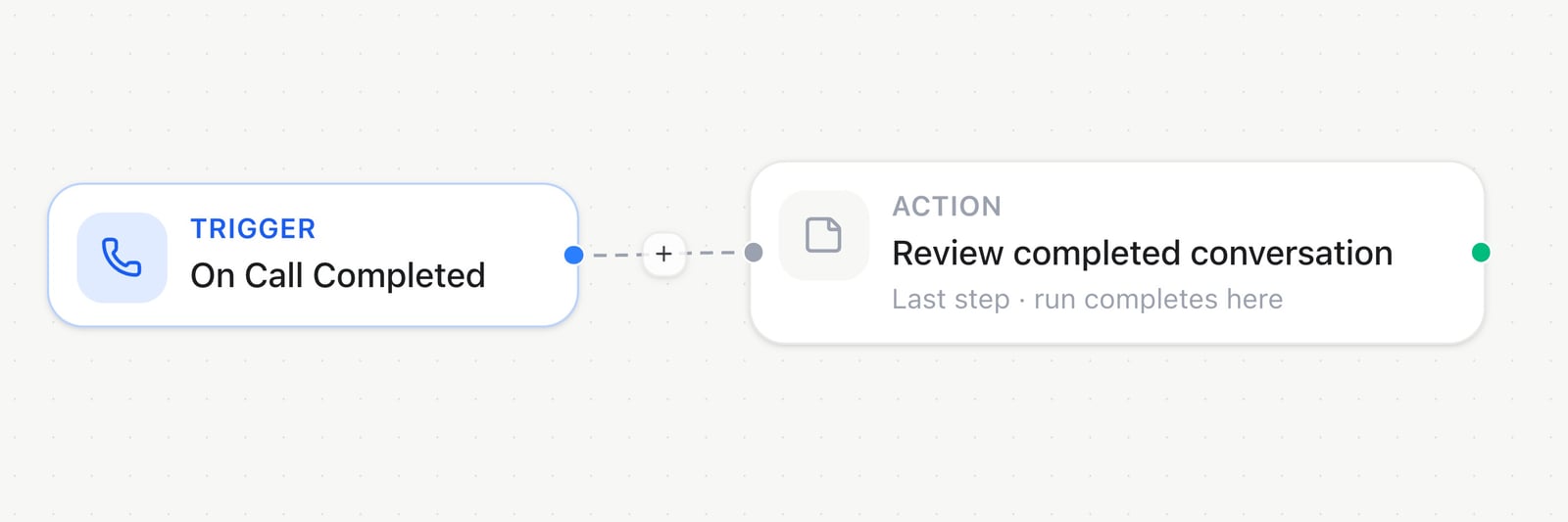
Automation builder — connect triggers and actions
Automations vs. Agent Tools
Automations and Agent Tools are both ways for an assistant to act on outside systems, but at different moments. An automation is a fixed sequence of steps you (or Milian) design in advance — usually started by a background trigger like On Call Completed, though a Live automation can also be attached to an assistant as one callable action during a conversation (see Calling an automation from a conversation below). Either way, it runs the sequence you built, not something decided on the fly. For tools the assistant chooses and runs itself, live, the moment it needs them — looking something up, creating a record — see Agent Tools.Triggers
- On Call Completed — after a voice call ends (with analysis). Requires a specific assistant.
- On Inbound Call — when an inbound call starts.
- Inject input variables — provides assistant variables when a call starts. End with Return variables.
- Email received — when a new inbound email arrives.
- Conversation started / ended — messaging channel open / closed.
- Message received — every inbound message on a channel, not just the first.
- Contact created — a new Audience contact appears. Choose which sources trigger it: Created manually (the only one on by default), CSV / file import, API, and CRM sync. Leaving import and CRM sync off means a bulk import doesn’t fire the automation for every row.
- Incoming Webhook — starts from the secure webhook URL shown in the trigger.
- Booking created / cancelled / rescheduled, Manual, Schedule (soon).
- App events — connected apps such as Gmail or GitHub provide their own available triggers.
Actions (plugins)
Organized as Platform → type → action (Famulor, AI, Time, WhatsApp, Telegram, X, HTTP, Slack, …).- AI: Extract Fields, Custom Prompt
- Time: Delay For / Until, Get Current Date and Time, Convert Timezone, Format
- Logic: Condition, Filter, Switch, Random, Stop, Note, Set variable, Run Code, Loop on Items
- Contacts: Create/Update, Get by phone, List, Add tags/attributes
- Calls: Call Phone Number
- Messaging: SMS, workspace email, Send Email (SMTP) through a saved SMTP connection, channel messages on open conversations, and approved WhatsApp templates to E.164 numbers. The builder shows which actions use workspace messaging credits.
- Knowledge: Add / Delete / Get source
- HTTP / webhooks: HTTP Request, Slack / Discord / Teams Incoming Webhooks, Webhook respond (sync HTTP status/body for inbound webhooks)
- CRM / SMTP / MCP connections: reusable credentials under Automations → Connections. Test Connection verifies an SMTP relay and sends a test message to the configured address. Available integrations are listed in the connection picker.
- Connected apps: choose App marketplace in Connections to connect an available app. Its supported tools and triggers appear in the builder after connection.
- Airtable actions: List, Find record, Search records, Find or create, Get by id, Create / Create records (batch ≤10), Update, Delete.
- MCP: Call tool — connection + tool multi-select (or all) + agent prompt with flash variables; the agent picks the tool and fills arguments
- Variables: Return variables (for
call.variables)
Example automations
A trigger and a couple of actions are usually enough:Organizing automations
Automations support free-form tags for filtering and show the selected assistant when a trigger is assistant-specific. Create or update them through the UI,POST/PATCH /api/v1/automations, or MCP (create_automation / update_automation).
Runs & failure alerts
The list page has Automations and Runs tabs. Use Alert settings to set a workspace inbox for failed runs and toggle alerts on/off. The Runs tab lists every run in the workspace. Filter by status, search by automation name, and open a run to go straight to its details. Inside an automation, the Runs tab shows that automation’s run history next to the selected run:- Status, duration and credits, plus what started the run and the trigger data it received.
- Every executed step in order, with its input (the step’s configuration), output, error and duration. Steps inside Loop on Items appear once per item.
- Show in builder jumps from a failed step straight to that step on the canvas.
- A run that is still going updates live, and Run now opens the new run right away. A run always uses the last saved version of the automation.
When no custom email is set, alerts go only to owners and admins of the affected workspace. To include a support inbox, add it explicitly in Alert settings. You can enable or disable failure alerts for each automation.
Calling an automation from a conversation
An assistant can call an automation as a tool while a conversation is still in progress, not only once it ends. Under Assistant → Settings → Automations → During conversation, create an assistant-callable automation and describe, in plain language, when the assistant should use it — a free-text field the assistant reads before deciding to call it. The link connects automatically; build out the automation’s steps, map its response, then switch the automation Live, since the assistant only calls automations that are Live. This works the same way across voice, web chat, messaging, and email conversations, and an assistant can have more than one callable automation, each with its own description. Creating or unlinking one is an owner or admin action. It’s separate from On Call Completed and the inbound triggers above, which fire outside the conversation instead of being called by the assistant itself.Assistant webhook binding
In the assistant Webhook card, choose Automation delivery and select an On Call Completed automation, or keep a custom HTTPS URL.Troubleshooting
A WhatsApp step fails to send. WhatsApp Send Message only works inside an already-open conversation (Meta’s 24-hour service window). To reach someone outside it, use Send WhatsApp Template instead, and confirm that template is already approved for the sender you selected. See WhatsApp for the full window and approval rules. A step fails with an invalid number. Actions expect E.164 (+<country code><number>) — add a country code before passing a national-format number through.
A connector step fails on every run. The underlying connection is likely disconnected or its token has expired. Reconnect it under Automations → Connections.