

Creating missing records depends on the object type: supported for HubSpot contacts, Salesforce contacts/leads, Pipedrive persons, Close contacts and leads, and Attio/Twenty people; HighLevel and Keap support it across all their object types.
{{firstName}} {{lastName}} can be imported, but they cannot be reversed for export.
Supported CRMs
CRM Sync has a native adapter for each of these providers, so all three directions in the table above are available once you add an API connection for it:- HubSpot
- HighLevel
- Salesforce
- Pipedrive
- Close.io
- Zoho CRM
- Attio
- Keap
- Twenty Cloud and self-hosted Twenty
https://api.twenty.com. For a self-hosted instance, enter a
public HTTPS URL that the platform can reach over the internet.
A CRM that isn’t on this list has no native Audience sync, but automations can still reach it — call its API with an HTTP Request action, connect it as a custom MCP endpoint, or search for it under App marketplace. See the App Catalog for the full directory of built-in and connected apps.
Connect HighLevel
Open Automations → Connections → App marketplace → HighLevel and choose Authorize HighLevel. Select the sub-account you want to use and approve the requested permissions. The same connection can be used by CRM Sync and HighLevel automation actions, including supported calendar and appointment actions.Create a sync
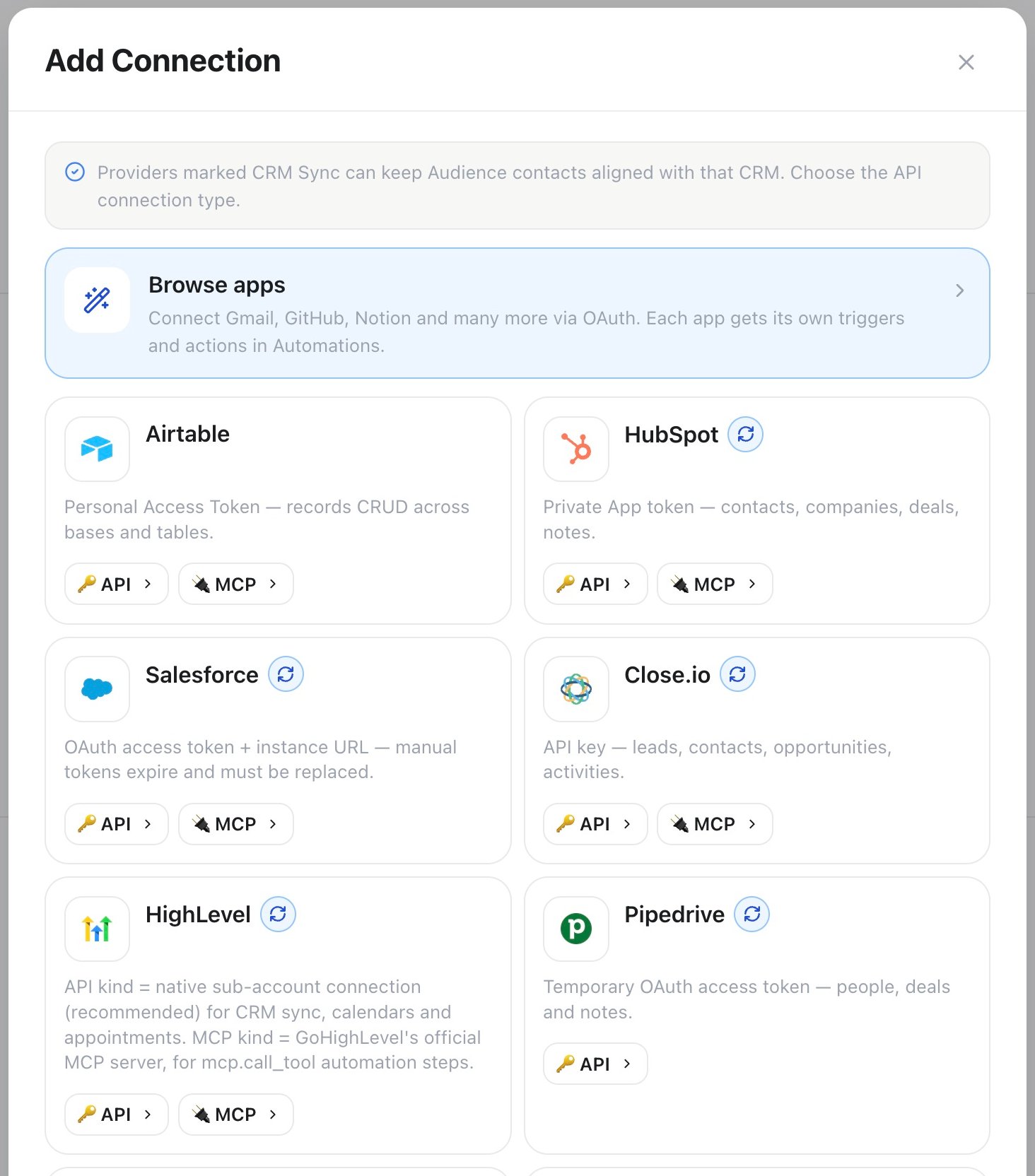
Automations → Connections → App marketplace: choose API for a CRM marked with the sync icon before creating its Audience sync.
- Open Automations → Connections and add an API connection for the CRM. Compatible connections carry the CRM Sync tag in App marketplace.
- Open Audience → CRM Sync.
- Select the connection and CRM object or source.
- Map CRM fields to Name, Phone, Email, Tags, a custom Audience attribute, or a supported channel identity. Mapped email values also create the contact’s Email channel profile automatically. Assign more than one source field to the same destination to combine the values.
- Review up to three read-only CRM samples after the mapping.
- Choose the interval and start the sync.
Salutation + First name + Last name can build name; Calling code + Phone number can build phone. At
least phone or email is required so the first CRM record can be matched to
an Audience contact safely.
For national phone numbers, choose a Default phone country such as Germany.
The preview and the real run use the same country-aware parser and store the
result in E.164 form (+49152…). International numbers that already start with
+ or 00 ignore the fallback. If the CRM exposes a separate ISO country
(DE) or calling-code (+49) field, map it before the phone-number field in
the same phone composition. Invalid phone and email combinations are marked
in the read-only preview before anything is saved.
The API and MCP keep the simple mapping shape. A single source remains a bare
field key. Combined values use safe {{field}} tokens with optional literal
text; no code is evaluated:
tags to merge normalized, lowercase tags into
the contact. Existing manual tags remain intact, and imported tags immediately
appear in the Audience tag filter.
The first run imports the selected source. Later runs skip unchanged records and resume safely after temporary interruptions.
Edit a sync
Use the pencil action on a sync card to update its name, object, source, interval, phone country, or field mapping, then review the same mapped-data preview used when creating a sync. Save only keeps the existing schedule. Save & sync saves the same changes and immediately starts a manual run. Changing the object, source, or mapping causes the next run to reapply the new mapping to existing CRM records.Identity and conflict behavior
The stable CRM record ID keeps each imported record linked to the correct Audience contact. Email and phone are used only to find a safe initial match. Ambiguous matches are reported as conflicts instead of merging unrelated people. CRM sync never deletes an Audience contact. Records no longer present in the selected CRM source can be marked inactive for that sync. Local compliance data, including the block list and consent decisions, is never cleared by CRM data.Write outcomes back
Use the CRM action nodes in an automation after a call or qualification step. Each supported CRM includes record search/get, create, and update actions where the provider API supports them. Use template values such as{{data.call_id}}
and {{data.from_number}} from the trigger, or output from an earlier step
({{steps.step1.output}}).
For example, an automation on the On Call Completed trigger can read the
call’s analysis — {{data.analysis.sentiment}},
{{data.analysis.success}}, {{data.analysis.success_reason}}, and any
custom field the assistant extracts ({{data.analysis.data.<field_name>}}) —
then use a CRM update action to log the outcome on the linked record, or
branch with Condition on {{data.analysis.success}} to route only
qualified calls into a follow-up sequence.
CRM webhook trigger nodes can start an automation from provider events. Choose
the connection and event in the trigger settings. If a webhook URL or secret is
required, both are shown directly in the trigger.
Troubleshooting
HighLevel connection fails, or no sub-account shows up
HighLevel connection fails, or no sub-account shows up
Start the flow again from Automations → Connections → App marketplace → HighLevel → Authorize HighLevel and approve every requested permission. If the sign-in stalls or lands on the wrong account, a stale browser session is the usual cause — sign out of HighLevel or use a fresh private window, then authorize again.
The wrong HighLevel sub-account is connected
The wrong HighLevel sub-account is connected
Authorize HighLevel connects one sub-account at a time. Reconnect and pick the correct one; a workspace can hold more than one HighLevel connection if you manage several sub-accounts.
Records import with an empty phone or email
Records import with an empty phone or email
At least
phone or email must be mapped in a valid format — check the read-only preview before saving, and add a Default phone country if the CRM stores numbers in national format.Field mapping stops matching after a CRM change
Field mapping stops matching after a CRM change
A renamed or restructured CRM field doesn’t remap itself. Open the sync’s pencil action, redo the mapping, and expect the next run to reapply it to existing records.
Public API and MCP
The same operations are available through:GET|POST /api/v1/crm-syncsPOST /api/v1/crm-syncs/discoverGET|PATCH|DELETE /api/v1/crm-syncs/{id}GET|POST /api/v1/crm-syncs/{id}/runs- MCP tools for listing, creating, updating, deleting, and running CRM syncs
automations:read or automations:write
scope. Secrets and provider tokens are never returned.