Microsoft Teams Integration Template

Integrate Microsoft Teams messaging into your Mid-call Actions and enable your AI assistant to automatically send messages and updates to Teams channels during customer calls – perfect for enterprise environments.

Overview & Features

Enterprise Team Communication

  • Automatic notifications to Teams channels
  • Rich card formatting for professional presentation
  • Integration into existing Microsoft 365 workflows
  • Compliance-compliant corporate communication

Adaptive Cards & Webhooks

  • Webhook-based integration (no app installation required)
  • Adaptive Cards for interactive messages
  • Color coding for priorities and categories
  • Links to SharePoint, Power BI, and other MS tools

Teams Webhook Setup

1. Create Incoming Webhook

1

Prepare Teams Channel

  • Open Microsoft Teams
  • Navigate to the desired channel (e.g., “Sales”, “Support”)
  • Click ”…” (More Options) next to the channel name
2

Configure Webhook

Webhook Setup:
  1. Select "Connectors" → "Configure"  
  2. Search for "Incoming Webhook"  
  3. Click "Add" → "Configure"  
  4. Enter webhook details:  
     - Name: "Famulor Mid-Call Integration"  
     - Image: Famulor logo (optional)  
     - Description: "Automated notifications from customer calls"
3

Secure Webhook URL

After configuration:  
  1. Copy the webhook URL (very long, starts with https://...)  
  2. Store URL securely – this will be used as {{TEAMS_WEBHOOK_URL}}  
  3. Send a test message to validate  

Format: https://outlook.office.com/webhook/abc.../IncomingWebhook/def.../ghi...
4

Validate Permissions

  • Webhook works for all channel members
  • No additional app permissions required
  • Messages appear as “Famulor Mid-Call Integration”

Configure Mid-call Action

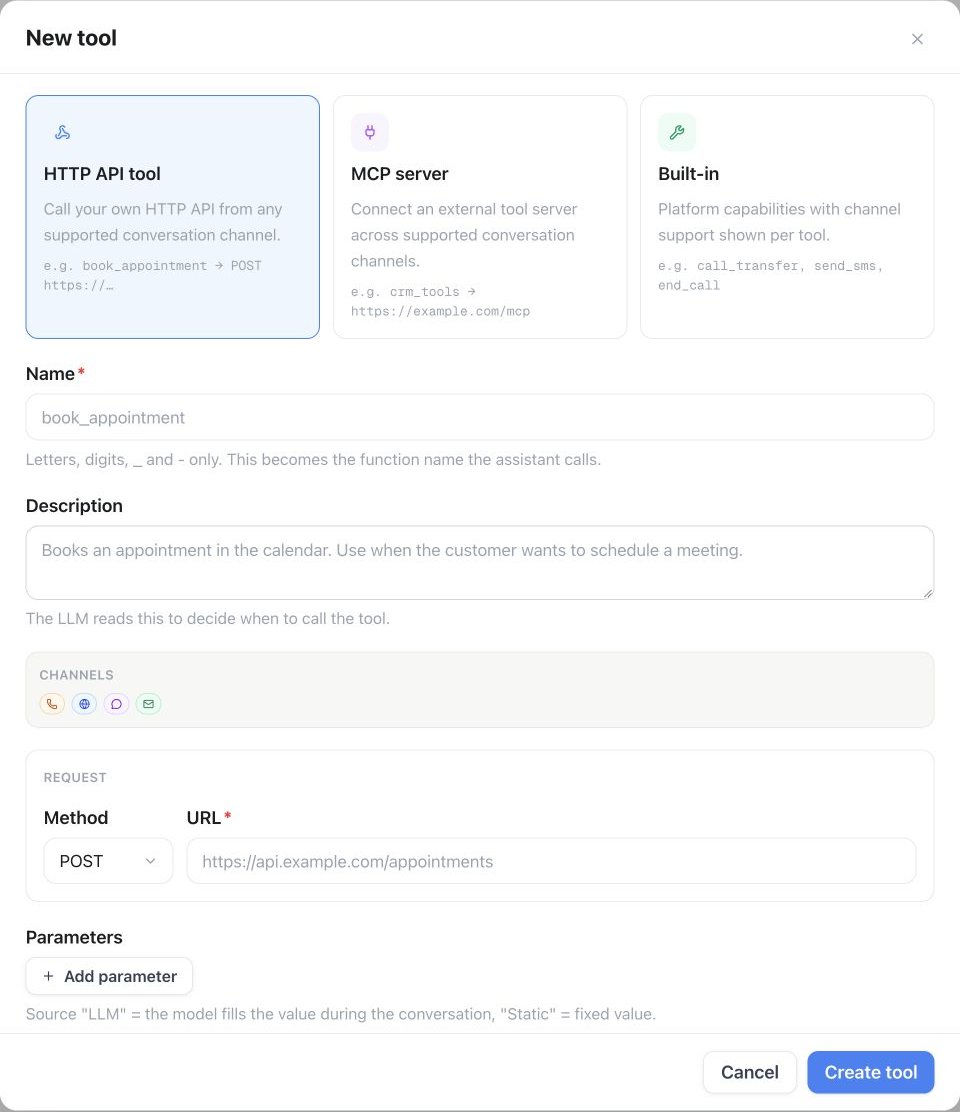
Configuration in Famulor Interface

FieldValue
Name*Microsoft Teams Message
Description”Automatically sends formatted messages to Microsoft Teams channels for enterprise team coordination”
Function Name*send_teams_message
Function Description*“Sends a message to a Teams channel via webhook. Use this for important business updates, lead notifications, or support escalations.”
HTTP MethodPOST
Timeout (ms)5000
Endpoint*{{TEAMS_WEBHOOK_URL}}

Parameter Schema

{
  "type": "object",
  "properties": {
    "title": {
      "type": "string",
      "description": "Message title (displayed prominently)",
      "examples": ["New Qualified Lead", "Support Escalation", "Deal Update"]
    },
    "message": {
      "type": "string",
      "description": "Main content of the message (supports Markdown formatting)"
    },
    "color": {
      "type": "string",
      "description": "Theme color as hex code for visual categorization",
      "default": "0078D4",
      "examples": ["0078D4", "28A745", "DC3545", "FFC107"]
    },
    "call_type": {
      "type": "string",
      "enum": ["Sales", "Support", "Partnership", "General"],
      "description": "Type of call for categorization",
      "default": "General"
    },
    "priority": {
      "type": "string",
      "enum": ["Low", "Normal", "High", "Critical"],
      "description": "Priority level for color coding",
      "default": "Normal"
    },
    "timestamp": {
      "type": "string",
      "description": "Timestamp of the call (automatically generated)",
      "format": "date-time"
    }
  },
  "required": ["title", "message"]
}

Practical Use Cases

Scenario 1: Sales Lead Notification

MessageCard template for high-value lead:
{
  "@type": "MessageCard",
  "@context": "https://schema.org/extensions",
  "title": "🎯 New Enterprise Lead",
  "summary": "Qualified lead with high potential",
  "text": "A new qualified lead was identified during the live call.",
  "themeColor": "28A745",
  "sections": [
    {
      "activityTitle": "Lead Details",
      "activitySubtitle": "Immediate follow-up recommended",
      "facts": [
        {"name": "Contact:", "value": "Max Mustermann"},
        {"name": "Company:", "value": "Example AG"},
        {"name": "Email:", "value": "max@example.com"},
        {"name": "Lead Score:", "value": "92/100"},
        {"name": "Estimated Volume:", "value": "€150,000"},
        {"name": "Timeframe:", "value": "Q1 2024"}
      ]
    }
  ],
  "potentialAction": [
    {
      "@type": "OpenUri",
      "name": "Open CRM",
      "targets": [{"os": "default", "uri": "https://your-crm.com/leads/12345"}]
    },
    {
      "@type": "HttpPOST",
      "name": "Claim Lead",
      "target": "https://your-api.com/leads/claim/12345"
    }
  ]
}
Color scheme for different priorities:
  
  Critical:
    Color: "DC3545" (Red)
    Example: System outage, major customer complaint
    
  High:
    Color: "FF6B00" (Orange) 
    Example: Hot lead >100k€, escalation to manager
    
  Normal:
    Color: "0078D4" (Microsoft Blue)
    Example: Standard leads, info updates
    
  Success:
    Color: "28A745" (Green)
    Example: Deal closed, problem resolved

Scenario 2: Support Ticket Escalation

{
  "@type": "MessageCard",
  "@context": "https://schema.org/extensions", 
  "title": "🚨 Critical Support Ticket",
  "summary": "Immediate attention required",
  "text": "A critical issue was reported during the customer call and requires immediate resolution.",
  "themeColor": "DC3545",
  "sections": [
    {
      "activityTitle": "Problem Details",
      "activitySubtitle": "SLA: 1 hour response time",
      "facts": [
        {"name": "Customer:", "value": "Example AG"},
        {"name": "Contact:", "value": "Max Mustermann"},
        {"name": "Issue:", "value": "API Gateway unreachable"},
        {"name": "Affected Services:", "value": "Production environment"},
        {"name": "Estimated Downtime:", "value": "30 minutes"},
        {"name": "Business Impact:", "value": "High - revenue critical"}
      ]
    },
    {
      "activityTitle": "Next Steps",
      "facts": [
        {"name": "Assigned to:", "value": "@DevOps-Team"},
        {"name": "Ticket ID:", "value": "#SUP-2024-0123"},
        {"name": "Priority:", "value": "P1 - Critical"}
      ]
    }
  ],
  "potentialAction": [
    {
      "@type": "OpenUri",
      "name": "Open Ticket", 
      "targets": [{"os": "default", "uri": "https://support.company.com/tickets/SUP-2024-0123"}]
    }
  ]
}

Scenario 3: Business Intelligence Updates

Response Handling & Success

Successful Message

Status: 200 OK  
Body: "1" (Teams only responds with "1" on success)

Natural Language Integration

Template: "I am sending the information to Microsoft Teams..."Contextual Examples:
For Sales Lead:
  "I am informing the sales team about this qualified lead..."

For Support Issue:
  "I am escalating the issue to the support team in Microsoft Teams..."

For Partnership Inquiry:
  "I am forwarding the partnership inquiry to the business development team..."
Template: "Message has been sent to Teams."Extended confirmations:
With Priority:
  "Critical notification has been sent to the team."

With Follow-up:
  "The team has been notified and will respond within [SLA time]."

With Action Items:
  "Teams notification sent – the team can respond directly from the chat."

Advanced MessageCard Features

Interactive Elements

{
  "potentialAction": [
    {
      "@type": "OpenUri",
      "name": "Open CRM",
      "targets": [
        {"os": "default", "uri": "https://crm.company.com/lead/12345"}
      ]
    },
    {
      "@type": "HttpPOST", 
      "name": "Claim Lead",
      "target": "https://api.company.com/leads/claim",
      "body": "{\"lead_id\": \"12345\", \"user\": \"{{user}}\"}"
    },
    {
      "@type": "ActionCard",
      "name": "Add Note",
      "inputs": [
        {
          "@type": "TextInput",
          "id": "note",
          "title": "Your note",
          "isMultiline": true
        }
      ],
      "actions": [
        {
          "@type": "HttpPOST",
          "name": "Save",
          "target": "https://api.company.com/leads/note"
        }
      ]
    }
  ]
}
{
  "sections": [
    {
      "activityTitle": "Lead Information",
      "activitySubtitle": "Primary contact details",
      "activityImage": "https://company.com/images/lead-icon.png",
      "facts": [
        {"name": "Name:", "value": "Max Mustermann"},
        {"name": "Company:", "value": "Example AG"}
      ]
    },
    {
      "activityTitle": "Qualification",
      "activitySubtitle": "BANT assessment",
      "facts": [
        {"name": "Budget:", "value": "€100k+ confirmed"},
        {"name": "Authority:", "value": "Decision maker"},
        {"name": "Need:", "value": "Immediate"},
        {"name": "Timeline:", "value": "Q1 2024"}
      ]
    }
  ]
}

Microsoft 365 Integration

{
  "potentialAction": [
    {
      "@type": "OpenUri",
      "name": "Open Sales Documents",
      "targets": [
        {
          "os": "default", 
          "uri": "https://company.sharepoint.com/sites/sales/Documents/Proposals/"
        }
      ]
    },
    {
      "@type": "OpenUri", 
      "name": "Customer History",
      "targets": [
        {
          "os": "default",
          "uri": "https://company.sharepoint.com/sites/crm/Lists/Customers/"
        }
      ]
    }
  ]
}

Error Handling & Troubleshooting

Common Issues

Causes:
  - Webhook disabled or deleted  
  - Incorrect URL formatting  
  - Expired webhook configuration

Troubleshooting:
  1. Verify Teams channel  
  2. Reconfigure webhook  
  3. Update URL in tool configuration
  
Fallback message:
  "Teams notification could not be delivered.  
   The team will be informed manually."
Common format issues:
  - Invalid JSON  
  - Missing @type or @context  
  - Title/text fields too long  
  - Invalid action definitions

Debugging:
  - Use MessageCard validator  
  - Check payload size (max 28KB)  
  - Escape special characters

Fallback:
  Plain text message without advanced features

Performance & Monitoring

Teams-Specific Metrics

MetricDescriptionTarget Value
Webhook Success Rate% of successfully delivered messages>99.5%
Message Delivery TimeTime until message appears in Teams<2 seconds
Action Button Usage% of messages with button interaction>60%
Webhook UptimeAvailability of webhook endpoints>99.9%

Business Impact Tracking

1

Measure Response Times

KPIs:
  - Time to first team reaction on alert  
  - Average problem resolution time  
  - Lead response time after Teams notification
2

Engagement Analysis

Metrics:
  - Number of button clicks per MessageCard type  
  - Most common action types  
  - Team member participation rate

Enterprise Compliance

Security Considerations

Sensitivity labels for Teams messages:
  Public: General notifications  
  Internal: Team-specific updates  
  Confidential: Customer data with lead information  
  Highly Confidential: Critical business intelligence

Implementation:
  - Separate webhook URLs per sensitivity level  
  - Different Teams channels for different classifications  
  - Automated data loss prevention checks
Microsoft 365 compliance features:
  - Message retention policies  
  - eDiscovery for Teams messages  
  - Communication compliance monitoring  
  - Data loss prevention (DLP)

Logging:
  - All webhook calls in audit log  
  - Message content classification  
  - User interaction tracking

Enterprise Notice: Ensure your Teams webhooks comply with your company’s IT security policies and are regularly checked for vulnerabilities.
Integration Tip: Use different webhook URLs for different channel types (Sales, Support, etc.) to gain better control over message routing and formatting.