

/tools in the sidebar, under Agents) is where you build your own tools once and connect pre-built ones, so any assistant in the workspace can use them.
Agent Tools is workspace-wide: a tool lives here once and is assigned to as many assistants as you like. An assistant’s own Tools tab is the per-assistant view, where you switch platform actions like call transfer, SMS, and end call on or off for that one assistant — see Built-in tools.
Agent Tools vs. Automations
Both are ways for an assistant to act on outside systems, but they run at different moments. A tool on this page is something the assistant reaches for itself, live, while it’s already talking to someone — deciding in the moment that it needs to look something up or create a record. An automation is a fixed sequence of steps you (or Milian) design in advance, usually started by a background event like a call ending.
The two meet in one place: an automation you make assistant-callable appears in Installed as an Automation-managed tool — listed here, but edited from the automation itself. For background workflows started by events like On Call Completed or a new contact, see Automations.
Installed
Your workspace’s own tools, grouped by type:- HTTP API tools — call your own HTTP endpoint from any supported conversation channel, for example
book_appointment → POST https://…. - MCP servers — connect an external MCP server and allow every tool it offers, or select only specific ones.
- Built-in — platform capabilities such as call transfer, SMS, or end call, set up once here and reused across assistants. The same actions can be configured per assistant instead; see Built-in tools.
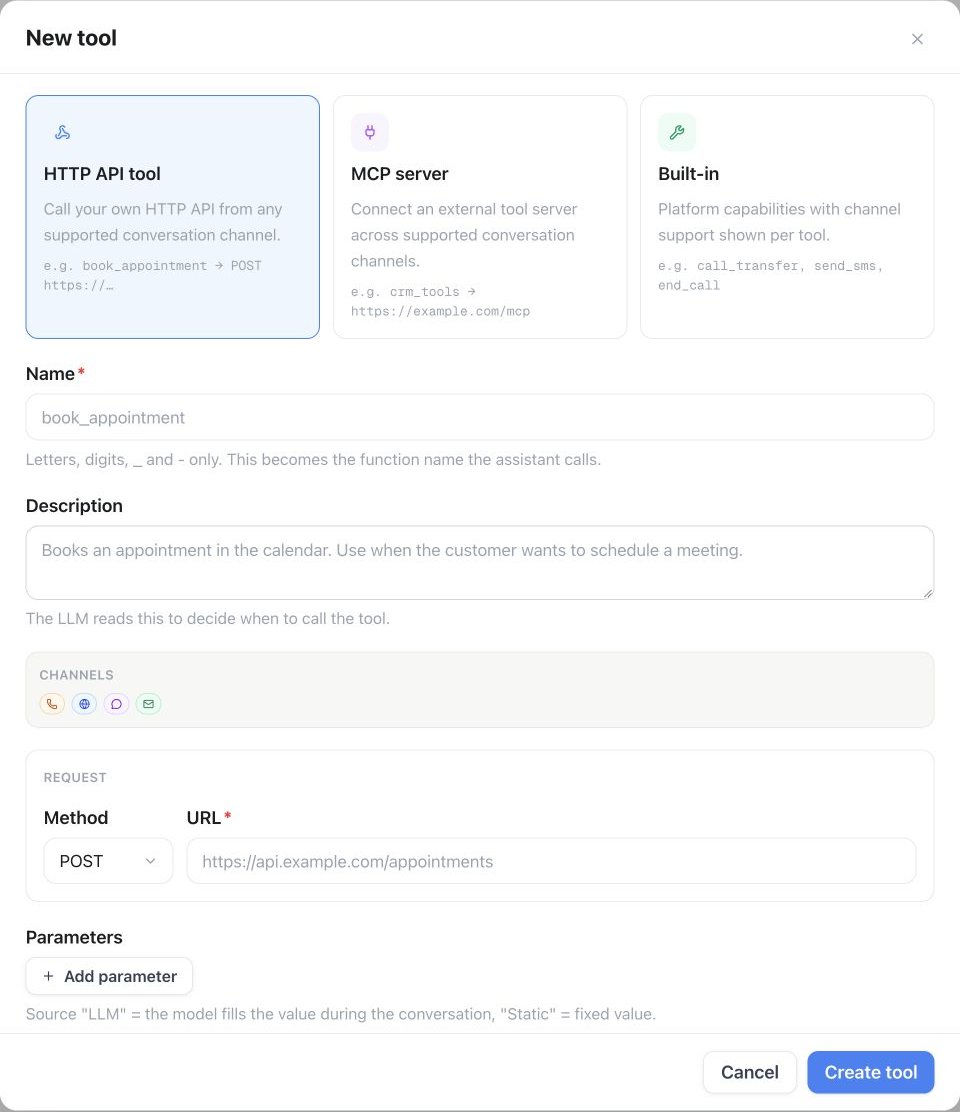
Agent Tools → Installed → API → Custom Agent Tool: select HTTP API tool, name it, describe when to use it, then set the method, URL, and parameters.
Agent Connectors
The Agent Connectors tab is a searchable app store of pre-built integrations — CRM, Calendar, Telephony, Automation, Productivity, Utilities, and Other apps, filterable by category or narrowed to MCP-only — that attach to an assistant as a callable tool in a couple of clicks instead of building an API tool by hand. Connect with an API key or an OAuth sign-in, depending on the app.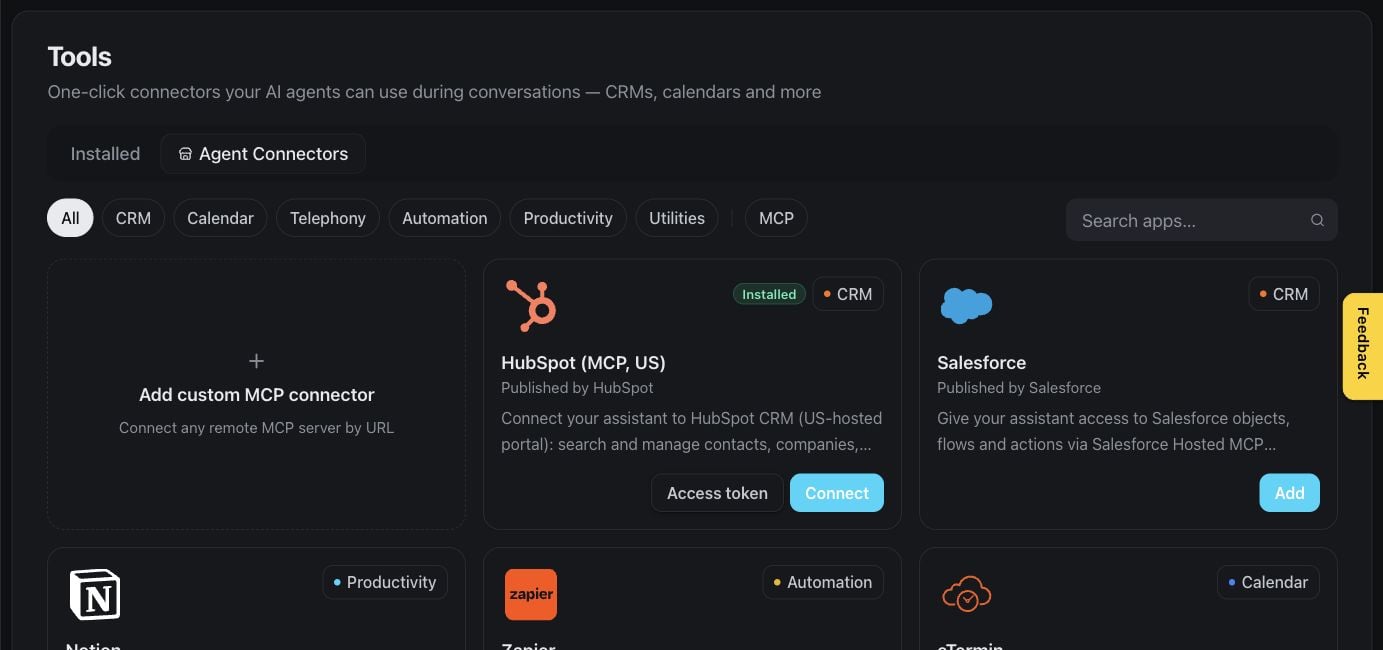
Tools — browse supported connectors
Waiting behavior
Each HTTP API tool has a Voice behavior section that controls what callers hear while its request runs. These settings apply to voice conversations only:- Talk While Waiting — the conversation continues while the request runs. Once the result arrives, the assistant shares it at the next pause. Turn this on for requests that take more than a few seconds.
- Filler phrase — said when the request starts, for example “One moment, I’m checking that.” With Talk While Waiting on, an empty field uses a default phrase; with it off, an empty field means nothing is said.
- Talk After Action Completed — on by default: the assistant responds once the request finishes. Turn it off to run the action silently.
Execution behavior
Every tool an MCP server exposes has its own Execution behavior section in the server’s editor, controlling how that tool runs during a call or chat:- Allow cancellation — lets the assistant cancel a running invocation. Cancellation can’t undo a remote change the tool already made.
- Duplicate calls — what happens if the assistant tries to call the same tool again while it’s still running: allow it, reject it, replace the running call, or ask the assistant to confirm first.
- Speak progress updates — read out progress text the MCP server sends while the tool runs. Only enable this for servers you trust, since that text becomes part of the conversation.
Always available
Some tools are attached by the platform itself and never appear under Installed — you don’t assign them, and they can’t be removed:
A prompt that tells the assistant to call one of these works without any tool assignment. Everything else — built-ins, API tools, MCP servers, connectors — must be installed and assigned.
Max tool steps
Each assistant has its own Max tool steps setting, in its Tools tab — how many tool calls it may chain within a single turn before it has to answer without calling another tool. Range 1–20, default 3.Tool versions
Every change to a tool is versioned. Use the API or MCP to review a tool’s history and restore an earlier version if a recent edit broke something.Managing tools
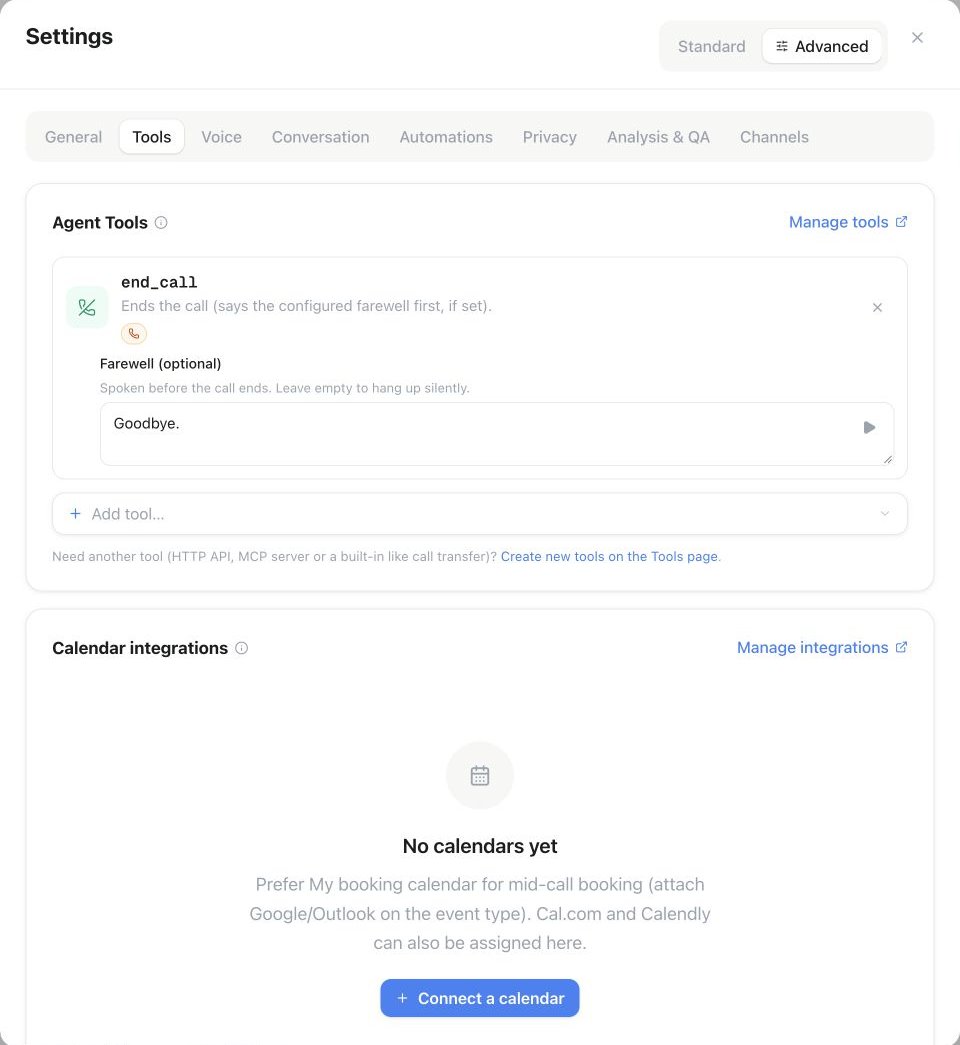
Assistant Settings → Advanced → Tools: assign a tool with Add tool, then review its settings. The example shows the end-call Farewell field.
Availability
Your plan’s Tools & MCP limit caps how many tools the workspace can have installed at once. MCP servers additionally need the Connect AI (MCP) plan feature — without it, creating an MCP tool is refused. Both are shown under Settings → Plan. Reusable tools and assistant MCP connections share the Tools & MCP workspace limit. A reusable tool assigned to several assistants counts once. Reseller customer workspaces include five tools with plan or prepaid access; paid Extra Tools add-ons provide more capacity. Connect AI (MCP) must also be enabled in the assigned plan or prepaid defaults. Review your allowance under Settings → Plan.API & MCP
See Tools & webhooks for request and response details.
Next steps
Built-in tools
Turn on call transfer, SMS, email, and other platform actions per assistant
Tools & webhooks
Full API and MCP reference for building and assigning tools