

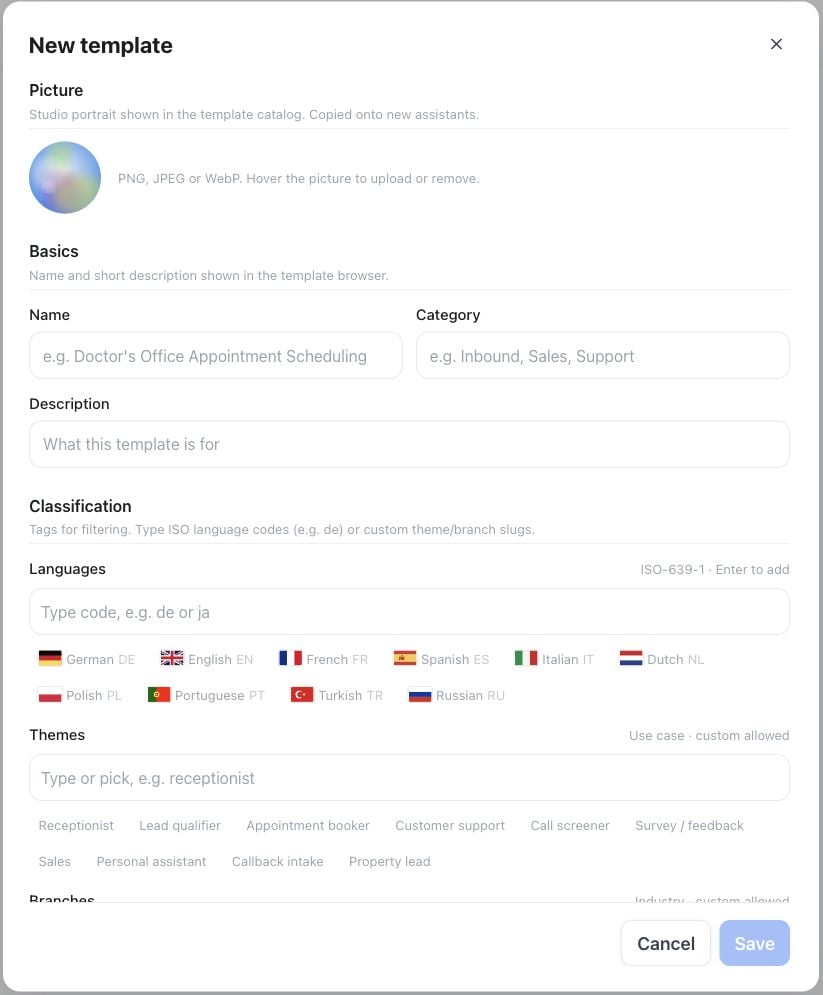
New template — picture, basic details and classification fields
What a template holds
Most templates hold a plain system prompt. A template can also carry a saved flow — when a customer applies one of these, Famulor seeds the assistant’s Flow Builder canvas instead of a plain prompt.
The platform catalog offers reception, appointment-request intake, customer support, lead-enquiry qualification and callback-request intake as both flows and single prompts across the available language catalog. Templates introduce the assistant as AI and use Famulor mascot pictures. Replace business variables and add your verified information before use. Appointment requests, messages and tickets are confirmed only when an assigned tool reports success.
Where customers see it
A customer picks a template while creating a new assistant, or later from the system-prompt card on an existing assistant. They preview it, then apply a copy. Later changes to the template never overwrite an existing assistant — applying a template copies its content once; it does not create a live link back to the template.Scope
Templates you create in Whitelabel Admin are available to your own reseller team and to your customer workspaces. Delete or deactivate a template to remove it from the catalog; existing assistants that already applied it are unaffected.API, MCP and CLI
The customer-visible catalog is read-only throughGET /api/v1/prompt-templates, the MCP list_prompt_templates tool and famulor list-prompt-templates --language gsw. Create an assistant from a catalog item with famulor create-assistant --template-id <template-id>. Creating and editing templates themselves is a Whitelabel Admin dashboard action; there is no write API for template management.
See also White Label Program for how visibility and other white-label customizations work together, and Flow builder for how flow-based templates behave once applied.
The catalog returns pages of up to 100 templates (50 by default). Use limit and offset with the API or MCP, or famulor list-prompt-templates --limit 100 --offset 100 for the next CLI page.