

Preferred onboarding (platform domain only, e.g. app.famulor.io): WhatsApp Embedded Signup (Connect with Meta). On whitelabel custom domains, workspaces use manual credential paste only.
Marketplace numbers (Settings → Numbers) are PSTN/SIP for phone voice. The same E.164 becomes WhatsApp only after Meta verifies it (OTP). Your SIP trunk settings are independent of WhatsApp Cloud API. Platform SMS helpers are SMS/MMS only — not used for WhatsApp.
Prerequisites
Your plan includes WhatsApp text and/or WhatsApp voice.Reply and conversation settings
Both Cloud API and Coexistence senders offer AI Auto-Responses, Ignore message reactions, and Keep conversations unread. Reactions are ignored by default; turn this off to store new emoji reactions as customer messages and let them trigger replies when AI is enabled. Removing a reaction does not trigger a reply. Keeping conversations unread also suppresses the typing indicator. Under Edit → General → Timing, set the response delay and the inactivity timeout; under Edit → Advanced → Conversation ended, add an optional webhook URL. The timeout counts from the last customer message. The webhook includes the transcript and extracted variables. Allow re-triggering sends this sender-level webhook again when the same customer resumes an ended chat and becomes inactive again. Workspace webhooks and automations retain their own event subscriptions.Product UI
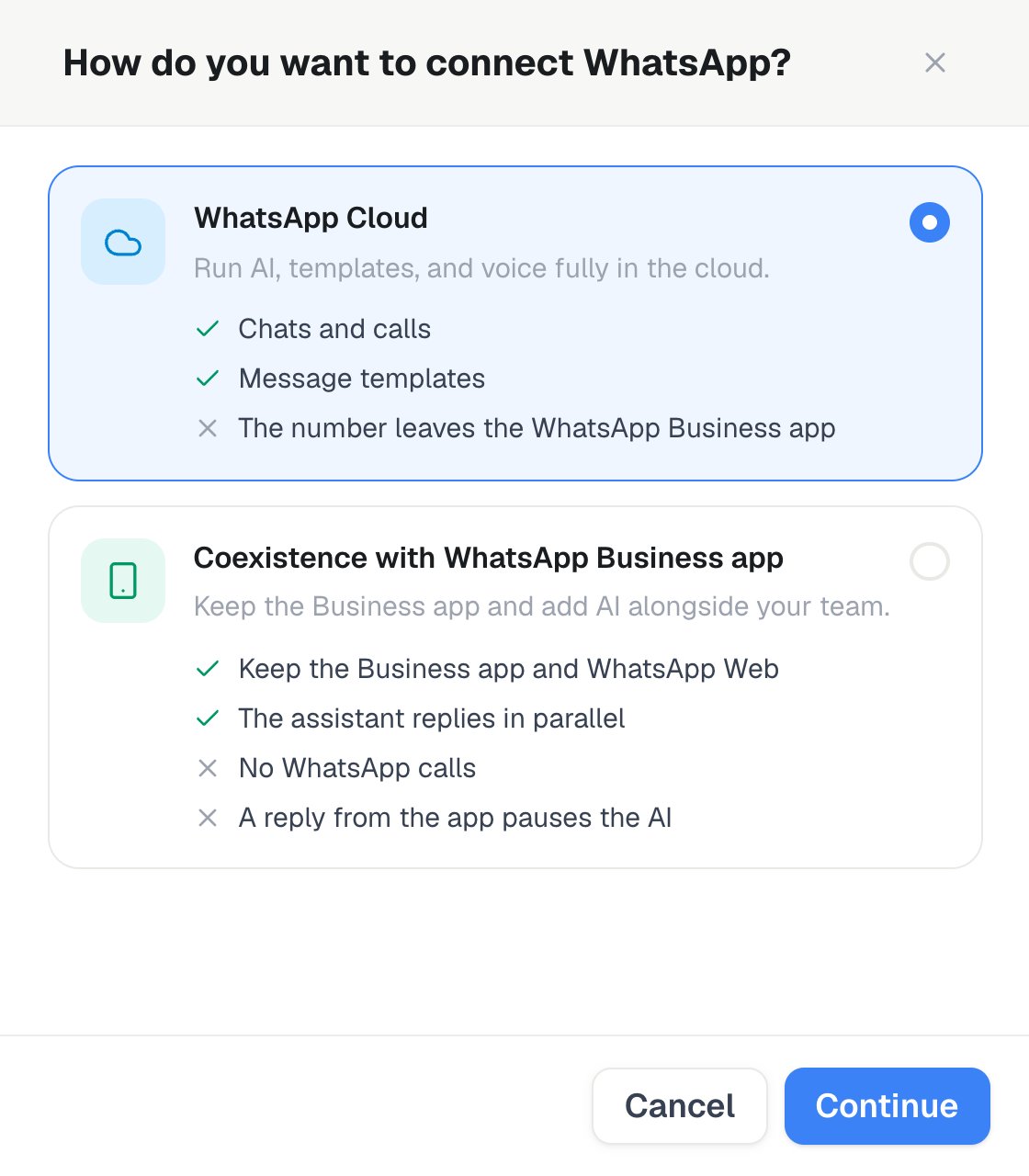
Settings → Channels → WhatsApp → Add number: select WhatsApp Cloud or Coexistence with WhatsApp Business app, then Continue.
- Add number opens a choice: select WhatsApp Cloud (Cloud API only — the number typically leaves the WhatsApp Business app) or Coexistence with WhatsApp Business app (app and WhatsApp Web stay on the number; the assistant replies in parallel; a teammate reply from the app pauses AI), then Continue. Setup guide next to the list walks through the steps.
- Connect with Meta (Embedded Signup) — pick assistant, optional marketplace number (Cloud only), OTP helper for marketplace SMS
- Or paste credentials manually on the Cloud path (token, app secret, verify token, phone number ID, WABA ID). Coexistence requires Connect with Meta.
- Toggles: Text chat, Inbound calls and Outbound calls (calls are Cloud-only — Coexistence numbers keep calls in the WhatsApp Business app)
- Edit a sender: the top shows its status, Quality, Limit and Calls. General holds the chat and outbound-voice assistants, AI Auto-Responses, Inbound calls, Outbound calls, Ignore message reactions, Keep conversations unread and the timing. Profile holds the Business Profile (About, Description, Business Address, Business Category, logo, banner, websites, and contact emails/phones); for Cloud senders, Publish to WhatsApp pushes it to Meta — the logo becomes your WhatsApp profile picture. Advanced holds the conversation-ended and read-receipts webhooks, the Cloud API credentials and the account IDs. Refresh from Meta, Enable / fix calling and Re-subscribe webhooks are in the ⋯ menu. Unsaved edits show a bar with Save and Discard.
- Select Templates beside a sender to open its dedicated template page. Sync with Meta follows every result page, imports templates created in WhatsApp Manager, and refreshes approval status. Add template lets you create a custom Utility or Marketing draft with text, image, video, PDF document or location headers, an optional footer, quick replies, website, phone and copy-code buttons, or browse the official template library by language. The live WhatsApp preview is also used while configuring campaign outreach. Media headers require a JPEG/PNG, MP4, or PDF review sample up to 3 MB. Templates that require runtime media, location, dynamic URL, or copy-code values remain previewable but are not available for Test or campaigns yet. Variables must be numbered contiguously (
{{1}},{{2}},{{3}}) and mapped to a system variable, lead attribute, assistant variable, or custom key. - Place a test WhatsApp call from the sender’s ⋯ menu (Test call)
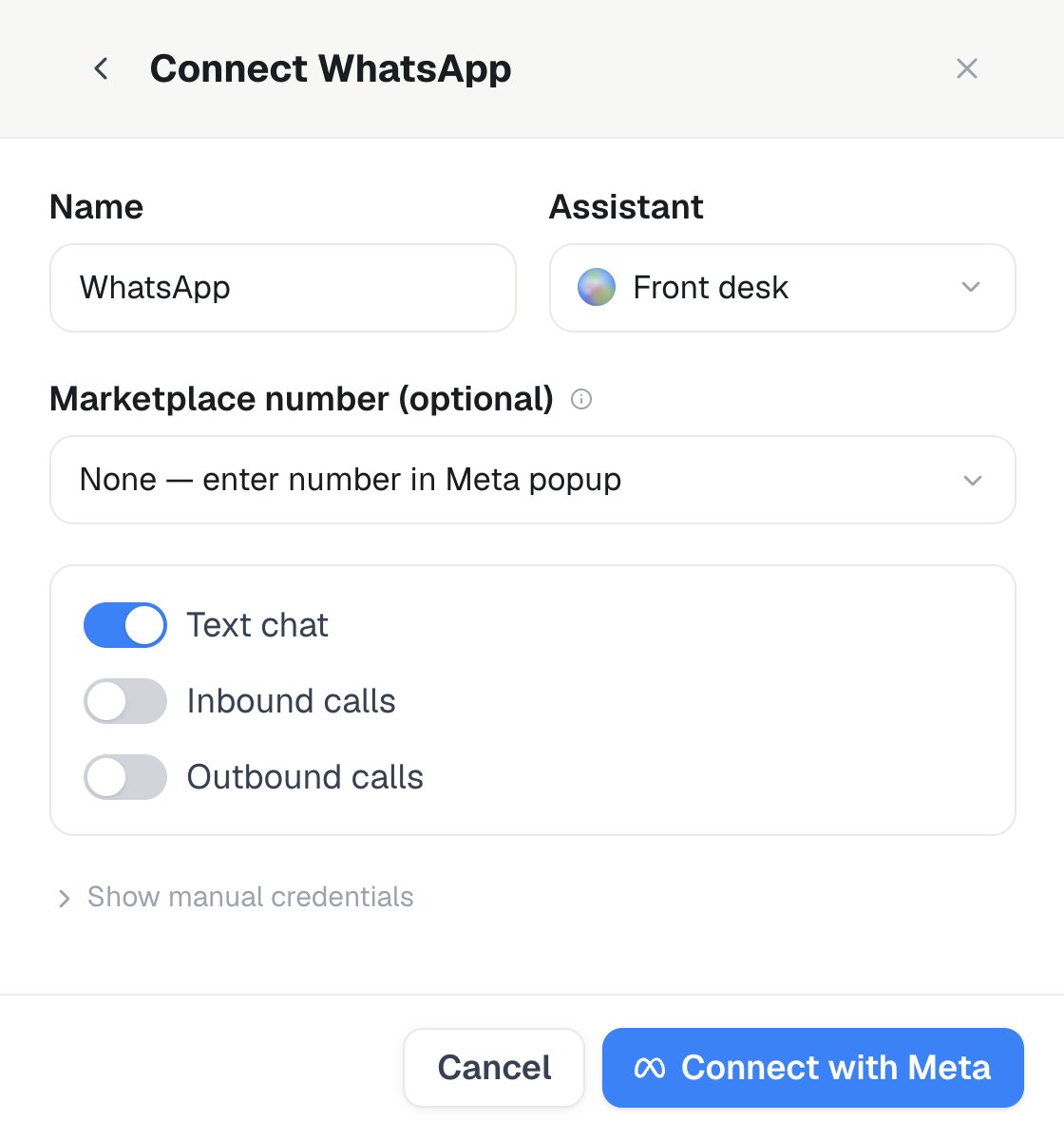
On the Cloud path, select the Assistant and an optional Marketplace number, choose text or voice capabilities, then use Connect with Meta.
The 24-hour window and templates
Meta only allows freeform replies inside a 24-hour service window that opens each time a customer messages you:- Inside the window — your assistant can send any message, no template required.
- Outside the window — you must send an approved template. This applies to starting a new conversation, re-engaging a customer after 24 hours of inactivity, and any notification or marketing message you initiate.
Add template creates Utility and Marketing templates, and the official library it browses is Utility. Authentication templates are created in WhatsApp Manager and picked up by Sync with Meta like any other template.
A call-permission request isn’t a separate category — it’s a top-level
CALL_PERMISSION_REQUEST component added to a Utility or Marketing template to ask a customer for permission to call them over WhatsApp voice. Meta returns the authoritative review status asynchronously.
Meta rejects templates that mix categories — for example, promotional language inside a Utility template. Other common rejection causes: vague example values for
{{1}}/{{2}} variables (use realistic samples, not “test”), aggressive or urgent-sounding language, URL shorteners instead of your own domain, and restricted content (alcohol, gambling, adult, political, or otherwise prohibited categories).Message quality and sending limits
Meta controls how much a sender may send through two separate things. Quality rating — High, Medium, or Low, based on how people react to your messages: blocks, spam reports, and whether they reply. It drops after a run of blocks or reports and recovers as you send relevant, requested content. Messaging limit — how many customers you may start a conversation with in a rolling 24 hours. A new sender starts at the lowest tier (typically 250 customers) and Meta raises it a step at a time — 1,000, then 10,000, then 100,000, then unlimited — as you send more with a healthy quality rating. A rating that stays Low can freeze the tier or move it back down. Replies inside an open 24-hour window don’t count against the limit. Both values come straight from Meta and are shown per sender in the list and at the top of Edit as Quality and Limit, so build a track record of quality conversations before scaling volume.Campaigns
Choose WhatsApp in the campaign wizard to send an active sender’s approved text template once per lead. Saved template bindings are prefilled and can be overridden per campaign. Mappings can use canonical contact fields, read-only channel/system variables, lead attributes, assistant variables, or a custom lead key. WhatsApp Call (Beta) requires Beta Features, WhatsApp voice access, an outbound-ready sender, and an approved call-permission template selected for that sender. Business-initiated calling also depends on Meta availability, region, and explicit customer permission. Permission requests and their visible Awaiting permission state are handled automatically. A grant resumes the lead only while its campaign is running. Voice campaigns may use an approved WhatsApp template, SMS, or email as their single post-retry follow-up. Successful calls, suppressed contacts, and manually paused campaigns never create that follow-up. Template sends use the same messaging credits as session WhatsApp.Read-receipts webhook
Under Edit → Advanced, you can configure an HTTPS endpoint that receives delivery and read-status callbacks. Every callback is signed with HMAC-SHA256 over the exact raw request body. The signature is sent asX-Signature-256: sha256=<hex digest>.
A signing secret is generated when you first save the webhook URL. Existing secrets cannot be retrieved. Use Rotate signing secret in the sender settings, POST /api/v1/whatsapp/connectors/{id}/profile with action=rotate_read_receipts_webhook_secret, or the MCP tool rotate_whatsapp_read_receipts_webhook_secret. The new signing_secret is shown or returned exactly once, and the previous secret stops working immediately. Store the new value before leaving the response and update your receiver before sending a test request.
History
Every WhatsApp conversation lands in History alongside your other channels:- Text conversations appear as channel WhatsApp.
- Voice calls appear as channel WhatsApp voice.
Billing
- Text: billed per message at the workspace’s Messaging (sent) / Messaging (received) rate — the same rate other messaging channels use. Current rates are on the Usage page.
- Voice: existing voice-minute credit reservation/settlement (same as phone/SIP calls)
- Meta conversation pricing: customer payment method in WhatsApp Manager (Tech Provider)
Troubleshooting
A sender’s status pill shows PENDING, CONNECTED, or ERROR.Sender stays PENDING
Sender stays PENDING
Confirm you completed the full Meta signup popup and created (not reused) a WhatsApp Business account during setup, then refresh after a few minutes. Still pending after 30+ minutes: contact support with the sender ID.
Sender shows ERROR
Sender shows ERROR
Point at the sender’s Error status in the list to read the last error. Credential problems are fixed by re-running the connect flow; a policy or quality suspension has to be addressed (usually spam-like sending behavior) and appealed through Meta.
Template rejected or disabled
Template rejected or disabled
The rejection reasons above are the usual causes; a disabled template is normally quality feedback. Create an improved version and narrow who you send it to.
Template pending for a long time
Template pending for a long time
Marketing templates can take the longest; create an alternate template if you need to send sooner.
Messages not delivering
Messages not delivering
Send to numbers in E.164 format, confirm the recipient has WhatsApp, check the sender is CONNECTED, and confirm you haven’t hit your messaging limit.
Freeform message rejected
Freeform message rejected
You’re outside the customer’s 24-hour window; send an approved template instead.
AI not responding
AI not responding
Confirm an assistant is assigned to the sender and AI Auto-Responses is on, then check History for the conversation’s error state.
Quality rating dropped or limits hit
Quality rating dropped or limits hit
Review what you sent right before the drop, tighten targeting, and reduce volume; both the rating and the tier recover as you send higher-quality, more relevant messages.
Meta popup doesn't appear or closes without completing
Meta popup doesn't appear or closes without completing
Allow popups for the site, clear cookies/cache, or retry in another browser; then re-run the connect flow from the start.
Public API
- Messaging connectors:
GET/POST /api/v1/messaging-connectorswithplatform=whatsapp - Templates:
GET/POST /api/v1/whatsapp/templates; usesource=library,language,limit, and the returnedpaging.aftercursor to browse the official library.parameter_bindingsmaps positions such as1orheader.1to variable keys. Supplylibrary_template_namepluslibrary_button_valueswhen a preset has URL or phone-number buttons.action=updateedits drafts locally; component or category changes to an editable provider template are sent to Meta, while mapping-only changes stay local. Upload media-header review samples throughPOST /api/v1/whatsapp/templates/mediaor MCPupload_whatsapp_template_review_sample. API and MCP clients can create the same call-permission template by supplying aBODYandCALL_PERMISSION_REQUESTcomponent. - Outbound voice:
POST /api/v1/calls/whatsapp-outbound - History AI resume:
POST /api/v1/history/actionswithaction=resume_ai,kind=messaging, and the conversation ID - Calling management:
GET /api/v1/whatsapp/callingreads readiness (Meta call settings, webhook subscription, quality rating) for a connector’s business number;POST /api/v1/whatsapp/callingrunsenable_calling,resubscribe, orensure_voice. - Sender assets:
POST/DELETE /api/v1/whatsapp/connectors/{id}/assetsupload or remove a Business Profile logo/banner (URL or base64). - Sender profile and read receipts:
GET/PATCH/POST /api/v1/whatsapp/connectors/{id}/profilemanages the sender profile, tests the signed callback, and rotates its signing secret. - Messenger Connect can also be driven entirely through the API:
POST /api/v1/messenger/facebook-login/pageslists the Facebook Pages a user access token can manage, ahead ofPOST /api/v1/messenger/facebook-login. - MCP: WhatsApp template tools +
start_whatsapp_outbound_call+get_whatsapp_calling_status+manage_whatsapp_calling+rotate_whatsapp_read_receipts_webhook_secret+upload_whatsapp_sender_asset/delete_whatsapp_sender_asset+list_messenger_facebook_pages