

Model catalog
The assistant editor shows a curated catalog of models available to your workspace:
Availability depends on your workspace and selected engine mode.
When AI Safety & Control is included, you can choose models separately for pipeline, realtime, and half-cascade assistants. Otherwise, the assistant uses the recommended automatic selection.
See AI regions & models for the complete model list, EU/US endpoint availability, automatic SIP routing and infrastructure locations.
Primary speech recognition model
With AI Safety & Control, open Assistant settings → General → Advanced. In Pipeline mode, Speech recognition model (STT) appears below the language model. Choose an available provider and model, or return to Platform default. The list follows your workspace’s AI region. The selection is hidden and inactive for Realtime, Full Duplex, Half-Cascade and Translate. Switching engines preserves your Pipeline preference. Only the primary recognition model changes. The platform continues to manage the fallback models and their order. If the add-on is removed or a saved model is no longer available in the workspace region, subsequent calls use the central default. REST: list compatible choices withGET /api/v1/models?type=stt&mode=pipeline, then update the assistant with PUT /api/v1/assistants/{id}. MCP: use get_models and update_assistant. Set the recognition provider and model together; set both to null to return to the default.
Temperature
In Pipeline mode, Temperature controls how closely the language model sticks to your prompt versus varying its wording. The slider runs from 0 — deterministic and on-script — upward to more creative, improvised replies. 0.5–0.8 is a typical range for phone conversations. Treat it as final fine-tuning, not a substitute for a well-written prompt:- Finish the prompt first — role, goals, boundaries, tone.
- Start low.
- Raise it in small steps, only once the baseline sounds good.
- Test and compare after each change.
Voice library
Use the voice picker to filter by language and voice characteristics, then play a sample before saving.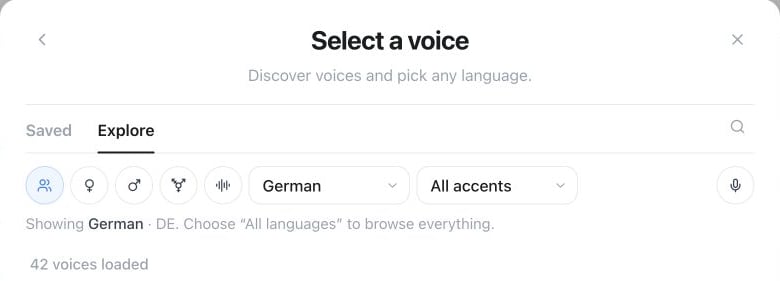
Assistant editor → Change voice → Explore: filter the library by language, accent and voice characteristics. Saved contains voices you have kept.
GET /api/v1/voices and MCP tool get_voices return provider-neutral local selectors. Upstream voice IDs and supplier names are not exposed; pass the returned id directly as tts_voice.
- Assistant voice — the default voice for the assistant.
- Voice per flow agent — give individual flow agents distinct voices.
- Voice per language — change the voice together with automatic language switching.
- Cloned voices — when included in your plan, add a private custom voice and use it like a library voice.
sample_constraints from GET /api/v1/voices/clone/capability for how many samples are currently accepted (max_files, up to 3), the maximum size per sample (max_bytes_per_file), and the maximum sample length (max_duration_seconds, or null for no limit), prepare that many direct uploads with POST /api/v1/voices/clone/uploads, upload the samples, then submit the job with POST /api/v1/voices/clone. MCP offers the equivalent get_voice_clone_capability, create_voice_clone_upload, and submit_voice_clone tools. The dashboard, REST, and MCP paths share the same Clone your own voice entitlement, consent check, creation pricing, and tenant isolation.
Speaking style
The available controls adapt to the selected model. Depending on the voice, you may see:- speaking rate and output volume;
- stability, similarity, or expressiveness;
- free-text style instructions;
- a pronunciation dictionary for names, abbreviations, and specialist terms;
- filters that prevent markdown and emoji from being read aloud.
Speech recognition glossary
Open Assistant settings → Voice → Speech recognition to add customer, product, and proper names that should be transcribed accurately. The glossary affects the transcript; use the pronunciation dictionary separately when a term also needs a special spoken form. If Automatic term detection (Beta) is available and enabled, the assistant can recognise additional terms for the current call. This may add AI usage. Detected terms are not added to your saved glossary.Fallback chains
Fallback chains is a single switch, not a set of choices you configure. Turn it on, and if the primary speech-recognition, language-model, or voice service times out, errors, or drops mid-call, the assistant automatically moves to a compatible backup so the conversation keeps going instead of dropping. Famulor selects and maintains which backup each chain falls through to — there’s no picker for the backup models themselves. For Pipeline voice and text chat, a working language-model backup stays selected until it also fails. This avoids repeatedly switching back to an unstable primary. New conversations and assistant handoffs start with that assistant’s selected primary again. This policy does not replace native Realtime, Half-Cascade or Full Duplex models, and it does not change speech-recognition or voice fallbacks.Fallback chains ship with the AI Safety & Control add-on; check Settings → Plan for availability. Failing over doesn’t add a separate charge on its own — a call that fails over still bills at the normal call-minute rate.
Test important assistants after changing models, voices, or languages. A short simulation is usually enough to catch pronunciation and timing differences.
Saved announcements
Prepare and preview each fixed announcement using compact icons inside its text field:- Greeting on the assistant’s main page: the greeting and any enabled static message after silence.
- Assistant settings → Privacy → Consent: the consent message.
- The end-call tool editor: that action’s farewell message.
GET /api/v1/assistants/{id}/announcements, POST on the same path, and the authenticated audio link returned for a ready item. MCP and Milian provide get_assistant_announcements and prepare_assistant_announcements. Audio previews are private to the workspace.
Voice creation and credits
Voice cloning is a plan feature. Open Clone a voice directly; the creation button shows Create · free while your allowance remains, then Create + X credits. The charge is made once for a successful creation. Stored voices have no plan capacity limit or recurring storage charge. Sendexpected_credits with POST /api/v1/voices/clone or submit_voice_clone, using the displayed pricing.next_creation_credits from the capability response. Set it to 0 to accept only a free creation. If the price increases or the last free creation is used elsewhere, refresh the price and confirm again. Retry the same job ID after an interrupted request; a successful job is charged only once. The legacy clone_voice tool also requires expected_credits.