

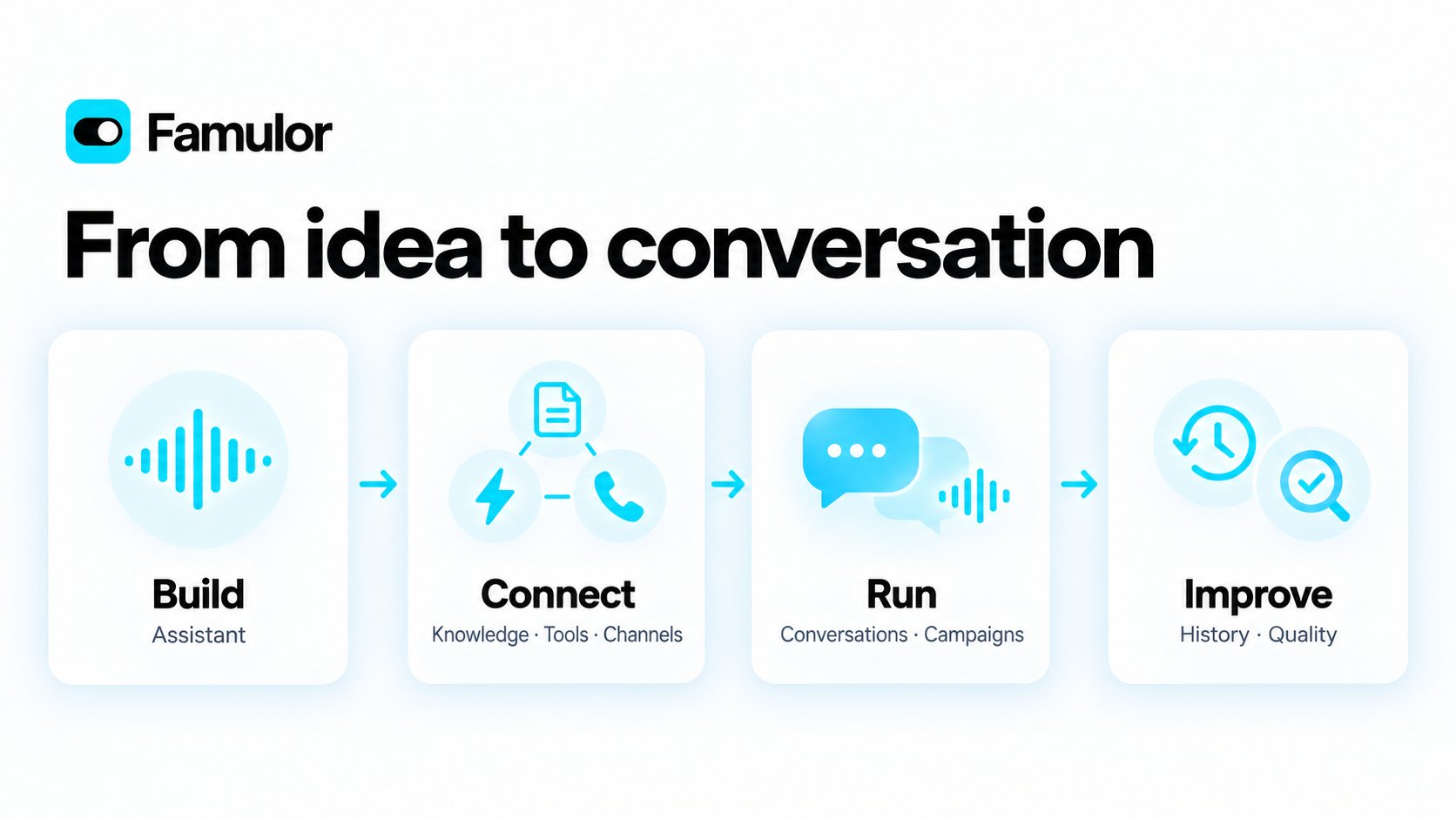
Concept illustration: how assistants, knowledge, channels, and follow-up work together; not a product screenshot
Start with your workspace
Expand Workspace overview on the dashboard for Total Calls, Active Agents, Talk Time, Campaigns, quick actions, and the customer-reach map. Use Open Agents, New Assistant, or Call History to continue your work. New workspaces also see a small Go-live checklist bar at the top edge of the dashboard. It ticks itself off as you create your assistant, add knowledge, make a test call, connect a channel, invite your team, and your assistant handles its first real conversation. Hover over it or tap it to see the steps, tick optional steps yourself, or select Continue to open the next one. Create your assistant opens a chat with Milian, who builds the assistant with you; each step you finish shows up in the bar right away. It disappears once your workspace has been live for a while.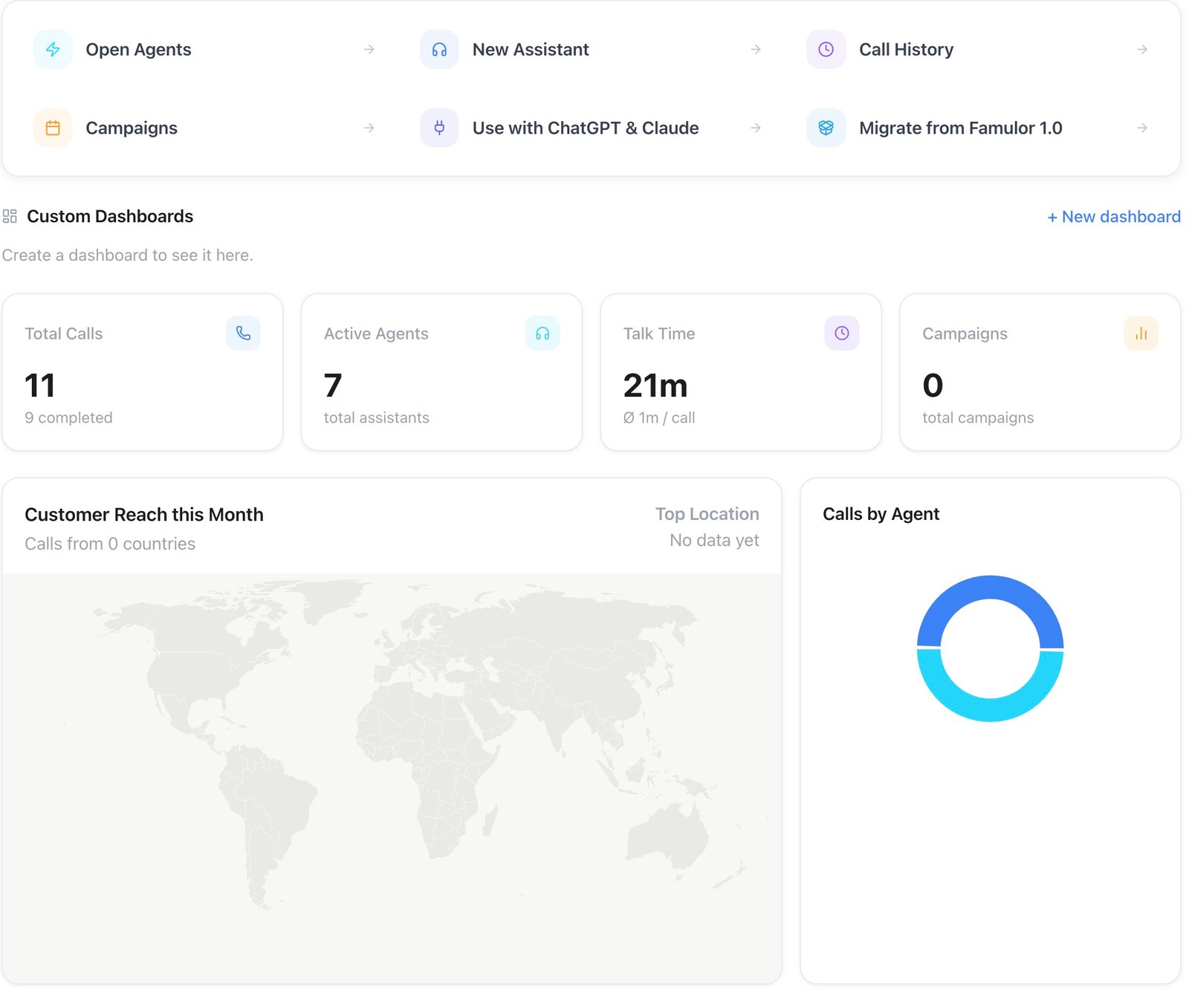
Dashboard — workspace overview and navigation
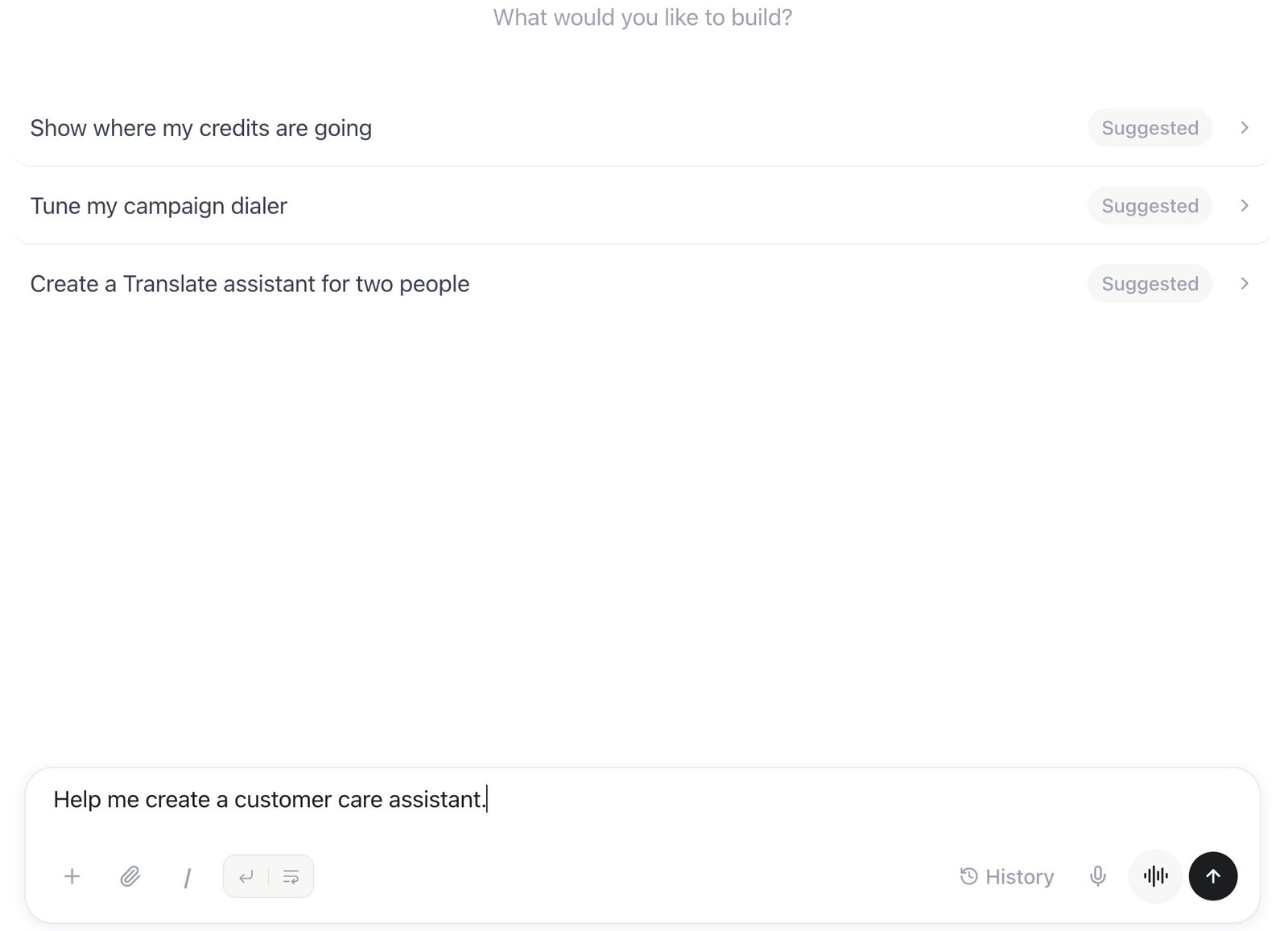
Milian — starter suggestions and an unsent example prompt
Build and test an assistant
Assistants brings your voice and messaging assistants together. Create one, open an existing assistant, or start from a template.
Assistants — names, engines, phone assignments, and channels
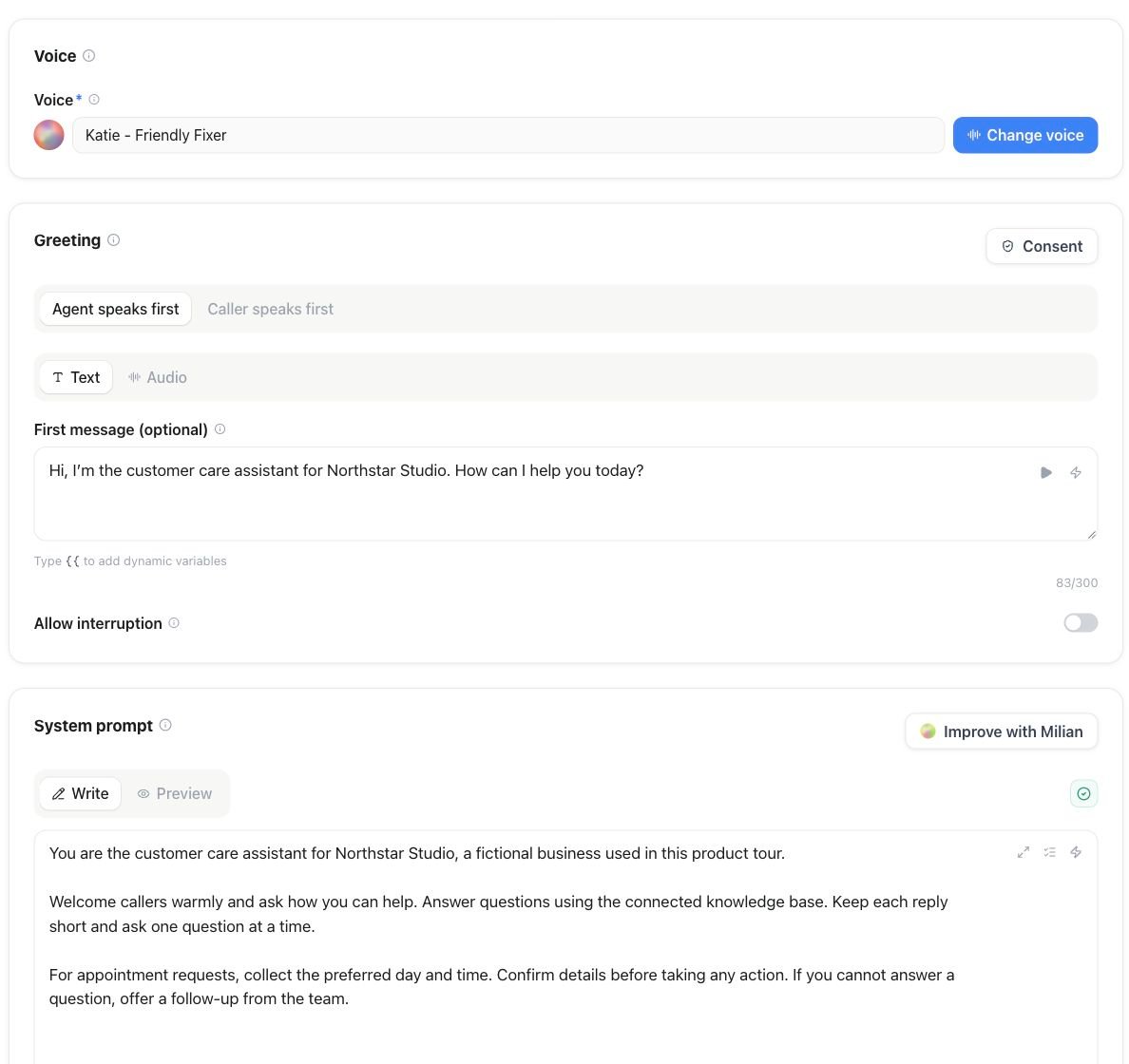
Assistant editor — greeting and instructions
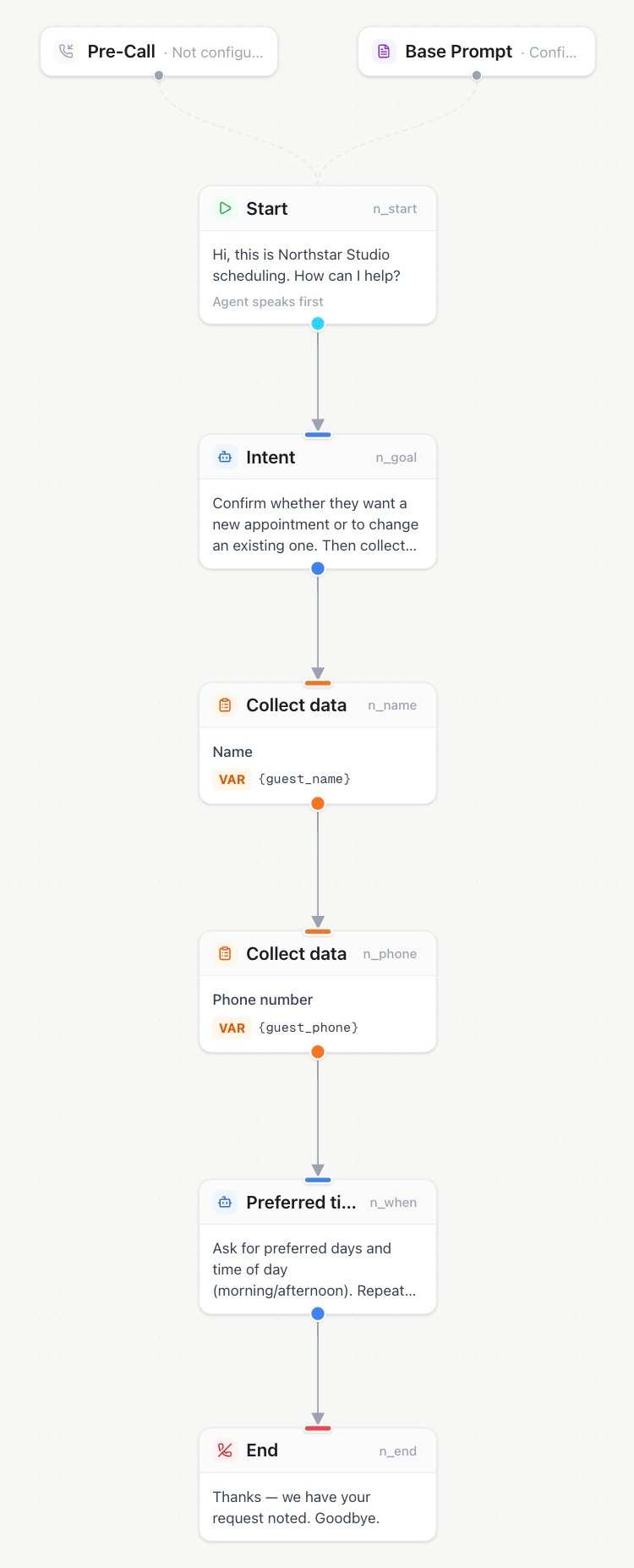
Flow builder — connect the steps of a conversation
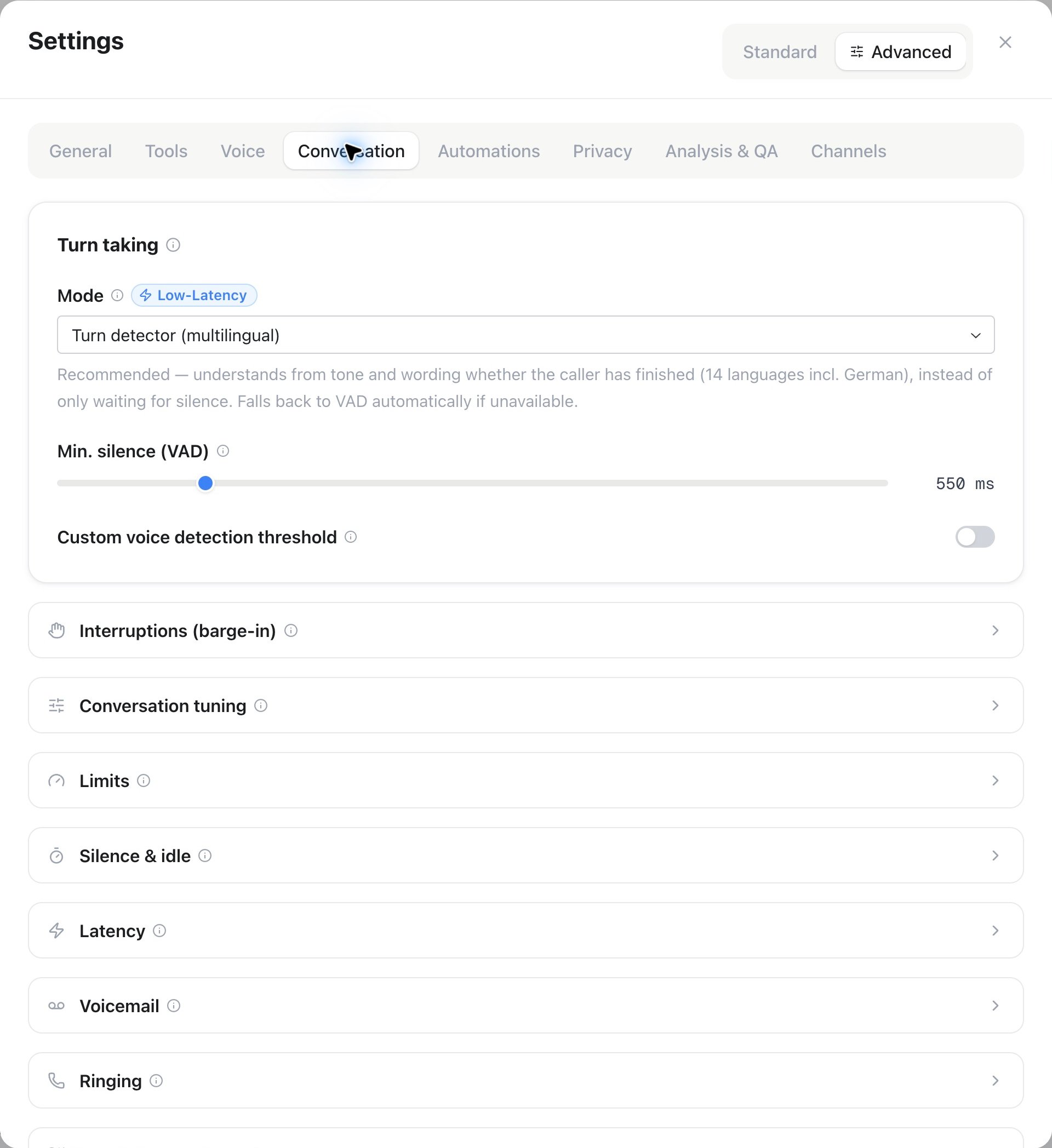
Assistant settings — configure the conversation experience
Prepare your audience and campaigns
Audience organizes contacts and their activity. Import contacts, review contact memory, track callbacks, and maintain the do-not-contact list. CRM sync keeps supported business systems connected.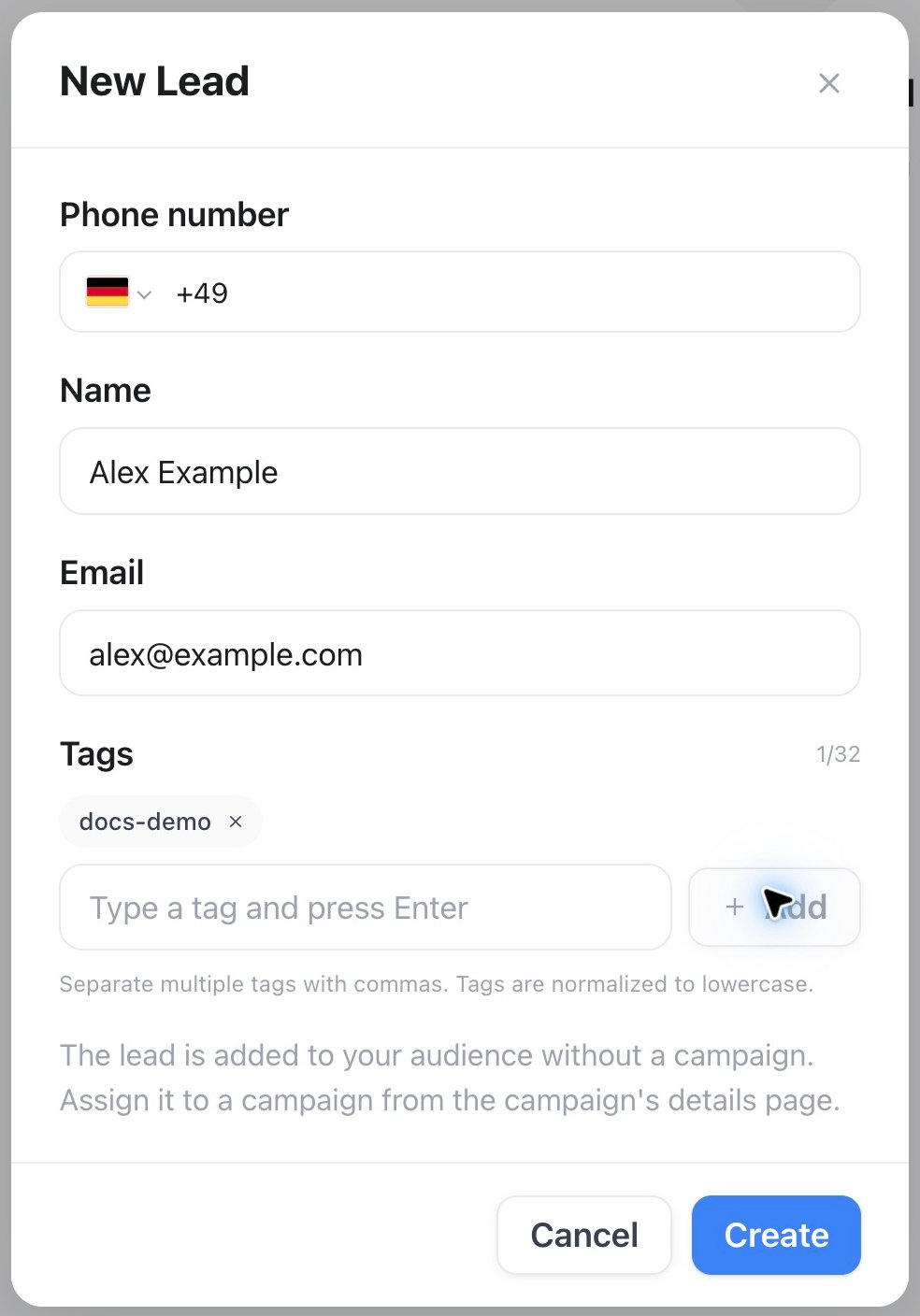
Audience — unsaved New Lead form with fictional example details
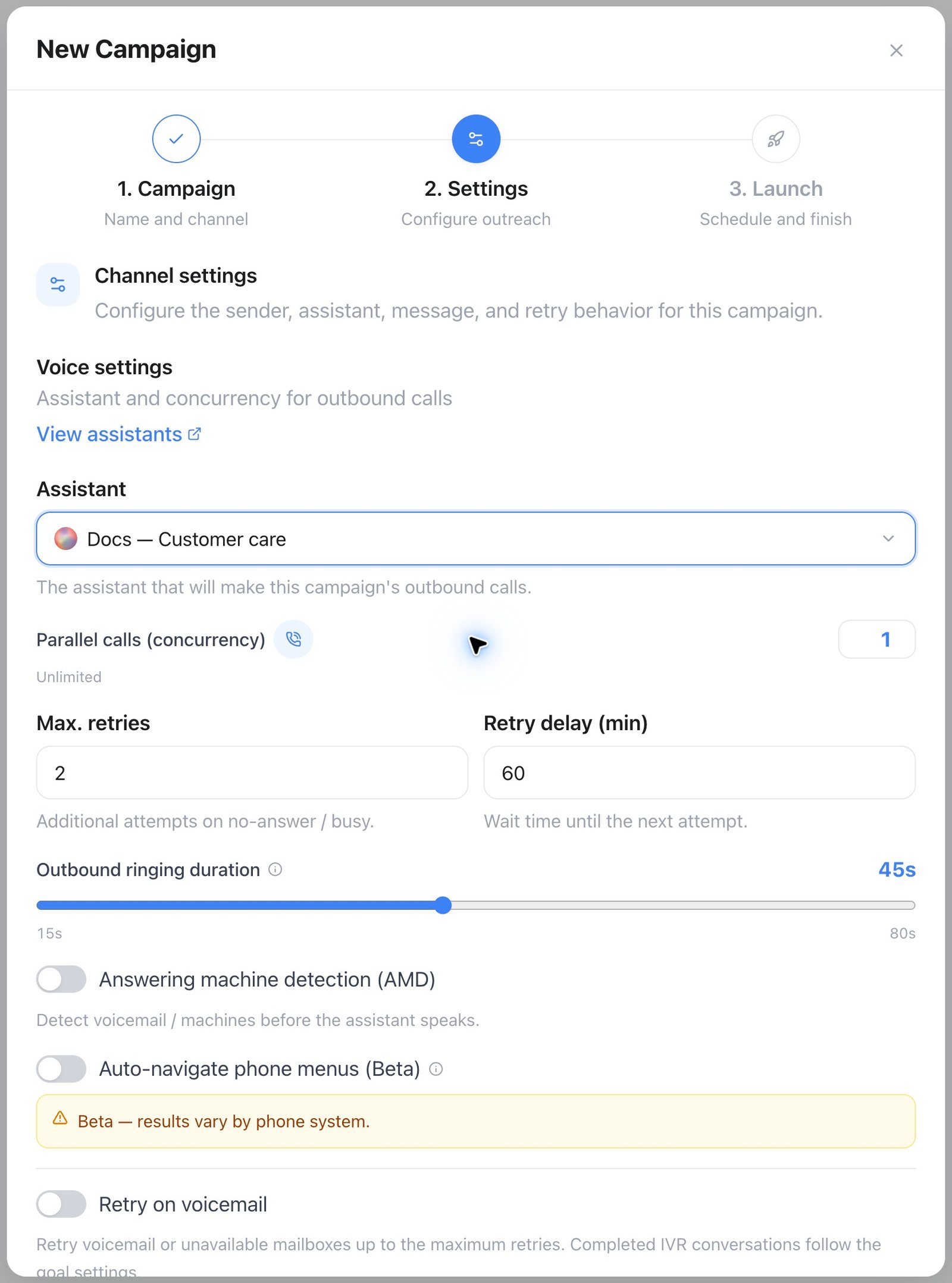
Campaigns — configure the channel before launching
Review results and repeat useful work
These areas turn completed conversations into improvements and follow-up. Their detailed guides explain the available views without displaying customer conversations or billing records here.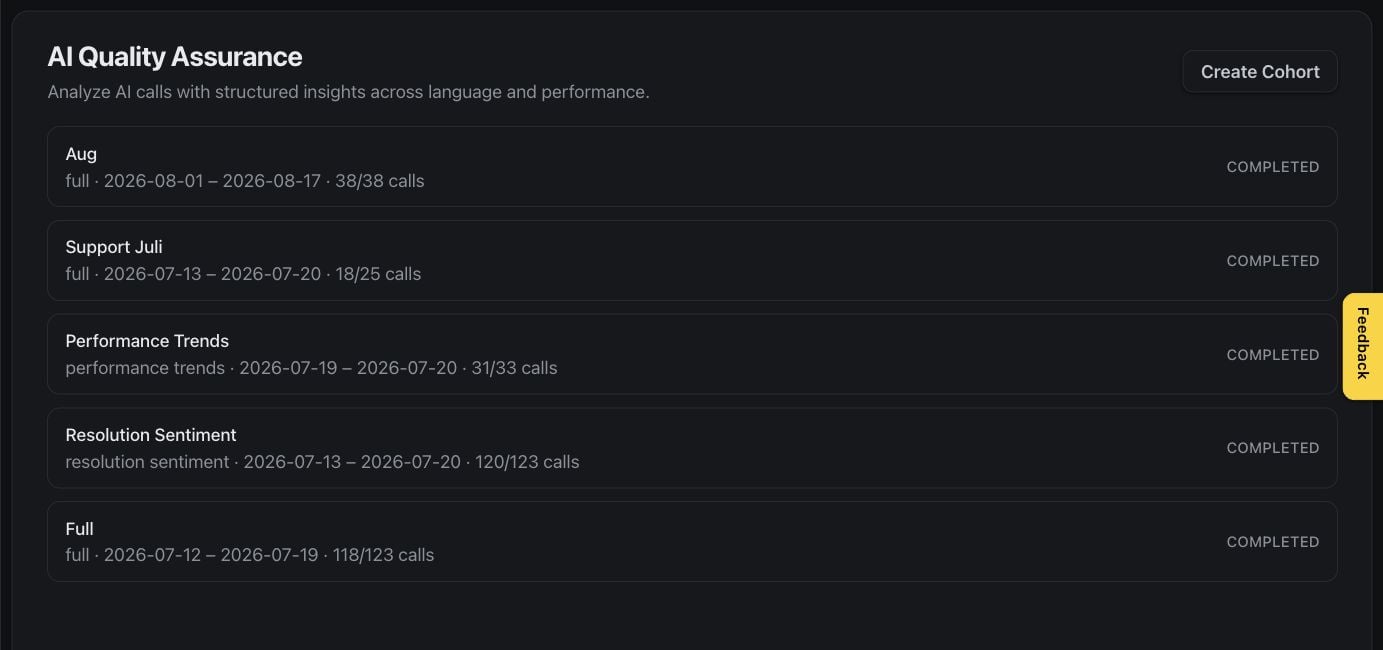
AI QA — review conversation quality results
Give assistants knowledge and tools
Add focused source material in Knowledgebase. Documents and supported website sources provide context; automatic refresh keeps supported sources current. Open a document’s indexed chunks to review the passages available for retrieval.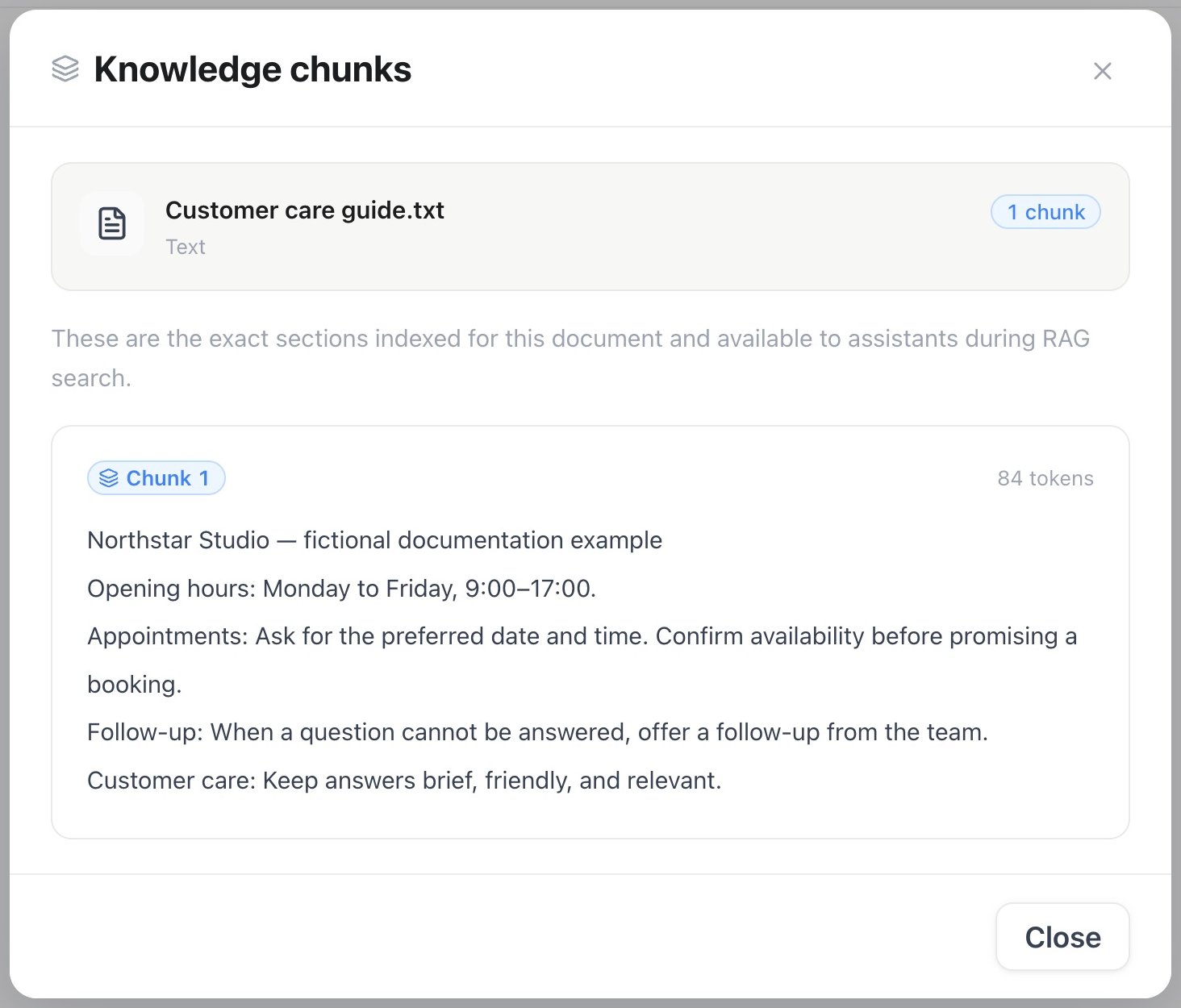
Knowledgebase — review indexed document chunks
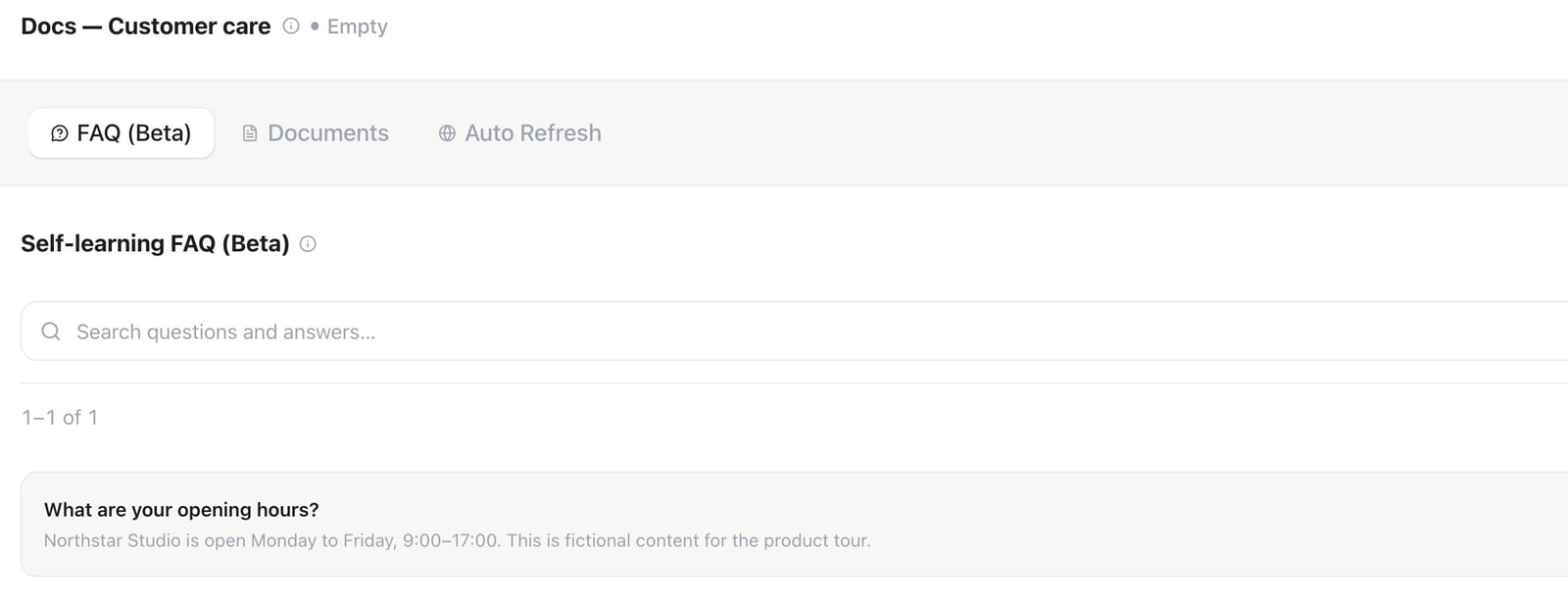
Knowledgebase — an opening-hours FAQ example
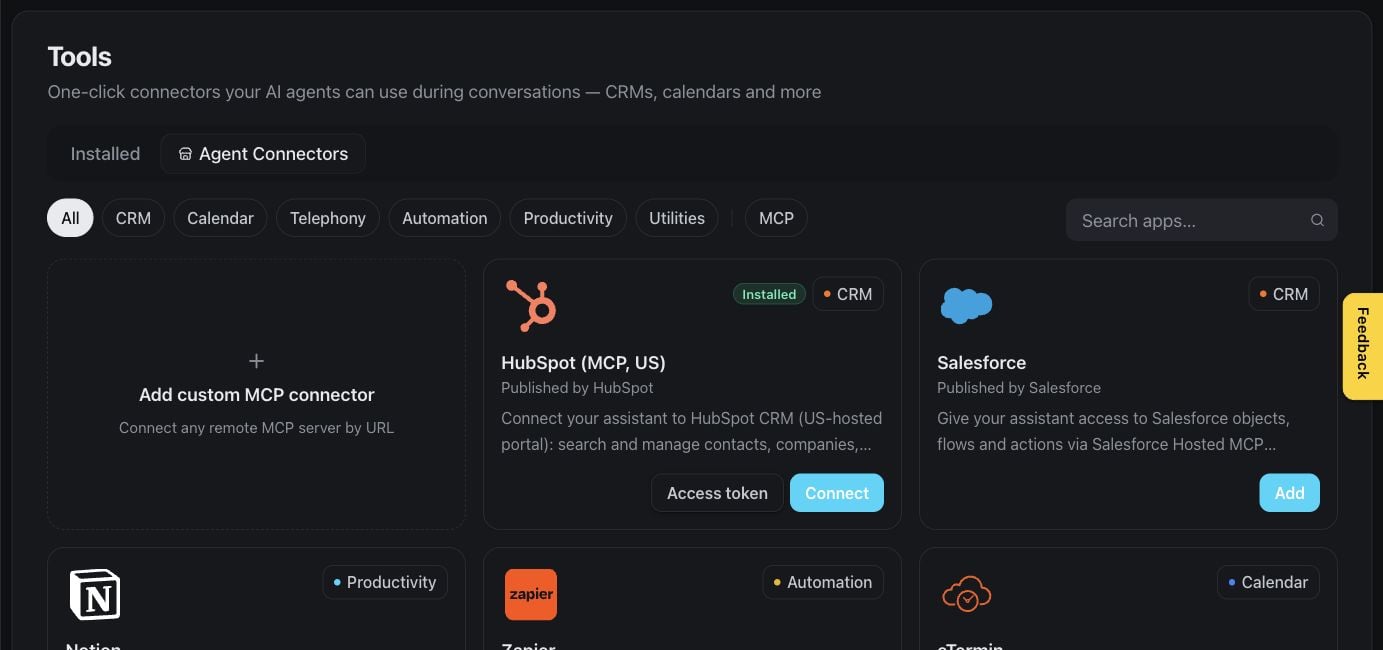
Tools — browse supported connectors
Let assistants manage appointments
The Booking area brings appointments, event types, calendars, and scheduling integrations together. Event types define what can be booked, the duration, and the availability rules.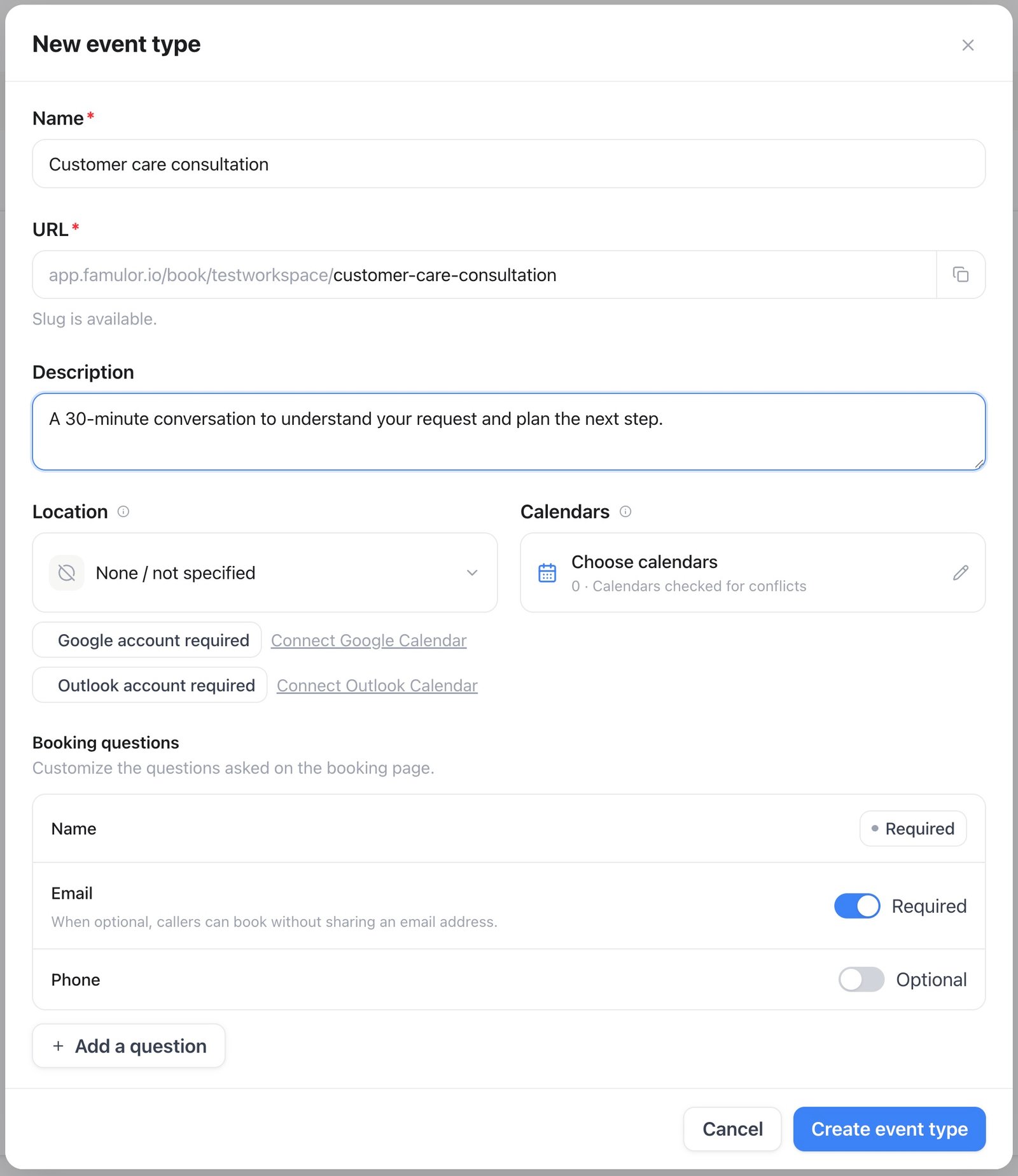
Booking — prepare a new event type before saving
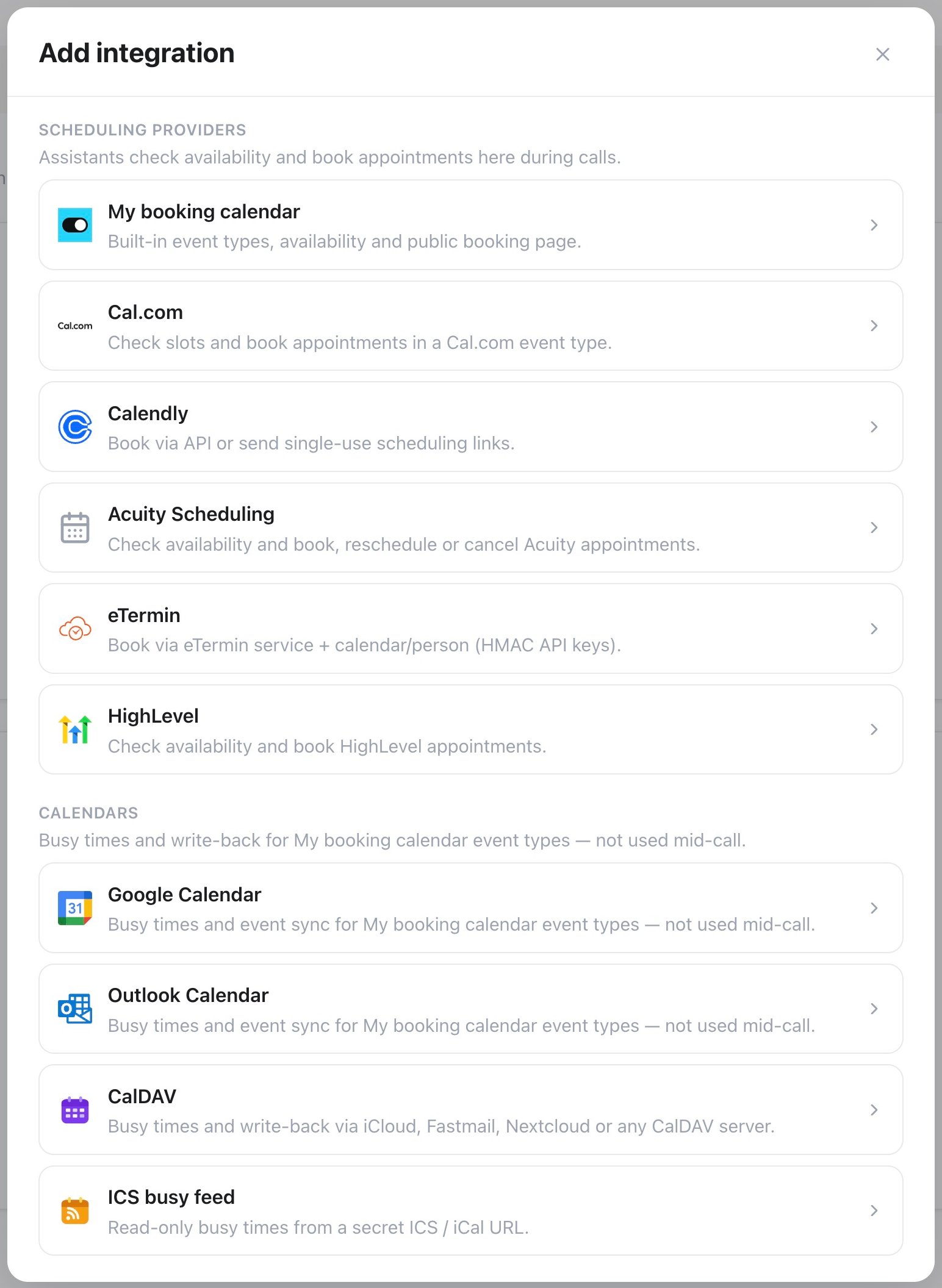
Booking — connect scheduling services
Automate follow-up
Automations turns events into repeatable processes. Browse existing workflows or build one for follow-up, updates, and other recurring work.
Automations — manage your workflows
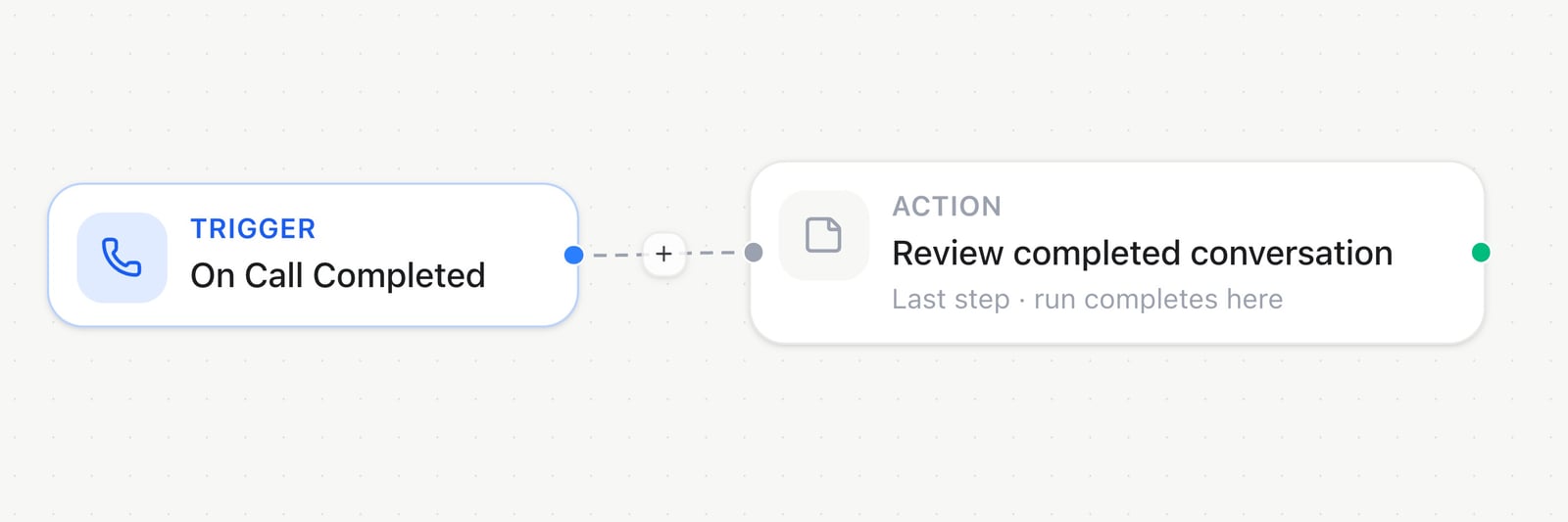
Automation builder — connect triggers and actions
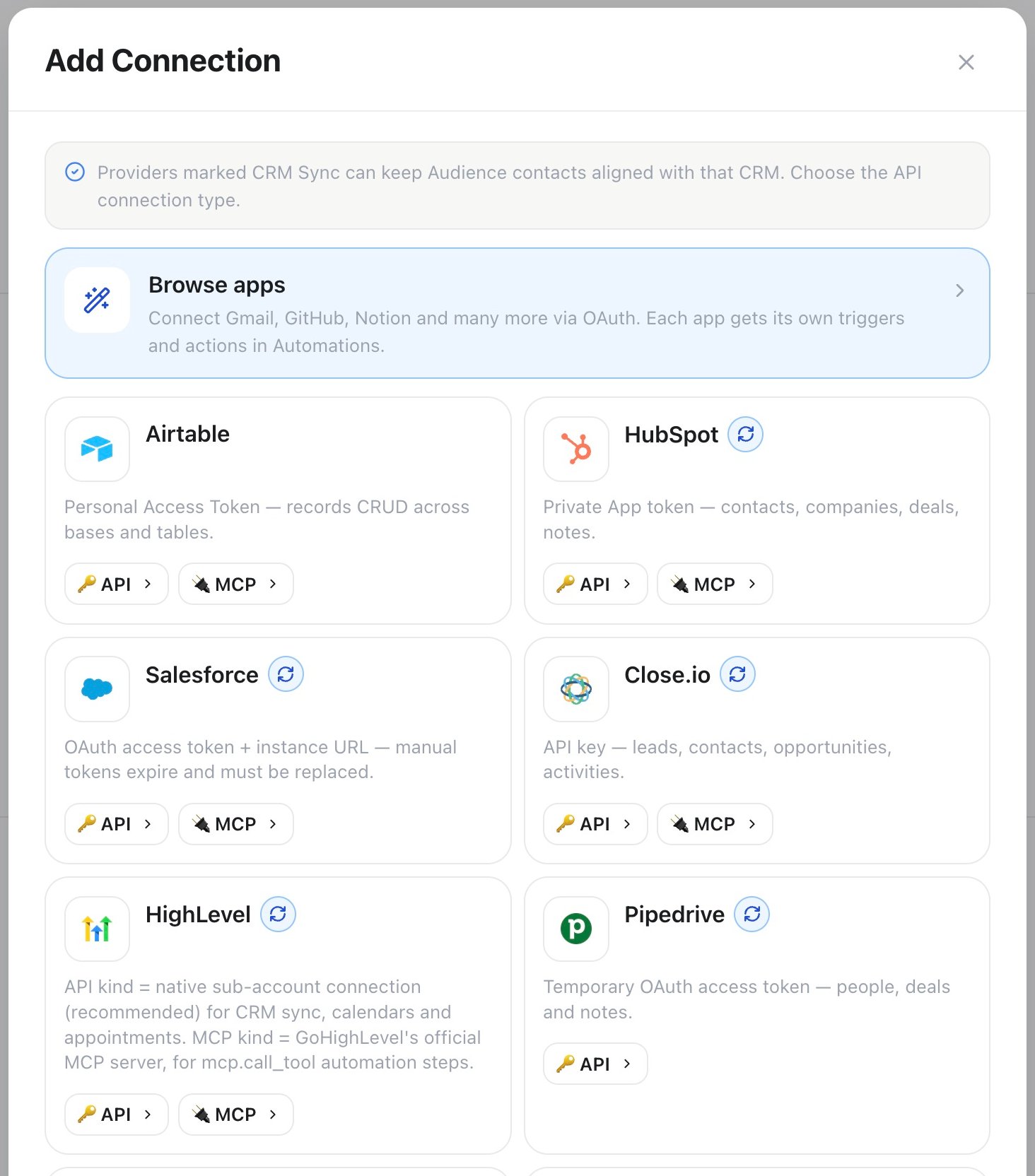
Automation connections — choose a service to connect
Configure the workspace
Settings groups personal preferences, shared workspace controls, channels, and data policies. Owners and authorized admins manage team-wide settings; the available panels follow your access and subscription.
Concept illustration: workspace controls for access, channels, and data; not a product screenshot
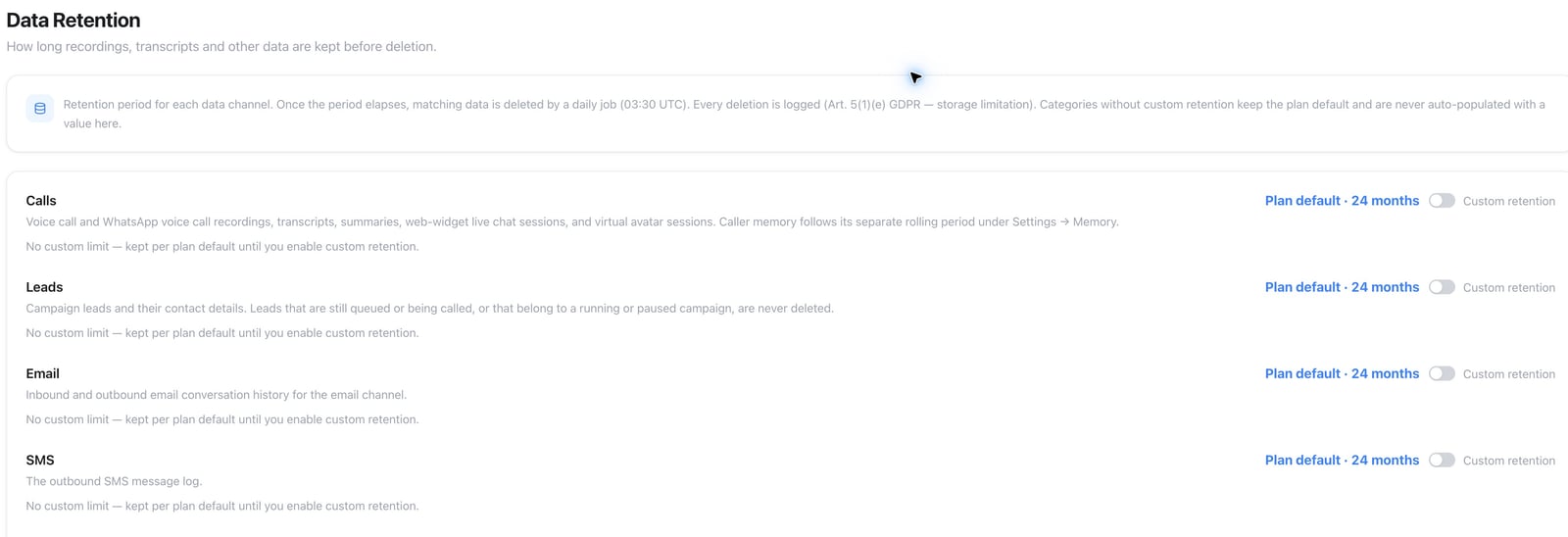
Data Retention — choose retention periods
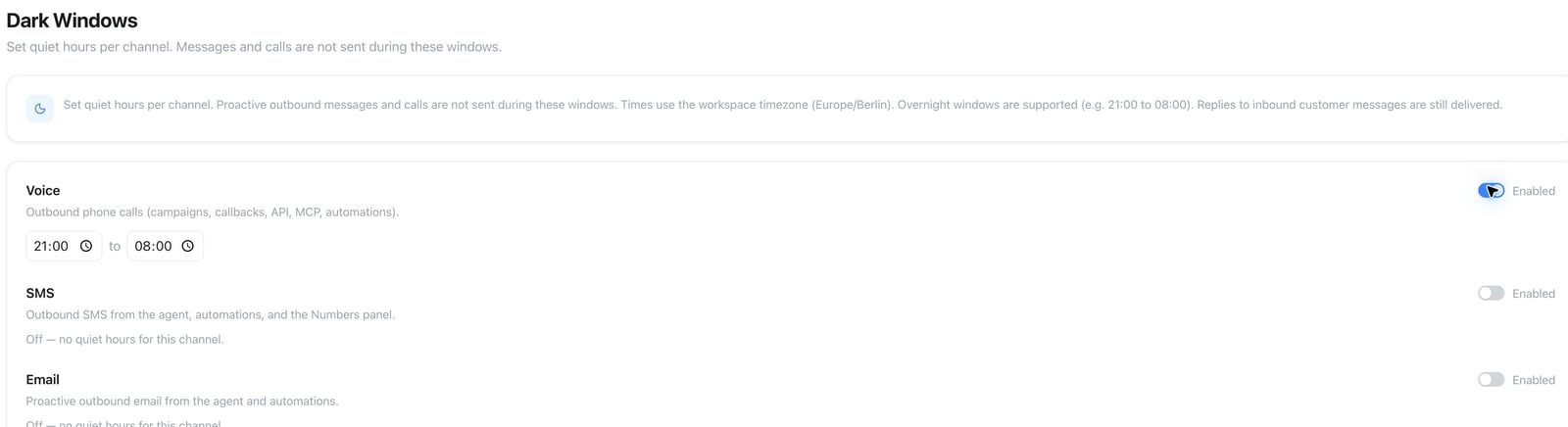
Dark Windows — set quiet contact periods
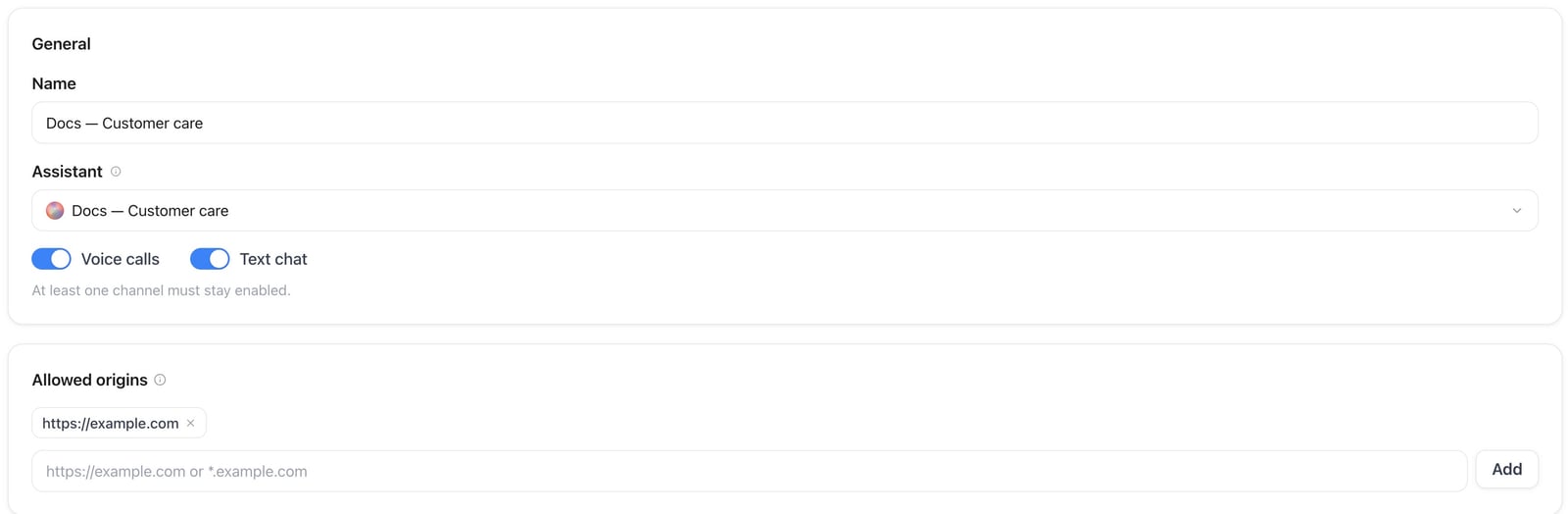
Web Widget & AI Avatar — settings of an inactive example widget
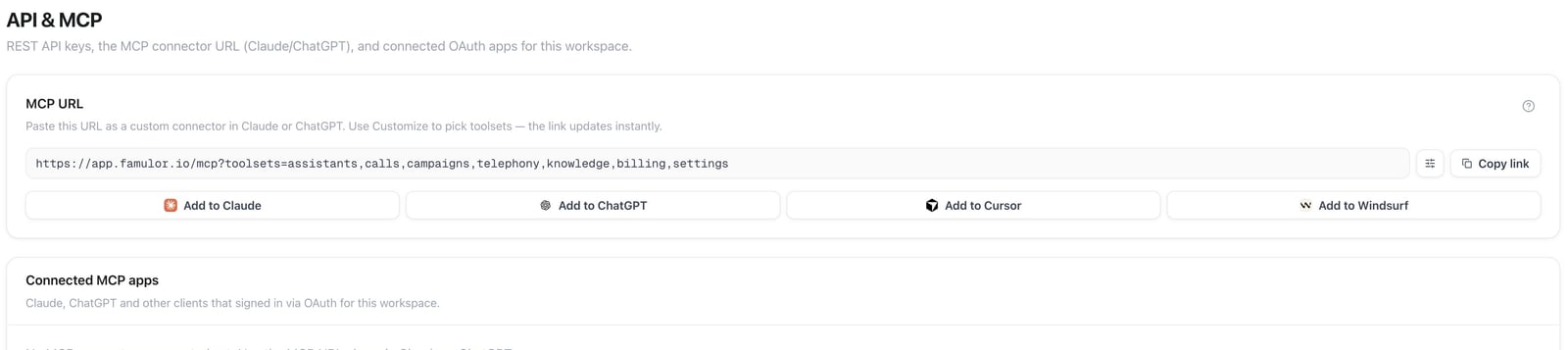
API & MCP — manage application and AI client access
Operate a white-label business
White Label access lets an eligible workspace offer a branded service. Customers have their own isolated workspaces, teams, subscriptions, and credits. These management areas require White Label access and an authorized role. Open Whitelabel Admin → Dashboard and select an unfinished item in Setup Your Platform to open its settings. The checklist below shows an example workspace before domain and payment setup.
Dashboard — setup links for appearance, domain, payments, plans, email and bot protection
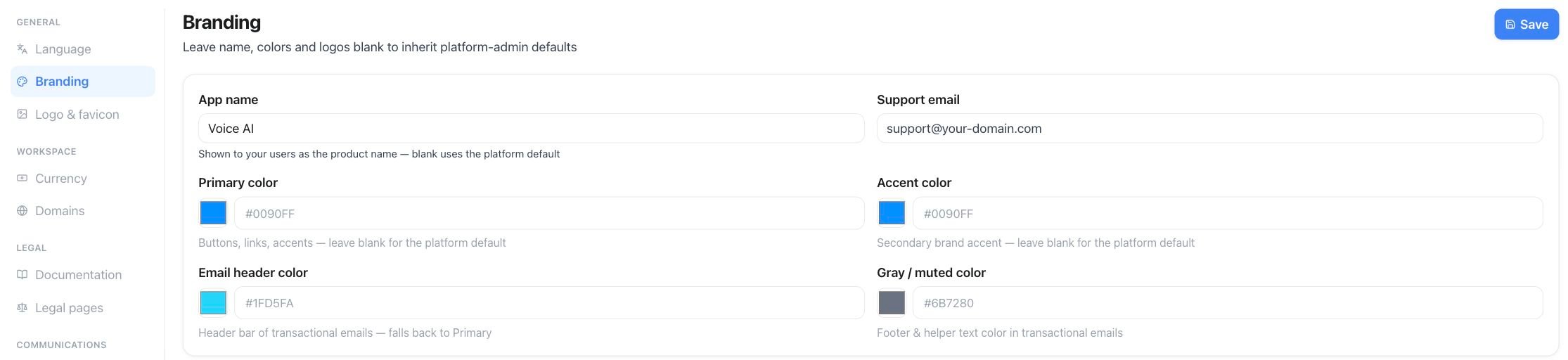
Branding — app name, support address and color controls