Test an assistant against an AI-played caller before it talks to a real one
Simulations let you check how an assistant behaves before a real caller does. Define a caller persona and a goal, and an LLM plays that caller against your assistant — either a fast text conversation or a real voice call — while a second LLM judges the result against the criteria you set.
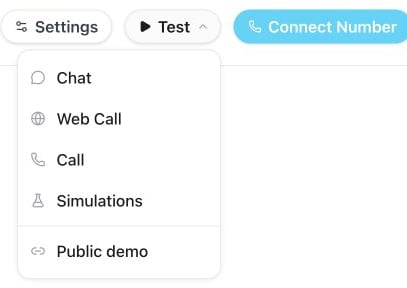
Open an assistant, select the Test button in the header, and choose Simulations. The panel opens next to the editor, so you can adjust the prompt and rerun a test without leaving the page.
Open the assistant’s Test menu and choose Simulations to create a test.
Begin blank, or apply a persona Milian suggested — see Generate with Milian below.
2
Details
Name the test and write the caller’s persona (identity and personality) in plain text.
New test → Details: name the test and edit the caller persona. This example comes from the appointment-booking suggestion.
3
Goal
Describe what the caller is trying to accomplish, for example: “Your primary objective is to book a consultation for next week.”
New test → Goal: describe the outcome and caller behavior to test. The shown appointment and phone number are example text.
4
Judge
Choose Chat or Voice mode, add the success criteria the judge should check, optionally list tools the assistant is expected to call, and set the maximum number of caller turns (up to 20, default 12).
Select Generate with Milian instead of starting from a blank test. Milian proposes a batch of ready-made personas and success criteria for the assistant — review them and create the ones you want with one click.
Chat — a fast, text-only conversation between the caller LLM and your assistant. No call is placed, and it’s the cheaper way to iterate on a prompt.
Voice — places a real call: a simulated caller with a synthesized voice talks to your assistant over the same path a live call takes, so the whole speech pipeline gets exercised. It takes longer than chat, costs more, and shows up in History like any other call; pick the caller’s voice when you switch to this mode.
When a knowledge base is linked, chat simulations run real knowledge searches and answer from the retrieved sources. Search successes and failures appear in the tool-call results. Other tools remain simulated and do not send messages, create bookings, or perform external actions. Flow branches are simplified.Voice simulations execute the assistant’s configured tools. Bookings, messages and other connected actions can be real. Use test data and test destinations when testing those actions.Reopening the panel resumes updates for active voice runs. Closing it stops Run all from launching further tests; an already running call continues. If required evaluation data is unavailable, the run shows Error and keeps the transcript and available findings.
Open a finished call in History and select Create Simulation Test. Famulor writes a persona, goal, and default success criteria (accurate information, professional tone, proper resolution or routing) from that call’s transcript and analysis, saves them as a new test, and takes you to that assistant’s Simulations panel — review and edit it there before the first run. It’s the fastest way to turn a real conversation that went wrong into a regression test. See Post-call analysis.
Choose a test from the side list on larger screens or the selector on mobile. Switch between Results, Transcript, Response times, and Tools. Expand a success criterion to read its reasoning. Select Start simulation, then choose Chat or Voice from the menu to start that run. Use the test actions menu to edit or delete a test.Run one test at a time, or select Run all to work through every test in order. Each run reports:
a pass or fail per success criterion, with the judge’s reasoning;
the full transcript, labeled Caller / Assistant;
tool calls made during the run, checked against anything you marked as an expected tool;
for voice runs, a latency breakdown — end-to-end, time to first LLM token, time to first synthesized audio, speech-recognition latency, and perceived response time — plus a View call link to the resulting call in History.
Voice results show median (p50) and 95th percentile response times. Speech recognition, first response token and first synthesized audio describe different pipeline stages; they can overlap and should not be added together. Caller-observed timing is a separate measurement. A dash means no measurement is available, not zero latency. Refresh results when a call has just ended: measurements can arrive after the evaluation, and both older and new runs use the available call measurements.Chat results show the time to generate the complete simulated text reply, including tool processing. They are not a benchmark of your live voice assistant or a measurement of the first streamed token, and have no voice speed rating.Use View call to open the voice run in History for per-reply timing, recorded interruptions, transcript and available audio. Live chat, messaging and email share History’s conversation, usage and automation views; audio-only measurements apply to voice calls.
Simulations is text- or audio-based conversation testing, not a validator for your prompt’s wording alone — the caller LLM can improvise within the persona and goal you set, so a test result reflects how the conversation actually unfolds.
Simulations is a plan feature. If it isn’t included, the panel says Simulation testing is not in your plan — compare plans under Settings → Plan.Every workspace member can open the panel and read past runs; creating, editing, and running tests is limited to workspace owners and admins.Simulations cost extra credits: every message in the run’s transcript is charged at your workspace’s Call simulator message rate — both in chat and in voice mode. Your current rate is listed on the Usage page under the credit rates (see How usage is billed), and each run appears there as a Simulation run transaction. Famulor checks your balance before a run starts and only charges for the messages actually produced. A voice run additionally consumes normal voice time for the call itself, since it exercises the full speech pipeline.