

This page is about how you write the words in your prompt and knowledge base. To fix how a specific name or term is pronounced everywhere, use the pronunciation dictionary instead — the two are complementary.
Write the spoken form directly
The most reliable technique is also the simplest: instead of relying on the model to reformat digits on the fly, give it the exact words to say. Phone numbers — spell out each digit and group them for clarity:Pace long strings of digits
Long numbers — account numbers, IBANs, confirmation codes — are easier to follow when they’re broken into short groups with a natural pause between them, rather than read as one unbroken string. A few short groups, separated by commas, are usually enough. Keep the grouping consistent within a prompt, and listen to the result before relying on it — pacing on punctuation can vary slightly by voice.Giving the caller a moment
If a caller says they need a second — to grab an account number, for example — tell the assistant explicitly how to respond rather than leaving it to guess:Test what it actually sounds like
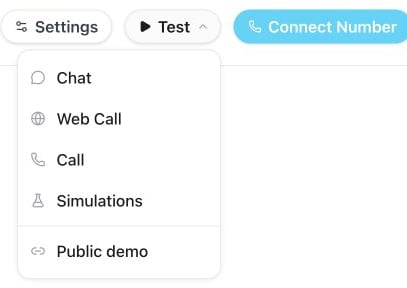
Use Test → Web Call to listen to how the assistant speaks your prompt.