

Get your API key and secret
- Sign in to your Zadarma account.
- Open Settings → Integrations and API → Keys and API. In the German portal this is Einstellungen → Integrationen und API → Schlüssel und API.
- Copy Key and Secret separately into Famulor’s Zadarma connection form. If no keys exist yet, create them using the action shown by Zadarma. Existing keys do not need to be changed.
- These are API credentials. The SIP login and SIP password used by the manual setup are different credentials.
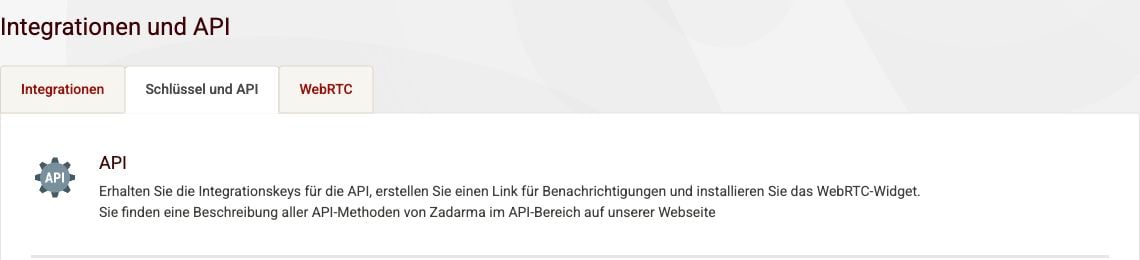
Zadarma's Keys and API tab. The credential fields below this area are intentionally excluded from the screenshot.
Automatic import
Activate a virtual number and disable its test mode. In Zadarma, assign it to a direct SIP login that is not linked to the PBX. If you want to keep PBX routing, use the manual PBX path instead. Zadarma can require a first top-up and a connected number before allowing an additional SIP login; keep a free login slot available. Open Settings → Phone numbers → Add a number → Import from your carrier → Zadarma in Famulor. Enter a connection name, API key, secret and SIP region, then load the numbers. Select one active number and import it. Each connection creates a dedicated SIP login and replaces that number’s SIP destination. Use a separate connection for each additional number, then assign an assistant. For removal, restoration, troubleshooting and API/MCP/CLI commands, see carrier import.Manual setup in Famulor
Open Settings → Phone numbers → Add a number → Add SIP integration, select your SIP region and copy the platform SIP host. Use these settings:
Keep inbound username/password empty for these SIP-URI forwarding paths. Use credentials for outbound authentication. Select your public number as CallerID on the corresponding SIP login or PBX extension in Zadarma. Leave secure trunking off for this TCP profile. The platform does not register as a SIP phone; an “offline” extension alone does not prove forwarding has failed.
Find SIP credentials: portal screenshots
Find SIP credentials: portal screenshots
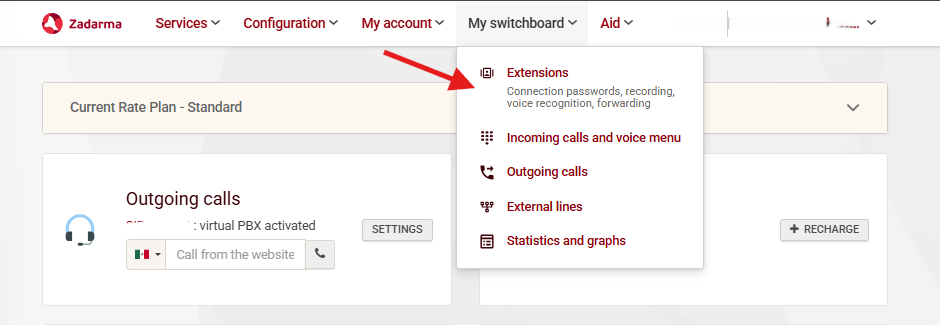
These earlier portal screenshots show where the settings are located. Labels may differ by language. If SIP settings says the login is linked to the virtual PBX, follow the PBX path instead. Use the full PBX login, not only its short extension number.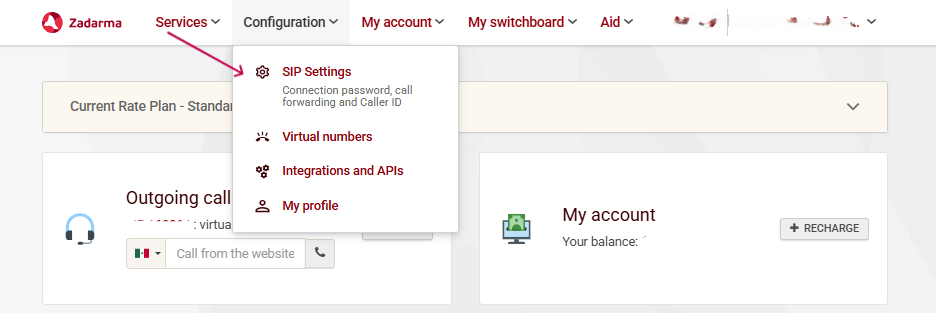
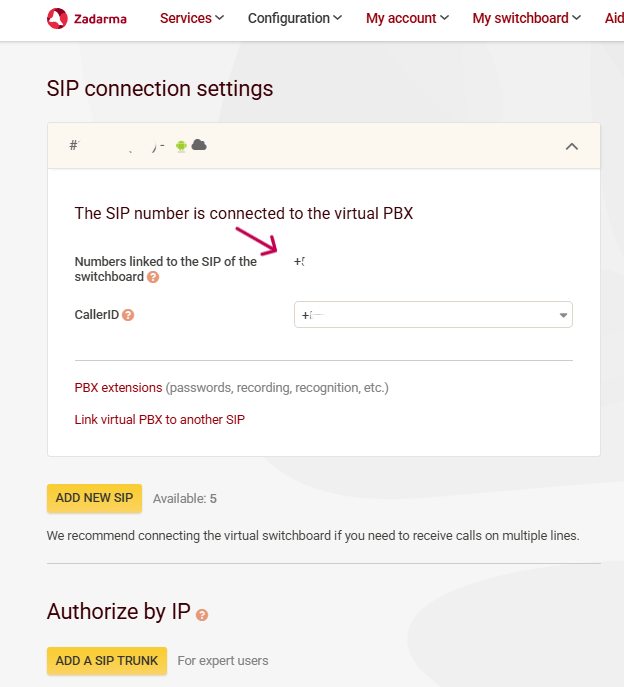
- Direct SIP
- PBX extension

Forward incoming calls from Zadarma
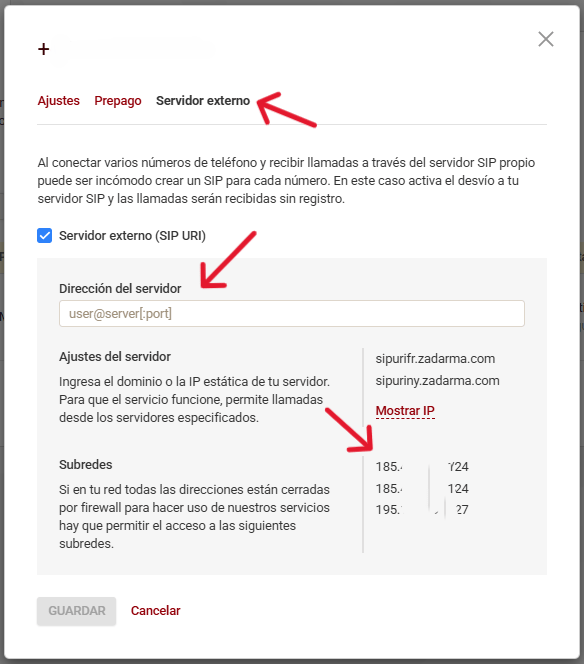
Build the destination from your exact public DID and the SIP host copied from Famulor:Find the number and external-server destination
Find the number and external-server destination
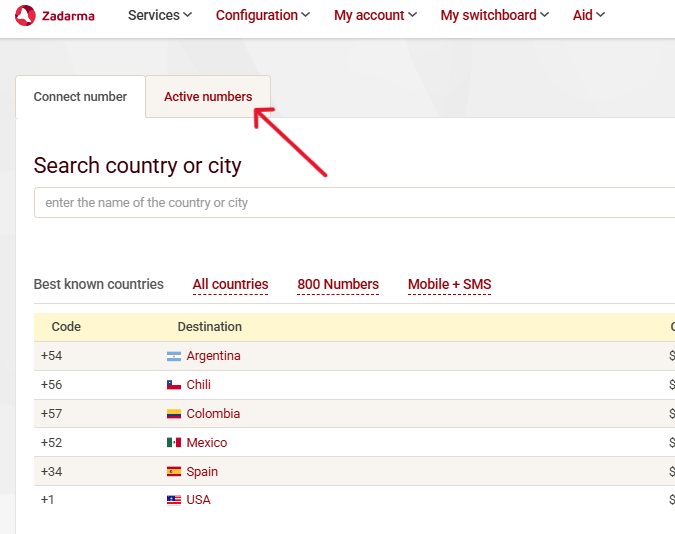
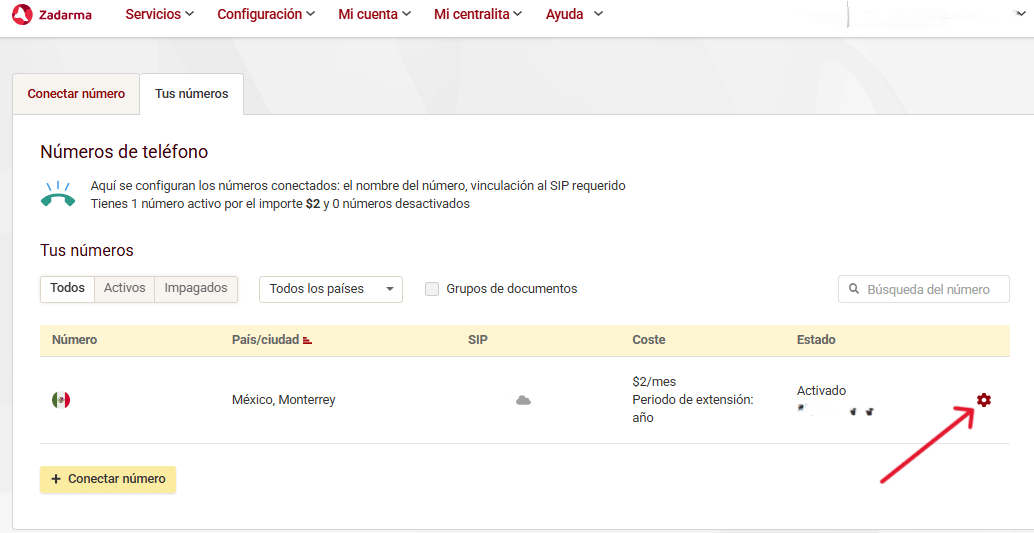
Earlier portal screenshots: Services → Connect number → Active numbers, then the gear and External server. Account details are obscured. Use your own number and the current settings above; displayed prices are illustrative.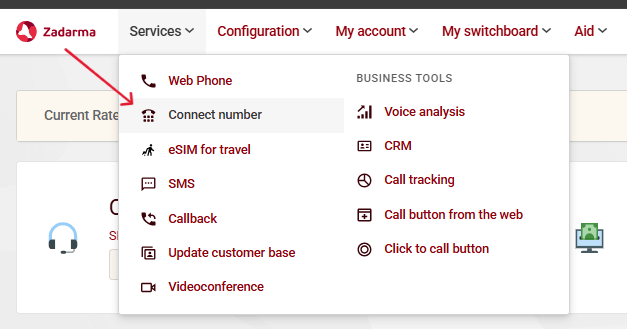
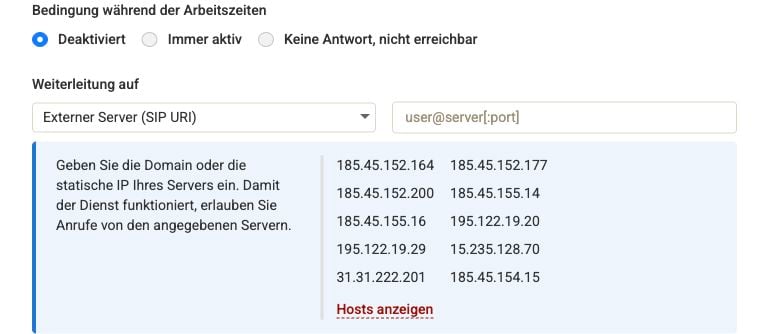
The PBX forwarding form before configuration. Select the required condition and enter your own destination before saving. The screenshot shows the PBX signaling addresses, not the direct-SIP list.