

Mission Studio (Beta)
Open a Mission on/routines to use the Studio tabs: Overview, Trigger, Access, Runs, and Versions. Existing schedule-only Missions continue to run unchanged. Their first Studio edit creates a version-1 draft.
One published version has exactly one trigger. The Studio supports manual and scheduled runs as well as call, conversation, message, email, booking, lead, inbound-webhook, CRM, and connected-app events. An AND/OR filter group can narrow the event by safe event fields.
Event Missions are a Workspace Beta feature. Turning Beta Features off pauses event Missions and marks them as needing attention; classic manual and scheduled Missions stay active.
Schedule types
All schedules run against a timezone (default your workspace timezone) — the fields above are wall-clock time in that zone, including through daylight-saving transitions. A Custom cron schedule must fire at least 10 minutes apart; a tighter interval is rejected when you save it. An Hourly mission fires once per wall-clock hour at its chosen minute; when a daylight-saving transition skips or repeats a wall-clock time, the mission resolves to the first valid occurrence.
Required connections
Mission Studio grants individual connections already saved under Automations → Connections. A Mission refuses to run when a granted connection is missing, expired, disabled, or broken. Connections are rechecked immediately before each run.Inbound webhook secret
For an inbound-webhook Mission, a workspace owner or admin generates the delivery secret in Mission Studio. The browser creates a random 32-byte value and shows it only once; copy it immediately and send it in theX-Automation-Secret header. Later visits show only whether a secret is configured. Rotate secret replaces it immediately, so the previous value stops working. Neither REST nor MCP ever returns a saved secret or the internal managed Automation identity.
Creating a mission
Milian Missions are chat-first: ask Milian directly and describe the goal, trigger, filters, resources, apps, and allowed actions. New mission opens this flow. Milian prepares a review, and you can continue in Mission Studio before activation.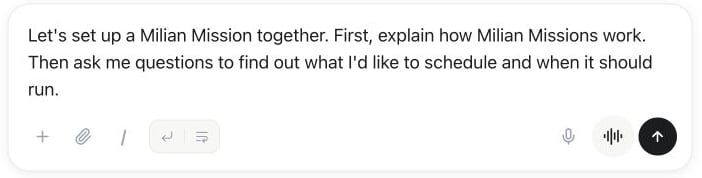
New mission opens Milian with a setup prompt. Send it to begin defining the mission, then review the proposed configuration before activation.
@ to attach workspace context. Results include actual assistants, Missions, calls, contacts, and other workspace resources, plus only saved app connections and active Agent Tools. It never expands into the full app catalog. Assistant references show their avatar or the same orbit used on the Assistants page; phone numbers use their country flag; saved connections and Agent Tools use their vendor logo. Type / for commands that start a Milian review flow rather than mutating data silently.
Creating, updating, or deleting a classic Mission through chat still shows an Approve / Cancel confirmation card. Publishing a Studio draft additionally shows the immutable version review before activation.
Managing a mission
The existing Milian Missions page lists trigger, status, active version, last run, next execution, credits, and attention state. Opening a Mission shows its Studio instead of a second page. Members may save drafts; workspace owners and admins may publish or pause. Viewer and Billing roles are read-only. Run now starts an off-schedule run; the transcript remains available from the row menu. A finished run can be retried manually: this always creates a separately marked run linked to the source run and never enables automatic retries. Publishing creates an immutable version. Later edits stay in a draft while the active version keeps running. Restoring an older version creates a new draft; it never rewrites history.Background execution & transcripts
Every trigger creates a visible durable background run. Event runs are deduplicated and processed one at a time per Mission; additional events wait in FIFO order. The run appears as a Milian thread with the tools used. Run transcripts are kept for 10 days. Each mission also tracks its last run’s outcome (succeeded, failed, or still running) and the next scheduled run, both shown on the Milian Missions page. A run fails visibly when its owner loses access, the workspace is suspended, the plan or credits are unavailable, a connection was revoked, a capability boundary is crossed, or a run limit is reached. A possibly completed external mutation is never automatically repeated. Start a fresh manual run after reviewing the transcript. Operational telemetry covers publications, trigger and run outcomes, queue and runtime duration, credits, tool-failure counts, and safe failure categories. It never includes prompts, secrets, raw event payloads, or raw tool output.Mission billing
Milian Missions capacity is sold as a monthly add-on unless included in the workspace plan. Every run uses normal Milian credits. A published version also sets maximum credits, tool calls, and runtime. Actual provider usage is always charged; a run that crosses its credit ceiling is marked failed and does not continue.Mission plan limits
The number of missions a workspace can have is its included plan capacity plus purchased Milian Missions units (-1 = unlimited, 0 = unavailable without the add-on). Creating a mission past that capacity is rejected until you delete one or add capacity.
API & MCP
Everything above is available in the public REST API and as MCP tools athttps://<your-domain>/mcp:
User-bound API keys and OAuth tokens keep that user’s workspace identity. Service-account credentials without a user principal fall back to the workspace’s oldest owner member.