

Leads & audiences
Leads are the Audience contacts a campaign is actively working through — every campaign lead is a contact, but a contact only becomes a “lead” once it’s assigned to a campaign’s queue.- Import leads via CSV or add them through the UI, API, or MCP. API and MCP additions accept an optional email address, validate and normalize it, and reject an existing phone or email identity instead of silently merging contacts.
- Each lead has a phone number (E.164), optional name, email, tags, and custom fields such as Company, Open amount, or Appointment date.
- Campaign mappings can use contact fields, custom fields, assistant variables, campaign-local time values, read-only system or channel values, and the previous call’s analysis fields.
- In campaign lead details, contact fields and user-managed variables are editable. Runtime and channel identities are shown separately as read-only system variables.
- Every primary or follow-up action is recorded as a delivery attempt.
Setting up a campaign
Creating a campaign runs through a three-step wizard — Campaign, Settings, Launch — and then you fill its queue and start it from the campaign’s own page.1
Campaign
Name the campaign and choose its channel: Call, WhatsApp, WhatsApp Call (Beta), or SMS. The wizard only shows named resources that belong to the current workspace.
2
Settings
Select the assistant or sender, approved template and mappings, parallel calls, retries, and answering-machine handling. See Dialer, retries & compliance.
3
Launch
Set the outreach window and timezone, choose the optional follow-up, and either finish or turn on Schedule automatic start for a future local date and time.
4
Add leads
On the new campaign’s page, import a CSV or use Assign leads to pull from a saved Audience segment or hand-pick existing contacts — a contact already assigned to another campaign must be removed from that campaign first, after its active attempt has ended. Numbers on your do-not-call list are flagged automatically.
5
Start
Select Start once the campaign has an assistant and at least one lead. Stop puts it back to Paused: no new delivery claims, while active calls and accepted sends finish normally.
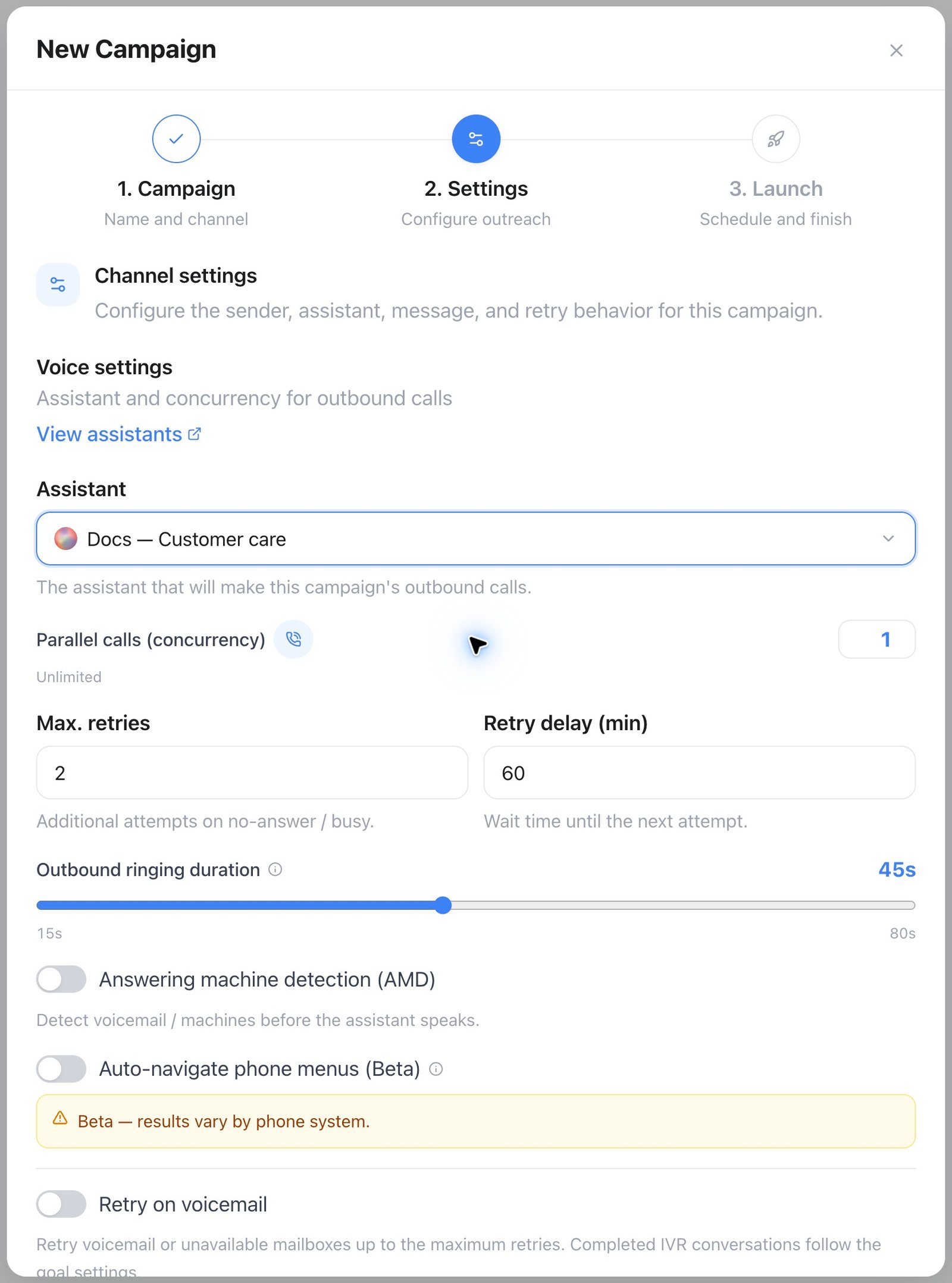
Campaigns — configure the channel before launching
A segment is a saved filter, resolved at the moment you assign it — not a live subscription. Contacts that start matching later aren’t added on their own; assign the segment again to pick them up.
Campaign status
A campaign moves through six statuses:
An archived campaign can’t be started until it’s restored.
Monitoring a running campaign
The campaign view shows primary and follow-up status, last and next activity, delivered/failed totals, and voice duration where applicable. WhatsApp Call leads can wait in Awaiting permission until the customer grants explicit outbound-call permission. Switch between List (a searchable, paginated table) and Board — a drag-and-drop view of this campaign’s leads grouped by status: Ready, Processing, Scheduled, Failed / Max retries, Completed, and Suppressed. Drag a card to Ready to queue it for another call, or to Suppressed to stop the campaign from contacting it. A lead currently being called can’t be moved, and no other column accepts a drop. By default, a campaign completes automatically when no leads remain and all calls have ended. Turn off Auto-complete when no leads remain to keep it ready for continuously imported leads.API and MCP
UseGET/PATCH /api/v1/campaigns/{id}/leads/{leadId} or MCP get_lead / update_lead for one lead. GET /api/v1/variables/catalog and MCP list_variable_sources list valid mapping sources. Use GET /api/v1/campaigns/{id}/deliveries or MCP list_campaign_deliveries for delivery history.
See also Outbound playbook for who to call, when, and what to say.