

How it works
Everything you add is split into short passages and indexed. During a conversation, the caller’s question is matched against that index, and only the best-matching passages are handed to the assistant as background for its answer — not the whole document, and not the whole knowledge base. That has one practical consequence: the assistant only ever sees the passages that matched. If the answer to a question is spread across three documents, or the condition that qualifies it sits in a different section than the fact itself, the retrieved passage may be true but incomplete. Writing each topic as a self-contained section is what makes retrieval reliable — see below.How content is prepared
Before indexing, every item is prepared so that each passage can stand on its own:- Every passage starts with its source: the document name (without file extension) or the page title, followed by the section heading, for example
Speisekarte › Pizza Hawaii › Zutaten. - Headings split documents into sections: Word headings (Heading 1–6 styles), Markdown headings (
#) in text and Markdown files, and the headings of HTML files and web pages. - PDF page clutter is removed: page numbers disappear, and headers or footers that repeat on almost every page are kept only once.
- HTML files are cleaned like websites: cookie banners and consent dialogs are removed.
Create and connect a knowledge base
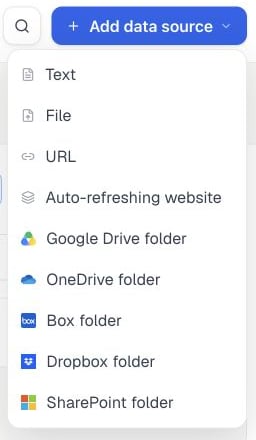
Open a knowledge base and choose Add data source to add text, a file, a URL, or a refreshing source. Cloud-folder options require the Beta feature and plan access described below.
1
Create
Open Knowledge bases → New, enter a name, and add a short description of the content.
2
Add content
Upload PDF, DOCX, HTML, or text files. You can also add text, document URLs, or a website source.
3
Wait until content is ready
Each item shows its status. If an item cannot be processed, open it to see what needs to be changed.
4
Test
Use RAG Search to ask real customer questions and preview the passages an assistant would find. Improve any document that comes back unclear or contradictory.
5
Connect assistants
Open the knowledge base’s Assistants tab and choose Assign assistants, or select the knowledge base in the assistant editor. No prompt change is required.
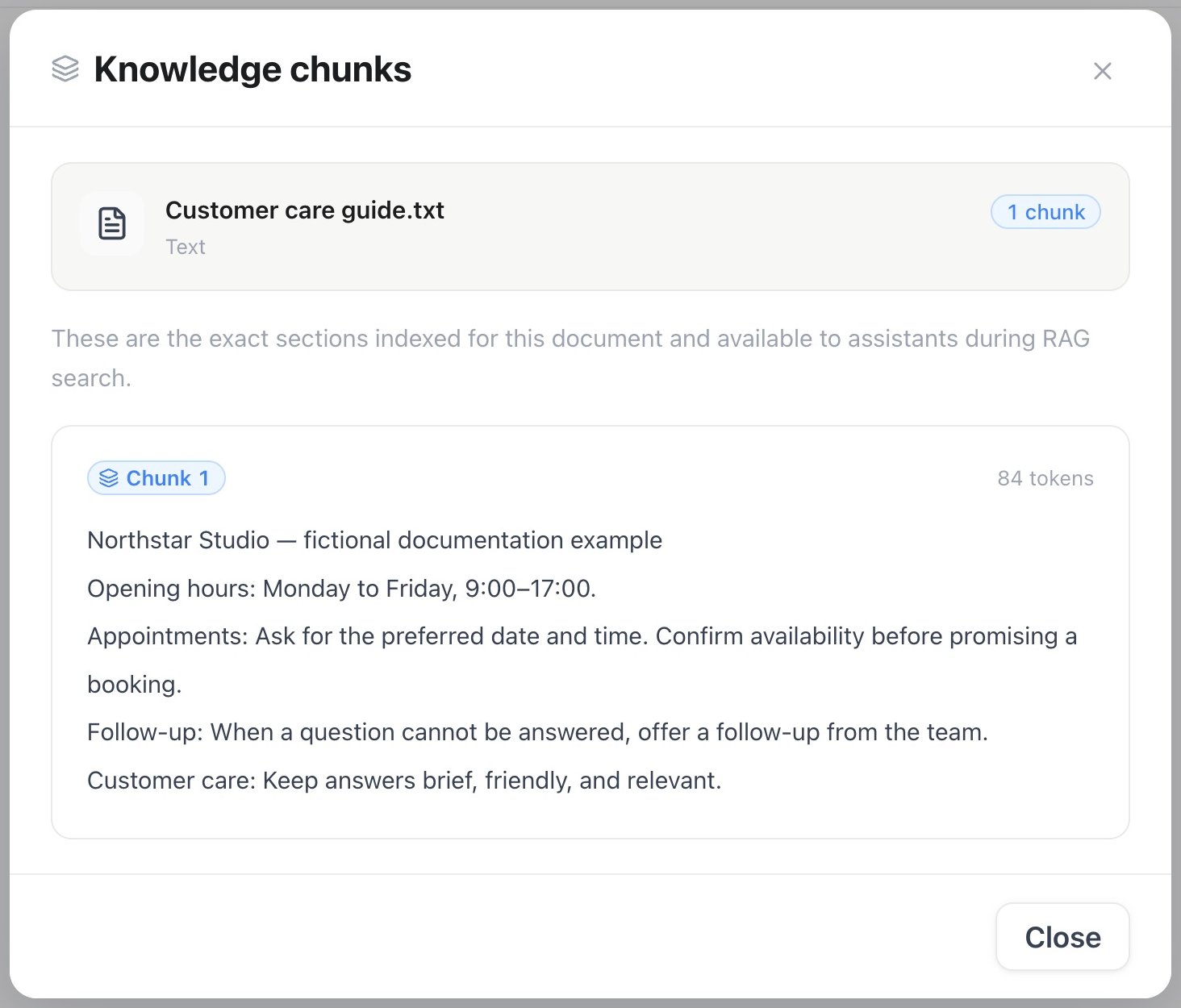
Review the indexed passages from a knowledge document
See and assign assistants
The Assistants tab of a knowledge base lists every assistant that searches it during calls and chats. Select an assistant to open it, or use the remove button to detach it from the knowledge base. Choose Assign assistants to pick assistants from a searchable list. Each assistant uses one knowledge base: an assistant that currently uses a different knowledge base shows that name in the list and switches to this one when you save. Translate assistants don’t use knowledge bases and aren’t offered. With Beta Features on, each row also shows the assistant’s Knowledge gap handling (Beta) as an icon — select it to change what the assistant does when the knowledge base has no answer. Every change is saved like an edit in the assistant editor, so it also appears in the assistant’s version history.
Replacing takes the complete target set: assistants you leave out are detached, and an empty list detaches all of them. The response lists the assistants now using the knowledge base plus the IDs that were
attached and detached. Listing requires knowledge:read or assistants:read; replacing requires assistants:write.
List documents and indexed chunks
The document list shows every item in a knowledge base — uploaded files, text, file URLs, web pages, crawled website pages and cloud drive files — with its status and number of indexed chunks. For API or MCP access, useGET /knowledge-bases/{id}/documents or list_knowledge_documents. Results are sorted newest first and paginated with limit (1–200, default 50) and offset (default 0). The API returns the total number of documents in meta.pagination.total; MCP returns total. An unknown or invalid knowledge base ID returns a not-found error.
Pass a document ID from that list to GET /knowledge-bases/{id}/documents/{docId}/chunks or list_document_chunks to read the exact passages indexed for that document. Listing documents or chunks only reads the current index; it never refreshes a source or uses credits. API access requires knowledge:read; MCP also accepts assistants:read.
Delete documents
Hover over a document in the list and tick its checkbox (on touch screens the checkboxes are always shown). Once a document is selected, the bar above the table lets you select all documents, clear the selection or delete the selected documents. Deleting removes the documents, their indexed chunks and their stored original files, so assistants stop using that content right away. Pages from an Auto Refresh website come back on the next refresh unless you add them to that source’s Exclude paths; files from a cloud drive come back on the next sync unless you remove them from the synced folder.
IDs that do not exist in this knowledge base, or were already deleted, are returned in
not_found_ids instead of failing the request, so a retry is safe. API access requires knowledge:write; MCP also accepts assistants:write.
Write content that answers well
- Use a clear heading for each topic.
- Keep the facts and conditions needed for an answer in the same section.
- Put important numbers in text, not only in complex tables.
- Remove outdated or contradictory copies.
- Prefer one subject per document where practical.
- Watch latency on very large knowledge bases, especially many heavy PDFs — converting core content to text files usually processes and retrieves faster.
Import a website
Add a website source with a root URL. You can limit it to selected path prefixes, exclude unwanted sections, and set the maximum number of pages to import. A path such as/produkte covers every page that starts with it; end a path with $ to match only that exact page, for example /datenschutz$.
Before saving, choose Load pages beside Website URL to preview crawlable same-host pages. The preview checks robots.txt and available sitemaps, does not index anything, and spends no credits. Review the suggested sections, then explicitly add a path to Include paths or Exclude paths; suggestions are never saved automatically. Suggested exclusions also list privacy, cookie and accessibility pages; the imprint and terms pages are never suggested.
Each previewed page has a checkbox. Ticking or unticking a page updates Include paths and Exclude paths for you with an entry for exactly that page (ending in $, for example /impressum$), and a counter shows how many pages are selected. Maximum pages follows your selection: it rises automatically so every include path and every ticked page fits, and you can also type an exact number. If you set it lower than the number of matching pages, the dialog warns you, because pages beyond the limit are not indexed. A source under Auto Refresh shows the same warning when it has more include paths than its page limit. A page that a broader exclude path such as /blog removes can only be changed in Exclude paths.
Run the import once, or enable automatic synchronization to check the site again at your chosen interval, from every 6 hours up to every 6 months. Only new or changed pages use import credits.
Give each auto-refresh source a custom name when you add it. This is the name shown under Auto Refresh; it does not change the website URL or connected folder. Choose Edit on the source later to rename it or change its refresh settings.
Choose Load pages on a website source to view paths whose indexing is complete. Loading this list only reads the current index; it does not refresh the website or use credits.
For API or MCP access, use GET /knowledge-bases/{id}/crawl-sources/{sourceId}/pages or list_crawl_source_pages. Both return only ready, indexed pages and never start a refresh or use credits.
To run the same pre-save preview through API or MCP, use POST /knowledge-bases/{id}/crawl-sources/discover or discover_crawl_source_paths.
Website imports:
- follow pages on the same host; without a sitemap they also read pages outside your include paths for links, but never index those pages,
- respect website crawling rules,
- work best with pages whose main text is present in HTML,
- leave out cookie banners and menus,
- split each page along its headings, so every indexed passage keeps the page title and section name,
- skip error pages, pages without readable content, and unsupported or oversized pages; skipped pages are not indexed, use no credits, and never replace a page that was indexed before, and
- index pages with identical content only once; a page that already has its own entry keeps being updated.
Cloud drive sync
Add a Google Drive, OneDrive, Box, Dropbox, or SharePoint folder as a knowledge-base source that stays up to date automatically, the same way a website source does. Connect the account under Automations → Connections first if it isn’t connected yet — an OAuth sign-in, not a pasted key — then add the folder as a source and pick that connection. SharePoint additionally requires the document library’s drive ID — a folder path alone isn’t enough to list its contents. Run a sync once, or turn on auto-sync to check the folder again on your chosen interval, from every 6 hours up to every 6 months. Only new or changed files use sync credits. Cloud drive sync is Beta: turn on Beta Features under Settings → Workspace before the cloud-drive options appear. It is gated by its own plan feature, separately from website crawling, and billed per synced file at twice the per-page website-crawl rate — listed as KB cloud drive sync file on the Usage page, where you can check your current rates. For API or MCP access, useGET/POST /api/v1/knowledge-bases/{id}/drive-sources, GET/PATCH/DELETE /api/v1/knowledge-bases/{id}/drive-sources/{sourceId}, and POST /api/v1/knowledge-bases/{id}/drive-sources/{sourceId}/run, or the MCP tools list_drive_sources, create_drive_source, update_drive_source, delete_drive_source, run_drive_source.
Self-learning FAQ (Beta)
The FAQ (Beta) and Inbox tabs appear once Beta Features is on under Settings → Workspace. Question-and-answer pairs can be written directly in FAQ (Beta) — a lighter alternative to uploading a document. Independently of that, the Inbox tab collects factual customer questions that did not have a useful knowledge result. Review a proposed answer, edit it, and select Approve & publish before it becomes part of the knowledge base.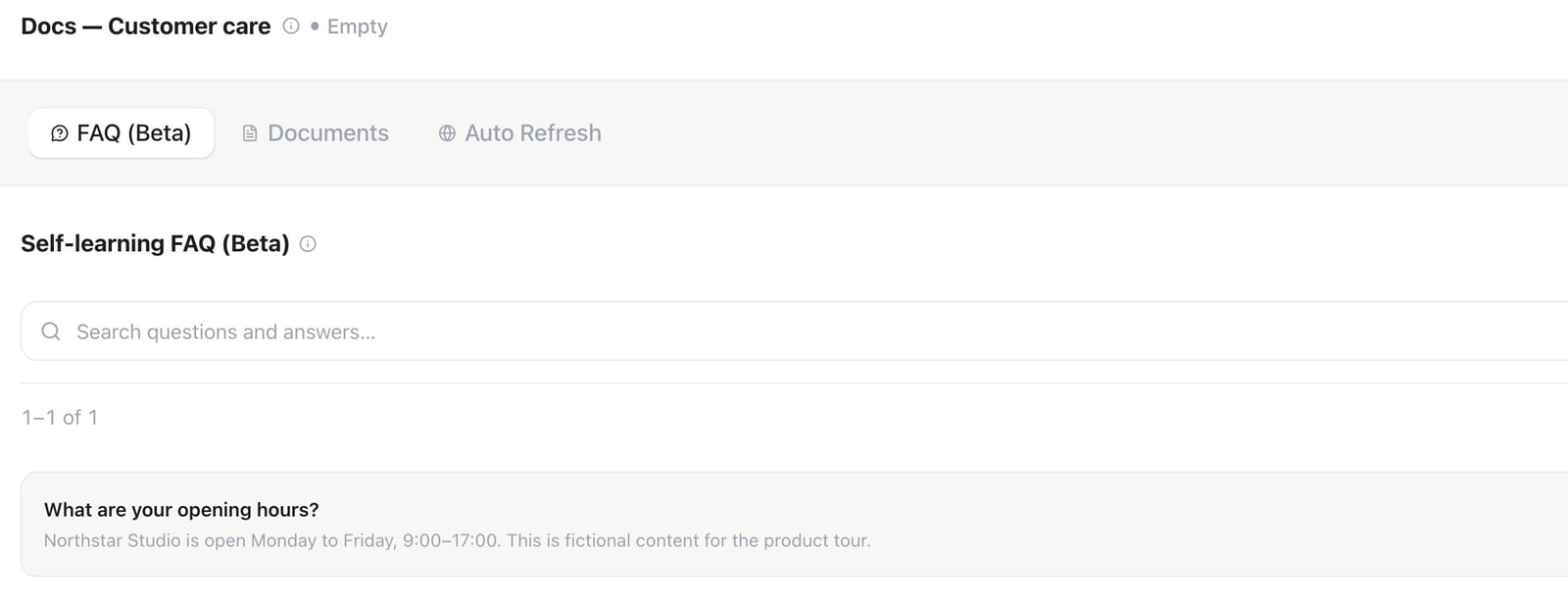
FAQ (Beta) — a saved opening-hours example
GET /api/v1/knowledge-bases/{id}/faqs with optional search (up to 200 characters), status (one or more comma-separated statuses), limit (1–200, default 50) and offset (default 0). For example, ?status=needs_answer,needs_review&search=opening%20hours&limit=25&offset=25 returns the second page of matching open entries. The MCP tool list_faq_entries accepts the same search and pagination options; its status filter accepts one value or an array of values. The API returns the matching total in meta.pagination.total and the total open count in meta.pending; MCP returns total and pending.
Availability and limits
The number of knowledge bases and access to website import depend on your plan. If your plan’s included number of knowledge bases isn’t enough, buy additional slots from Settings → Plan as the Extra Knowledgebases add-on, priced per knowledge base per month. Current per-knowledge-base limits are:
Website imports are billed in credits per new or changed page, at the workspace’s KB crawl / auto-sync page rate — current rates are on the Usage page. The source shows progress and any action needed if the available credit balance is exhausted.
Tables: CSV, TSV, XLSX and Google Sheets
Upload a rectangular table with its column headings in the first populated row. CSV supports comma or semicolon delimiters and quoted multiline cells; TSV uses tabs. Use UTF-8, or UTF-16 with a BOM. Legacy XLS files must be saved as XLSX or CSV. XLSX includes every sheet, including hidden sheets. Google Sheets use the existing Drive connection and include every exported sheet; exports over 10 MB fail explicitly. Existing unchanged sources keep their previous index until the source changes or is reimported. Each result keeps the original cell values, column positions, file, sheet and row. Duplicate or empty headings receive distinct positional labels. CSV row numbers refer to logical records, including blank records; a quoted multiline cell is one record. XLSX references use worksheet row numbers. Search can match an exact identifier or find a row from its description. Quote a whole value to request exact matching. Similar identifiers are never evidence for a missing identifier. Multiple matching rows require clarification. Indexed values are snapshots, not live inventory or prices. Tables are limited to 1,000 records including headings across all sheets, 50 columns, 20 sheets and 6,000 characters per rendered row. XLSX expansion is limited to 32 MB. Merged cells and values beyond the header width are rejected; split separate tables onto separate sheets. The original table file is retained. A failed replacement keeps the previous searchable index and reports the error. Formulas are not recalculated. Cached formula results are clearly marked unverified; missing results and cell errors remain unavailable. Ambiguous date/number text is preserved without guessing a locale. Verify those values in the source before answering. UsePOST /knowledge-bases/{id}/search or the search_knowledge_base MCP tool.
Natural-language search returns source references and positional column keys.
For complete-sheet filters or totals, pass a table query using those references:
rows, count, sum, minimum or maximum; at most five equality/range filters combined
with AND. Numeric and date ranges require an explicit type. Numeric totals reject
missing, ambiguous, formula or mixed-currency values in matching rows. Results
include the number of matching rows and indicate when the displayed rows are limited.
Never calculate a full-table total by adding the few excerpts returned by search.
Joins, arbitrary expressions, currency conversion and formula evaluation are unsupported.
Retry an existing document
Use Retry on a document that failed to process. API clients can sendPOST /api/v1/knowledge-bases/{id}/documents with only
{"document_id":"44444444-4444-4444-8444-444444444444"}. With MCP, call
add_document with the knowledge base ID and the same document ID. Omit new
content, a file URL, a name and a description when retrying.
Both perform the same synchronous retry as the UI. A cloud drive document is
downloaded again from its current source, even if its version is unchanged.
Only that file is processed and charged at the normal sync rate; other documents
are neither refreshed nor removed. Drive access, sufficient credits and an
available sync slot are required. The previous searchable index remains usable
if processing fails. Folder discovery checks at most 500 files; if the target
falls outside that limit, use a smaller source folder. Other source types retry
their retained file or website; an uploaded original that has already been
purged and has no remote source must be uploaded again.
The API returns HTTP 200 with the document ID, processed/total chunk counts and
whether text was truncated; MCP returns the same fields. Failures return an
error. Creating new content still returns HTTP 201. API access requires
knowledge:write; MCP accepts knowledge:write or the existing
assistants:write scope. Both require a workspace role allowed to write.