Connect your own 3CX, Asterisk, Starface, Genesys Cloud, Five9, or Aircall deployment as a SIP trunk
If your organization runs its own PBX or a contact-center platform, you can connect it the same way you’d connect any SIP trunk — no number porting required. Start with SIP provider guides for the shared mechanism (the platform SIP FQDN, the exact DID, and inbound authentication); this page covers what’s specific to six PBX and contact-center platforms, including a few things that look broken but are expected.
Platform
Access requirement
Watch for
3CX
StartUP PRO, or a self-managed/Dedicated instance
Inbound needs a two-part routing rule, not just the trunk
Asterisk / FreePBX
Self-hosted
NAT settings; calls dropping at exactly 30 seconds
Starface
Any
Transfers must be SIP transfers, never PSTN forwarding
Genesys Cloud
BYOC Carrier
Non-standard ports 32681/32682; never allow all SIP sources
Five9
Enterprise, via a support ticket
12-hour hard call cap; SIP REFER only
Aircall
Enterprise plan
Inbound only — no outbound caller ID over SIP
3CX
3CX’s Generic SIP Trunk (IP Based) connection type is only available on StartUP PRO and self-managed/Dedicated instances — the entry StartUP tier doesn’t expose it.
Create a Generic SIP Trunk in 3CX with IP-based authentication, not SIP registration.
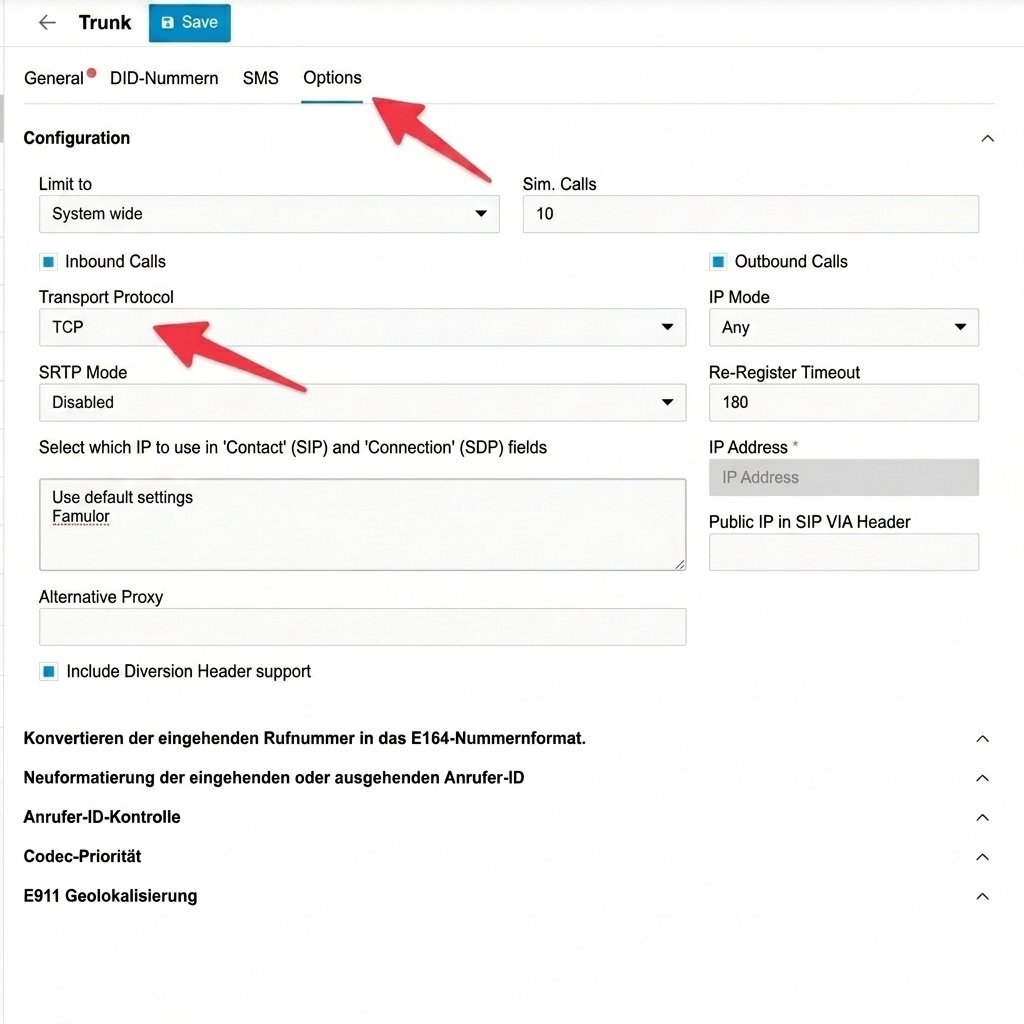
Point it at the platform SIP FQDN, set the trunk transport to TCP (UDP fragments large INVITEs), and restrict codecs to PCMA/PCMU with RFC2833 DTMF — disable Opus and G.722.
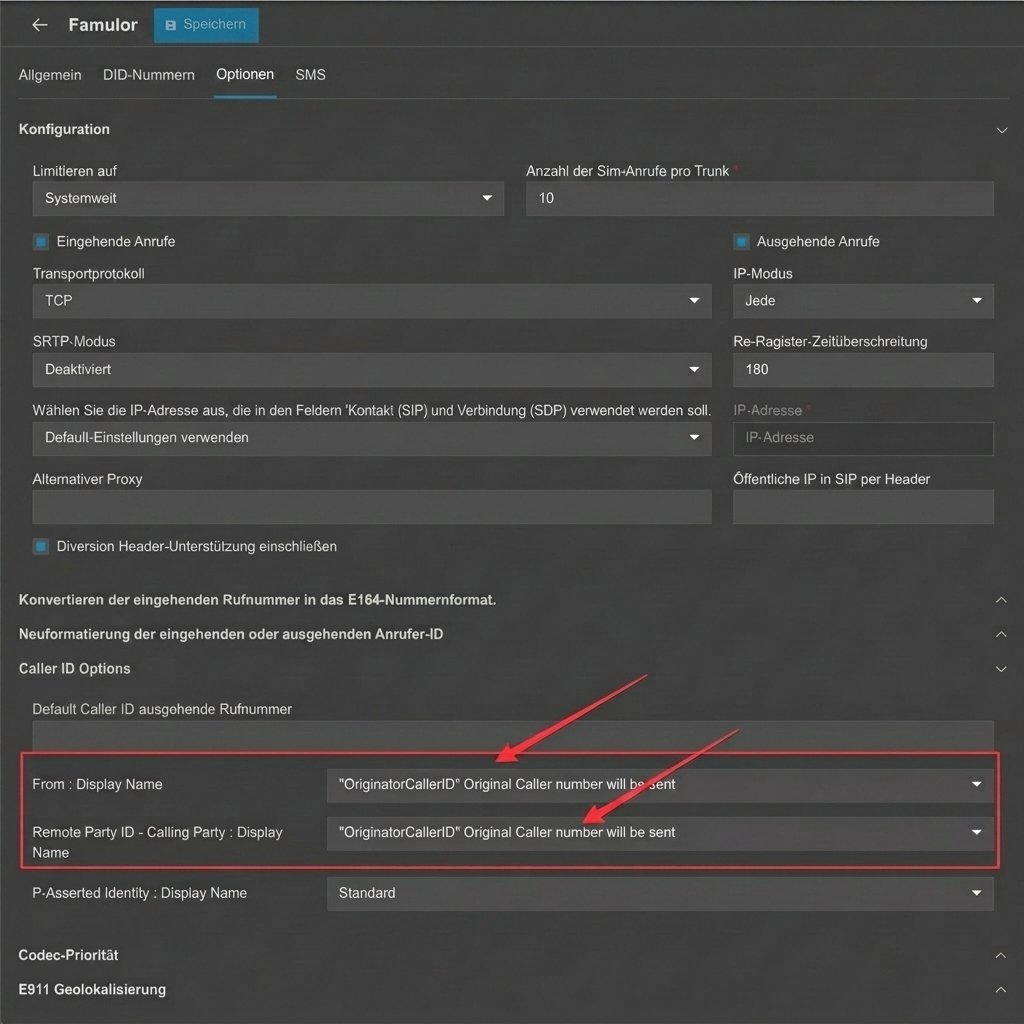
Set the trunk’s From: Display-Name and Remote-Party-ID to OriginatorCallerID so the assistant sees the real caller, not 3CX’s own system number.
Configure inbound in two parts: an outbound rule with a distinct prefix (for example 999) routed to the trunk, and an inbound rule that dials 999<number> back through that same outbound rule.
Assign the DID on the platform side and test.
3CX call routing — conceptual diagram
These examples show the relevant settings; the layout can differ in your provider’s current console.
Configuration example — Set the trunk's transport protocol to TCP
Configuration example — Pass through the real caller ID with OriginatorCallerID
The diagram shows the routing relationship, not the 3CX settings screen. Menu names depend on your 3CX version. See 3CX’s caller-ID field reference for OriginatorCallerID and the configurable SIP fields.
The outbound rule alone delivers nothing on its own. The pairing in step 4 — an outbound rule plus a matching inbound rule dialing through it — is what actually routes an inbound call to the assistant. Skipping it is the most common cause of “trunk configured, calls never arrive.”
Asterisk / FreePBX
Configure a static, non-registering trunk in both directions — Asterisk never sends the platform a SIP REGISTER, and the platform never expects one.
Add a generic SIP trunk pointed at the platform SIP FQDN and disable registration. Restrict codecs to PCMA/PCMU. If Asterisk sits behind NAT, set the external media and signaling addresses and the local network range so RTP negotiates correctly, and forward the RTP port range at the firewall.
The sample uses whatever transport your Asterisk install already defines. If you name your transports explicitly, add a matching transport= line to the endpoint — the platform SIP URI advertises TCP by default.If calls connect but drop at exactly 30 seconds, the endpoint is missing a re-INVITE across NAT. direct_media=no and rewrite_contact=yes (already in the sample above) fix it.
Starface
Connect Starface with a host/IP-based SIP line, not SIP REGISTER — the line will show not registered in Starface’s status view afterward. That’s expected, not a fault.
Create the SIP line as host/IP-based, pointed at the platform SIP FQDN, and assign the number.
Enable CLIP No Screening so the real caller ID passes through instead of the trunk’s own number.
For time-based routing to the assistant, use a line-prefix dial string such as **<line-digit>*<number>.
If audio is one-way or missing, set Behind NAT? yes on both the Starface server and the line.
Never use ordinary PSTN call forwarding from the assistant to transfer a call on Starface — it creates a call loop between Starface and the platform. Configure every assistant transfer on a Starface trunk as a SIP transfer instead.
Genesys Cloud
Connect the platform as an external trunk under BYOC Carrier.
Create the trunk with inbound (the FQDN Genesys Cloud generates) and outbound (pointed at the platform SIP FQDN) configured as separate legs.
Open the non-standard ports at your firewall — TCP/UDP 32681 and TLS 32682 — instead of the usual 5060/5061. A firewall that only opens the standard ports fails silently.
Order codecs PCMU then PCMA, and remove G.722.
Restrict SIP Access Control to only the platform’s current signaling addresses.
Never set SIP Access Control to Allow All. An open trunk is typically found and used for toll fraud within hours.
Five9
Provisioning the platform as an external SIP destination on a Five9 SBC is an enterprise-only integration.
Open a support ticket with Five9 — there’s no self-service path.
Set codecs to G.711 only (no Opus/G.722).
Configure human transfers with SIP REFER — Five9 doesn’t honor SIP 302 redirects.
Target a fully-qualified URI for every REFER (sip:queue@sbc-{region}.five9.com); a bare extension is silently dropped.
Five9 hard-drops any call at exactly 12 hours, regardless of activity. Account for this ceiling in long-running flows and unattended campaign calls — there is no way to extend it from the platform side.
Aircall
Aircall has no wholesale SIP trunk. SIP Forwarding (Enterprise plan only) covers inbound only — it delivers calls to the platform, but Aircall has no SIP path for sending a call back out with an Aircall number as caller ID. To use one number in both directions, port it to a SIP-capable carrier for outbound (see SIP provider guides) while keeping Aircall for inbound. Aircall also doesn’t support SIP REFER — a transfer should place a fresh outbound call rather than attempt a cold SIP transfer.