

What the end user sees
- Customer taps call on your WhatsApp Business number (or answers an outbound call).
- Normal WhatsApp call UI (ringing → connected).
- Your assistant speaks as it does on a phone call.
- After hang-up, the call appears in History with its analysis and usage.
What workspace admins will see (product)
Settings → Channels → WhatsApp:- Connect Meta credentials (Phone Number ID + permanent System User token + app secret + verify token + WABA ID), or use Connect with Meta.
- Assign an assistant.
- Copy the displayed webhook URL for messages, calls, and template-status updates.
- Turn on Inbound calls / Outbound calls (outbound is region-dependent + Meta user permission).
- Optional: place a test WhatsApp call from the sender’s ⋯ menu (Test call).
POST /api/v1/calls/whatsapp-outbound.
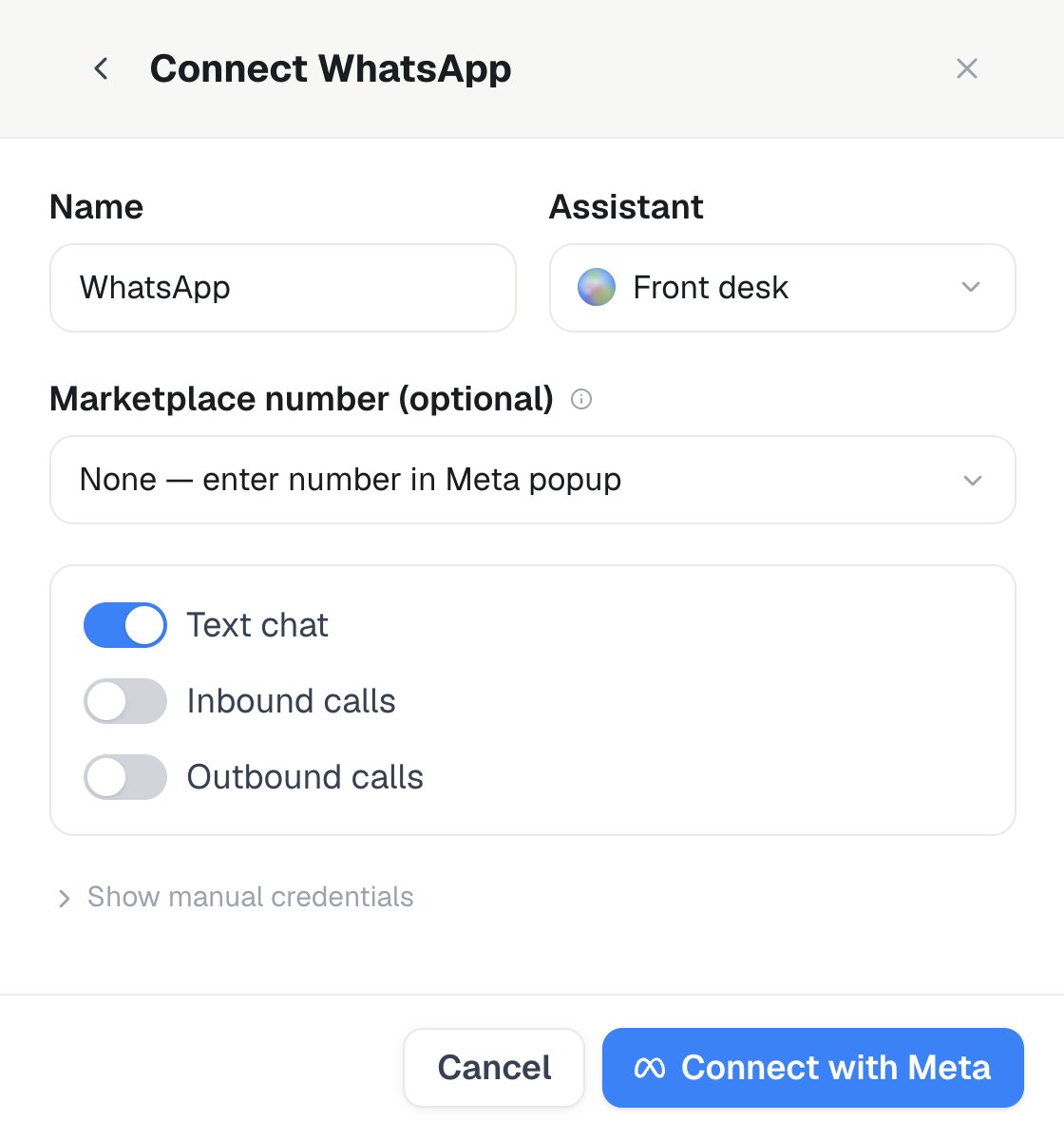
Settings → Channels → WhatsApp → Add number → WhatsApp Cloud: the connection form has separate Inbound calls and Outbound calls switches alongside Text chat.
Apps / accounts you need
- Meta Developer account.
- WhatsApp Business Account (WABA) with a business phone number.
- Voice calling enabled on that number (Cloud API v23/v24).
- Meta app with WhatsApp product + permanent System User access token (or Embedded Signup).
Meta setup (step by step)
- Create / open a Meta app → add WhatsApp.
- Under WhatsApp → API Setup, note:
- Phone number ID
- Access token (use a long-lived System User token in production)
- WhatsApp → Configuration → Webhooks:
- Callback URL: copy the connector-specific URL shown in Settings
- Verify token: use the value shown for the connector
- Subscribe at least to
calls(andmessagesfor text) - Use API version v23.0 or v24.0 consistently
- Enable call permissions:
- Inbound: configure available call hours (user-initiated calls)
- Outbound: only in supported regions + explicit user permission
Place an outbound call
Start an outbound WhatsApp call from the sender panel,POST /api/v1/calls/whatsapp-outbound, or the start_whatsapp_outbound_call MCP tool. Meta supports business-initiated calling only in eligible regions and after the recipient has granted permission.