

This mainly affects outbound calls your assistant places to mobile numbers. Without a response to the screening question, the call may never be put through.
Turn it on
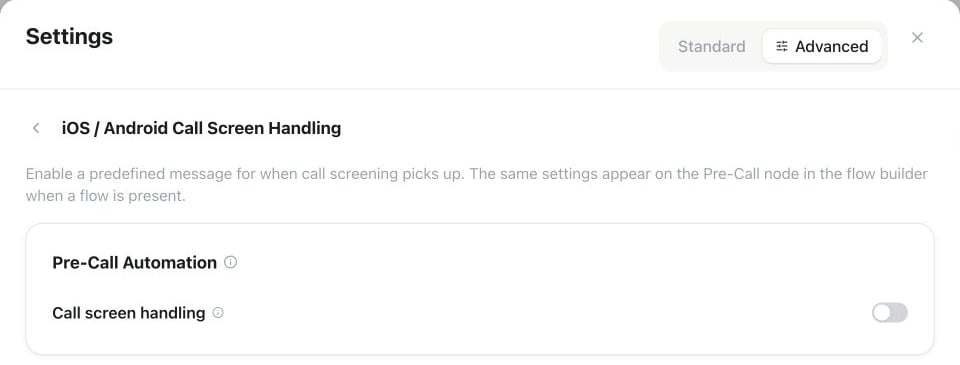
Assistant Settings → Advanced → Conversation → iOS / Android Call Screen Handling: enable Call screen handling under Pre-Call Automation to reveal its configuration.
1
Open the setting
In the assistant editor, open Settings → Advanced → Conversation → iOS / Android Call Screen Handling. If the assistant uses a conversational flow, the same settings live on the Pre-Call node in the flow builder — both places edit the same configuration.
2
Enable Call screen handling
Switch on the Call screen handling toggle under Pre-Call Automation.
3
Fill in the identity
- Agent name — the name the assistant gives when asked who is calling. Left empty, it uses the assistant’s voice name.
- Company name — where the assistant is calling from. Left empty, it uses your workspace name.
- Reason for calling — one short sentence, for example “to schedule a follow-up appointment”.
Tips
- Keep the reason short — a single clear sentence passes screening best.
- Avoid double greetings — the assistant introduces itself to the screener, so make sure its normal opening doesn’t repeat the full introduction a second time when the human picks up.
Test it
- Enable Call Screening on an iPhone running iOS 26 (Settings → Apps → Phone → Screen Unknown Callers), or Google call screening on an Android phone.
- In the assistant header, choose Test → Call and dial that number.
- Check that the assistant states its name, company, and reason, waits for you to accept, and then starts the conversation normally.
Next steps
Prompt writing
Structure and tighten the instructions your assistant follows
Guardrails & conversation quality
Fine-tune behavior and responses