

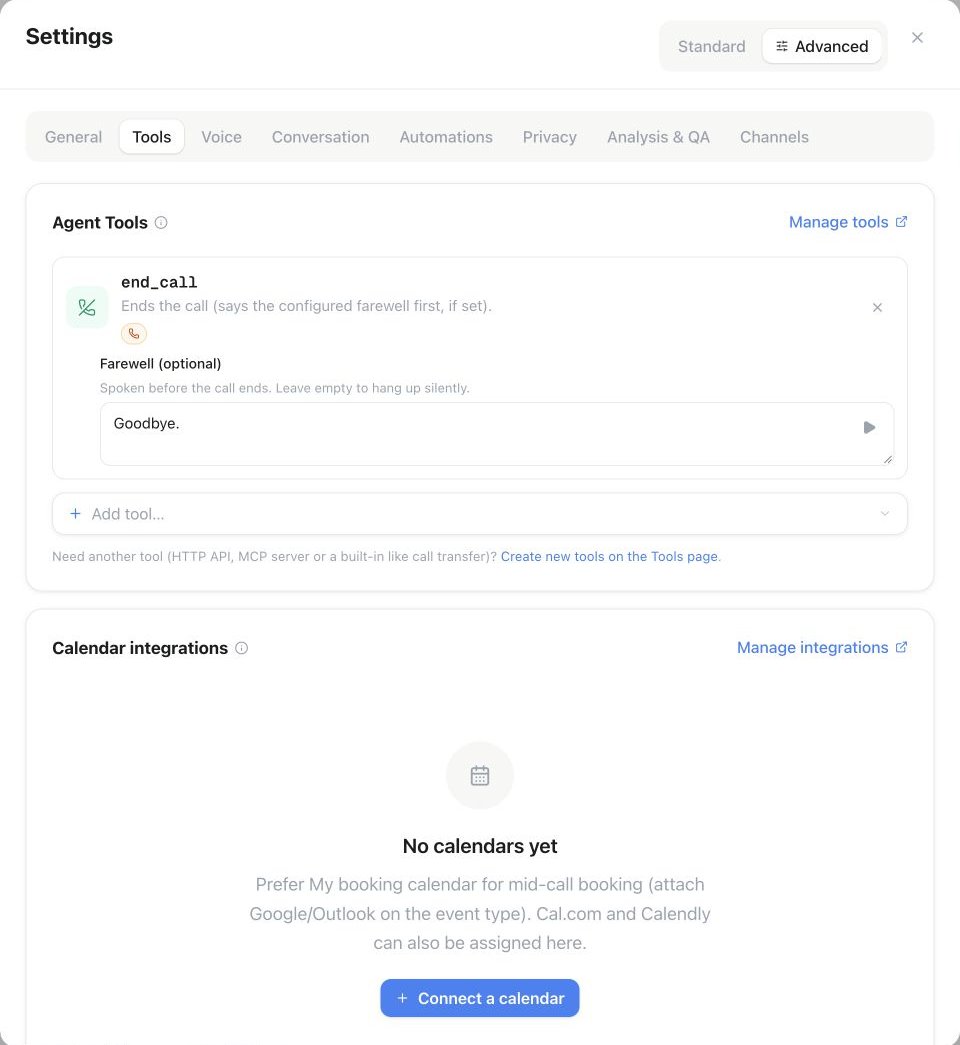
Assistant Settings → Advanced → Tools: assign a tool with Add tool, then review its settings. The example shows the end-call Farewell field.
Available tools
Calendar availability and booking are configured through Calendar booking.
DTMF and keypad input
DTMF Input sends tones from the assistant to an external IVR. Configure0–9, *, #, or A–D, up to 32 characters. Leave the sequence empty when a prompt-based assistant should choose it during the call; a Send DTMF Flow node always requires fixed tones.
Collect Keypad Input receives keypad or spoken digits. Choose Exact number of digits for a fixed PIN or one menu choice (1–32 digits), or Until the stop key for a variable-length number. In the latter mode, # or * submits once the minimum length is reached; reaching the maximum also finishes. The stop key is not returned. New unconfigured tools accept 1–32 digits until the stop key. Existing tools with a saved digit count retain their exact length. The total timeout is 5–120 seconds. In the Flow Builder, use a Collect node with type Keypad or spoken digits; its input-length mode and digit bounds control that step, while the assigned tool provides timeout and stop key. The default total timeout is 30 seconds, including the entry prompt; explicitly saved timeouts stay unchanged.
Transfers
Phone transfer
Choose a destination, transfer type (cold or warm), and the condition under which the assistant should transfer — describe it in as much detail as you can, since precise wording makes the trigger more reliable. You can also let the assistant determine the destination number dynamically instead of fixing it. Cold transfer connects the caller straight through to the destination. Set a ringing timeout (15–80 seconds, 30 by default) before the attempt is considered unanswered. Count in a few seconds of call setup before the destination actually starts ringing — mobile destinations often need more than 15 seconds to be answered. With platform numbers, the destination sees the original caller’s number on a cold transfer, while a warm transfer shows your workspace’s outbound number. If a transfer fails, the assistant’s tool result names the failure code (for exampleno_answer, busy, declined or destination_forbidden) and whether a retry makes sense, so your prompt can react differently to a busy line than to an unreachable destination. The same code appears on the call’s call_transfer_failed / warm_transfer_failed event, and the tool run is recorded as failed.
Warm transfer briefs a colleague before connecting the caller — use it whenever the recipient needs context first. It needs a few extra settings:
Opening and approval: The assistant waits for the supervisor to speak before its initial message. If the briefing initial message is empty and summary instructions are configured, those instructions control the opening. A generic introduction is used only when both are empty. Agreeing to hear a briefing does not approve connecting the call: the assistant must finish the caller summary and ask for permission to connect, then receive a new affirmative reply. An interrupted briefing must be completed before connecting.
For example,
wwww1234#wwww waits two seconds, dials extension 1234 followed by #, then waits another two seconds before the briefing. These are fixed pauses: the sequence cannot detect when a phone menu or extension is ready. Leave it empty for direct numbers, or use a direct extension through Custom SIP when available. In a flow, configure this on the assigned warm-transfer tool in Tools.
Supervisor briefing settings decide what the supervisor hears:
- Ask first if the supervisor can take the call: the assistant speaks the initial message and waits for a reply before the briefing. Turn it off to open directly with the briefing and the connect question in one turn, for example “I have a caller on the line. It’s about … May I put them through?”
- Mention the caller’s name (if known): includes the caller’s confirmed name. A name is never guessed.
- Summarise the caller’s request: includes the reason for the call, following the summary instructions. When off, the assistant only says that a caller is waiting and answers questions about the call if the supervisor asks.
Transfer to another assistant
Hand off a conversation to another assistant in the same workspace. This works for voice, web chat, messaging (including SMS, WhatsApp and connected mailboxes), and native assistant email. The target uses its own instructions, knowledge and tools. In messaging and email it continues in the same thread and remains active for the next message; the channel’s default assistant stays unchanged. Parallel actions finish before the target takes over. Choose the target assistant and a Context Engineering Plan — how much of the conversation it receives. Options run from the full message history down to a summary plus the last few messages (recommended), only the last few messages, a summary alone, or no prior context at all for a clean handoff. Optionally set a message before transfer, and choose whether the target assistant includes its own initial message once it takes over. The Squad view shows the resulting assistant-routing graph. Transfers to the same assistant are rejected, and a transfer limit prevents loops.Ending the call
Write the End call description as clearly as you’d explain it to a new hire — the tool only fires when its condition actually matches:- Simple — end the call once all questions are answered and the caller no longer needs help.
- More detailed — also end after a successful booking, once the caller says goodbye, or once the conversation is clearly finished.
SMS and email
For SMS, choose whether the recipient is the caller or a fixed E.164 number. In SMS and WhatsApp chats, the caller is always the chat’s own number; in other chats the assistant only texts a number the customer wrote in the conversation. The assistant must use a workspace number with outbound messaging enabled. For email, choose a verified sender and one of three content modes:- Assistant-written — creates the subject and body from the conversation.
- Fixed — always sends the exact configured content.
- Template — inserts call variables and stops if a required value is missing.
Business hours and callbacks
Business hours can contain one or more time windows for each weekday. The check always uses the assistant’s configured timezone. For callbacks, choose the destination and the maximum number of days customers may book ahead. The assistant must repeat the agreed time and obtain confirmation. Past dates and dates outside the allowed window are rejected.Payment-card collection
Connect your payment account under Tools → Agent Connectors, then add Collect payment card to the assistant or a Flow Collect node. The caller enters card details securely. Famulor never exposes the full card number or security code in conversation history. Only use this feature where your legal basis, consent flow, and account permissions allow it.Collecting a payment card costs extra credits at the workspace’s Card collection rate; current rates are on the Usage page.
Call variables and current time
Set call variable lets the assistant store approved values such as a company name or appointment preference. Limit the allowed keys when the assistant should only update specific fields. Every assistant also has a current-time tool. It uses the assistant’s timezone to resolve requests such as “tomorrow at 3” or “next Tuesday”.API and MCP
Built-in tools can be managed throughPATCH /api/v1/assistants/{id} and the assistant tools in MCP. Use GET /api/v1/email-senders or its MCP equivalent to list verified senders without exposing credentials.