

Prefer describing what you want in plain language? Select Create with Milian on any dashboard and natural-language dashboards turns a written question into a previewable set of widgets you can add in one go — the fastest way to get a first dashboard going. This page covers building and editing widgets by hand.
Creating a dashboard
Custom dashboards don’t have their own index page — each one is its own icon in the sidebar. Select the + (New dashboard) at the bottom of that section, give the dashboard a name, and you land straight in it.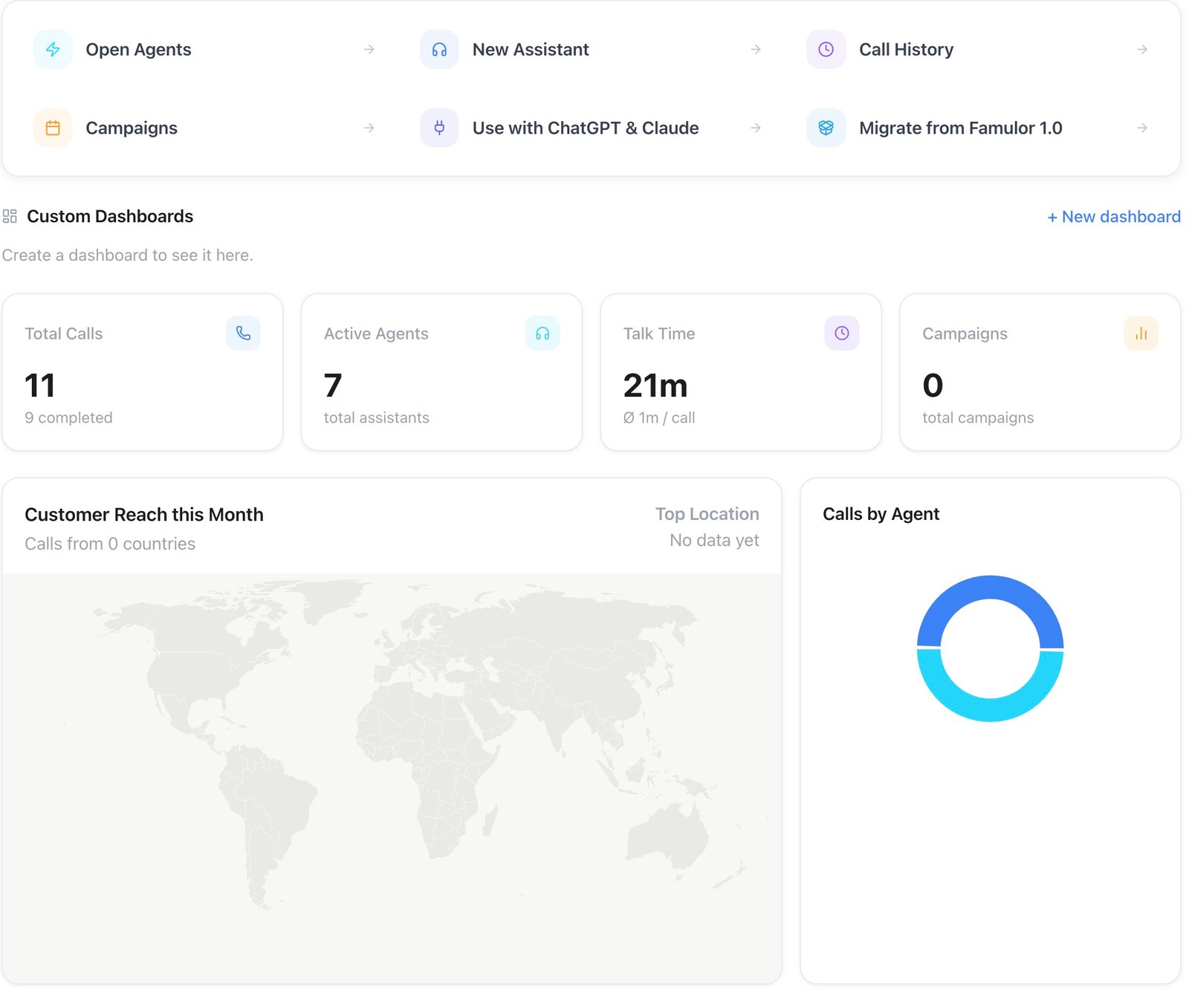
You can also start from Home → Custom Dashboards → + New dashboard, shown above the overview cards.
Adding a widget
Select Add insight to open the widget editor. You can:- Start from a recommended insight — ready-made widgets covering common questions (below), pre-filled with a sensible source, visualization, and grouping. Templates that need a plan feature you don’t have show as Locked.
- Build from scratch — name the widget, then pick a data source, a visualization, and how to aggregate it. See Dashboard widgets for the full reference of what’s available at each step.
Your own widgets sit under Custom insights, below the overview. A new one lands at the end of that group; move it into place from Customize mode (below).
Editing the layout
Select Customize to enter edit mode. The dashboard name becomes editable, and each widget gets its own controls:- Edit reopens the widget editor to change its source, visualization, filters, or name.
- Width sets how much of the row the widget fills — a quarter, a third, a half, two thirds, or full width.
- Move left / right reorders it among your other widgets.
- Remove takes it off the dashboard, after a confirmation. Rebuilding it later means adding the insight again, so note its settings first if it was fiddly.
Filtering a dashboard
The filter bar at the top of a dashboard scopes everything below it: a date range (last 7, 14, 30, or 90 days, or a custom range) plus direction, status, outcome, sentiment, assistants, and campaigns. These apply on top of each widget’s own configuration, so you can reuse the same widgets across a “last 7 days” view and a “last 90 days” view without rebuilding them.API and MCP
Dashboards and their widgets are fully manageable through the public API:GET/POST /api/v1/dashboards, GET/PATCH/DELETE /api/v1/dashboards/{id}, GET/POST /api/v1/dashboards/{id}/widgets, and PATCH/DELETE /api/v1/dashboards/{id}/widgets/{widgetId} (scope dashboards:write). The API also exposes GET /api/v1/dashboards/{id}/analytics for the computed data behind a dashboard. MCP: list_dashboards, get_dashboard, create_dashboard, update_dashboard, delete_dashboard, get_dashboard_analytics, list_dashboard_widgets, create_dashboard_widget, update_dashboard_widget, remove_dashboard_widget. See Dashboard widgets for the field reference.