Import large numbers of leads into Famulor from CSV or Excel files with automatic validation, background processing, and comprehensive error reporting.

Import Process Overview

The lead import system supports:
  • CSV and Excel files (.csv, .xlsx, .xls)
  • Background processing for large files
  • Automatic validation with error reporting
  • Secondary contacts in the same import
  • Variable mapping from the assistant configuration

Preparing Your Import File

Required Columns

Your import file must include:

Optional Columns

  • Secondary contact columns: Additional phone numbers
  • Variable overrides: Custom values for specific leads

File Format Example

phone_number,customer_name,company,budget_range,secondary_phone_1,secondary_phone_2
+491701234567,John Smith,ABC Corp,10k-50k,+491701234568,+491701234569
+491707654321,Jane Doe,XYZ Inc,50k-100k,+491707654322,
+491704567890,Bob Johnson,Tech Start,5k-10k,,

Import Configuration

1. Select Campaign

Choose the target campaign from the dropdown. The assistant’s variables determine which columns are expected during mapping.

2. Secondary Contacts

Select how many secondary phone numbers each lead has (0–10). If your file contains additional phone numbers beyond the primary contact, specify the count here.

3. Phone Number Format

Choose the format of your phone numbers: International Format (Recommended)
  • Numbers already include the country code with + prefix
  • Example: +491701234567, +14155551234
  • No country selection needed
  • Multiple countries can be mixed in the same file
National Format
  • Numbers without country code prefix
  • Example: 01701234567, 7775551234
  • A country code must be selected during import
  • Important: Split your files by country – all numbers in one file must be from the same country
  • The system adds the selected country code to all numbers
When using national format, you must import one file per country. Do not mix numbers from different countries in the same file.

4. Country Code Selection

Only appears when “National Format” is selected. Choose the country that matches all phone numbers in your file. The system automatically prepends the country code to all numbers.

Import Steps

1. Start Import Process

  1. Navigate to the Leads section or the campaign’s leads tab
  2. Click “Import Leads”
  3. Select the campaign for lead assignment
  4. Download the sample file to see the expected format

2. Upload and Map Columns

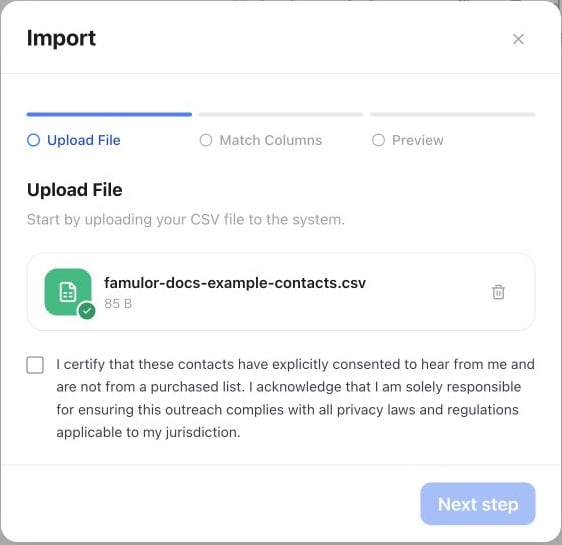
  1. Choose file: Select your CSV or Excel file
  2. Column mapping: Map your file columns to system fields:
    • Phone Number (required): Select the column containing phone numbers
    • Assistant variables: Map each variable to its corresponding column
    • Secondary contacts: If configured, map secondary phone numbers and variables
  3. Auto-detection: The system auto-detects mappings based on common header names
  4. Review and import: Confirm mappings and click “Import” to begin

3. Background Processing

  • Queue processing: Large files are processed in the background
  • Progress tracking: Import status updates automatically
  • Notification: Email notification when the import completes
  • Error reporting: Download a report of any failed rows

Validation Rules

Phone Number Validation

  • Format checking: International format preferred (+491701234567)
  • Duplicate detection: Prevents duplicate phone numbers
  • Invalid numbers: Automatically flagged and skipped

Variable Validation

  • Required fields: Variables marked as required must have values
  • Data types: Text, number, and boolean validation where applicable
  • Length limits: Maximum character limits are enforced

Secondary Contact Validation

  • Phone format: Same validation as primary numbers
  • Unique numbers: Secondary contacts must differ from the primary
  • Variable consistency: Secondary contact variables are validated independently

Error Handling

Automatic Error Handling

The import system automatically handles validation errors:
  • Valid rows imported: Successfully validated leads are added to the campaign
  • Invalid rows skipped: Rows that fail validation are automatically excluded
  • Error report generated: A detailed report of all failed rows is created
  • Partial success: The import completes successfully with all valid leads; failed rows are recorded

Common Validation Errors

  • Invalid phone numbers: Incorrect format or impossible numbers
  • Missing required fields: Empty values for required variables
  • Duplicate phone numbers: Phone number already exists in the system
  • File format issues: Corrupted or unsupported file format

Error Report Download

After import completion:
  • Download link provided in the notification
  • Detailed error descriptions for each failed row
  • Correction guidance for fixing issues
  • Re-import capability with corrected data

Secondary Contacts Import

Multiple Phone Numbers per Lead

Include additional columns for secondary contacts:
phone_number,customer_name,secondary_phone_1,secondary_phone_2,secondary_phone_3
+491701234567,John Smith,+491701234568,+491701234569,+491701234570

Secondary Contact Variables

Add variables specific to secondary contacts:
phone_number,customer_name,secondary_phone_1,secondary_1_name,secondary_1_role
+491701234567,John Smith,+491701234568,Jane Smith,Decision Maker

Contact Ordering

  • Primary contact: Always called first
  • Secondary order: Called in column order (secondary_phone_1, then secondary_phone_2, etc.)
  • Campaign coordination: Respects campaign retry settings between contacts

Large File Handling

Background Processing

  • Automatic queuing: Files over 1,000 rows are processed in the background
  • Memory efficiency: Streaming processing prevents timeouts
  • Progress tracking: Real-time status updates
  • System performance: No impact on platform performance during import

Notification System

  • Email notifications: Sent when the import completes
  • Success summary: Number of leads imported successfully
  • Error summary: Count and details of failed rows
  • Download links: Access to error reports and imported data

Processing Time

  • Small files (< 100 rows): Usually complete within 1 minute
  • Medium files (100–1,000 rows): Typically 2–5 minutes
  • Large files (1,000+ rows): 10–30 minutes depending on complexity
  • Very large files (10k+ rows): May take several hours

Best Practices

  • Use the sample file: Download the provided template for the correct format
  • Phone format: International format without separators (+491701234567)
  • Clean data: Remove empty rows and validate content
  • Test first: Start with a small batch to verify the format
  • Match variables: Ensure columns align with the assistant configuration
For detailed troubleshooting and common import issues, see Leads Troubleshooting.
For information about managing imported leads, see Managing Leads.