Connect your own 3CX, Asterisk, Starface, Wildix, Genesys Cloud, Five9, or Aircall deployment as a SIP trunk
If your organization runs its own PBX or a contact-center platform, you can connect it the same way you’d connect any SIP trunk — no number porting required. Start with SIP provider guides for the shared mechanism (the platform SIP FQDN, the exact DID, and inbound authentication); this page covers what’s specific to seven PBX and contact-center platforms, including a few things that look broken but are expected.
Platform
Access requirement
Watch for
3CX
StartUP PRO, or a self-managed/Dedicated instance
Inbound needs a two-part routing rule, not just the trunk
Asterisk / FreePBX
Self-hosted
NAT settings; calls dropping at exactly 30 seconds
Starface
Any
Transfers must be SIP transfers, never PSTN forwarding
Wildix
WMS admin access
Inbound only; remove the default G.729 codec; a grey, unregistered trunk is expected
Genesys Cloud
BYOC Carrier
Non-standard ports 32681/32682; never allow all SIP sources
Five9
Enterprise, via a support ticket
12-hour hard call cap; SIP REFER only
Aircall
Enterprise plan
Inbound only — no outbound caller ID over SIP
3CX
3CX’s Generic SIP Trunk (IP Based) connection type is only available on StartUP PRO and self-managed/Dedicated instances — the entry StartUP tier doesn’t expose it.
Create a Generic SIP Trunk in 3CX with IP-based authentication, not SIP registration.
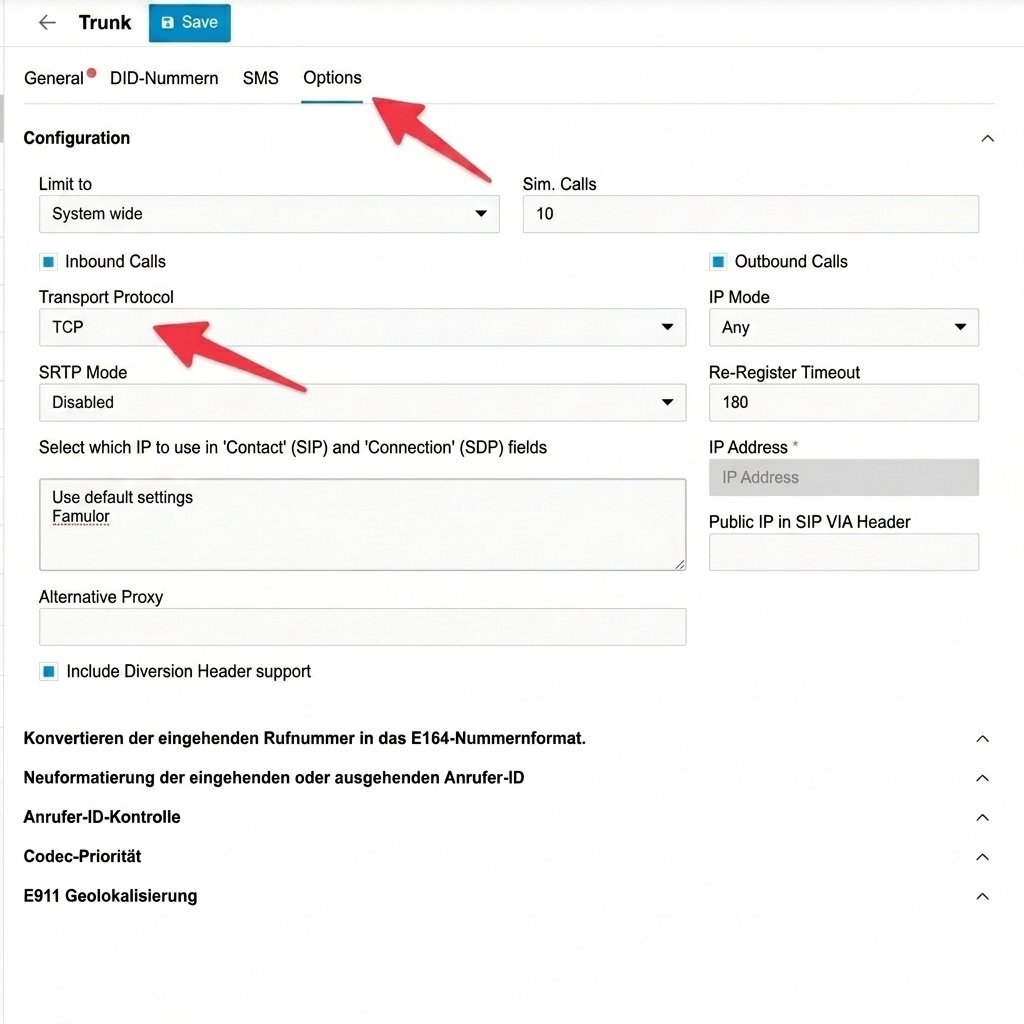
Point it at the platform SIP FQDN, set the trunk transport to TCP (UDP fragments large INVITEs), and restrict codecs to PCMA/PCMU with RFC2833 DTMF — disable Opus and G.722.
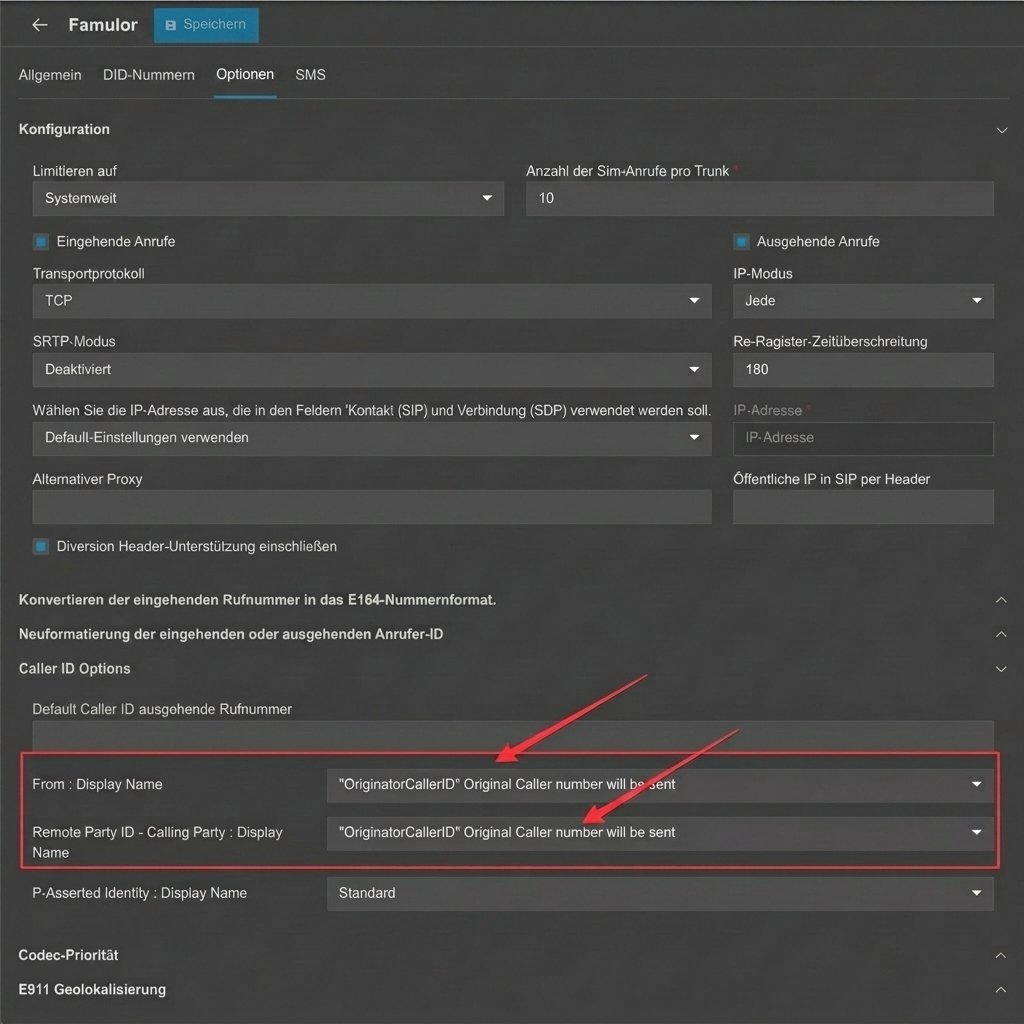
Set the trunk’s From: Display-Name and Remote-Party-ID to OriginatorCallerID so the assistant sees the real caller, not 3CX’s own system number.
Configure inbound in two parts: an outbound rule with a distinct prefix (for example 999) routed to the trunk, and an inbound rule that dials 999<number> back through that same outbound rule.
Assign the DID on the platform side and test.
3CX call routing — conceptual diagram
These examples show the relevant settings; the layout can differ in your provider’s current console.
Configuration example — Set the trunk's transport protocol to TCP
Configuration example — Pass through the real caller ID with OriginatorCallerID
The diagram shows the routing relationship, not the 3CX settings screen. Menu names depend on your 3CX version. See 3CX’s caller-ID field reference for OriginatorCallerID and the configurable SIP fields.
The outbound rule alone delivers nothing on its own. The pairing in step 4 — an outbound rule plus a matching inbound rule dialing through it — is what actually routes an inbound call to the assistant. Skipping it is the most common cause of “trunk configured, calls never arrive.”
Asterisk / FreePBX
Configure a static, non-registering trunk in both directions — Asterisk never sends the platform a SIP REGISTER, and the platform never expects one.
Add a generic SIP trunk pointed at the platform SIP FQDN and disable registration. Restrict codecs to PCMA/PCMU. If Asterisk sits behind NAT, set the external media and signaling addresses and the local network range so RTP negotiates correctly, and forward the RTP port range at the firewall.
The sample uses whatever transport your Asterisk install already defines. If you name your transports explicitly, add a matching transport= line to the endpoint — the platform SIP URI advertises TCP by default.If calls connect but drop at exactly 30 seconds, the endpoint is missing a re-INVITE across NAT. direct_media=no and rewrite_contact=yes (already in the sample above) fix it.
Starface
Connect Starface with a host/IP-based SIP line, not SIP REGISTER — the line will show not registered in Starface’s status view afterward. That’s expected, not a fault.
Create the SIP line as host/IP-based, pointed at the platform SIP FQDN, and assign the number.
Enable CLIP No Screening so the real caller ID passes through instead of the trunk’s own number.
For time-based routing to the assistant, use a line-prefix dial string such as **<line-digit>*<number>.
If audio is one-way or missing, set Behind NAT? yes on both the Starface server and the line.
Never use ordinary PSTN call forwarding from the assistant to transfer a call on Starface — it creates a call loop between Starface and the platform. Configure every assistant transfer on a Starface trunk as a SIP transfer instead.
Wildix
Wildix sends calls to the platform over a static SIP trunk that doesn’t register: the trunk points at the platform SIP FQDN and answers the platform’s authentication challenge with the inbound SIP username and password. With registration off, WMS → Trunks shows the trunk in grey, as not registered. That’s expected, not a fault.On the platform, create one SIP trunk per DID: trunk type Phone number (DID), the exact +E.164 number, and SIP username/password for inbound authentication. The form also asks for a Termination address — enter your Wildix PBX hostname. Choose the EU SIP region if your PBX runs in Europe, then assign an assistant.In Wildix:
Open WMS → Trunks and click + below the SIP trunk table.
Set Address or Host Name to the platform SIP FQDN, without a sip: prefix, and leave Enable registration off.
Enter the platform trunk’s SIP username as Auth Login and its password as Password. Leave From user empty: Wildix forces that value into the From header, so the assistant would see it instead of the caller’s number.
Under Advanced, set Transport to TCP. For encrypted calls, use TLS with SDES-SRTP instead, and enable Secure trunking on the platform trunk too.
In Audio codecs, keep only alaw and ulaw — Wildix enables g729 by default, so remove it. Set DTMF mode to rfc2833.
Enable Show original caller number so the assistant sees the real caller, not your Wildix number. Enable Support Refer and Hold so the assistant can cold-transfer calls back to Wildix users.
Add a Wildix dialplan rule that calls the exact +E.164 DID through this trunk — for example after hours from a timetable, as overflow from a group, or as an IVR option.
Route the full DID through the trunk, in the same +E.164 format as on the platform trunk. Don’t use an internal short code such as 999 as the number Wildix dials: the platform only accepts the exact DID, so the call never reaches the assistant.
This setup covers calls from Wildix to the assistant. Assistant calls out through your Wildix numbers aren’t a confirmed setup yet — contact support before you plan outbound calls or campaigns over Wildix.
Genesys Cloud
Connect the platform as an external trunk under BYOC Carrier.
Create the trunk with inbound (the FQDN Genesys Cloud generates) and outbound (pointed at the platform SIP FQDN) configured as separate legs.
Open the non-standard ports at your firewall — TCP/UDP 32681 and TLS 32682 — instead of the usual 5060/5061. A firewall that only opens the standard ports fails silently.
Order codecs PCMU then PCMA, and remove G.722.
Restrict SIP Access Control to only the platform’s current signaling addresses.
Never set SIP Access Control to Allow All. An open trunk is typically found and used for toll fraud within hours.
Five9
Provisioning the platform as an external SIP destination on a Five9 SBC is an enterprise-only integration.
Open a support ticket with Five9 — there’s no self-service path.
Set codecs to G.711 only (no Opus/G.722).
Configure human transfers with SIP REFER — Five9 doesn’t honor SIP 302 redirects.
Target a fully-qualified URI for every REFER (sip:queue@sbc-{region}.five9.com); a bare extension is silently dropped.
Five9 hard-drops any call at exactly 12 hours, regardless of activity. Account for this ceiling in long-running flows and unattended campaign calls — there is no way to extend it from the platform side.
Aircall
Aircall has no wholesale SIP trunk. SIP Forwarding (Enterprise plan only) covers inbound only — it delivers calls to the platform, but Aircall has no SIP path for sending a call back out with an Aircall number as caller ID. To use one number in both directions, port it to a SIP-capable carrier for outbound (see SIP provider guides) while keeping Aircall for inbound. Aircall also doesn’t support SIP REFER — a transfer should place a fresh outbound call rather than attempt a cold SIP transfer.
{"docsConfig":{"theme":"mint","$schema":"https://mintlify.com/docs.json","name":"Famulor","description":"Famulor documentation — build, deploy, and operate AI voice assistants.","colors":{"primary":"#1FD5FA","light":"#67E8FC","dark":"#0BA8C9"},"logo":{"light":"https://mintcdn.com/ouraicall/baoJp-MLrp4Nh8VX/logo/lockup-light.svg?fit=max\u0026auto=format\u0026n=baoJp-MLrp4Nh8VX\u0026q=85\u0026s=fd2b4cadd4821a549ba9fa5783ed619d","dark":"https://mintcdn.com/ouraicall/baoJp-MLrp4Nh8VX/logo/lockup-dark.svg?fit=max\u0026auto=format\u0026n=baoJp-MLrp4Nh8VX\u0026q=85\u0026s=8c5966ded7ffff8de6db3a09bd55f712"},"favicon":"https://mintcdn.com/ouraicall/2UgcT6Kzg4NlgPC2/favicon.svg?fit=max\u0026auto=format\u0026n=2UgcT6Kzg4NlgPC2\u0026q=85\u0026s=b7b1116d604f04ce5ebedef057e0580f","navbar":{"links":[{"href":"https://status.famulor.io","label":"Platform Status"}],"primary":{"type":"button","label":"Dashboard","href":"https://app.famulor.io"}},"footer":{"socials":{"linkedin":"https://www.linkedin.com/company/Famulor"}},"seo":{"metatags":{"twitter:card":"summary_large_image"},"organization":{"name":"Famulor","logo":"https://docs.famulor.io/logo/lockup-light.svg"}},"integrations":{"clarity":{"projectId":"sop2kcwotx"},"ga4":{"measurementId":"G-WPTBT13HB0"}},"banner":{"content":"For AI agents: see the complete **[llms.txt](https://docs.famulor.io/llms.txt)** documentation index.","dismissible":true,"color":{"light":"#000000","dark":"#000000"}},"styling":{"latex":false},"navigation":{"languages":[{"language":"en","href":""},{"language":"fr","href":"fr"},{"language":"es","href":"es"},{"language":"de","href":"de"}]}},"deployment":{"deploymentMetadataValue":{"subdomain":"ouraicall","hasAudioNarration":false,"actualSubdomain":"ouraicall","customDomains":["docs.famulor.io"],"gitSource":{"type":"github","owner":"bekservice","repo":"famulor-multi-tenancy","deployBranch":"main","contentDirectory":"mintlify","isPrivate":true,"mountPath":"","label":""},"chroma":{"collectionId":"837052af-37d0-49a0-b690-4af7a4b0dde2","liveDeploymentHistoryId":"6addaf84aa71df2f0249f4d9","schemaVersion":"v3","latestBuiltDeploymentHistoryId":"6addaf84aa71df2f0249f4d9"},"feedback":{"thumbs":true,"agentFeedback":true},"entitlements":{},"buildId":"6addaf84aa71df2f0249f4d9","clientVersion":"0.0.3966","searchFilterCounts":[{"language":"default","tag":"API Reference","count":425},{"language":"en","tag":"Documentation","count":132},{"language":"de","tag":"Dokumentation","count":132},{"language":"es","tag":"Documentación","count":132},{"language":"fr","tag":"Documentation","count":132},{"language":"en","tag":"API 1.0 (Legacy)","count":102},{"language":"de","tag":"API 1.0 (Legacy)","count":102},{"language":"es","tag":"API 1.0 (Legacy)","count":102},{"language":"fr","tag":"API 1.0 (Legacy)","count":102},{"language":"default","tag":"Famulor Loop","count":37},{"language":"en","tag":"API Reference","count":35},{"language":"en","tag":"Assistants","count":35},{"language":"default","tag":"Messaging","count":35},{"language":"de","tag":"Assistenten","count":35},{"language":"es","tag":"Asistentes","count":35},{"language":"fr","tag":"Assistants","count":35},{"language":"en","tag":"Channels","count":32},{"language":"de","tag":"API-Referenz","count":32},{"language":"de","tag":"Kanäle","count":32},{"language":"es","tag":"Canales","count":32},{"language":"fr","tag":"Canaux","count":32},{"language":"default","tag":"Knowledge Bases","count":31},{"language":"default","tag":"Automations","count":28},{"language":"en","tag":"Automation","count":27},{"language":"default","tag":"Settings","count":27},{"language":"de","tag":"Automatisierung","count":27},{"language":"es","tag":"Automatización","count":27},{"language":"es","tag":"Referencia de la API","count":27},{"language":"fr","tag":"Automatisation","count":27},{"language":"fr","tag":"Référence API","count":27},{"language":"en","tag":"Telephony","count":25},{"language":"de","tag":"Telefonie","count":25},{"language":"es","tag":"Telefonía","count":25},{"language":"fr","tag":"Téléphonie","count":25},{"language":"en","tag":"AI Assistants","count":24},{"language":"de","tag":"KI-Assistants","count":24},{"language":"es","tag":"Asistentes de IA","count":24},{"language":"fr","tag":"Assistants IA","count":24},{"language":"default","tag":"Assistants","count":20},{"language":"default","tag":"White Label","count":20},{"language":"default","tag":"Tools","count":18},{"language":"en","tag":"Shopify","count":16},{"language":"default","tag":"Integrations","count":16},{"language":"de","tag":"Shopify","count":16},{"language":"es","tag":"Shopify","count":16},{"language":"fr","tag":"Shopify","count":16},{"language":"en","tag":"Getting started","count":11},{"language":"de","tag":"Erste Schritte","count":11},{"language":"es","tag":"Primeros pasos","count":11},{"language":"fr","tag":"Bien démarrer","count":11}],"searchSettings":{"showContentSnippets":true}},"assistantConfig":{"enableAskAiButton":false,"enableStarterQuestions":false,"enableContextualStarterQuestions":false,"enableAskAiSearchBar":true},"hasChatPermissions":false,"hasWebMcpPermissions":false,"toggles":[{"name":"kill-isr","enabled":true,"variant":{"name":"disabled","enabled":false,"feature_enabled":true},"impressionData":false},{"name":"agent-mintlify-slack","enabled":true,"variant":{"name":"disabled","enabled":false,"feature_enabled":true},"impressionData":false},{"name":"editor-v7-file-tree","enabled":true,"variant":{"name":"disabled","enabled":false,"feature_enabled":true},"impressionData":false},{"name":"agent-integrations-settings","enabled":true,"variant":{"name":"disabled","enabled":false,"feature_enabled":true},"impressionData":false},{"name":"automations-pr-grouping","enabled":true,"variant":{"name":"disabled","enabled":false,"feature_enabled":true},"impressionData":false},{"name":"custom-prefix","enabled":true,"variant":{"name":"disabled","enabled":false,"feature_enabled":true},"impressionData":false},{"name":"analytics-v7","enabled":true,"variant":{"name":"disabled","enabled":false,"feature_enabled":true},"impressionData":false},{"name":"user-flows-analytics","enabled":true,"variant":{"name":"disabled","enabled":false,"feature_enabled":true},"impressionData":false},{"name":"no-publish-flow","enabled":true,"variant":{"name":"disabled","enabled":false,"feature_enabled":true},"impressionData":false},{"name":"workos-onboarding","enabled":true,"variant":{"name":"disabled","enabled":false,"feature_enabled":true},"impressionData":false},{"name":"llms-txt-v2","enabled":true,"variant":{"name":"disabled","enabled":false,"feature_enabled":true},"impressionData":false},{"name":"pause-universal-search-reconcile","enabled":true,"variant":{"name":"disabled","enabled":false,"feature_enabled":true},"impressionData":false},{"name":"snapshot-serving-live","enabled":true,"variant":{"name":"disabled","enabled":false,"feature_enabled":true},"impressionData":false},{"name":"stripTemperatureMiddleware","enabled":true,"variant":{"name":"disabled","enabled":false,"feature_enabled":true},"impressionData":false},{"name":"per-site-search-delta","enabled":true,"variant":{"name":"disabled","enabled":false,"feature_enabled":true},"impressionData":false},{"name":"support-platform-pylon-zendesk","enabled":true,"variant":{"name":"disabled","enabled":false,"feature_enabled":true},"impressionData":false},{"name":"snapshot-serving","enabled":true,"variant":{"name":"disabled","enabled":false,"feature_enabled":true},"impressionData":false},{"name":"instant-rollback","enabled":true,"variant":{"name":"disabled","enabled":false,"feature_enabled":true},"impressionData":false},{"name":"granular-notifications-server","enabled":true,"variant":{"name":"disabled","enabled":false,"feature_enabled":true},"impressionData":false},{"name":"granular-notifications","enabled":true,"variant":{"name":"disabled","enabled":false,"feature_enabled":true},"impressionData":false},{"name":"editor-private-page-search","enabled":true,"variant":{"name":"disabled","enabled":false,"feature_enabled":true},"impressionData":false},{"name":"automations-fable","enabled":true,"variant":{"name":"disabled","enabled":false,"feature_enabled":true},"impressionData":false},{"name":"fixed-ai-action-pricing","enabled":true,"variant":{"name":"disabled","enabled":false,"feature_enabled":true},"impressionData":false},{"name":"automation-resolve-merge-conflict","enabled":true,"variant":{"name":"disabled","enabled":false,"feature_enabled":true},"impressionData":false},{"name":"scoped-publishing","enabled":true,"variant":{"name":"disabled","enabled":false,"feature_enabled":true},"impressionData":false},{"name":"mintql","enabled":true,"variant":{"name":"disabled","enabled":false,"feature_enabled":true},"impressionData":false},{"name":"page-level-analytics","enabled":true,"variant":{"name":"disabled","enabled":false,"feature_enabled":true},"impressionData":false},{"name":"editor-version-history-v2","enabled":true,"variant":{"name":"disabled","enabled":false,"feature_enabled":true},"impressionData":false},{"name":"editor-nav-generations","enabled":true,"variant":{"name":"disabled","enabled":false,"feature_enabled":true},"impressionData":false},{"name":"billing-page-v2","enabled":true,"variant":{"name":"disabled","enabled":false,"feature_enabled":true},"impressionData":false},{"name":"workspace-projects","enabled":true,"variant":{"name":"disabled","enabled":false,"feature_enabled":true},"impressionData":false},{"name":"assistant-v5","enabled":true,"variant":{"name":"disabled","enabled":false,"feature_enabled":true},"impressionData":false},{"name":"byok-sep-25","enabled":true,"variant":{"name":"disabled","enabled":false,"feature_enabled":true},"impressionData":false},{"name":"fork-pr-previews","enabled":true,"variant":{"name":"disabled","enabled":false,"feature_enabled":true},"impressionData":false},{"name":"revalidation-jwt","enabled":true,"variant":{"name":"disabled","enabled":false,"feature_enabled":true},"impressionData":false},{"name":"vite-origin","enabled":true,"variant":{"name":"disabled","enabled":false,"feature_enabled":true},"impressionData":false},{"name":"editor-agent-model-picker","enabled":true,"variant":{"name":"disabled","enabled":false,"feature_enabled":true},"impressionData":false},{"name":"billing-updated-9-15","enabled":true,"variant":{"name":"disabled","enabled":false,"feature_enabled":true},"impressionData":false},{"name":"hobby-abuse-scan","enabled":true,"variant":{"name":"disabled","enabled":false,"feature_enabled":true},"impressionData":false},{"name":"dashboard-inbox","enabled":true,"variant":{"name":"disabled","enabled":false,"feature_enabled":true},"impressionData":false}],"privacy":{"consentBanner":{"enabled":true}},"isAtlas":false,"googleFontsInlined":false},"customCss":[],"page":{"pagePath":"telephony/providers/pbx-and-contact-center","slug":"/telephony/providers/pbx-and-contact-center","pageMetadata":{"title":"PBX \u0026 contact center platforms","description":"Connect your own 3CX, Asterisk, Starface, Wildix, Genesys Cloud, Five9, or Aircall deployment as a SIP trunk","href":"/telephony/providers/pbx-and-contact-center"},"description":{"compiledSource":"\"use strict\";\nconst {jsx: _jsx} = arguments[0];\nconst {useMDXComponents: _provideComponents} = arguments[0];\nfunction _createMdxContent(props) {\n const _components = {\n p: \"p\",\n ..._provideComponents(),\n ...props.components\n };\n return _jsx(_components.p, {\n children: \"Connect your own 3CX, Asterisk, Starface, Wildix, Genesys Cloud, Five9, or Aircall deployment as a SIP trunk\"\n });\n}\nfunction MDXContent(props = {}) {\n const {wrapper: MDXLayout} = {\n ..._provideComponents(),\n ...props.components\n };\n return MDXLayout ? _jsx(MDXLayout, {\n ...props,\n children: _jsx(_createMdxContent, {\n ...props\n })\n }) : _createMdxContent(props);\n}\nreturn {\n default: MDXContent\n};\n","frontmatter":{},"scope":{}},"pageType":"default","mdx":{"mdxSource":{"compiledSource":"\"use strict\";const{Fragment:_Fragment,jsx:_jsx,jsxs:_jsxs}=arguments[0];const{useMDXComponents:_provideComponents}=arguments[0];function _createMdxContent(props){const _components={a:`a`,code:`code`,li:`li`,ol:`ol`,p:`p`,pre:`pre`,span:`span`,strong:`strong`,tbody:`tbody`,td:`td`,th:`th`,thead:`thead`,tr:`tr`,..._provideComponents(),...props.components},{Accordion,AccordionGroup,CodeBlock,Frame,Heading,Mermaid,OptimizedImage,Table,Warning}=_components;if(!Accordion)_missingMdxReference(`Accordion`,true);if(!AccordionGroup)_missingMdxReference(`AccordionGroup`,true);if(!CodeBlock)_missingMdxReference(`CodeBlock`,true);if(!Frame)_missingMdxReference(`Frame`,true);if(!Heading)_missingMdxReference(`Heading`,true);if(!Mermaid)_missingMdxReference(`Mermaid`,true);if(!OptimizedImage)_missingMdxReference(`OptimizedImage`,true);if(!Table)_missingMdxReference(`Table`,true);if(!Warning)_missingMdxReference(`Warning`,true);return _jsxs(_Fragment,{children:[_jsxs(_components.p,{children:[`If your organization runs its own PBX or a contact-center platform, you can connect it the same way you’d connect any SIP trunk — no number porting required. Start with `,_jsx(_components.a,{href:`/telephony/providers/overview`,children:`SIP provider guides`}),` for the shared mechanism (the platform SIP FQDN, the exact DID, and inbound authentication); this page covers what’s specific to seven PBX and contact-center platforms, including a few things that look broken but are expected.`]}),`\n`,_jsxs(Table,{children:[_jsx(_components.thead,{children:_jsxs(_components.tr,{children:[_jsx(_components.th,{children:`Platform`}),_jsx(_components.th,{children:`Access requirement`}),_jsx(_components.th,{children:`Watch for`})]})}),_jsxs(_components.tbody,{children:[_jsxs(_components.tr,{children:[_jsx(_components.td,{children:`3CX`}),_jsx(_components.td,{children:`StartUP PRO, or a self-managed/Dedicated instance`}),_jsx(_components.td,{children:`Inbound needs a two-part routing rule, not just the trunk`})]}),_jsxs(_components.tr,{children:[_jsx(_components.td,{children:`Asterisk / FreePBX`}),_jsx(_components.td,{children:`Self-hosted`}),_jsx(_components.td,{children:`NAT settings; calls dropping at exactly 30 seconds`})]}),_jsxs(_components.tr,{children:[_jsx(_components.td,{children:`Starface`}),_jsx(_components.td,{children:`Any`}),_jsx(_components.td,{children:`Transfers must be SIP transfers, never PSTN forwarding`})]}),_jsxs(_components.tr,{children:[_jsx(_components.td,{children:`Wildix`}),_jsx(_components.td,{children:`WMS admin access`}),_jsx(_components.td,{children:`Inbound only; remove the default G.729 codec; a grey, unregistered trunk is expected`})]}),_jsxs(_components.tr,{children:[_jsx(_components.td,{children:`Genesys Cloud`}),_jsx(_components.td,{children:`BYOC Carrier`}),_jsx(_components.td,{children:`Non-standard ports 32681/32682; never allow all SIP sources`})]}),_jsxs(_components.tr,{children:[_jsx(_components.td,{children:`Five9`}),_jsx(_components.td,{children:`Enterprise, via a support ticket`}),_jsx(_components.td,{children:`12-hour hard call cap; SIP REFER only`})]}),_jsxs(_components.tr,{children:[_jsx(_components.td,{children:`Aircall`}),_jsx(_components.td,{children:`Enterprise plan`}),_jsx(_components.td,{children:`Inbound only — no outbound caller ID over SIP`})]})]})]}),`\n`,_jsxs(AccordionGroup,{children:[_jsxs(Accordion,{title:`3CX`,id:`3cx`,children:[_jsxs(_components.p,{children:[`3CX’s `,_jsx(_components.strong,{children:`Generic SIP Trunk (IP Based)`}),` connection type is only available on `,_jsx(_components.strong,{children:`StartUP PRO`}),` and self-managed/Dedicated instances — the entry StartUP tier doesn’t expose it.`]}),_jsxs(_components.ol,{children:[`\n`,_jsx(_components.li,{children:`Create a Generic SIP Trunk in 3CX with IP-based authentication, not SIP registration.`}),`\n`,_jsx(_components.li,{children:`Point it at the platform SIP FQDN, set the trunk transport to TCP (UDP fragments large INVITEs), and restrict codecs to PCMA/PCMU with RFC2833 DTMF — disable Opus and G.722.`}),`\n`,_jsxs(_components.li,{children:[`Set the trunk’s `,_jsx(_components.strong,{children:`From: Display-Name`}),` and `,_jsx(_components.strong,{children:`Remote-Party-ID`}),` to `,_jsx(_components.code,{children:`OriginatorCallerID`}),` so the assistant sees the real caller, not 3CX’s own system number.`]}),`\n`,_jsxs(_components.li,{children:[`Configure inbound in two parts: an outbound rule with a distinct prefix (for example `,_jsx(_components.code,{children:`999`}),`) routed to the trunk, and an inbound rule that dials `,_jsx(_components.code,{children:`999\u003cnumber>`}),` back through that same outbound rule.`]}),`\n`,_jsx(_components.li,{children:`Assign the DID on the platform side and test.`}),`\n`]}),_jsx(Frame,{caption:`3CX call routing — conceptual diagram`,children:_jsx(Mermaid,{chart:`flowchart LR\n A[\"Incoming call\"]\n B[\"3CX inbound rule\"]\n C[\"Matching outbound rule\"]\n D[\"Famulor assistant\"]\n A --> B\n B --> C\n C -->|SIP / TCP| D`})}),_jsx(_components.p,{children:`These examples show the relevant settings; the layout can differ in your provider’s current console.`}),_jsx(Frame,{caption:`Configuration example — Set the trunk's transport protocol to TCP`,children:_jsx(OptimizedImage,{src:`https://mintcdn.com/ouraicall/YHkeF3SwYhU0rNTj/images/famulor_3cx_tcp_protocol_en.png?fit=max\u0026auto=format\u0026n=YHkeF3SwYhU0rNTj\u0026q=85\u0026s=ddd1b913ef77717ec02a5a4987a4c146`,alt:`3CX trunk Options tab with Transport Protocol set to TCP and SRTP Mode disabled`,\"data-og-width\":`1024`,width:`1024`,\"data-og-height\":`1024`,height:`1024`,\"data-path\":`images/famulor_3cx_tcp_protocol_en.png`,\"data-optimize\":`true`,\"data-opv\":`3`,srcset:`https://mintcdn.com/ouraicall/YHkeF3SwYhU0rNTj/images/famulor_3cx_tcp_protocol_en.png?w=280\u0026fit=max\u0026auto=format\u0026n=YHkeF3SwYhU0rNTj\u0026q=85\u0026s=d7b0fe647e60962b6682e018d4dc9b0f 280w, https://mintcdn.com/ouraicall/YHkeF3SwYhU0rNTj/images/famulor_3cx_tcp_protocol_en.png?w=560\u0026fit=max\u0026auto=format\u0026n=YHkeF3SwYhU0rNTj\u0026q=85\u0026s=1f930d54b6463e18db1d930b56bc50d3 560w, https://mintcdn.com/ouraicall/YHkeF3SwYhU0rNTj/images/famulor_3cx_tcp_protocol_en.png?w=840\u0026fit=max\u0026auto=format\u0026n=YHkeF3SwYhU0rNTj\u0026q=85\u0026s=6861950f49de293ea233fd211729fcc3 840w, https://mintcdn.com/ouraicall/YHkeF3SwYhU0rNTj/images/famulor_3cx_tcp_protocol_en.png?w=1100\u0026fit=max\u0026auto=format\u0026n=YHkeF3SwYhU0rNTj\u0026q=85\u0026s=215b728e589879695d4f3d5cebd93cb6 1100w, https://mintcdn.com/ouraicall/YHkeF3SwYhU0rNTj/images/famulor_3cx_tcp_protocol_en.png?w=1650\u0026fit=max\u0026auto=format\u0026n=YHkeF3SwYhU0rNTj\u0026q=85\u0026s=4256bb1955e3d9eb6b7bd6d6191090df 1650w, https://mintcdn.com/ouraicall/YHkeF3SwYhU0rNTj/images/famulor_3cx_tcp_protocol_en.png?w=2500\u0026fit=max\u0026auto=format\u0026n=YHkeF3SwYhU0rNTj\u0026q=85\u0026s=b2564aedd2eb0f8c1c2050d9d411e34f 2500w`})}),_jsx(Frame,{caption:`Configuration example — Pass through the real caller ID with OriginatorCallerID`,children:_jsx(OptimizedImage,{src:`https://mintcdn.com/ouraicall/YHkeF3SwYhU0rNTj/images/famulor_3cx_caller_id_settings_en.png?fit=max\u0026auto=format\u0026n=YHkeF3SwYhU0rNTj\u0026q=85\u0026s=8433ecd3c782421ec1d9d3e28ce37334`,alt:`3CX trunk Caller ID Options with From: Display Name and Remote Party ID - Calling Party: Display Name both set to OriginatorCallerID`,\"data-og-width\":`1024`,width:`1024`,\"data-og-height\":`1024`,height:`1024`,\"data-path\":`images/famulor_3cx_caller_id_settings_en.png`,\"data-optimize\":`true`,\"data-opv\":`3`,srcset:`https://mintcdn.com/ouraicall/YHkeF3SwYhU0rNTj/images/famulor_3cx_caller_id_settings_en.png?w=280\u0026fit=max\u0026auto=format\u0026n=YHkeF3SwYhU0rNTj\u0026q=85\u0026s=9d6014450f407f9dbd44bdfc13f6b855 280w, https://mintcdn.com/ouraicall/YHkeF3SwYhU0rNTj/images/famulor_3cx_caller_id_settings_en.png?w=560\u0026fit=max\u0026auto=format\u0026n=YHkeF3SwYhU0rNTj\u0026q=85\u0026s=70f6290a9dca8c2fbd4060ca66ce626d 560w, https://mintcdn.com/ouraicall/YHkeF3SwYhU0rNTj/images/famulor_3cx_caller_id_settings_en.png?w=840\u0026fit=max\u0026auto=format\u0026n=YHkeF3SwYhU0rNTj\u0026q=85\u0026s=32116238a2c1a772e36d8a5077d2a6f1 840w, https://mintcdn.com/ouraicall/YHkeF3SwYhU0rNTj/images/famulor_3cx_caller_id_settings_en.png?w=1100\u0026fit=max\u0026auto=format\u0026n=YHkeF3SwYhU0rNTj\u0026q=85\u0026s=91f1e23453d3ed5935d6c67354bdf285 1100w, https://mintcdn.com/ouraicall/YHkeF3SwYhU0rNTj/images/famulor_3cx_caller_id_settings_en.png?w=1650\u0026fit=max\u0026auto=format\u0026n=YHkeF3SwYhU0rNTj\u0026q=85\u0026s=3f7606371a72bf10ff10ac15f8765969 1650w, https://mintcdn.com/ouraicall/YHkeF3SwYhU0rNTj/images/famulor_3cx_caller_id_settings_en.png?w=2500\u0026fit=max\u0026auto=format\u0026n=YHkeF3SwYhU0rNTj\u0026q=85\u0026s=4555d97d7605db5b694d5256710fbfd2 2500w`})}),_jsxs(_components.p,{children:[`The diagram shows the routing relationship, not the 3CX settings screen. Menu names depend on your 3CX version. See `,_jsx(_components.a,{href:`https://www.3cx.com/docs/sip-trunk-outbound-calls/`,children:`3CX’s caller-ID field reference`}),` for `,_jsx(_components.code,{children:`OriginatorCallerID`}),` and the configurable SIP fields.`]}),_jsx(Warning,{children:_jsx(_components.p,{children:`The outbound rule alone delivers nothing on its own. The pairing in step 4 — an outbound rule plus a matching inbound rule dialing through it — is what actually routes an inbound call to the assistant. Skipping it is the most common cause of “trunk configured, calls never arrive.”`})})]}),_jsxs(Accordion,{title:`Asterisk / FreePBX`,id:`asterisk-freepbx`,children:[_jsx(_components.p,{children:`Configure a static, non-registering trunk in both directions — Asterisk never sends the platform a SIP REGISTER, and the platform never expects one.`}),_jsx(Heading,{level:`3`,id:`freepbx-gui`,children:`FreePBX (GUI)`}),_jsx(_components.p,{children:`Add a generic SIP trunk pointed at the platform SIP FQDN and disable registration. Restrict codecs to PCMA/PCMU. If Asterisk sits behind NAT, set the external media and signaling addresses and the local network range so RTP negotiates correctly, and forward the RTP port range at the firewall.`}),_jsx(Heading,{level:`3`,id:`raw-config-pjsip-conf`,children:`Raw config (pjsip.conf)`}),_jsx(CodeBlock,{filename:``,numberOfLines:`29`,language:`text`,children:_jsx(_components.pre,{className:`shiki shiki-themes github-light-default dark-plus`,style:{backgroundColor:`#ffffff`,\"--shiki-dark-bg\":`#0B0C0E`,color:`#1f2328`,\"--shiki-dark\":`#D4D4D4`},language:`text`,children:_jsxs(_components.code,{language:`text`,numberOfLines:`29`,children:[_jsx(_components.span,{className:`line`,children:_jsx(_components.span,{children:`[platform]`})}),`\n`,_jsx(_components.span,{className:`line`,children:_jsx(_components.span,{children:`type=endpoint`})}),`\n`,_jsx(_components.span,{className:`line`,children:_jsx(_components.span,{children:`context=from-platform`})}),`\n`,_jsx(_components.span,{className:`line`,children:_jsx(_components.span,{children:`disallow=all`})}),`\n`,_jsx(_components.span,{className:`line`,children:_jsx(_components.span,{children:`allow=ulaw`})}),`\n`,_jsx(_components.span,{className:`line`,children:_jsx(_components.span,{children:`allow=alaw`})}),`\n`,_jsx(_components.span,{className:`line`,children:_jsx(_components.span,{children:`aors=platform`})}),`\n`,_jsx(_components.span,{className:`line`,children:_jsx(_components.span,{children:`auth=platform-auth`})}),`\n`,_jsx(_components.span,{className:`line`,children:_jsx(_components.span,{children:`outbound_auth=platform-auth`})}),`\n`,_jsx(_components.span,{className:`line`,children:_jsx(_components.span,{children:`from_domain=\u003cplatform-sip-fqdn>`})}),`\n`,_jsx(_components.span,{className:`line`,children:_jsx(_components.span,{children:`from_user=\u003cdid-in-e164-without-plus>`})}),`\n`,_jsx(_components.span,{className:`line`,children:_jsx(_components.span,{children:`direct_media=no`})}),`\n`,_jsx(_components.span,{className:`line`,children:_jsx(_components.span,{children:`rewrite_contact=yes`})}),`\n`,_jsx(_components.span,{className:`line`,children:_jsx(_components.span,{})}),`\n`,_jsx(_components.span,{className:`line`,children:_jsx(_components.span,{children:`[platform]`})}),`\n`,_jsx(_components.span,{className:`line`,children:_jsx(_components.span,{children:`type=aor`})}),`\n`,_jsx(_components.span,{className:`line`,children:_jsx(_components.span,{children:`contact=sip:\u003cplatform-sip-fqdn>`})}),`\n`,_jsx(_components.span,{className:`line`,children:_jsx(_components.span,{})}),`\n`,_jsx(_components.span,{className:`line`,children:_jsx(_components.span,{children:`[platform-auth]`})}),`\n`,_jsx(_components.span,{className:`line`,children:_jsx(_components.span,{children:`type=auth`})}),`\n`,_jsx(_components.span,{className:`line`,children:_jsx(_components.span,{children:`auth_type=userpass`})}),`\n`,_jsx(_components.span,{className:`line`,children:_jsx(_components.span,{children:`username=\u003cusername>`})}),`\n`,_jsx(_components.span,{className:`line`,children:_jsx(_components.span,{children:`password=\u003cpassword>`})}),`\n`,_jsx(_components.span,{className:`line`,children:_jsx(_components.span,{})}),`\n`,_jsx(_components.span,{className:`line`,children:_jsx(_components.span,{children:`[platform]`})}),`\n`,_jsx(_components.span,{className:`line`,children:_jsx(_components.span,{children:`type=identify`})}),`\n`,_jsx(_components.span,{className:`line`,children:_jsx(_components.span,{children:`endpoint=platform`})}),`\n`,_jsx(_components.span,{className:`line`,children:_jsx(_components.span,{children:`match=\u003cplatform-sip-fqdn>`})}),`\n`,_jsx(_components.span,{className:`line`,children:_jsx(_components.span,{})})]})})}),_jsxs(_components.p,{children:[`The sample uses whatever transport your Asterisk install already defines. If you name your transports explicitly, add a matching `,_jsx(_components.code,{children:`transport=`}),` line to the endpoint — the platform SIP URI advertises TCP by default.`]}),_jsxs(_components.p,{children:[`If calls connect but drop at exactly 30 seconds, the endpoint is missing a re-INVITE across NAT. `,_jsx(_components.code,{children:`direct_media=no`}),` and `,_jsx(_components.code,{children:`rewrite_contact=yes`}),` (already in the sample above) fix it.`]})]}),_jsxs(Accordion,{title:`Starface`,id:`starface`,children:[_jsxs(_components.p,{children:[`Connect Starface with a host/IP-based SIP line, not SIP REGISTER — the line will show `,_jsx(_components.strong,{children:`not registered`}),` in Starface’s status view afterward. That’s expected, not a fault.`]}),_jsxs(_components.ol,{children:[`\n`,_jsx(_components.li,{children:`Create the SIP line as host/IP-based, pointed at the platform SIP FQDN, and assign the number.`}),`\n`,_jsxs(_components.li,{children:[`Enable `,_jsx(_components.strong,{children:`CLIP No Screening`}),` so the real caller ID passes through instead of the trunk’s own number.`]}),`\n`,_jsxs(_components.li,{children:[`For time-based routing to the assistant, use a line-prefix dial string such as `,_jsx(_components.code,{children:`**\u003cline-digit>*\u003cnumber>`}),`.`]}),`\n`,_jsxs(_components.li,{children:[`If audio is one-way or missing, set `,_jsx(_components.strong,{children:`Behind NAT? yes`}),` on both the Starface server and the line.`]}),`\n`]}),_jsx(Warning,{children:_jsx(_components.p,{children:`Never use ordinary PSTN call forwarding from the assistant to transfer a call on Starface — it creates a call loop between Starface and the platform. Configure every assistant transfer on a Starface trunk as a SIP transfer instead.`})})]}),_jsxs(Accordion,{title:`Wildix`,id:`wildix`,children:[_jsxs(_components.p,{children:[`Wildix sends calls to the platform over a static SIP trunk that doesn’t register: the trunk points at the platform SIP FQDN and answers the platform’s authentication challenge with the inbound SIP username and password. With registration off, `,_jsx(_components.strong,{children:`WMS → Trunks`}),` shows the trunk in grey, as not registered. That’s expected, not a fault.`]}),_jsxs(_components.p,{children:[`On the platform, create one SIP trunk per DID: trunk type `,_jsx(_components.strong,{children:`Phone number (DID)`}),`, the exact `,_jsx(_components.code,{children:`+E.164`}),` number, and `,_jsx(_components.strong,{children:`SIP username/password`}),` for inbound authentication. The form also asks for a `,_jsx(_components.strong,{children:`Termination address`}),` — enter your Wildix PBX hostname. Choose the `,_jsx(_components.strong,{children:`EU`}),` SIP region if your PBX runs in Europe, then assign an assistant.`]}),_jsx(_components.p,{children:`In Wildix:`}),_jsxs(_components.ol,{children:[`\n`,_jsxs(_components.li,{children:[`Open `,_jsx(_components.strong,{children:`WMS → Trunks`}),` and click `,_jsx(_components.strong,{children:`+`}),` below the SIP trunk table.`]}),`\n`,_jsxs(_components.li,{children:[`Set `,_jsx(_components.strong,{children:`Address or Host Name`}),` to the platform SIP FQDN, without a `,_jsx(_components.code,{children:`sip:`}),` prefix, and leave `,_jsx(_components.strong,{children:`Enable registration`}),` off.`]}),`\n`,_jsxs(_components.li,{children:[`Enter the platform trunk’s SIP username as `,_jsx(_components.strong,{children:`Auth Login`}),` and its password as `,_jsx(_components.strong,{children:`Password`}),`. Leave `,_jsx(_components.strong,{children:`From user`}),` empty: Wildix forces that value into the From header, so the assistant would see it instead of the caller’s number.`]}),`\n`,_jsxs(_components.li,{children:[`Under `,_jsx(_components.strong,{children:`Advanced`}),`, set `,_jsx(_components.strong,{children:`Transport`}),` to TCP. For encrypted calls, use TLS with `,_jsx(_components.strong,{children:`SDES-SRTP`}),` instead, and enable `,_jsx(_components.strong,{children:`Secure trunking`}),` on the platform trunk too.`]}),`\n`,_jsxs(_components.li,{children:[`In `,_jsx(_components.strong,{children:`Audio codecs`}),`, keep only alaw and ulaw — Wildix enables g729 by default, so remove it. Set `,_jsx(_components.strong,{children:`DTMF mode`}),` to rfc2833.`]}),`\n`,_jsxs(_components.li,{children:[`Enable `,_jsx(_components.strong,{children:`Show original caller number`}),` so the assistant sees the real caller, not your Wildix number. Enable `,_jsx(_components.strong,{children:`Support Refer and Hold`}),` so the assistant can cold-transfer calls back to Wildix users.`]}),`\n`,_jsxs(_components.li,{children:[`Add a Wildix dialplan rule that calls the exact `,_jsx(_components.code,{children:`+E.164`}),` DID through this trunk — for example after hours from a timetable, as overflow from a group, or as an IVR option.`]}),`\n`]}),_jsxs(_components.p,{children:[`Option labels depend on your WMS version. `,_jsx(_components.a,{href:`https://wildix.atlassian.net/wiki/spaces/DOC/pages/30285495/ISDN+-+FXO+-+GSM+-+SIP+Trunk+Settings+-+Admin+Guide`,children:`Wildix’s trunk settings guide`}),` describes every field.`]}),_jsx(Warning,{children:_jsxs(_components.p,{children:[`Route the full DID through the trunk, in the same `,_jsx(_components.code,{children:`+E.164`}),` format as on the platform trunk. Don’t use an internal short code such as `,_jsx(_components.code,{children:`999`}),` as the number Wildix dials: the platform only accepts the exact DID, so the call never reaches the assistant.`]})}),_jsx(_components.p,{children:`This setup covers calls from Wildix to the assistant. Assistant calls out through your Wildix numbers aren’t a confirmed setup yet — contact support before you plan outbound calls or campaigns over Wildix.`})]}),_jsxs(Accordion,{title:`Genesys Cloud`,id:`genesys-cloud`,children:[_jsxs(_components.p,{children:[`Connect the platform as an external trunk under `,_jsx(_components.strong,{children:`BYOC Carrier`}),`.`]}),_jsxs(_components.ol,{children:[`\n`,_jsx(_components.li,{children:`Create the trunk with inbound (the FQDN Genesys Cloud generates) and outbound (pointed at the platform SIP FQDN) configured as separate legs.`}),`\n`,_jsxs(_components.li,{children:[`Open the non-standard ports at your firewall — `,_jsx(_components.strong,{children:`TCP/UDP 32681`}),` and `,_jsx(_components.strong,{children:`TLS 32682`}),` — instead of the usual 5060/5061. A firewall that only opens the standard ports fails silently.`]}),`\n`,_jsx(_components.li,{children:`Order codecs PCMU then PCMA, and remove G.722.`}),`\n`,_jsx(_components.li,{children:`Restrict SIP Access Control to only the platform’s current signaling addresses.`}),`\n`]}),_jsx(Warning,{children:_jsxs(_components.p,{children:[`Never set SIP Access Control to `,_jsx(_components.strong,{children:`Allow All`}),`. An open trunk is typically found and used for toll fraud within hours.`]})})]}),_jsxs(Accordion,{title:`Five9`,id:`five9`,children:[_jsx(_components.p,{children:`Provisioning the platform as an external SIP destination on a Five9 SBC is an enterprise-only integration.`}),_jsxs(_components.ol,{children:[`\n`,_jsx(_components.li,{children:`Open a support ticket with Five9 — there’s no self-service path.`}),`\n`,_jsx(_components.li,{children:`Set codecs to G.711 only (no Opus/G.722).`}),`\n`,_jsx(_components.li,{children:`Configure human transfers with SIP REFER — Five9 doesn’t honor SIP 302 redirects.`}),`\n`,_jsxs(_components.li,{children:[`Target a fully-qualified URI for every REFER (`,_jsx(_components.code,{children:`sip:queue@sbc-{region}.five9.com`}),`); a bare extension is silently dropped.`]}),`\n`]}),_jsx(Warning,{children:_jsx(_components.p,{children:`Five9 hard-drops any call at exactly 12 hours, regardless of activity. Account for this ceiling in long-running flows and unattended campaign calls — there is no way to extend it from the platform side.`})})]}),_jsx(Accordion,{title:`Aircall`,id:`aircall`,children:_jsxs(_components.p,{children:[`Aircall has no wholesale SIP trunk. `,_jsx(_components.strong,{children:`SIP Forwarding`}),` (Enterprise plan only) covers inbound only — it delivers calls to the platform, but Aircall has no SIP path for sending a call back out with an Aircall number as caller ID. To use one number in both directions, port it to a SIP-capable carrier for outbound (see `,_jsx(_components.a,{href:`/telephony/providers/overview`,children:`SIP provider guides`}),`) while keeping Aircall for inbound. Aircall also doesn’t support SIP REFER — a transfer should place a fresh outbound call rather than attempt a cold SIP transfer.`]})})]}),`\n`,_jsx(Heading,{level:`2`,id:`validate-the-setup`,children:`Validate the setup`}),`\n`,_jsxs(_components.p,{children:[`Call the DID from an external phone and confirm a new inbound record in `,_jsx(_components.strong,{children:`History`}),`, the assigned assistant, and two-way audio. For platforms with a distinct outbound leg (3CX, Asterisk, Genesys Cloud), place one outbound test call too — an inbound success doesn’t confirm outbound is configured correctly, and vice versa.`]}),`\n`,_jsxs(_components.p,{children:[`See also `,_jsx(_components.a,{href:`/telephony/providers/overview`,children:`SIP provider guides`}),`, `,_jsx(_components.a,{href:`/telephony/sip-trunks`,children:`BYO SIP trunk`}),`, and `,_jsx(_components.a,{href:`/telephony/providers/other-custom`,children:`Other and custom SIP providers`}),`.`]}),`\n`,_jsxs(_components.p,{children:[`Sources: `,_jsx(_components.a,{href:`https://www.3cx.com/docs/manual/sip-trunks/`,children:`3CX SIP trunks`}),`, `,_jsx(_components.a,{href:`https://docs.asterisk.org/`,children:`Asterisk documentation`}),`, `,_jsx(_components.a,{href:`https://knowledge.starface.de/`,children:`Starface knowledge base`}),`, `,_jsx(_components.a,{href:`https://wildix.atlassian.net/wiki/spaces/DOC/pages/30285495/ISDN+-+FXO+-+GSM+-+SIP+Trunk+Settings+-+Admin+Guide`,children:`Wildix trunk settings`}),`, `,_jsx(_components.a,{href:`https://help.mypurecloud.com/articles/about-byoc-cloud/`,children:`Genesys BYOC Cloud`}),`, `,_jsx(_components.a,{href:`https://documentation.five9.com/`,children:`Five9 documentation`}),`, `,_jsx(_components.a,{href:`https://support.aircall.io/`,children:`Aircall support`}),`. Accessed 22 August 2026; the Wildix guide on 15 October 2026.`]})]})}function MDXContent(props={}){const{wrapper:MDXLayout}={..._provideComponents(),...props.components};return MDXLayout?_jsx(MDXLayout,{...props,children:_jsx(_createMdxContent,{...props})}):_createMdxContent(props)}return{default:MDXContent};function _missingMdxReference(id,component){throw new Error(`Expected `+(component?`component`:`object`)+\" `\"+id+\"` to be defined: you likely forgot to import, pass, or provide it.\")}","frontmatter":{},"scope":{"config":{},"pageMetadata":{"title":"PBX \u0026 contact center platforms","description":"Connect your own 3CX, Asterisk, Starface, Wildix, Genesys Cloud, Five9, or Aircall deployment as a SIP trunk","href":"/telephony/providers/pbx-and-contact-center"}}},"mdxSourceWithNoJs":null},"mdxExtracts":{"tableOfContents":[{"title":"Validate the setup","slug":"validate-the-setup","depth":2,"children":[]}],"codeExamples":{}},"jsLinks":[],"subdomain":"ouraicall","siteName":"Famulor","title":"PBX \u0026 contact center platforms - Famulor","navMaps":{"firstHrefInVersion":{},"firstHrefInLanguage":{"en":{"href":"/telephony/providers/pbx-and-contact-center","matchLevel":0},"fr":{"href":"/fr/telephony/providers/pbx-and-contact-center","matchLevel":1},"es":{"href":"/es/telephony/providers/pbx-and-contact-center","matchLevel":1},"de":{"href":"/de/telephony/providers/pbx-and-contact-center","matchLevel":1}}},"lastModified":"2026-10-15T14:53:49.634Z","originalFileLocation":"telephony/providers/pbx-and-contact-center.mdx","locale":"en"},"headHtml":"\u003cscript data-mint-head>(function(){var d=document.documentElement,p=null;if(!p){try{p=localStorage.getItem(\"isDarkMode\")}catch(e){}if(p==='true')p='dark';else if(p==='false')p='light';if(p!=='light'\u0026\u0026p!=='dark'\u0026\u0026p!=='system')p=\"system\"}var r=p==='system'?(matchMedia(\"(prefers-color-scheme: dark)\").matches?'dark':'light'):p;d.classList.remove(r==='dark'?'light':'dark');d.classList.add(r);d.setAttribute(\"data-theme-preference\",p)})();\u003c/script>\u003cmeta data-mint-head name=\"description\" content=\"Connect your own 3CX, Asterisk, Starface, Wildix, Genesys Cloud, Five9, or Aircall deployment as a SIP trunk\">\u003cmeta data-mint-head name=\"application-name\" content=\"Famulor\">\u003cmeta data-mint-head name=\"generator\" content=\"Mintlify\">\u003clink data-mint-head rel=\"icon\" type=\"image/png\" sizes=\"192x192\" href=\"/mintlify-assets/_mintlify/favicons/ouraicall/rrdiFjUhl62ZvRGI/_generated/favicon/android-chrome-192x192.png\" media=\"(prefers-color-scheme: light)\">\u003clink data-mint-head rel=\"apple-touch-icon\" type=\"image/png\" sizes=\"180x180\" href=\"/mintlify-assets/_mintlify/favicons/ouraicall/rrdiFjUhl62ZvRGI/_generated/favicon/apple-touch-icon.png\">\u003clink data-mint-head rel=\"icon\" type=\"image/png\" sizes=\"16x16\" href=\"/mintlify-assets/_mintlify/favicons/ouraicall/rrdiFjUhl62ZvRGI/_generated/favicon/favicon-16x16.png\" media=\"(prefers-color-scheme: light)\">\u003clink data-mint-head rel=\"icon\" type=\"image/png\" sizes=\"32x32\" href=\"/mintlify-assets/_mintlify/favicons/ouraicall/rrdiFjUhl62ZvRGI/_generated/favicon/favicon-32x32.png\" media=\"(prefers-color-scheme: light)\">\u003clink data-mint-head rel=\"shortcut icon\" type=\"image/x-icon\" href=\"/mintlify-assets/_mintlify/favicons/ouraicall/rrdiFjUhl62ZvRGI/_generated/favicon/favicon.ico\" media=\"(prefers-color-scheme: light)\">\u003clink data-mint-head rel=\"icon\" type=\"image/png\" sizes=\"192x192\" href=\"/mintlify-assets/_mintlify/favicons/ouraicall/rrdiFjUhl62ZvRGI/_generated/favicon-dark/android-chrome-192x192.png\" media=\"(prefers-color-scheme: dark)\">\u003clink data-mint-head rel=\"icon\" type=\"image/png\" sizes=\"16x16\" href=\"/mintlify-assets/_mintlify/favicons/ouraicall/rrdiFjUhl62ZvRGI/_generated/favicon-dark/favicon-16x16.png\" media=\"(prefers-color-scheme: dark)\">\u003clink data-mint-head rel=\"icon\" type=\"image/png\" sizes=\"32x32\" href=\"/mintlify-assets/_mintlify/favicons/ouraicall/rrdiFjUhl62ZvRGI/_generated/favicon-dark/favicon-32x32.png\" media=\"(prefers-color-scheme: dark)\">\u003clink data-mint-head rel=\"shortcut icon\" type=\"image/x-icon\" href=\"/mintlify-assets/_mintlify/favicons/ouraicall/rrdiFjUhl62ZvRGI/_generated/favicon-dark/favicon.ico\" media=\"(prefers-color-scheme: dark)\">\u003cmeta data-mint-head property=\"og:title\" content=\"PBX \u0026amp; contact center platforms - Famulor\">\u003cmeta data-mint-head property=\"og:description\" content=\"Connect your own 3CX, Asterisk, Starface, Wildix, Genesys Cloud, Five9, or Aircall deployment as a SIP trunk\">\u003cmeta data-mint-head property=\"og:site_name\" content=\"Famulor\">\u003cmeta data-mint-head property=\"og:url\" content=\"https://docs.famulor.io/telephony/providers/pbx-and-contact-center\">\u003cmeta data-mint-head property=\"og:type\" content=\"website\">\u003cmeta data-mint-head property=\"og:image\" content=\"https://ouraicall.mintlify.app/_mintlify/api/og/v2?division=Telephony\u0026amp;title=PBX+%26+contact+center+platforms\u0026amp;description=Connect+your+own+3CX%2C+Asterisk%2C+Starface%2C+Wildix%2C+Genesys+Cloud%2C+Five9%2C+or+Aircall+deployment+as+a+SIP+trunk\u0026amp;theme=cc4516d305bac9e7bd8e915a\u0026amp;signature=02b5ec7d70127f5255dc0c3904eff54c41b433ff67a7730c5a4aa62cca893ea2\">\u003cmeta data-mint-head property=\"og:image:width\" content=\"1200\">\u003cmeta data-mint-head property=\"og:image:height\" content=\"630\">\u003cmeta data-mint-head name=\"twitter:card\" content=\"summary_large_image\">\u003cmeta data-mint-head name=\"twitter:title\" content=\"PBX \u0026amp; contact center platforms - Famulor\">\u003cmeta data-mint-head name=\"twitter:description\" content=\"Connect your own 3CX, Asterisk, Starface, Wildix, Genesys Cloud, Five9, or Aircall deployment as a SIP trunk\">\u003cmeta data-mint-head name=\"twitter:image\" content=\"https://ouraicall.mintlify.app/_mintlify/api/og/v2?division=Telephony\u0026amp;title=PBX+%26+contact+center+platforms\u0026amp;description=Connect+your+own+3CX%2C+Asterisk%2C+Starface%2C+Wildix%2C+Genesys+Cloud%2C+Five9%2C+or+Aircall+deployment+as+a+SIP+trunk\u0026amp;theme=cc4516d305bac9e7bd8e915a\u0026amp;signature=02b5ec7d70127f5255dc0c3904eff54c41b433ff67a7730c5a4aa62cca893ea2\">\u003cmeta data-mint-head name=\"twitter:image:width\" content=\"1200\">\u003cmeta data-mint-head name=\"twitter:image:height\" content=\"630\">\u003cmeta data-mint-head name=\"msapplication-config\" content=\"/mintlify-assets/_mintlify/favicons/ouraicall/rrdiFjUhl62ZvRGI/_generated/favicon/browserconfig.xml\">\u003cmeta data-mint-head name=\"apple-mobile-web-app-title\" content=\"Famulor\">\u003cmeta data-mint-head name=\"msapplication-TileColor\" content=\"#1FD5FA\">\u003clink data-mint-head rel=\"canonical\" href=\"https://docs.famulor.io/telephony/providers/pbx-and-contact-center\">\u003clink data-mint-head rel=\"alternate\" type=\"application/xml\" href=\"/sitemap.xml\">\u003clink data-mint-head rel=\"alternate\" type=\"text/markdown\" href=\"/telephony/providers/pbx-and-contact-center.md\">\u003clink data-mint-head rel=\"alternate\" hreflang=\"en\" href=\"https://docs.famulor.io/telephony/providers/pbx-and-contact-center\">\u003clink data-mint-head rel=\"alternate\" hreflang=\"fr\" href=\"https://docs.famulor.io/fr/telephony/providers/pbx-and-contact-center\">\u003clink data-mint-head rel=\"alternate\" hreflang=\"es\" href=\"https://docs.famulor.io/es/telephony/providers/pbx-and-contact-center\">\u003clink data-mint-head rel=\"alternate\" hreflang=\"de\" href=\"https://docs.famulor.io/de/telephony/providers/pbx-and-contact-center\">\u003clink data-mint-head rel=\"alternate\" hreflang=\"x-default\" href=\"https://docs.famulor.io/telephony/providers/pbx-and-contact-center\">\u003cscript data-mint-head type=\"application/ld+json\">{\"@context\":\"https://schema.org\",\"@graph\":[{\"@type\":\"Organization\",\"@id\":\"https://docs.famulor.io/#organization\",\"name\":\"Famulor\",\"url\":\"https://docs.famulor.io\",\"logo\":{\"@type\":\"ImageObject\",\"url\":\"https://docs.famulor.io/logo/lockup-light.svg\"}},{\"@type\":\"WebSite\",\"@id\":\"https://docs.famulor.io#website\",\"name\":\"Famulor\",\"url\":\"https://docs.famulor.io\",\"publisher\":{\"@id\":\"https://docs.famulor.io/#organization\"}},{\"@type\":\"WebPage\",\"@id\":\"https://docs.famulor.io/telephony/providers/pbx-and-contact-center#webpage\",\"url\":\"https://docs.famulor.io/telephony/providers/pbx-and-contact-center\",\"name\":\"PBX \u0026 contact center platforms\",\"description\":\"Connect your own 3CX, Asterisk, Starface, Wildix, Genesys Cloud, Five9, or Aircall deployment as a SIP trunk\",\"dateModified\":\"2026-10-15T14:53:49.634Z\",\"isPartOf\":{\"@id\":\"https://docs.famulor.io#website\"},\"breadcrumb\":{\"@id\":\"https://docs.famulor.io/telephony/providers/pbx-and-contact-center#breadcrumb\"}},{\"@type\":\"BreadcrumbList\",\"@id\":\"https://docs.famulor.io/telephony/providers/pbx-and-contact-center#breadcrumb\",\"itemListElement\":[{\"@type\":\"ListItem\",\"position\":1,\"name\":\"Telephony\",\"item\":\"https://docs.famulor.io/telephony/famulor-loop\"},{\"@type\":\"ListItem\",\"position\":2,\"name\":\"PBX \u0026 contact center platforms\",\"item\":\"https://docs.famulor.io/telephony/providers/pbx-and-contact-center\"}]},{\"@type\":[\"Article\",\"TechArticle\"],\"@id\":\"https://docs.famulor.io/telephony/providers/pbx-and-contact-center#article\",\"headline\":\"PBX \u0026 contact center platforms\",\"name\":\"PBX \u0026 contact center platforms\",\"description\":\"Connect your own 3CX, Asterisk, Starface, Wildix, Genesys Cloud, Five9, or Aircall deployment as a SIP trunk\",\"url\":\"https://docs.famulor.io/telephony/providers/pbx-and-contact-center\",\"mainEntityOfPage\":{\"@id\":\"https://docs.famulor.io/telephony/providers/pbx-and-contact-center#webpage\"},\"dateModified\":\"2026-10-15T14:53:49.634Z\",\"publisher\":{\"@id\":\"https://docs.famulor.io/#organization\"},\"isPartOf\":{\"@id\":\"https://docs.famulor.io#website\"}}]}\u003c/script>\u003cscript data-mint-head type=\"application/ld+json\">{\"@context\":\"https://schema.org\",\"@type\":\"WebSite\",\"name\":\"Famulor\",\"creator\":{\"@type\":\"Organization\",\"name\":\"Mintlify\",\"url\":\"https://mintlify.com\"}}\u003c/script>","siteName":"Famulor","nav":{"global":null,"languages":[{"language":"en","tabs":[{"tab":"Documentation","groups":[{"group":"Getting started","pages":[{"title":"Famulor overview","href":""},{"title":"Quickstart","href":"/quickstart"},{"title":"Install the web app","href":"/install-web-app"},{"title":"Product tour","href":"/product-tour"},{"title":"Famulor Academy","href":"/academy"},{"title":"Account security","href":"/account-security"},{"title":"FAQ","href":"/faq"},{"title":"Voice AI glossary","href":"/glossary"},{"title":"Support","href":"/support"},{"title":"Trust Center","href":"/support/trust-center"},{"title":"Enterprise","href":"/enterprise"}]},{"group":"Assistants","pages":[{"title":"System prompt vs. flow builder","href":"/assistants/overview"},{"title":"Assistant pictures","href":"/assistants/pictures"},{"title":"Assistant compliance review","href":"/assistants/compliance-review"},{"title":"Milian Copilot","href":"/assistants/milian-copilot"},{"title":"Milian Missions","href":"/assistants/routines"},{"title":"Engine modes","href":"/assistants/engine-modes"},{"title":"Translate","href":"/assistants/translate"},{"title":"Models \u0026 voices","href":"/assistants/models-and-voices"},{"title":"Languages","href":"/assistants/languages"},{"title":"Assistant timezone","href":"/assistants/timezone"},{"title":"Knowledge bases","href":"/assistants/knowledge-base"},{"title":"Custom variables","href":"/assistants/variables"},{"title":"Post-call analysis","href":"/assistants/analysis"},{"title":"AI Quality Assurance","href":"/assistants/ai-quality-assurance"},{"title":"Post-call webhooks","href":"/assistants/webhooks"},{"title":"Guardrails \u0026 conversation quality","href":"/assistants/conversation-quality"},{"title":"Voice AI best practices","icon":"gauge-high","href":"/assistants/voice-best-practices"},{"title":"Cross-channel customer memory","href":"/assistants/memory"},{"title":"Calendar \u0026 booking","href":"/assistants/calendar-booking"},{"title":"Built-in calendar","href":"/assistants/native-calendar"},{"title":"Built-in tools","href":"/assistants/built-in-tools"},{"title":"Browser Use","href":"/assistants/browser-use"},{"title":"Agent Tools","href":"/assistants/agent-tools"},{"title":"Tools \u0026 webhooks","href":"/api/tools-and-webhooks"},{"title":"Prompt writing","href":"/assistants/prompt-writing"},{"title":"Prompting for speech","href":"/assistants/prompting-for-speech"},{"group":"Example prompts","pages":[{"title":"Example prompts","href":"/assistants/example-prompts/overview"},{"title":"Receptionist","href":"/assistants/example-prompts/receptionist"},{"title":"Appointment booking","href":"/assistants/example-prompts/appointment-booking"},{"title":"Intelligent voicemail","href":"/assistants/example-prompts/intelligent-voicemail"},{"title":"First-level support","href":"/assistants/example-prompts/first-level-support"},{"title":"Sales and collections","href":"/assistants/example-prompts/sales-and-collections"}]},{"title":"Assistant simulations","href":"/assistants/simulations"},{"title":"Voice cloning consent","href":"/assistants/voice-cloning-consent"},{"title":"iOS \u0026 Android call screening","href":"/assistants/ios-call-screening"}]},{"group":"Flow builder","pages":[{"title":"Flow builder overview","href":"/flow-builder/overview"},{"title":"Flow node reference","href":"/flow-builder/nodes"},{"title":"Flow builder best practices","href":"/flow-builder/best-practices"}]},{"group":"Telephony","pages":[{"title":"Famulor Loop","href":"/telephony/famulor-loop"},{"title":"Buying phone numbers","href":"/telephony/phone-numbers"},{"title":"SMS registration guide (US)","href":"/telephony/sms-registration-guide"},{"title":"Caller ID verification","href":"/telephony/caller-id"},{"title":"Call forwarding to Famulor","href":"/telephony/call-forwarding-setup"},{"title":"Carrier number import","href":"/telephony/carrier-import"},{"title":"BYO SIP trunk","href":"/telephony/sip-trunks"},{"title":"SIP provider guides","href":"/telephony/providers/overview"},{"title":"Easybell SIP trunk","href":"/telephony/providers/easybell"},{"title":"Twilio Elastic SIP Trunking","href":"/telephony/providers/twilio"},{"title":"Telnyx SIP trunk","href":"/telephony/providers/telnyx"},{"title":"Zadarma","href":"/telephony/providers/zadarma"},{"title":"Plivo Zentrunk SIP Trunking","href":"/telephony/providers/plivo"},{"title":"Wavix SIP trunk","href":"/telephony/providers/wavix"},{"title":"Sinch Elastic SIP Trunking","href":"/telephony/providers/sinch"},{"title":"DIDLogic SIP trunk","href":"/telephony/providers/didlogic"},{"title":"Vonage SIP Trunking","href":"/telephony/providers/vonage"},{"title":"Bandwidth SIP trunk","href":"/telephony/providers/bandwidth"},{"title":"Fonial SIP trunk","href":"/telephony/providers/fonial"},{"title":"Other and custom SIP providers","description":"Safe setup rules for PBXs and providers without a verified global signaling allowlist","href":"/telephony/providers/other-custom"},{"title":"PBX \u0026 contact center platforms","href":"/telephony/providers/pbx-and-contact-center"},{"title":"SIP troubleshooting","description":"Diagnose outbound, inbound, and transfer failures on a BYO SIP trunk","href":"/telephony/sip-troubleshooting"},{"title":"Inbound \u0026 outbound calls","href":"/telephony/inbound-outbound"},{"title":"Outbound call limits","href":"/telephony/outbound-limits"},{"title":"WhatsApp Voice","href":"/telephony/whatsapp-voice"}]},{"group":"Channels","pages":[{"title":"Messaging channels (Telegram, Slack, Messenger)","href":"/channels/messaging"},{"title":"SMS conversations","href":"/channels/sms"},{"title":"Email channel setup","href":"/channels/email"},{"title":"WhatsApp (Text + Voice)","href":"/channels/whatsapp"},{"title":"Connect WhatsApp with Meta","href":"/channels/whatsapp-embedded-signup"},{"group":"Team chat","pages":[{"title":"Slack","href":"/channels/slack"},{"title":"Microsoft Teams","href":"/channels/teams"},{"title":"Discord","href":"/channels/discord"},{"title":"Google Chat","href":"/channels/google-chat"},{"title":"Zulip","href":"/channels/zulip"},{"title":"Linear","href":"/channels/linear"},{"title":"Notion","href":"/channels/notion"},{"title":"Mattermost","href":"/channels/mattermost"},{"title":"Webex","href":"/channels/webex"},{"title":"Lark and Feishu","href":"/channels/lark"}]},{"group":"Customer messaging","pages":[{"title":"Telegram","href":"/channels/telegram"},{"title":"Messenger","href":"/channels/messenger"},{"title":"Instagram","href":"/channels/instagram"},{"title":"LINE","href":"/channels/line"},{"title":"Sendblue","href":"/channels/sendblue"},{"title":"Linq","href":"/channels/linq"}]},{"group":"Live and social","pages":[{"title":"X","href":"/channels/x"},{"title":"Twitch","href":"/channels/twitch"},{"title":"Zernio","href":"/channels/zernio"}]},{"group":"Email and support","pages":[{"title":"Gmail","href":"/channels/gmail"},{"title":"Outlook","href":"/channels/outlook"},{"title":"Zoho Mail","href":"/channels/zoho-mail"},{"title":"AgentMail","href":"/channels/agent-mail"},{"title":"Freshdesk","href":"/channels/freshdesk"},{"title":"Zendesk","href":"/channels/zendesk"},{"title":"ServiceNow","href":"/channels/servicenow"},{"title":"Intercom","href":"/channels/intercom"}]}]},{"group":"Audience","pages":[{"title":"Contacts","href":"/audience/contacts"},{"title":"Importing contacts","href":"/audience/importing-contacts"},{"title":"Audience Call QA","href":"/audience/call-qa"}]},{"group":"Campaigns","pages":[{"title":"Campaigns \u0026 leads","href":"/campaigns/overview"},{"title":"Dialer, retries \u0026 compliance","href":"/campaigns/dialer-and-compliance"},{"title":"Outbound playbook","href":"/campaigns/outbound-playbook"}]},{"group":"Live operations","pages":[{"title":"Live monitoring \u0026 supervisor","href":"/monitoring/live-monitoring"},{"title":"Conversation history","href":"/monitoring/history"},{"title":"Natural-language dashboards","href":"/analytics/natural-language-dashboards"},{"title":"Custom dashboards","href":"/analytics/custom-dashboards"},{"title":"Dashboard widgets","href":"/analytics/dashboard-widgets"},{"title":"Email history","href":"/email/history"},{"title":"Web widget","href":"/web-widget"},{"title":"Custom AI avatars","href":"/custom-avatars"}]},{"group":"Workspace settings","pages":[{"title":"Workspaces","href":"/settings/workspaces"},{"title":"AI regions \u0026 models","href":"/settings/ai-regions"},{"title":"Consent \u0026 compliance","href":"/settings/consent-compliance"},{"title":"Dark Windows","href":"/settings/dark-windows"},{"title":"Data retention","href":"/settings/data-retention"},{"title":"Audit log","href":"/settings/audit-log"},{"title":"Migrate from Retell AI, Vapi, Synthflow, or ElevenAgents","href":"/settings/provider-migrations"},{"title":"Migrate from Famulor 1.0","href":"/settings/famulor-migration"}]},{"group":"Billing","pages":[{"title":"How usage is billed","href":"/billing/minutes"},{"title":"Invoices and payment recovery","href":"/billing/manage-billing"},{"title":"Plans and add-ons","href":"/billing/plans-and-addons"},{"title":"Refer and Earn","href":"/billing/referrals"}]}]},{"tab":"Automation","pages":[{"title":"Automation","href":"/automations/overview"}]},{"tab":"White Label","pages":[{"title":"White Label","href":"/admin/tenants-and-whitelabel"}]},{"tab":"API Reference","pages":[{"title":"API Reference","href":"/api-reference/introduction"}]},{"tab":"MCP","pages":[{"title":"MCP","href":"/mcp/overview"}]},{"tab":"CLI","pages":[{"title":"CLI","href":"/cli/overview"}]},{"tab":"SDK","pages":[{"title":"SDK","href":"/sdk/overview"}]},{"tab":"API 1.0 (Legacy)","pages":[{"title":"API 1.0 (Legacy)","href":"/api-v1/introduction"}]},{"tab":"What's New","pages":[{"title":"What's New","href":"/changelog"}]}]},{"language":"fr","pages":[{"title":"fr","href":"/fr/telephony/providers/pbx-and-contact-center"}]},{"language":"es","pages":[{"title":"es","href":"/es/telephony/providers/pbx-and-contact-center"}]},{"language":"de","pages":[{"title":"de","href":"/de/telephony/providers/pbx-and-contact-center"}]}]},"title":"PBX \u0026 contact center platforms - Famulor","buildId":"dpl_cadrRc5H9XQiJQbDFN5mcYRs2PAj","deploymentId":"dpl_cadrRc5H9XQiJQbDFN5mcYRs2PAj","dynamics":["10e4515597","07c022d89b","a74be98ba7"],"chunks":["BannerMarkdown-Og7hgu7u.js","dist-BaREnp3o.js","lib--scc4DXi.js","lib-B8HbPgcC.js","clsx-CefdjKz2.js","html-void-elements-mCSPHezU.js","katex-YMM-FMeD.js","marked.esm-CZWythHk.js","Frame-B0bJ23PC.js","DynamicMarkdown-UGQuxDKp.js","zoom-image-lightbox-B0E5HDf_.js","lightbox-handle-r17bVUz3.js"]}