

Setup checklist
- Copy the platform SIP URI from Settings → Numbers → Add a number → Add SIP integration (or Carrier import). Pick a SIP region (default: global) so inbound signaling terminates where you need it (e.g. EU).
- At your provider, set that URI as the origination / forwarding destination for your numbers.
- Create the trunk in the platform (form below) — inbound auth + outbound termination.
- Assign numbers to assistants and test inbound, then one outbound test call.
Trunk type
Inbound (receiving calls)
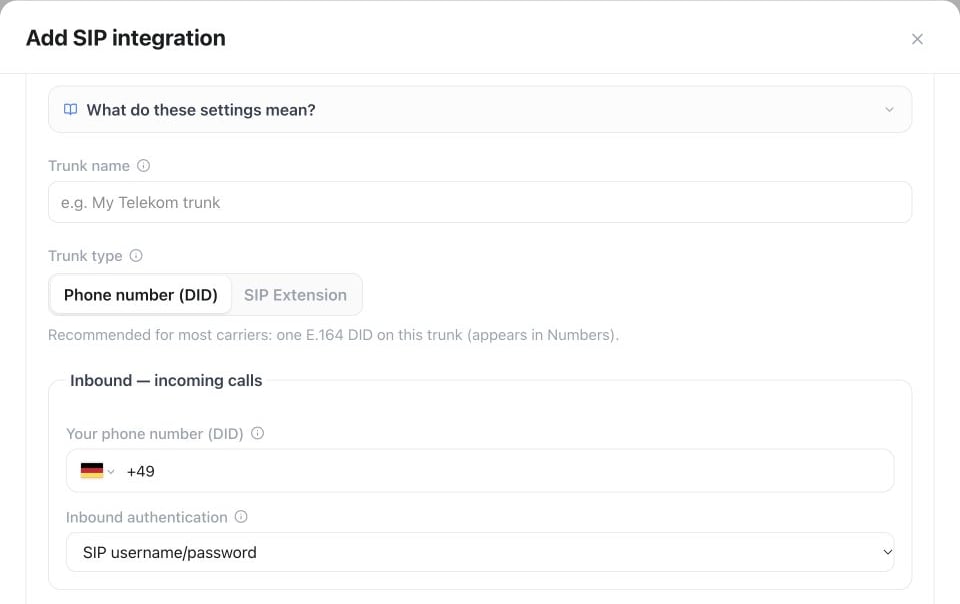
Settings → Phone numbers → Add a number → Add SIP integration: choose the Trunk type, enter the DID and set Inbound authentication to match your carrier.
- Your phone number (DID) — public E.164 customers dial; must match what the carrier forwards to the platform SIP URI.
- Inbound authentication
- SIP username/password — only when the carrier explicitly sends digest credentials to the forwarding destination.
- Provider source IPs — use when the carrier forwards to the platform FQDN without downstream digest and publishes stable SIP-signaling IPs/CIDRs. Do not use media ranges or overly wide networks.
- At the provider: forward / originate to the platform SIP URI you copied.
Outbound (calling out)
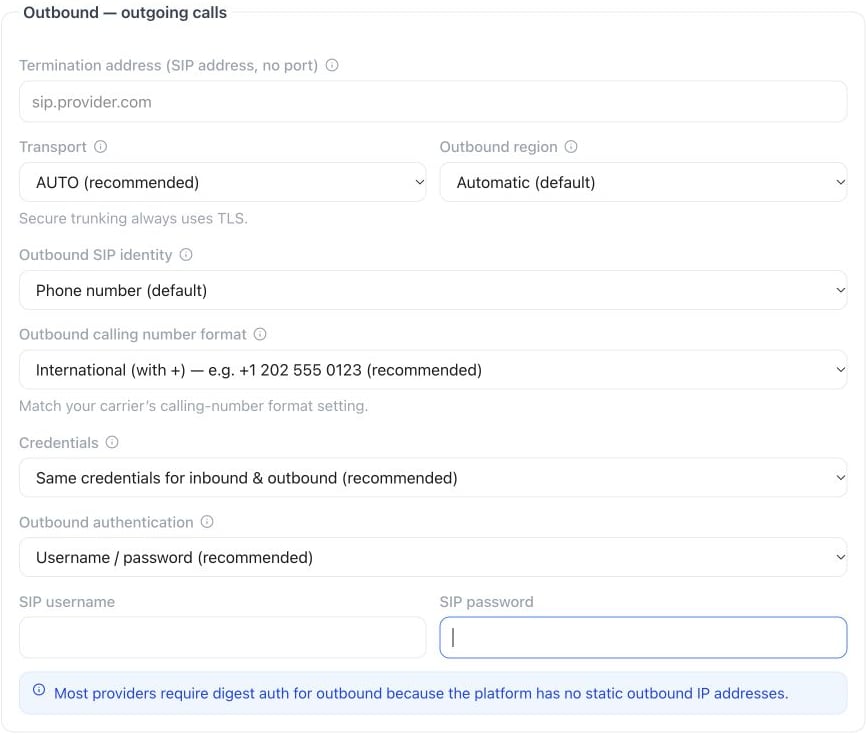
In Add SIP integration, scroll to Outbound — outgoing calls and configure the termination address, transport, region, caller identity and carrier credentials.
- Termination address — provider SIP host only (e.g.
sip.telnyx.com). Nosip:prefix, no port. - Transport —
AUTO(recommended),UDP,TCP, orTLS. Secure trunking always uses TLS. - Outbound region — where the platform originates the call. Prefer Automatic, or the country closest to your customers / carrier POP.
- Outbound calling number format — how the FROM number is sent to the carrier. Must match the carrier’s setting (e.g. Telnyx Origination Number Format):
- International with
+(recommended for most) - International without
+ - National (no country code)
- International with
- Credentials
- Shared (recommended) — one username/password for inbound and outbound.
- Separate — distinct inbound vs outbound secrets when the carrier requires it.
- Outbound authentication — username/password (recommended). The platform has no static outbound IPs, so carrier IP allowlists usually fail. Use “no credentials” only if the carrier explicitly allows unauthenticated outbound.
Advanced
Expand Advanced when creating or editing a BYO trunk:
HD Voice (G.722): enable on the Telnyx connection/codec settings when needed (supported with Telnyx, not Twilio).
Editing an existing trunk
Existing trunks are edited from Numbers → Configure → Carrier Settings (not from a separate trunk list on Add SIP integration).Changing SIP region (Global to EU) & regional routing
For EU customers and compliance-sensitive workloads, you can choose where telephony signaling terminates by configuring the SIP region:- Initial setup: When creating a connection (Settings → Numbers → Add a number → Add SIP integration or Carrier import), select EU as the SIP region (default is Global).
- Changing an existing trunk: You do not need to delete and recreate the connection to switch from Global to EU. Open Settings → Numbers, click Configure on the number row, navigate to Carrier Settings, and select EU as the SIP region (for imported carrier connections, this can also be updated via the Public API or the MCP tool
update_carrier_connection). The platform will automatically update the signaling URI and repair routing. Remember to update the origination/forwarding URI on your carrier’s portal if required. - Independent of AI inference region: The telephony SIP region controls SIP signaling and media termination infrastructure for phone calls. It is completely independent of the AI inference region (configured under Settings → Workspace), which governs which cloud regions run LLM, STT, and TTS model inference. You can use an EU SIP trunk regardless of whether your workspace AI inference region is set to Global, EU, or US. Consult your agreement and data-processing documentation for the applicable regional commitments.
Limits and behavior
- E.164 numbers on BYO trunks count against the same plan number allowance as purchased numbers.
- Calls over your own trunk avoid the platform’s per-destination carrier surcharge — your provider bills termination directly. Plan minutes are still consumed; see billing.
- Assistant features such as flows, warm transfer, and recording work identically on BYO trunks.
Troubleshooting
Outbound calls fail or don’t connect — check the termination host, transport, and credentials against your provider’s documentation first: a wrong transport (UDP vs. TLS), or an extrasip: prefix or port on the termination address, is the most common cause. Then compare the outbound calling number format and the codec settings with what the provider expects. Change one setting at a time and place a single test call after each, so History shows you which change fixed it.
Inbound calls don’t reach the assistant — the provider must send calls to the platform’s SIP FQDN, never to a raw IP address; sending to an IP is the most common inbound failure. With Provider source IPs, confirm every current signaling IP or CIDR is entered — a stale or incomplete list drops calls silently. Then confirm the DID matches exactly what the provider sends: a SIP Extension trunk also needs its Primary DID set, since it isn’t a wildcard.
Call transfers over SIP REFER fail — confirm the destination provider actually supports SIP REFER; not every carrier does, and that’s the most common cause. If one URI format fails, try the alternatives in order: with the port (sip:+1234567890@sip-server:5060), without the port, then a bare sip:+1234567890. Rule out the destination itself as well — check that the target number is reachable and not blocked before assuming the trunk is at fault. When a transfer was attempted and failed, the call’s event log holds call_transfer_failed or warm_transfer_failed; see Inbound & outbound calls for the shared failure shape.
Test inbound and outbound independently — one working does not confirm the other. Still stuck? Contact support with the call ID, the exact trunk configuration, and, for transfer issues, the SIP URI format you tried.
For a fuller diagnostic pass — a SIP status code reference, why the trunk shows as offline/unregistered, and a pre-support checklist — see SIP troubleshooting.
API and MCP
Create and manage trunks via the Public API (POST /api/v1/sip-trunks and related endpoints in the API reference), or with the MCP tools create_sip_trunk, list_sip_trunks, get_sip_trunk, and delete_sip_trunk. Both surfaces support the same customer-facing settings as the UI, and passwords are never returned.