

Preparing your file
- CSV only (not Excel), UTF-8 encoded, up to 12MB.
- Comma- or semicolon-separated — Famulor detects which from the first line, so European spreadsheet exports work as-is.
- A header row is strongly recommended: Famulor reads it to pre-match obvious columns. A file without one still imports; the columns are just labeled Column 1, Column 2, and so on.
- Every row needs a phone number. Everything else — name, email, tags, custom fields — is optional.
Import steps
Select Import in Audience. The wizard has three steps.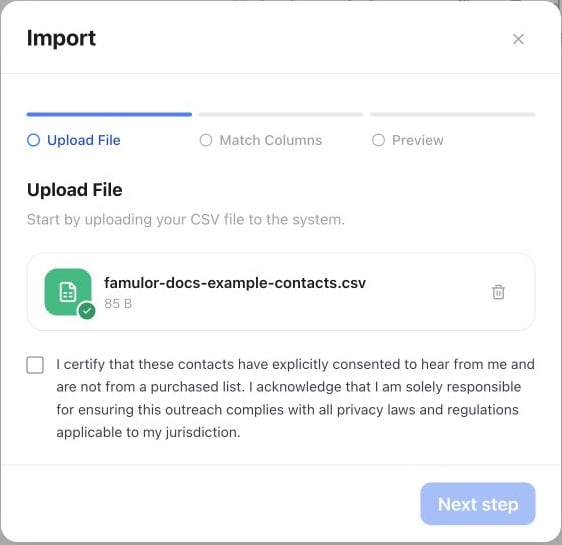
Audience → Import → Upload File: choose a CSV, review the consent statement, then continue to Match Columns. The screenshot shows an example file before confirmation.
1
Upload File
Drag in your CSV or choose it from disk. You’ll be asked to certify that these contacts consented to being contacted and aren’t from a purchased list — this is your responsibility, not something Famulor validates for you.
2
Match Columns
Map each column to a target: a contact field (Phone, Name, Email, Tags), an assistant variable (when importing directly into a campaign with an assistant assigned), a workspace custom attribute, or a free-form custom key. Obvious matches — a column literally called “phone” or “email” — are pre-selected; review and adjust the rest, and set anything you don’t need to Ignore this column.This step also carries two settings for the whole batch. Default country for phone numbers is appended to any number that doesn’t already include a country code (
01701234567 → +491701234567), so you don’t have to split your file by country first. Tags adds the same tags to every contact in the batch.3
Preview
Review the first five mapped contacts, check the Ready to import and Skipped (invalid phone) counts, and confirm.
Where imported contacts land
Import from Audience creates unassigned contacts, available to every campaign and segment in the workspace. The same Import button also sits on a campaign’s own page — used there, it adds the contacts straight to that campaign’s queue instead of leaving them unassigned.Column mapping reference
Keeping your data clean
- Prefer E.164 phone format (
+491701234567) over local formats (0170 123 4567,(030) 123-4567) — it removes any ambiguity about the country. - Save the file as UTF-8 CSV. If you’re exporting from Excel, convert formulas to values and avoid merged cells before saving.
- Deduplicate before you import. Phone numbers and email addresses are unique per workspace, and an import doesn’t merge into existing records the way the single-contact form does — a row whose phone or email already belongs to a contact fails instead. Remove those rows from the file first, or update those contacts individually in Audience.
- Give each import batch a shared tag (e.g.
import-2026-08) in the Match Columns step so you can find that batch again in Audience afterward.
Troubleshooting
See also Contacts for editing and merging records after import, and Campaigns overview for assigning contacts to outreach.