

Watch the walkthrough
The English interface uses demonstration data. Runs, customers and results shown are simulated; use the subtitle menu for your language. Example: a car dealership in Munich calls 2,000 leads, among them 300 in Austria and 40 in New York. With a sequence, the New York leads are called during New York business hours. A lead nobody reaches gets an SMS the next day. If the lead replies, the campaign counts it as a success; otherwise the lead gets one more call two days later. The Analytics tab shows how many leads turned into appointments.Sequences are available for phone call campaigns that use their own contact list. Campaigns for WhatsApp, SMS or an external audience, and campaigns created without a sequence, keep the retry settings described in Dialer, retries & compliance. Phone campaigns created in the web app start with a sequence. Campaigns created through the API, MCP or CLI without a
sequence field stay classic.What a sequence is
A sequence is made of steps: call steps and message steps. A call step has:- An assistant. By default the campaign assistant; a step can use a different one.
- Attempts. Every attempt has a delay. The first attempt is immediate, each later attempt waits the set number of minutes after the previous attempt started.
- Voicemail per attempt. An attempt can hang up on a voicemail or leave a message. Without a setting, the campaign’s voicemail settings apply.
- Outcomes. After an answered call, the outcome decides the next stop: another step (after a delay), another attempt of the same step, or the end.
How outcomes are decided
Each outcome has a condition. You choose one of two kinds:- Described by you. In When, choose AI decides and describe the outcome in a sentence, for example “The contact is open to the offer but wants to think it over”. An AI reads the call transcript and picks the description that fits best.
- Preset rules. In When, choose a rule. The platform checks call data without AI: Goal field is true (the goal field of the call analysis), Callback scheduled, Transferred to a person or Marked successful.
Do not call is detected automatically and takes priority over your own outcomes.
Where an outcome leads
Send messages in a sequence
A message step sends one message and then moves the contact on. It replaces the optional follow-up of a classic campaign: sequence campaigns have no separate follow-up setting, and the API rejects a follow-up together with a sequence with a 400 error. The Follow-up you pick when you create a phone campaign becomes a message step after No response in its sequence.
The text can contain placeholders such as
{{name}}. A step that doesn’t meet its requirements can’t be saved or launched, and the message names the step, for example Step "SMS reminder": Select an SMS-capable workspace number with outbound SMS enabled.
Channels a step can use
A step can only use a channel that may write first to a contact you know by phone number or email: a phone call, SMS & RCS, a WhatsApp template and email. Telegram, Messenger, Instagram, web chat and the other messaging channels can only answer inside a conversation the contact started, so they aren’t offered as steps. WhatsApp Call isn’t a step either, because the contact has to grant permission to be called first; use a WhatsApp Call campaign for it.Send under your company name (RCS)
SMS and RCS are one channel in Famulor. Opt-outs, quiet hours and replies work the same for both, and the step type is called SMS & RCS.- Choose the sender. The SMS sender field of an SMS & RCS step lists two groups: Numbers and Company names (RCS). A step uses exactly one sender. A workspace that has only company names can add the step too. Set up company names under Settings → Channels → SMS & RCS; see SMS conversations.
- Readiness. When you save, launch, start or resume, the company name must belong to the workspace, be approved and ready to send, and the plan must include RCS.
- A company name stops being ready. If it is paused or loses its approval while the campaign runs, the campaign pauses and keeps the error. No contact is skipped: fix the sender, then resume.
- RCS can’t reach a contact. If the company name can’t send to one contact (country or number not supported), that contact takes the Not sent route and doesn’t count in Messages sent.
Wait, replies and routes
Every message step has a Wait: how long the contact stays in the step after the message went out. With a wait of 0, the contact moves on right away. Three routes decide where the contact goes next:
A reply counts when the contact answers on the channel of the step: an SMS or RCS message, a WhatsApp message or an email from the contact. A reply on a different channel doesn’t count.
A message counts as sent once the provider accepted it. If the provider doesn’t answer clearly whether the message went out, the step treats it as sent and never sends it a second time.
Opt-outs, calling hours and quiet hours
- Contacts that opted out of a channel never receive messages on it. A contact on the suppression list for calls or for all channels ends as Do not call at any step. A contact who opted out of the step’s own channel only gets no message there and follows the Not sent route.
- A contact who answers an SMS with STOP is opted out and never counts as Replied, even though they wrote back.
- Messages follow the same calling hours, time zone setting and holidays as calls. A message waits for the next opening of the contact’s calling hours.
- The workspace quiet hours of the channel apply too. A message waits until they end.
- While Federal and State DNC Checks wait for verification, a call step doesn’t dial US numbers. The contact keeps its attempts and is looked at again 15 minutes later. These checks cover calls, so message steps are still sent.
Plan
A sequence that starts with a message step needs a plan that includes multi-channel campaigns, like a campaign that sends SMS or WhatsApp as its main channel. A message step later in the sequence needs nothing extra. WhatsApp messages also need a plan with WhatsApp text. An SMS & RCS step that sends under a company name also needs a plan that includes RCS.Build the sequence
The Sequence tab is a list of steps you fill in, next to a picture of the flow that draws itself. The picture is read-only: you edit only in the list. From a screen width of 1,280 px, the steps sit on the left and the Flow card on the right, and it redraws with every change. On a narrower screen, select Flow above the list to open the picture. Select a step in the picture to open its card in the list. The list shows the steps in the order contacts reach them, starting with the first step. The order follows the routes; you don’t set it. A closed card shows the step number, the channel, the name, a summary line (which includes the step’s assistant: the campaign assistant’s name when the step has none of its own, or No assistant when the campaign has none), where the step comes from (First step, otherwise the step and route before it) and, once the campaign has started, how many contacts wait on it. Select the card header to open it. One card is open at a time, and it holds Runs after, the settings of the step and Delete step.
In the list of step types, a type your workspace can’t use yet is disabled and says why. A plan link opens Plan in a new tab, and a setup link opens the settings of the channel, so your draft stays open. Select Save to keep your changes: the steps are saved with the campaign.
A message above the list names what is missing. The step it names gets a red border, and selecting the message opens that step. A message step you haven’t finished setting up shows as a hint, not as an error.
While the sequence is locked, the cards open read-only and nothing changes; only the Schedule card stays editable. See What you can change after launch.
Start from a template
Select Templates in the Sequence tab, choose a template and adjust it:
A template replaces the whole sequence, so you confirm first. The Templates button is only there before the campaign was started: afterwards contacts sit on the steps, so you edit the steps instead. See What you can change after launch.
Set the calling schedule
The Schedule card in the Sequence tab controls when and on which days contacts are called.Calling hours in each contact’s local time
Calling hours can apply in the campaign’s time zone, or in each contact’s local time: under Calling hours, choose Campaign time zone or Contact’s local time. In local time, the platform derives the contact’s time zone from the phone number. A New York number is called during New York business hours, a Vienna number during Vienna business hours. Some numbers don’t point to a single time zone, for example toll-free numbers or numbers from a country with several time zones. Such a contact is only called when the calling hours are open in every possible time zone of that country. Holidays and blackout dates only postpone calls. A contact whose calling hours never open in the next year (for example because the hours of all its possible time zones never overlap) gets the stage Enroll failed with the reason no calling window if it was never called; a contact that was already called ends as Failed.Public holidays and blocked dates
Under Holidays, turn on Skip public holidays to skip national holidays of the contact’s country. Public holidays are known for Austria, Belgium, Canada, Switzerland, Germany, Spain, France, the United Kingdom (England and Wales), Ireland, Italy, the Netherlands and the United States. Contacts in other countries aren’t affected by this setting. Regional holidays aren’t included. Add days without calls, such as a company holiday, under Days without calls. Each date counts in the contact’s local time.Double dial
When Double dial (under Redial) is on, a call that ends with no answer or a busy signal is redialed once immediately. It is off by default. Repeated immediate calls can be an unreasonable nuisance under EU law, so turn it on only after you checked this for the countries you call.Rotate caller numbers
A number pool lets the campaign call from several workspace numbers instead of the assistant’s outbound number. Pick active numbers that can place outbound calls in the Numbers tab and choose one as the default:
A contact keeps the first caller ID it was called from for every later attempt, so a returned call reaches a number the contact recognizes. When you change a contact’s phone number, the next call picks a new caller ID.
Plan for about one number per 50 contacts. The Numbers tab shows contacts per region next to the pool numbers, so you can see which region lacks a number.
Launch the campaign
A sequence campaign starts with the Launch button in the campaign header. It opens the Launch campaign dialog, where you choose the start time and confirm. Launch stays disabled while you have unsaved changes, the campaign has no assistant although a call or email step has none of its own (“Choose an assistant in the campaign settings before launching.”), the confirmation isn’t ticked or the campaign has no contacts.1
Check the overview
Review the contacts, the pool numbers, the sequence and the schedule on the Overview tab. Blocked contacts, for example numbers on the suppression list, are counted separately.
2
Choose the start time
Select Launch in the header. In the dialog, select Start now, or Schedule for later and pick a date and time at least 5 minutes ahead.
3
Confirm
In the dialog, tick the confirmation: “I confirm this campaign complies with all laws and consent requirements that apply to the contacts being called, including do-not-call lists and opt-in rules (for example TCPA in the US, UWG and GDPR in the EU).” Then select Launch (Schedule launch if you chose a later start).
launch and start), a scheduled start and MCP. With the setting on, which is the default, a campaign without contacts is refused with “The campaign has no leads.”
The campaign stores who confirmed, when, from which surface (web, API, MCP or CLI) and which wording version. A sequence campaign can’t be started on any surface without this confirmation.
Parallel calls
Parallel calls sets how many calls of the campaign run at the same time. The slider ends at the limit of your workspace, which is your plan plus any purchased Concurrent Lines. The line under the slider shows Workspace limit. To raise it, select Upgrade: the Plan page opens in a new tab with the add-on for Concurrent Lines, and the campaign draft stays open. When you return to the campaign tab, the field reads the new limit. Workspaces with unlimited lines, and workspaces without a Plan page, show no link.What you can change after launch
You can change the sequence of a campaign that was started while it is paused. A paused campaign keeps every contact where it is, so you can fix a message, add a step or change a wait without starting over.
The number mode stays fixed after the first start. You can still change the pool numbers, calling hours, time zone setting, holidays, double dial and parallel calls. A started campaign keeps its kind: you can’t add a sequence to it or remove the sequence.
Contacts keep their place
A contact that isn’t finished (waiting, queued or in a call) sits on a step. A contact nobody has contacted yet sits on the first step. The edited sequence must still contain every step such contacts sit on, with the same step type. Otherwise Famulor refuses the save:Step "<name>" still has <n> contacts. Keep the step, or wait until they have moved on. Each card shows how many contacts wait on it, and Delete step is disabled while that number is above zero.
Everything else can change: names, assistants, attempts, messages, waits, outcomes, routes and new steps. You can remove steps without waiting contacts.
What a change means for a contact in the middle
A contact continues on its step with the new settings:- If it already made more attempts than the step now allows, the step counts as used up and the contact takes No response.
- A message that was sent isn’t sent again.
- A wait for a reply is evaluated with the new routes.
- A wait or a delay that is already running keeps its end time. The new value applies from the next send or attempt.
- Outcomes that were already recorded keep the label they were written with. Analytics shows a step or outcome that no longer exists with its stored label.
Confirm again when you resume
A changed sequence clears the launch confirmation, because it covered the sequence you reviewed. Select Resume: a window opens with the contacts, steps and phone numbers, and with the confirmation (see Launch the campaign). Tick it and select Resume again. Resume waits until you saved your changes. In the campaign list, Resume on such a campaign doesn’t resume it directly: it opens the campaign page with the confirmation. A paused campaign whose sequence you didn’t change resumes with one click. Through the API, sendcompliance_attestation: true with resumeCampaign or startCampaign; without it, the reason is launch_required.
If the campaign is resumed while you save, Famulor refuses the save. Reload the campaign and make the change again.
Call a waiting contact next
Call next sits in the ⋮ menu of a contact in the Contacts tab and in the details of the contact. While the campaign is running, it makes a contact that waits for its next call due at once. The call runs through the sequence like any other attempt. For a contact that waits on a message step the action is off: the contact is called when it reaches a call step.Contact stages
Every contact of a sequence campaign shows its stage, the current step, the outcome and the caller ID in the Contacts tab.Read the analytics
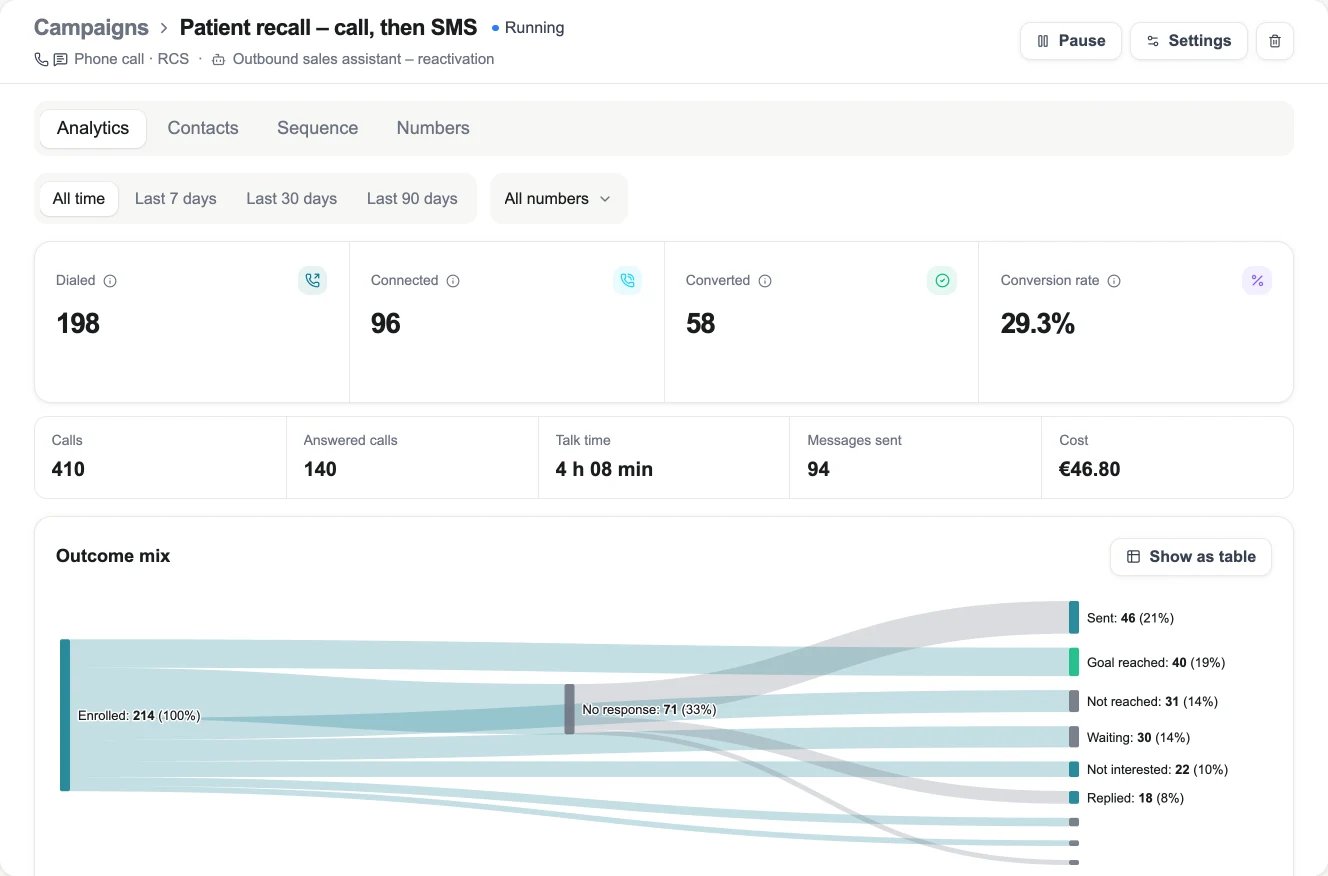
Example with sample data
Below the figures, you find:
- Talk time and cost: total talk time in minutes and the cost of the campaign’s calls in the period, as an amount of money in your workspace currency (not in credits).
- Outcome mix: a flow from the enrolled contacts through the outcomes of each step, up to four steps. Later steps are combined as “More”. Message steps add Sent, Replied and Not sent. Contacts without an outcome yet appear as in progress, waiting or not reached. A contact whose message is sent and waits for a reply is waiting. A table view shows the same numbers. Campaigns without a sequence show their contact statuses instead.
- Activity over time: calls, answered calls and converted contacts per day, in the campaign’s time zone.
Plan availability
Sequences and number pools need a plan that includes Campaign sequences. A sequence that starts with a message step also needs multi-channel campaigns. If your plan lacks one of them, ask your provider. Analytics is available for every campaign.API, MCP and CLI
Every action above is available outside the web app:
The confirmation is part of the request.
compliance_attestation: true is required to launch. The start operation accepts the same option, so a sequence campaign that has not been launched can also be started with it. Without the confirmation, the API answers attestation_required on launch and launch_required on start.
sequence_hash. Read it unchanged from GET /campaigns/{id} (field sequence_hash) before you launch. If the sequence changed in between, the launch is rejected with sequence_changed and nothing starts. The field is optional; leave it out to skip the check, and leave it out for campaigns without a sequence, where sequence_hash is empty.
Send start_at as an ISO 8601 date at least 5 minutes ahead to schedule, or null to start now:
app.famulor.io with that domain. Create and update a campaign with sequence, number_pool, holidays, double_dial and the contact time zone mode; see the API reference.
In sequence.nodes, a step without channel is a call step. A message step has channel set to sms, whatsapp_template or email and a message with config, wait_minutes, next, optional replied and failed. Steps have no position: the flow draws itself, and a position in a request is ignored. The analytics response carries kpis.messages_sent.
sms step names exactly one sender in config: from_number_id (a workspace number) or rcs_sender_id (a company name, RCS). Both together, or neither, is a 400 error. The same rule applies to an SMS campaign and to the SMS follow-up of a classic campaign.
Edit a paused campaign through the API
Send the newsequence with PATCH /campaigns/{id}. Read sequence_step_contacts from getCampaignStats first: it lists the unfinished contacts (waiting, queued or in a call) per step id, and a step with contacts has to stay in the sequence.
Give a step you add to a started campaign an id that was never used in it, so its history is never mixed with a removed step. The builder does this for you. Because the change clears the launch confirmation, resume with it: