

When to use it
Use it for internal questions and for a shared support channel: a teammate asks the assistant for the next step, a summary, or a draft, without leaving Slack. Connecting an assistant means that reply uses the assistant’s instructions and tools, and the conversation is kept in History.What the assistant hears
On a manual Slack app, the assistant hears the bot events you subscribe: an @mention, and messages in public channels, private channels, direct messages and group direct messages. One-click Add to Slack subscribes those events for you. Socket Mode stays off.Where the keys come from
The linked provider guide shows the screens for these clicks. Follow the clicks below together with those pictures. Sign in at api.slack.com/apps. Add to Slack on a Famulor platform domain does not ask you for these keys. A manual app needs the Bot User OAuth Token (it starts withxoxb-) from OAuth & Permissions, and the Signing Secret from Basic Information. Official guide: Slack apps.
Create it at the provider
Skip this section if you use Add to Slack.- Open api.slack.com/apps and choose Create New App, then From scratch.
- Name the app, pick the workspace, and create it.
- Open OAuth & Permissions and add these Bot Token Scopes: app_mentions:read, channels:history, channels:read, chat:write, chat:write.public, files:read, files:write, groups:history, groups:read, im:history, im:read, im:write, mpim:history, mpim:read, reactions:read, reactions:write, users:read.
- Choose Install to Workspace and copy the Bot User OAuth Token.
- Open Basic Information and copy the Signing Secret.
- Leave Socket Mode off. You paste the Request URL after the Famulor connection exists.
- Under Event Subscriptions, subscribe to the bot events app_mention, message.channels, message.groups, message.im, message.mpim.
Connect it in Famulor
Your plan includes this channel. Open Settings → Channels, choose the card, name the connection, pick an assistant and save. The shared conversation settings — response delay (default 5 seconds) and inactivity timeout (default 30 minutes) — are described on the messaging channels page. Add to Slack is the short path on the Famulor platform domain, for a root workspace. It is not offered on a whitelabel domain, because the shared app would show Famulor’s name. On a whitelabel domain, choose Show manual credentials. For the manual card, paste Bot token (xoxb-…), Signing secret, and optionally Workspace name (optional) and Bot display name (optional).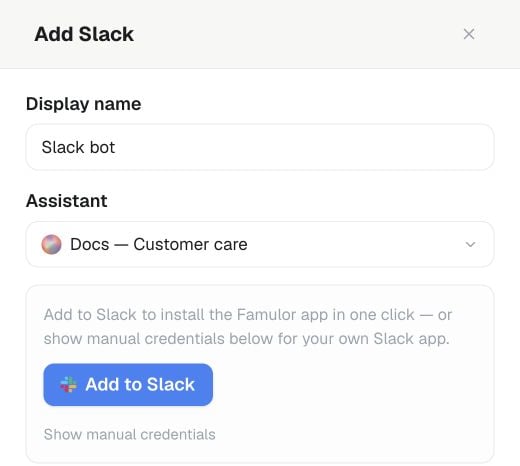
Settings → Channels → Slack → Add: choose the assistant and Add to Slack where one-click install is available.
Point the provider at Famulor
A one-click install does not need a URL. For a manual app:- Open the connection menu and choose Copy webhook URL.
- In the Slack app, open Event Subscriptions and paste that address as the Request URL.
- Leave Socket Mode off and save. Slack checks the address. An @mention of the bot then appears in History.
History
Open History and filter by Slack. The thread, the assistant reply and any analysis appear there. You can pause the assistant and answer manually.API, MCP and command line
One-click install from your own tool usesGET/POST /api/v1/slack/oauth or the MCP tools get_slack_oauth_config and start_slack_oauth. A manual connection can also be created with create_messaging_connector or the command line.