

Create an IP-based trunk
- In Famulor, open Settings → Phone numbers → Add a number → Add SIP integration. Choose the SIP region and copy the hostname from the SIP URI.
- In 3CX, open Trunks & Chat (called Voice & Chat in some versions), click + Trunk, and select Generic SIP Trunk (IP Based).
- Enter the Famulor hostname as Registrar/Server and choose Do not require – IP Based for authentication. If your version shows Disable Registration, turn it on.
- In Options, set Transport Protocol to TCP and enable G.711 A-law and µ-law (PCMA and PCMU). Use RFC 2833 DTMF. If the original caller ID is missing, set From: Display Name and Remote Party ID – Calling Party: Display Name to
OriginatorCallerID. 3CX SIP trunk settings · 3CX caller ID fields.
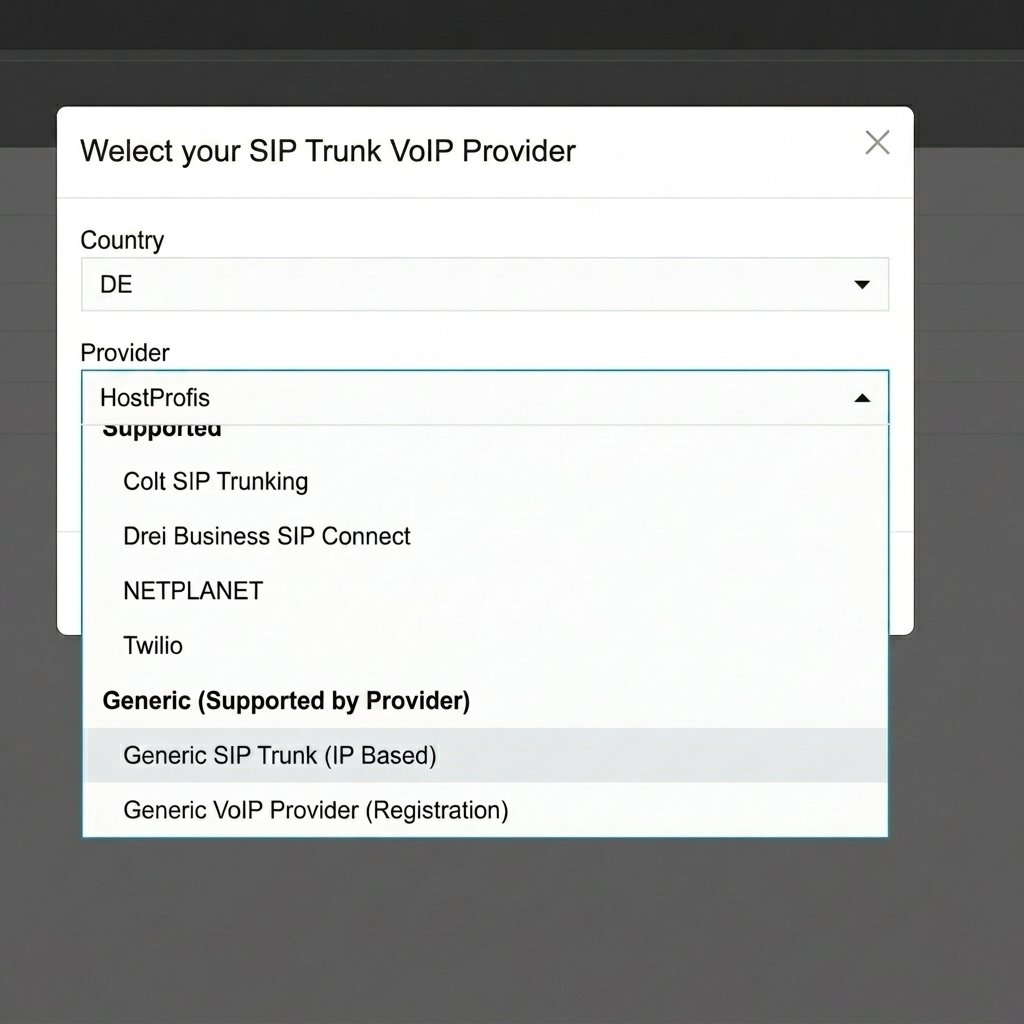
Select Generic SIP Trunk (IP Based) in 3CX.
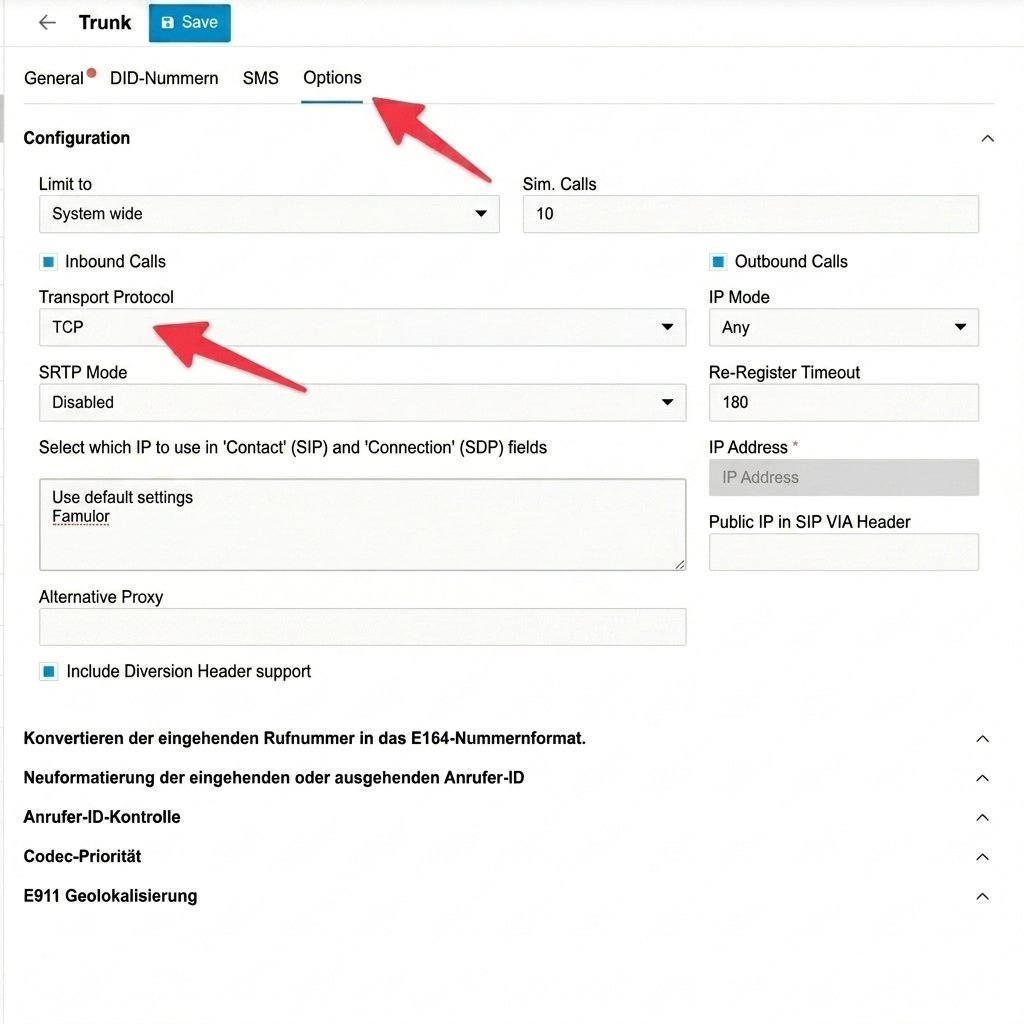
Set the transport protocol to TCP in the trunk options.
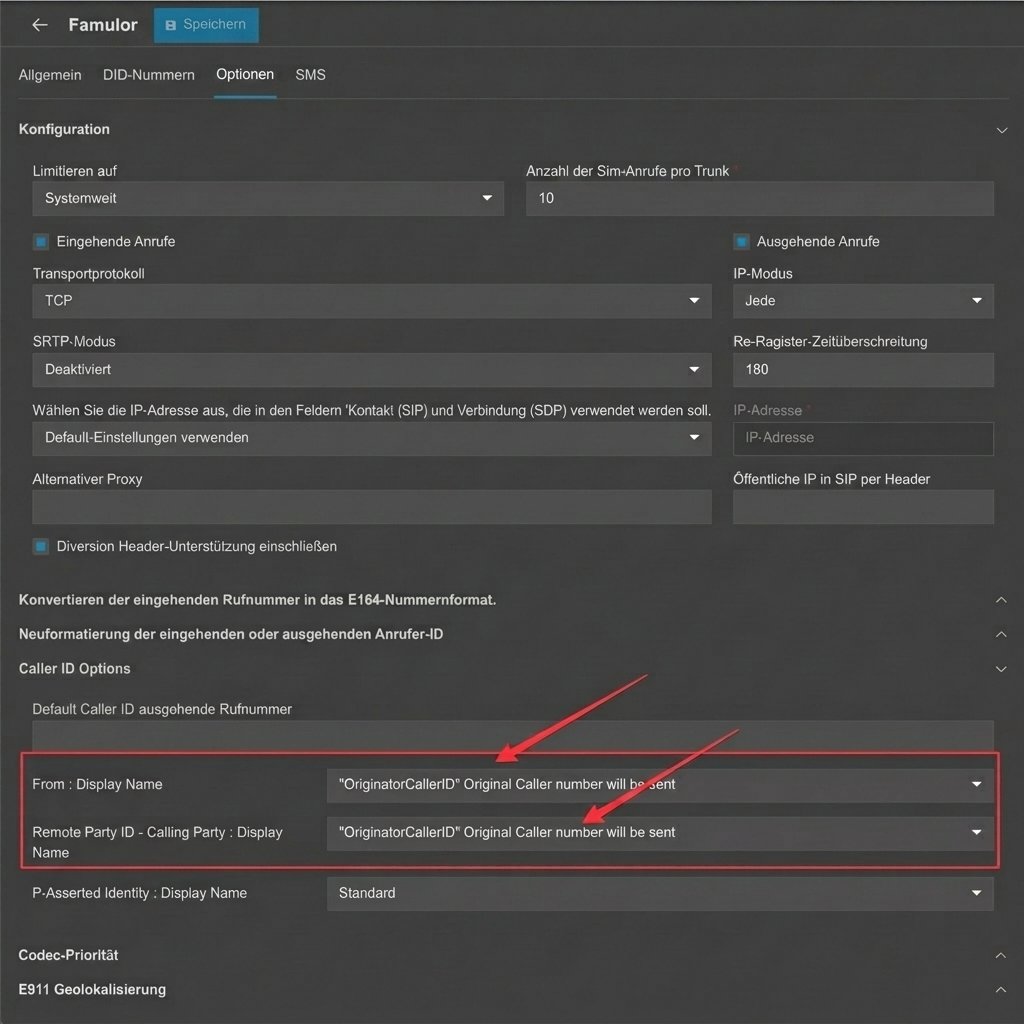
Use OriginatorCallerID to pass through the caller number.
Route a 3CX call to the assistant
- In Famulor, enter the DID the trunk will send as Phone number (DID). Choose Provider source IPs and add the fixed public signaling addresses of your 3CX system. Enter the PBX or SBC’s public SIP hostname as the Termination address. Set Outbound authentication to No outbound credentials for an IP-based setup. Save the trunk and assign the DID to an assistant.
- In 3CX Outbound Rules, add a rule for a distinct prefix such as
999. Select the Famulor trunk as the first route, strip three digits and put this rule above any rule that would catch the call first. For example, dial99912025550123with Prepend set to+to send+12025550123to Famulor. - In the DID’s inbound routing rule or its user or queue settings, send calls to that external dial string for the hours or overflow conditions you want. This inbound rule triggers the outbound rule. 3CX outbound call routing.
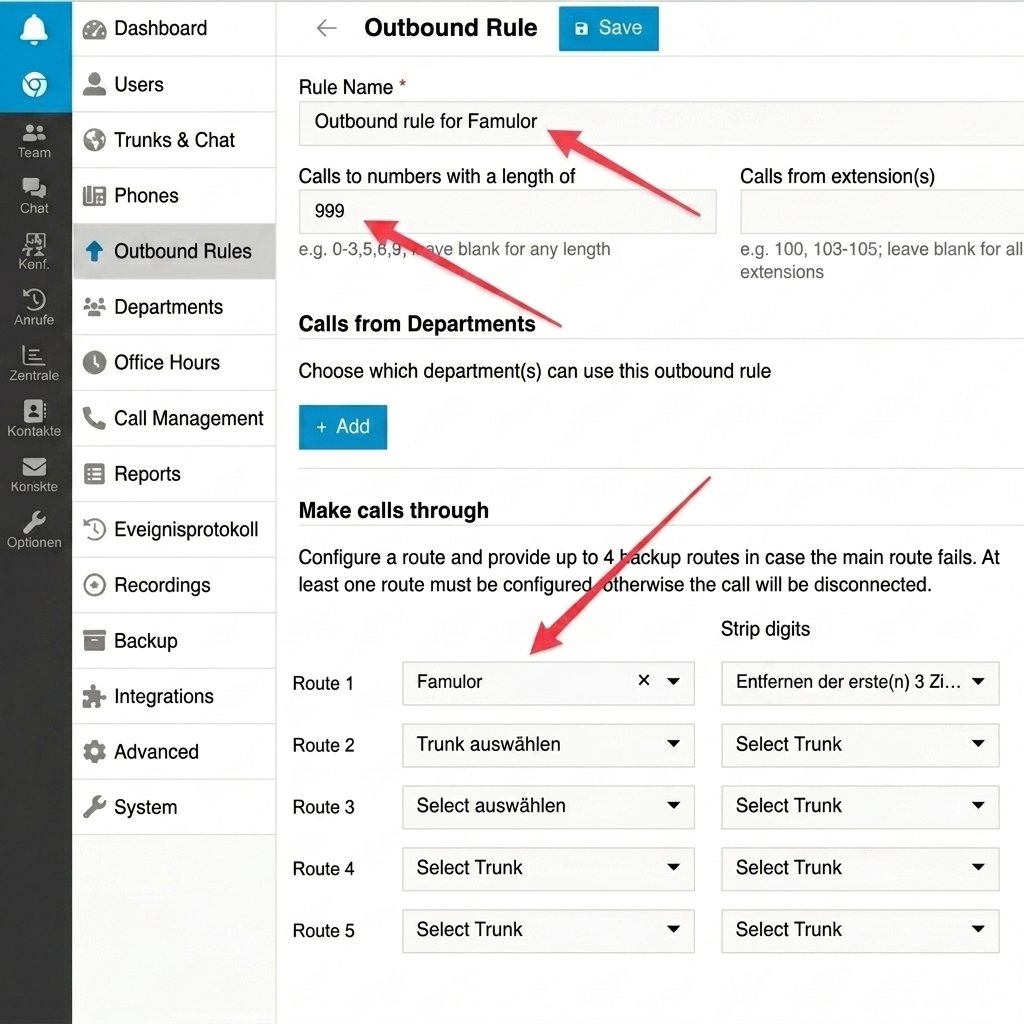
Send a dedicated dialing prefix through the Famulor trunk.