

Route incoming calls to Famulor
- In Famulor, open Settings → Phone numbers → Add a number → Add SIP integration. Choose the SIP region and copy the hostname from the SIP URI.
- In DIDWW, open Voice → Inbound Trunks → Create New → SIP Trunk. Give the trunk a name, select Static Endpoint, enter the Famulor host under SIP Endpoint Hostname, and choose TCP. Set User Part of R-URI so DIDWW sends the exact DID stored in Famulor. Start with
{DID}and check the delivered number format on the test call. - In Phone Numbers → My Numbers, select your DID, then choose Batch Actions → Update Trunks. Select the new trunk under Voice IN Trunk and confirm.
- In Famulor, choose Phone number (DID) and enter your DID in
+E.164. For inbound authentication, either enable Authorization on the DIDWW SIP trunk and use the same SIP username/password in Famulor, or select Provider source IPs and enter the current DIDWW IPv4 SIP-signaling sources for your routing profile. DIDWW inbound trunk fields · DIDWW network sources.
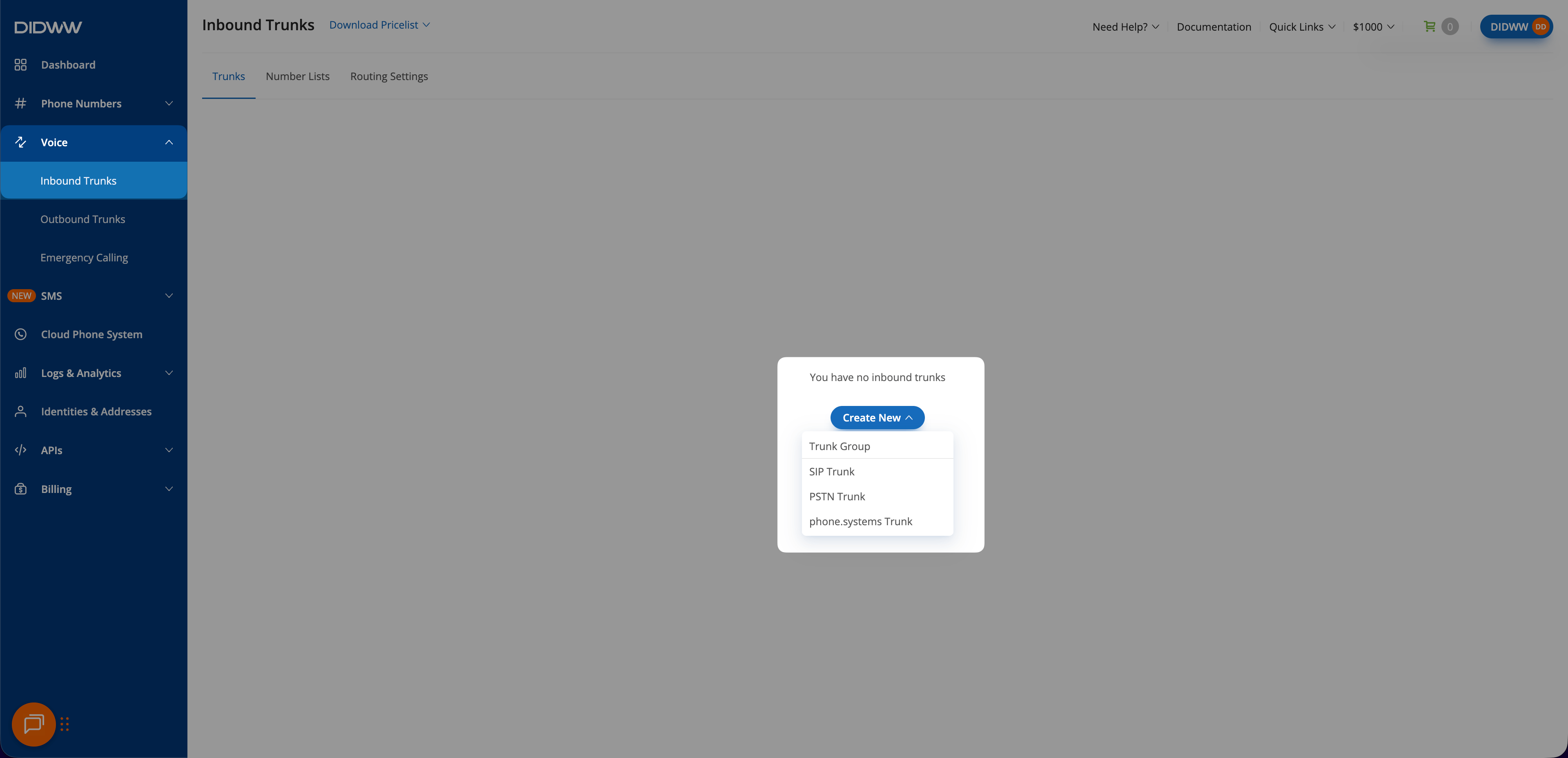
Start a SIP trunk under Voice → Inbound Trunks in the DIDWW User Panel.
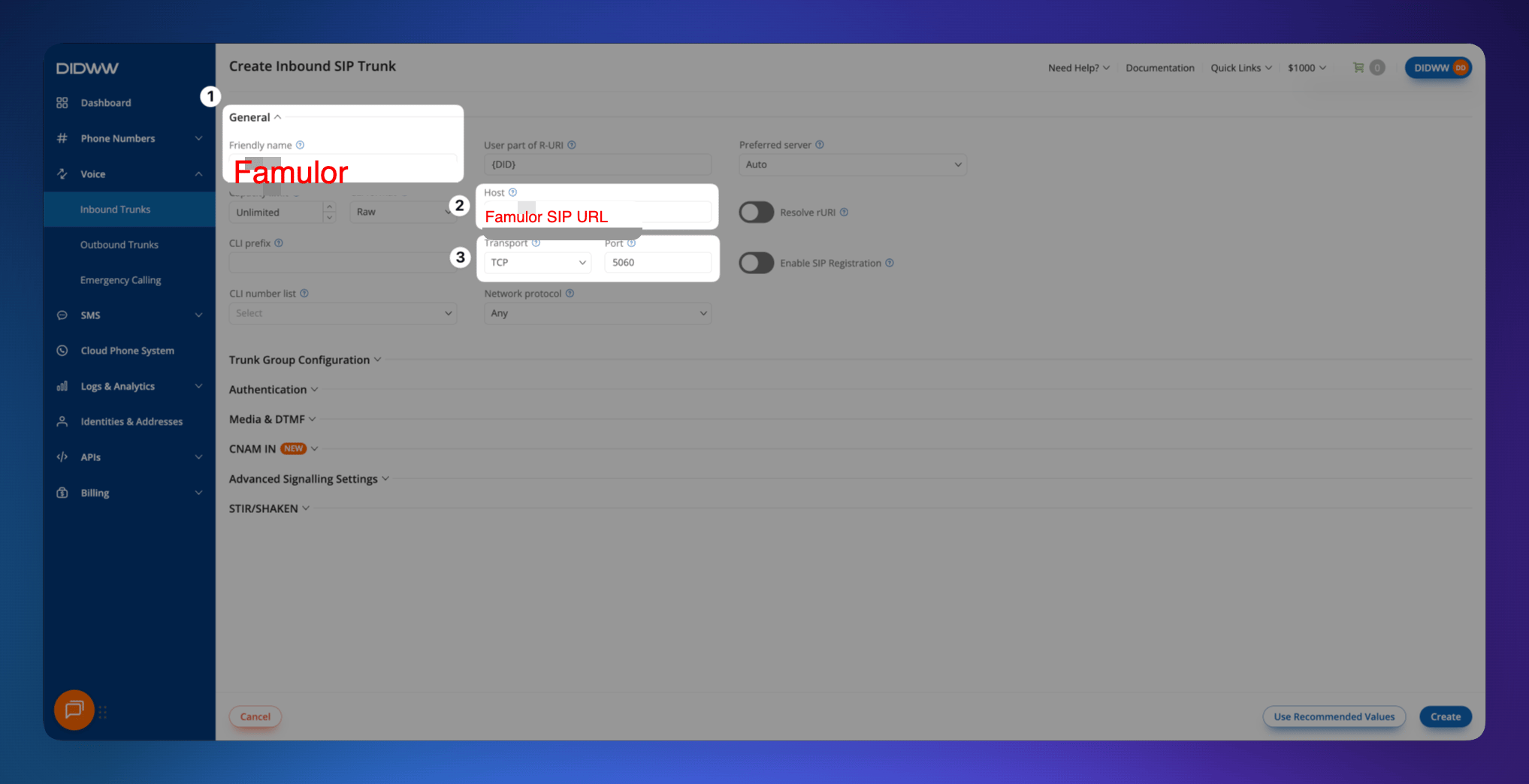
Enter the Famulor hostname as the static endpoint in DIDWW.
Set up outbound calls through DIDWW
- In DIDWW, open Voice → Outbound Trunks → Create New and select Credentials & IP-Based. Under Allowed SIP IP addresses, use the current Famulor outbound source addresses for the region you will select in Famulor. Allow your DID as a caller ID in the DIDWW trunk’s termination settings.
- Create the trunk and open the key icon in the Credentials column. In Famulor, enter those details under Outbound authentication. Choose separate credentials if you set an independent inbound login in step 4.
- Set the Termination address to
out.didww.comand set Outbound region to a region covered by your DIDWW allowlist. Use International (without +) for the outbound caller ID if required by your DIDWW trunk. DIDWW outbound setup and caller ID settings.
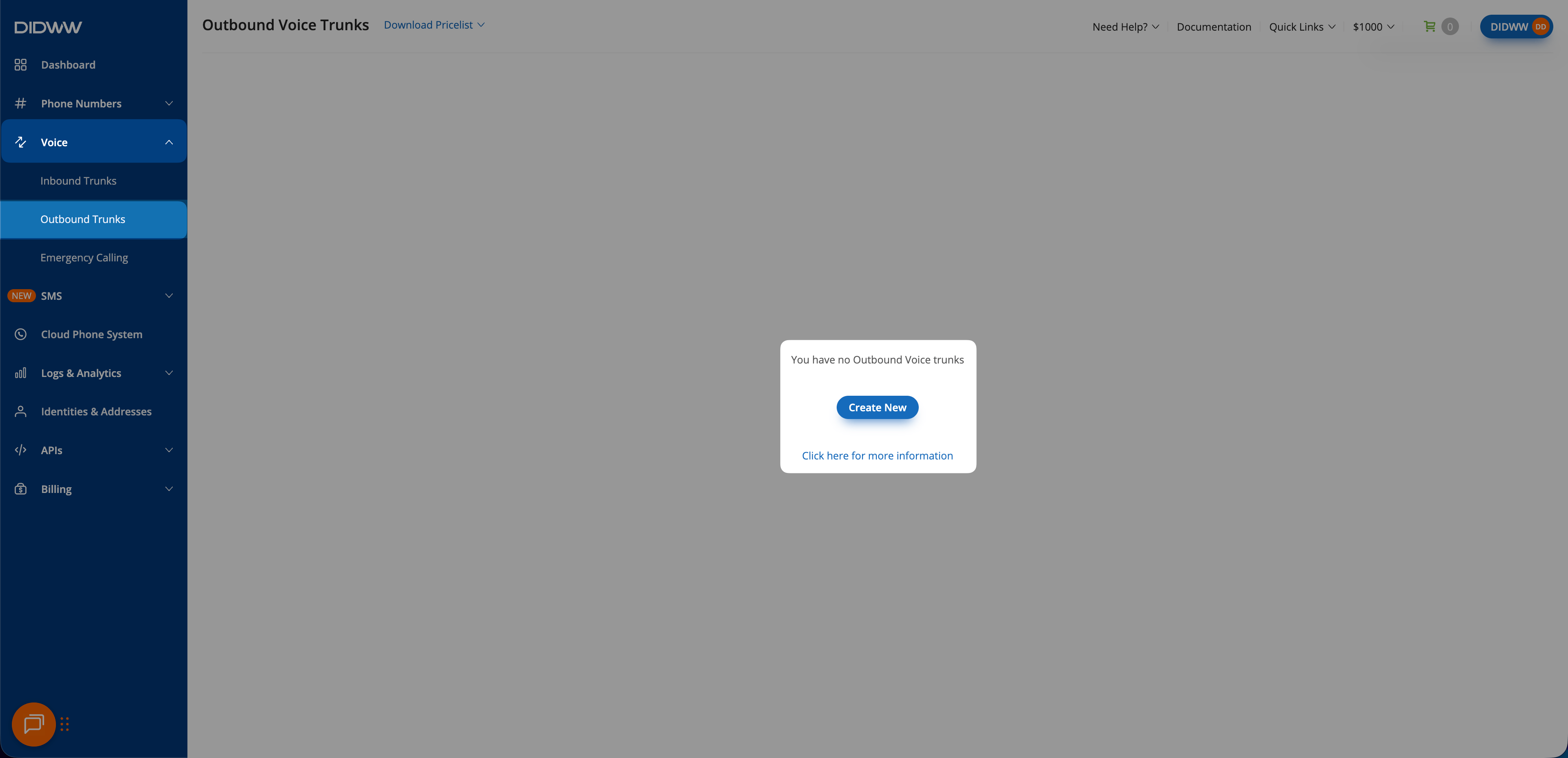
Create the outbound trunk separately under Voice → Outbound Trunks.