Test an assistant against an AI-played caller before it talks to a real one
Simulations let you check how an assistant behaves before a real caller does. Define a caller persona and a goal, and an LLM plays that caller against your assistant — either a fast text conversation or a real voice call — while a second LLM judges the result against the criteria you set.
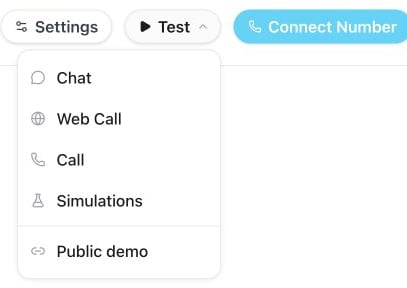
Open an assistant, select the Test button in the header, and choose Simulations. The panel opens next to the editor, so you can adjust the prompt and rerun a test without leaving the page.
Open the assistant’s Test menu and choose Simulations to create a test.
Begin blank, or apply a persona Milian suggested — see Generate with Milian below.
2
Details
Name the test and write the caller’s persona (identity and personality) in plain text.
New test → Details: name the test and edit the caller persona. This example comes from the appointment-booking suggestion.
3
Goal
Describe what the caller is trying to accomplish, for example: “Your primary objective is to book a consultation for next week.”
New test → Goal: describe the outcome and caller behavior to test. The shown appointment and phone number are example text.
4
Judge
Choose Chat or Voice mode, add the success criteria the judge should check, optionally list tools the assistant is expected to call, and set the maximum number of caller turns (up to 20, default 12).
Under Expected tools, only selected tools are listed. Choose Add tools, search the available tools, and use the checkboxes to require a tool call. Remove a listed tool with its remove button. An empty list adds no tool-call requirements. This selection changes the test expectations, not the tools connected to your assistant. For a function missing from the picker, expand Enter an exact tool name and enter its exact callable name. Save the test to keep your changes.
Select Generate with Milian instead of starting from a blank test. Milian proposes a batch of ready-made personas and success criteria for the assistant — review them and create the ones you want with one click.
Chat — a fast, text-only conversation between the caller LLM and your assistant. No call is placed, and it’s the cheaper way to iterate on a prompt.
Voice — places a real call: a simulated caller with a synthesized voice talks to your assistant over the same path a live call takes, so the whole speech pipeline gets exercised. It takes longer than chat, costs more, and shows up in History like any other call; pick the caller’s voice when you switch to this mode.
When a knowledge base is linked, chat simulations run real knowledge searches and answer from the retrieved sources. Search successes and failures appear in the tool-call results. Other tools remain simulated and do not send messages, create bookings, or perform external actions. Flow branches are simplified.Chat simulations load the API tools and enabled MCP functions assigned to the assistant, including their argument schemas. External responses use synthetic test data that stays consistent across follow-up calls. The current-time tool uses the assistant’s timezone. Write realistic preconditions in the scenario, such as a full class or a failed lookup. A successful simulation checks the conversation and tool usage; verify provider permissions and actual data separately in Test Chat. Run selected uses the same runner as an individual chat simulation. End-call and assistant-handoff inputs are supported. Built-in tools with additional runtime workflows report an unsupported-tool error if invoked, rather than a synthetic success; verify those workflows separately in a controlled Test Chat.Voice simulations execute the assistant’s configured tools. Bookings, messages and other connected actions can be real. Use test data and test destinations when testing those actions.Reopening the panel resumes updates for active voice runs. Closing it stops Run selected from launching further tests; an already running call continues. If required evaluation data is unavailable, the run shows Error and keeps the transcript and available findings.
Open a finished call in History and select Create Simulation Test. Famulor writes a persona, goal, and default success criteria (accurate information, professional tone, proper resolution or routing) from that call’s transcript and analysis, saves them as a new test, and takes you to that assistant’s Simulations panel — review and edit it there before the first run. It’s the fastest way to turn a real conversation that went wrong into a regression test. See Post-call analysis.
Choose a test from the side list on larger screens or the selector on mobile. Switch between Results, Transcript, Response times, and Tools. Expand a success criterion to read its reasoning. Select Start simulation, then choose Chat or Voice from the menu to start that run. Use the test actions menu to edit or delete a test.Run one test at a time, or use the checkboxes to choose a set. Select all selects every test, Clear selection clears it, and Run selected runs only the checked tests in order. Checkboxes appear on hover or keyboard focus and remain visible for selected tests; on touch screens, open Select tests. Each run reports:
a pass or fail per success criterion, with the judge’s reasoning;
the full transcript, labeled Caller / Assistant;
tool calls made during the run, checked against anything you marked as an expected tool;
for voice runs, a latency breakdown — end-to-end, time to first LLM token, time to first synthesized audio, speech-recognition latency, and perceived response time — plus a View call link to the resulting call in History.
Voice results show median (p50) and 95th percentile response times. Speech recognition, first response token and first synthesized audio describe different pipeline stages; they can overlap and should not be added together. Caller-observed timing is a separate measurement. A dash means no measurement is available, not zero latency. Refresh results when a call has just ended: measurements can arrive after the evaluation, and both older and new runs use the available call measurements.Chat results show the time to generate the complete simulated text reply, including tool processing. They are not a benchmark of your live voice assistant or a measurement of the first streamed token, and have no voice speed rating.Use View call to open the voice run in History for per-reply timing, recorded interruptions, transcript and available audio. Live chat, messaging and email share History’s conversation, usage and automation views; audio-only measurements apply to voice calls.
Simulations is text- or audio-based conversation testing, not a validator for your prompt’s wording alone — the caller LLM can improvise within the persona and goal you set, so a test result reflects how the conversation actually unfolds.
Simulations is a plan feature. If it isn’t included, the panel says Simulation testing is not in your plan — compare plans under Settings → Plan.Every workspace member can open the panel and read past runs; creating, editing, and running tests is limited to workspace owners and admins.Simulations cost extra credits: every message in the run’s transcript is charged at your workspace’s Call simulator message rate — both in chat and in voice mode. Your current rate is listed on the Usage page under the credit rates (see How usage is billed), and each run appears there as a Simulation run transaction. Famulor checks your balance before a run starts and only charges for the messages actually produced. A voice run additionally consumes normal voice time for the call itself, since it exercises the full speech pipeline.
Open Overview to see the latest result for each scenario and the overall criteria score: passed criteria divided by evaluated criteria, including expected-tool checks. Errors, running tests and unrun tests are counted separately. Audio-reference quality and conversation-quality metrics remain Not measured when unavailable.Tool calls appear as expandable cards in the transcript and Tools tab. Synthetic actions remain labeled Simulated; missing input data is shown as Not recorded.For a failed test, choose Review with Milian to open the assistant sidebar with a prepared diagnosis request, scenario, criteria, transcript and tool evidence. Review and send the draft. Milian can propose changes; the handoff does not save changes or launch another test.The scenario comparison chart switches between criteria scores, median chat response times and median voice response times. Chat and voice measurements stay separate; missing values are omitted. Select a bar to open the scenario. Tool activity separates successful real calls, simulated calls and failures, and shows how many finished runs contain tool records.
{"docsConfig":{"theme":"mint","$schema":"https://mintlify.com/docs.json","name":"Famulor","description":"Famulor documentation — build, deploy, and operate AI voice assistants.","colors":{"primary":"#1FD5FA","light":"#67E8FC","dark":"#0BA8C9"},"logo":{"light":"https://mintcdn.com/ouraicall/baoJp-MLrp4Nh8VX/logo/lockup-light.svg?fit=max\u0026auto=format\u0026n=baoJp-MLrp4Nh8VX\u0026q=85\u0026s=fd2b4cadd4821a549ba9fa5783ed619d","dark":"https://mintcdn.com/ouraicall/baoJp-MLrp4Nh8VX/logo/lockup-dark.svg?fit=max\u0026auto=format\u0026n=baoJp-MLrp4Nh8VX\u0026q=85\u0026s=8c5966ded7ffff8de6db3a09bd55f712"},"favicon":"https://mintcdn.com/ouraicall/2UgcT6Kzg4NlgPC2/favicon.svg?fit=max\u0026auto=format\u0026n=2UgcT6Kzg4NlgPC2\u0026q=85\u0026s=b7b1116d604f04ce5ebedef057e0580f","navbar":{"links":[{"href":"https://status.famulor.io","label":"Platform Status"}],"primary":{"type":"button","label":"Dashboard","href":"https://app.famulor.io"}},"footer":{"socials":{"linkedin":"https://www.linkedin.com/company/Famulor"}},"seo":{"metatags":{"twitter:card":"summary_large_image"},"organization":{"name":"Famulor","logo":"https://docs.famulor.io/logo/lockup-light.svg"}},"integrations":{"clarity":{"projectId":"sop2kcwotx"},"ga4":{"measurementId":"G-WPTBT13HB0"}},"banner":{"content":"For AI agents: see the complete **[llms.txt](https://docs.famulor.io/llms.txt)** documentation index.","dismissible":true,"color":{"light":"#000000","dark":"#000000"}},"styling":{"latex":false},"navigation":{"languages":[{"language":"en","href":""},{"language":"fr","href":"fr"},{"language":"es","href":"es"},{"language":"de","href":"de"}]}},"deployment":{"deploymentMetadataValue":{"subdomain":"ouraicall","hasAudioNarration":false,"actualSubdomain":"ouraicall","customDomains":["docs.famulor.io"],"gitSource":{"type":"github","owner":"bekservice","repo":"famulor-multi-tenancy","deployBranch":"main","contentDirectory":"mintlify","isPrivate":true,"mountPath":"","label":""},"chroma":{"collectionId":"837052af-37d0-49a0-b690-4af7a4b0dde2","liveDeploymentHistoryId":"6addaf84aa71df2f0249f4d9","schemaVersion":"v3","latestBuiltDeploymentHistoryId":"6addaf84aa71df2f0249f4d9"},"feedback":{"thumbs":true,"agentFeedback":true},"entitlements":{},"buildId":"6addaf84aa71df2f0249f4d9","clientVersion":"0.0.3966","searchFilterCounts":[{"language":"default","tag":"API Reference","count":425},{"language":"en","tag":"Documentation","count":132},{"language":"de","tag":"Dokumentation","count":132},{"language":"es","tag":"Documentación","count":132},{"language":"fr","tag":"Documentation","count":132},{"language":"en","tag":"API 1.0 (Legacy)","count":102},{"language":"de","tag":"API 1.0 (Legacy)","count":102},{"language":"es","tag":"API 1.0 (Legacy)","count":102},{"language":"fr","tag":"API 1.0 (Legacy)","count":102},{"language":"default","tag":"Famulor Loop","count":37},{"language":"en","tag":"API Reference","count":35},{"language":"en","tag":"Assistants","count":35},{"language":"default","tag":"Messaging","count":35},{"language":"de","tag":"Assistenten","count":35},{"language":"es","tag":"Asistentes","count":35},{"language":"fr","tag":"Assistants","count":35},{"language":"en","tag":"Channels","count":32},{"language":"de","tag":"API-Referenz","count":32},{"language":"de","tag":"Kanäle","count":32},{"language":"es","tag":"Canales","count":32},{"language":"fr","tag":"Canaux","count":32},{"language":"default","tag":"Knowledge Bases","count":31},{"language":"default","tag":"Automations","count":28},{"language":"en","tag":"Automation","count":27},{"language":"default","tag":"Settings","count":27},{"language":"de","tag":"Automatisierung","count":27},{"language":"es","tag":"Automatización","count":27},{"language":"es","tag":"Referencia de la API","count":27},{"language":"fr","tag":"Automatisation","count":27},{"language":"fr","tag":"Référence API","count":27},{"language":"en","tag":"Telephony","count":25},{"language":"de","tag":"Telefonie","count":25},{"language":"es","tag":"Telefonía","count":25},{"language":"fr","tag":"Téléphonie","count":25},{"language":"en","tag":"AI Assistants","count":24},{"language":"de","tag":"KI-Assistants","count":24},{"language":"es","tag":"Asistentes de IA","count":24},{"language":"fr","tag":"Assistants IA","count":24},{"language":"default","tag":"Assistants","count":20},{"language":"default","tag":"White Label","count":20},{"language":"default","tag":"Tools","count":18},{"language":"en","tag":"Shopify","count":16},{"language":"default","tag":"Integrations","count":16},{"language":"de","tag":"Shopify","count":16},{"language":"es","tag":"Shopify","count":16},{"language":"fr","tag":"Shopify","count":16},{"language":"en","tag":"Getting started","count":11},{"language":"de","tag":"Erste Schritte","count":11},{"language":"es","tag":"Primeros pasos","count":11},{"language":"fr","tag":"Bien démarrer","count":11}],"searchSettings":{"showContentSnippets":true}},"assistantConfig":{"enableAskAiButton":false,"enableStarterQuestions":false,"enableContextualStarterQuestions":false,"enableAskAiSearchBar":true},"hasChatPermissions":false,"hasWebMcpPermissions":false,"toggles":[{"name":"kill-isr","enabled":true,"variant":{"name":"disabled","enabled":false,"feature_enabled":true},"impressionData":false},{"name":"agent-mintlify-slack","enabled":true,"variant":{"name":"disabled","enabled":false,"feature_enabled":true},"impressionData":false},{"name":"editor-v7-file-tree","enabled":true,"variant":{"name":"disabled","enabled":false,"feature_enabled":true},"impressionData":false},{"name":"agent-integrations-settings","enabled":true,"variant":{"name":"disabled","enabled":false,"feature_enabled":true},"impressionData":false},{"name":"automations-pr-grouping","enabled":true,"variant":{"name":"disabled","enabled":false,"feature_enabled":true},"impressionData":false},{"name":"custom-prefix","enabled":true,"variant":{"name":"disabled","enabled":false,"feature_enabled":true},"impressionData":false},{"name":"analytics-v7","enabled":true,"variant":{"name":"disabled","enabled":false,"feature_enabled":true},"impressionData":false},{"name":"user-flows-analytics","enabled":true,"variant":{"name":"disabled","enabled":false,"feature_enabled":true},"impressionData":false},{"name":"no-publish-flow","enabled":true,"variant":{"name":"disabled","enabled":false,"feature_enabled":true},"impressionData":false},{"name":"workos-onboarding","enabled":true,"variant":{"name":"disabled","enabled":false,"feature_enabled":true},"impressionData":false},{"name":"llms-txt-v2","enabled":true,"variant":{"name":"disabled","enabled":false,"feature_enabled":true},"impressionData":false},{"name":"pause-universal-search-reconcile","enabled":true,"variant":{"name":"disabled","enabled":false,"feature_enabled":true},"impressionData":false},{"name":"snapshot-serving-live","enabled":true,"variant":{"name":"disabled","enabled":false,"feature_enabled":true},"impressionData":false},{"name":"stripTemperatureMiddleware","enabled":true,"variant":{"name":"disabled","enabled":false,"feature_enabled":true},"impressionData":false},{"name":"per-site-search-delta","enabled":true,"variant":{"name":"disabled","enabled":false,"feature_enabled":true},"impressionData":false},{"name":"support-platform-pylon-zendesk","enabled":true,"variant":{"name":"disabled","enabled":false,"feature_enabled":true},"impressionData":false},{"name":"snapshot-serving","enabled":true,"variant":{"name":"disabled","enabled":false,"feature_enabled":true},"impressionData":false},{"name":"instant-rollback","enabled":true,"variant":{"name":"disabled","enabled":false,"feature_enabled":true},"impressionData":false},{"name":"granular-notifications-server","enabled":true,"variant":{"name":"disabled","enabled":false,"feature_enabled":true},"impressionData":false},{"name":"granular-notifications","enabled":true,"variant":{"name":"disabled","enabled":false,"feature_enabled":true},"impressionData":false},{"name":"editor-private-page-search","enabled":true,"variant":{"name":"disabled","enabled":false,"feature_enabled":true},"impressionData":false},{"name":"automations-fable","enabled":true,"variant":{"name":"disabled","enabled":false,"feature_enabled":true},"impressionData":false},{"name":"fixed-ai-action-pricing","enabled":true,"variant":{"name":"disabled","enabled":false,"feature_enabled":true},"impressionData":false},{"name":"automation-resolve-merge-conflict","enabled":true,"variant":{"name":"disabled","enabled":false,"feature_enabled":true},"impressionData":false},{"name":"scoped-publishing","enabled":true,"variant":{"name":"disabled","enabled":false,"feature_enabled":true},"impressionData":false},{"name":"mintql","enabled":true,"variant":{"name":"disabled","enabled":false,"feature_enabled":true},"impressionData":false},{"name":"page-level-analytics","enabled":true,"variant":{"name":"disabled","enabled":false,"feature_enabled":true},"impressionData":false},{"name":"editor-version-history-v2","enabled":true,"variant":{"name":"disabled","enabled":false,"feature_enabled":true},"impressionData":false},{"name":"editor-nav-generations","enabled":true,"variant":{"name":"disabled","enabled":false,"feature_enabled":true},"impressionData":false},{"name":"billing-page-v2","enabled":true,"variant":{"name":"disabled","enabled":false,"feature_enabled":true},"impressionData":false},{"name":"workspace-projects","enabled":true,"variant":{"name":"disabled","enabled":false,"feature_enabled":true},"impressionData":false},{"name":"assistant-v5","enabled":true,"variant":{"name":"disabled","enabled":false,"feature_enabled":true},"impressionData":false},{"name":"byok-sep-25","enabled":true,"variant":{"name":"disabled","enabled":false,"feature_enabled":true},"impressionData":false},{"name":"fork-pr-previews","enabled":true,"variant":{"name":"disabled","enabled":false,"feature_enabled":true},"impressionData":false},{"name":"revalidation-jwt","enabled":true,"variant":{"name":"disabled","enabled":false,"feature_enabled":true},"impressionData":false},{"name":"vite-origin","enabled":true,"variant":{"name":"disabled","enabled":false,"feature_enabled":true},"impressionData":false},{"name":"editor-agent-model-picker","enabled":true,"variant":{"name":"disabled","enabled":false,"feature_enabled":true},"impressionData":false},{"name":"billing-updated-9-15","enabled":true,"variant":{"name":"disabled","enabled":false,"feature_enabled":true},"impressionData":false},{"name":"hobby-abuse-scan","enabled":true,"variant":{"name":"disabled","enabled":false,"feature_enabled":true},"impressionData":false},{"name":"dashboard-inbox","enabled":true,"variant":{"name":"disabled","enabled":false,"feature_enabled":true},"impressionData":false}],"privacy":{"consentBanner":{"enabled":true}},"isAtlas":false,"googleFontsInlined":false},"customCss":[],"page":{"pagePath":"assistants/simulations","slug":"/assistants/simulations","pageMetadata":{"title":"Assistant simulations","description":"Test an assistant against an AI-played caller before it talks to a real one","href":"/assistants/simulations"},"description":{"compiledSource":"\"use strict\";\nconst {jsx: _jsx} = arguments[0];\nconst {useMDXComponents: _provideComponents} = arguments[0];\nfunction _createMdxContent(props) {\n const _components = {\n p: \"p\",\n ..._provideComponents(),\n ...props.components\n };\n return _jsx(_components.p, {\n children: \"Test an assistant against an AI-played caller before it talks to a real one\"\n });\n}\nfunction MDXContent(props = {}) {\n const {wrapper: MDXLayout} = {\n ..._provideComponents(),\n ...props.components\n };\n return MDXLayout ? _jsx(MDXLayout, {\n ...props,\n children: _jsx(_createMdxContent, {\n ...props\n })\n }) : _createMdxContent(props);\n}\nreturn {\n default: MDXContent\n};\n","frontmatter":{},"scope":{}},"pageType":"default","mdx":{"mdxSource":{"compiledSource":"\"use strict\";const{Fragment:_Fragment,jsx:_jsx,jsxs:_jsxs}=arguments[0];const{useMDXComponents:_provideComponents}=arguments[0];function _createMdxContent(props){const _components={a:`a`,code:`code`,em:`em`,li:`li`,p:`p`,pre:`pre`,span:`span`,strong:`strong`,tbody:`tbody`,td:`td`,th:`th`,thead:`thead`,tr:`tr`,ul:`ul`,..._provideComponents(),...props.components},{CodeBlock,Frame,Heading,Note,OptimizedImage,Step,Steps,Table,Tip}=_components;if(!CodeBlock)_missingMdxReference(`CodeBlock`,true);if(!Frame)_missingMdxReference(`Frame`,true);if(!Heading)_missingMdxReference(`Heading`,true);if(!Note)_missingMdxReference(`Note`,true);if(!OptimizedImage)_missingMdxReference(`OptimizedImage`,true);if(!Step)_missingMdxReference(`Step`,true);if(!Steps)_missingMdxReference(`Steps`,true);if(!Table)_missingMdxReference(`Table`,true);if(!Tip)_missingMdxReference(`Tip`,true);return _jsxs(_Fragment,{children:[_jsx(_components.p,{children:`Simulations let you check how an assistant behaves before a real caller does. Define a caller persona and a goal, and an LLM plays that caller against your assistant — either a fast text conversation or a real voice call — while a second LLM judges the result against the criteria you set.`}),`\n`,_jsx(Heading,{level:`2`,id:`where-to-find-simulations`,children:`Where to find Simulations`}),`\n`,_jsxs(_components.p,{children:[`Open an assistant, select the `,_jsx(_components.strong,{children:`Test`}),` button in the header, and choose `,_jsx(_components.strong,{children:`Simulations`}),`. The panel opens next to the editor, so you can adjust the prompt and rerun a test without leaving the page.`]}),`\n`,_jsx(Frame,{caption:`Open the assistant’s Test menu and choose Simulations to create a test.`,children:_jsx(OptimizedImage,{src:`https://mintcdn.com/ouraicall/in65rcKkEfEQesee/images/guide-ui/assistant-test-menu.png?fit=max\u0026auto=format\u0026n=in65rcKkEfEQesee\u0026q=85\u0026s=2fb3d5904d3e6b41e281ff01dae5e8d9`,alt:`Assistant Test menu with Simulations`,\"data-og-width\":`407`,width:`407`,\"data-og-height\":`288`,height:`288`,\"data-path\":`images/guide-ui/assistant-test-menu.png`,\"data-optimize\":`true`,\"data-opv\":`3`,srcset:`https://mintcdn.com/ouraicall/in65rcKkEfEQesee/images/guide-ui/assistant-test-menu.png?w=280\u0026fit=max\u0026auto=format\u0026n=in65rcKkEfEQesee\u0026q=85\u0026s=2136cc055e92ed2b3f4bc79554767790 280w, https://mintcdn.com/ouraicall/in65rcKkEfEQesee/images/guide-ui/assistant-test-menu.png?w=560\u0026fit=max\u0026auto=format\u0026n=in65rcKkEfEQesee\u0026q=85\u0026s=7c8777f65add6c96260302d16a96cfa0 560w, https://mintcdn.com/ouraicall/in65rcKkEfEQesee/images/guide-ui/assistant-test-menu.png?w=840\u0026fit=max\u0026auto=format\u0026n=in65rcKkEfEQesee\u0026q=85\u0026s=79e9cfe02f4680f7ee231e6cbf20c223 840w, https://mintcdn.com/ouraicall/in65rcKkEfEQesee/images/guide-ui/assistant-test-menu.png?w=1100\u0026fit=max\u0026auto=format\u0026n=in65rcKkEfEQesee\u0026q=85\u0026s=9f4f0734b0f66a3d1b62adb127f3cf0a 1100w, https://mintcdn.com/ouraicall/in65rcKkEfEQesee/images/guide-ui/assistant-test-menu.png?w=1650\u0026fit=max\u0026auto=format\u0026n=in65rcKkEfEQesee\u0026q=85\u0026s=acfd0bd66419aab54b112446c26c4b04 1650w, https://mintcdn.com/ouraicall/in65rcKkEfEQesee/images/guide-ui/assistant-test-menu.png?w=2500\u0026fit=max\u0026auto=format\u0026n=in65rcKkEfEQesee\u0026q=85\u0026s=dfd5ecc145dc83a0ae8311f0a87548ec 2500w`})}),`\n`,_jsx(Heading,{level:`2`,id:`creating-a-test`,children:`Creating a test`}),`\n`,_jsxs(_components.p,{children:[`Select `,_jsx(_components.strong,{children:`New test`}),` and step through:`]}),`\n`,_jsxs(Steps,{children:[_jsx(Step,{title:`Start`,children:_jsxs(_components.p,{children:[`Begin blank, or apply a persona `,_jsx(_components.a,{href:`/assistants/milian-copilot`,children:`Milian`}),` suggested — see `,_jsx(_components.strong,{children:`Generate with Milian`}),` below.`]})}),_jsxs(Step,{title:`Details`,children:[_jsx(_components.p,{children:`Name the test and write the caller’s persona (identity and personality) in plain text.`}),_jsx(Frame,{caption:`New test → Details: name the test and edit the caller persona. This example comes from the appointment-booking suggestion.`,children:_jsx(OptimizedImage,{src:`https://mintcdn.com/ouraicall/bijtnxODi_f3mm69/images/guide-ui/simulation-persona.png?fit=max\u0026auto=format\u0026n=bijtnxODi_f3mm69\u0026q=85\u0026s=b16621b1e28e49effc858e8ee39dad8b`,alt:`Simulation Details with example caller persona`,\"data-og-width\":`708`,width:`708`,\"data-og-height\":`639`,height:`639`,\"data-path\":`images/guide-ui/simulation-persona.png`,\"data-optimize\":`true`,\"data-opv\":`3`,srcset:`https://mintcdn.com/ouraicall/bijtnxODi_f3mm69/images/guide-ui/simulation-persona.png?w=280\u0026fit=max\u0026auto=format\u0026n=bijtnxODi_f3mm69\u0026q=85\u0026s=dc8d74daa61c2da0a644577f1a173b38 280w, https://mintcdn.com/ouraicall/bijtnxODi_f3mm69/images/guide-ui/simulation-persona.png?w=560\u0026fit=max\u0026auto=format\u0026n=bijtnxODi_f3mm69\u0026q=85\u0026s=e152e591d6ad2e42e8b141f40952cb1e 560w, https://mintcdn.com/ouraicall/bijtnxODi_f3mm69/images/guide-ui/simulation-persona.png?w=840\u0026fit=max\u0026auto=format\u0026n=bijtnxODi_f3mm69\u0026q=85\u0026s=75bf2c5f4c2d8776273bf32d5866f903 840w, https://mintcdn.com/ouraicall/bijtnxODi_f3mm69/images/guide-ui/simulation-persona.png?w=1100\u0026fit=max\u0026auto=format\u0026n=bijtnxODi_f3mm69\u0026q=85\u0026s=1636798f5f4d0f6caaeac8b8aeadd481 1100w, https://mintcdn.com/ouraicall/bijtnxODi_f3mm69/images/guide-ui/simulation-persona.png?w=1650\u0026fit=max\u0026auto=format\u0026n=bijtnxODi_f3mm69\u0026q=85\u0026s=b88f3aa9d613226d5efd2455181c7c3e 1650w, https://mintcdn.com/ouraicall/bijtnxODi_f3mm69/images/guide-ui/simulation-persona.png?w=2500\u0026fit=max\u0026auto=format\u0026n=bijtnxODi_f3mm69\u0026q=85\u0026s=13debe95fefe939644b5b7295e3b44ff 2500w`})})]}),_jsxs(Step,{title:`Goal`,children:[_jsxs(_components.p,{children:[`Describe what the caller is trying to accomplish, for example: `,_jsx(_components.em,{children:`“Your primary objective is to book a consultation for next week.”`})]}),_jsx(Frame,{caption:`New test → Goal: describe the outcome and caller behavior to test. The shown appointment and phone number are example text.`,children:_jsx(OptimizedImage,{src:`https://mintcdn.com/ouraicall/bijtnxODi_f3mm69/images/guide-ui/simulation-goal.png?fit=max\u0026auto=format\u0026n=bijtnxODi_f3mm69\u0026q=85\u0026s=8f2894e938def978a9f0ffc7c97bc87c`,alt:`Simulation Goal with an appointment-booking example`,\"data-og-width\":`708`,width:`708`,\"data-og-height\":`622`,height:`622`,\"data-path\":`images/guide-ui/simulation-goal.png`,\"data-optimize\":`true`,\"data-opv\":`3`,srcset:`https://mintcdn.com/ouraicall/bijtnxODi_f3mm69/images/guide-ui/simulation-goal.png?w=280\u0026fit=max\u0026auto=format\u0026n=bijtnxODi_f3mm69\u0026q=85\u0026s=915679ec68744e3cd81e2a229595c865 280w, https://mintcdn.com/ouraicall/bijtnxODi_f3mm69/images/guide-ui/simulation-goal.png?w=560\u0026fit=max\u0026auto=format\u0026n=bijtnxODi_f3mm69\u0026q=85\u0026s=524b65b8584d06261f37c297b80ec226 560w, https://mintcdn.com/ouraicall/bijtnxODi_f3mm69/images/guide-ui/simulation-goal.png?w=840\u0026fit=max\u0026auto=format\u0026n=bijtnxODi_f3mm69\u0026q=85\u0026s=f24898a8abf0499b489192412a3b0916 840w, https://mintcdn.com/ouraicall/bijtnxODi_f3mm69/images/guide-ui/simulation-goal.png?w=1100\u0026fit=max\u0026auto=format\u0026n=bijtnxODi_f3mm69\u0026q=85\u0026s=9f5ab69f06c4a4092215e401002622ab 1100w, https://mintcdn.com/ouraicall/bijtnxODi_f3mm69/images/guide-ui/simulation-goal.png?w=1650\u0026fit=max\u0026auto=format\u0026n=bijtnxODi_f3mm69\u0026q=85\u0026s=cb95b212c49aa689e478d956f2188c11 1650w, https://mintcdn.com/ouraicall/bijtnxODi_f3mm69/images/guide-ui/simulation-goal.png?w=2500\u0026fit=max\u0026auto=format\u0026n=bijtnxODi_f3mm69\u0026q=85\u0026s=cb2dc4cccea7f8f21ace03e5f498af80 2500w`})})]}),_jsx(Step,{title:`Judge`,children:_jsxs(_components.p,{children:[`Choose `,_jsx(_components.strong,{children:`Chat`}),` or `,_jsx(_components.strong,{children:`Voice`}),` mode, add the success criteria the judge should check, optionally list tools the assistant is expected to call, and set the maximum number of caller turns (up to 20, default 12).`]})})]}),`\n`,_jsxs(_components.p,{children:[`Under `,_jsx(_components.strong,{children:`Expected tools`}),`, only selected tools are listed. Choose `,_jsx(_components.strong,{children:`Add tools`}),`, search the available tools, and use the checkboxes to require a tool call. Remove a listed tool with its remove button. An empty list adds no tool-call requirements. This selection changes the test expectations, not the tools connected to your assistant. For a function missing from the picker, expand `,_jsx(_components.strong,{children:`Enter an exact tool name`}),` and enter its exact callable name. Save the test to keep your changes.`]}),`\n`,_jsx(Tip,{children:_jsxs(_components.p,{children:[`Select `,_jsx(_components.strong,{children:`Generate with Milian`}),` instead of starting from a blank test. Milian proposes a batch of ready-made personas and success criteria for the assistant — review them and create the ones you want with one click.`]})}),`\n`,_jsx(Heading,{level:`2`,id:`chat-vs-voice`,children:`Chat vs. voice`}),`\n`,_jsxs(_components.ul,{children:[`\n`,_jsxs(_components.li,{children:[_jsx(_components.strong,{children:`Chat`}),` — a fast, text-only conversation between the caller LLM and your assistant. No call is placed, and it’s the cheaper way to iterate on a prompt.`]}),`\n`,_jsxs(_components.li,{children:[_jsx(_components.strong,{children:`Voice`}),` — places a real call: a simulated caller with a synthesized voice talks to your assistant over the same path a live call takes, so the whole speech pipeline gets exercised. It takes longer than chat, costs more, and shows up in `,_jsx(_components.strong,{children:`History`}),` like any other call; pick the caller’s voice when you switch to this mode.`]}),`\n`]}),`\n`,_jsx(_components.p,{children:`When a knowledge base is linked, chat simulations run real knowledge searches and answer from the retrieved sources. Search successes and failures appear in the tool-call results. Other tools remain simulated and do not send messages, create bookings, or perform external actions. Flow branches are simplified.`}),`\n`,_jsxs(_components.p,{children:[`Chat simulations load the API tools and enabled MCP functions assigned to the assistant, including their argument schemas. External responses use synthetic test data that stays consistent across follow-up calls. The current-time tool uses the assistant’s timezone. Write realistic preconditions in the scenario, such as a full class or a failed lookup. A successful simulation checks the conversation and tool usage; verify provider permissions and actual data separately in Test Chat. `,_jsx(_components.strong,{children:`Run selected`}),` uses the same runner as an individual chat simulation. End-call and assistant-handoff inputs are supported. Built-in tools with additional runtime workflows report an unsupported-tool error if invoked, rather than a synthetic success; verify those workflows separately in a controlled Test Chat.`]}),`\n`,_jsx(_components.p,{children:`Voice simulations execute the assistant’s configured tools. Bookings, messages and other connected actions can be real. Use test data and test destinations when testing those actions.`}),`\n`,_jsx(_components.p,{children:`Reopening the panel resumes updates for active voice runs. Closing it stops Run selected from launching further tests; an already running call continues. If required evaluation data is unavailable, the run shows Error and keeps the transcript and available findings.`}),`\n`,_jsx(Heading,{level:`2`,id:`creating-a-test-from-a-real-call`,children:`Creating a test from a real call`}),`\n`,_jsxs(_components.p,{children:[`Open a finished call in `,_jsx(_components.strong,{children:`History`}),` and select `,_jsx(_components.strong,{children:`Create Simulation Test`}),`. Famulor writes a persona, goal, and default success criteria (accurate information, professional tone, proper resolution or routing) from that call’s transcript and analysis, saves them as a new test, and takes you to that assistant’s Simulations panel — review and edit it there before the first run. It’s the fastest way to turn a real conversation that went wrong into a regression test. See `,_jsx(_components.a,{href:`/assistants/analysis#turn-a-real-call-into-a-simulation-test`,children:`Post-call analysis`}),`.`]}),`\n`,_jsx(Heading,{level:`2`,id:`running-tests-and-reading-results`,children:`Running tests and reading results`}),`\n`,_jsxs(_components.p,{children:[`Choose a test from the side list on larger screens or the selector on mobile. Switch between `,_jsx(_components.strong,{children:`Results`}),`, `,_jsx(_components.strong,{children:`Transcript`}),`, `,_jsx(_components.strong,{children:`Response times`}),`, and `,_jsx(_components.strong,{children:`Tools`}),`. Expand a success criterion to read its reasoning. Select `,_jsx(_components.strong,{children:`Start simulation`}),`, then choose `,_jsx(_components.strong,{children:`Chat`}),` or `,_jsx(_components.strong,{children:`Voice`}),` from the menu to start that run. Use the test actions menu to edit or delete a test.`]}),`\n`,_jsxs(_components.p,{children:[`Run one test at a time, or use the checkboxes to choose a set. `,_jsx(_components.strong,{children:`Select all`}),` selects every test, `,_jsx(_components.strong,{children:`Clear selection`}),` clears it, and `,_jsx(_components.strong,{children:`Run selected`}),` runs only the checked tests in order. Checkboxes appear on hover or keyboard focus and remain visible for selected tests; on touch screens, open `,_jsx(_components.strong,{children:`Select tests`}),`. Each run reports:`]}),`\n`,_jsxs(_components.ul,{children:[`\n`,_jsxs(_components.li,{children:[`a `,_jsx(_components.strong,{children:`pass or fail per success criterion`}),`, with the judge’s reasoning;`]}),`\n`,_jsxs(_components.li,{children:[`the full `,_jsx(_components.strong,{children:`transcript`}),`, labeled Caller / Assistant;`]}),`\n`,_jsxs(_components.li,{children:[_jsx(_components.strong,{children:`tool calls`}),` made during the run, checked against anything you marked as an expected tool;`]}),`\n`,_jsxs(_components.li,{children:[`for voice runs, a `,_jsx(_components.strong,{children:`latency breakdown`}),` — end-to-end, time to first LLM token, time to first synthesized audio, speech-recognition latency, and perceived response time — plus a `,_jsx(_components.strong,{children:`View call`}),` link to the resulting call in History.`]}),`\n`]}),`\n`,_jsx(Heading,{level:`3`,id:`understanding-the-timings`,children:`Understanding the timings`}),`\n`,_jsxs(_components.p,{children:[`Voice results show `,_jsx(_components.strong,{children:`median (p50)`}),` and `,_jsx(_components.strong,{children:`95th percentile`}),` response times. Speech recognition, first response token and first synthesized audio describe different pipeline stages; they can overlap and should not be added together. Caller-observed timing is a separate measurement. A dash means no measurement is available, not zero latency. Refresh results when a call has just ended: measurements can arrive after the evaluation, and both older and new runs use the available call measurements.`]}),`\n`,_jsxs(_components.p,{children:[`Chat results show the time to generate the `,_jsx(_components.strong,{children:`complete simulated text reply`}),`, including tool processing. They are not a benchmark of your live voice assistant or a measurement of the first streamed token, and have no voice speed rating.`]}),`\n`,_jsxs(_components.p,{children:[`Use `,_jsx(_components.strong,{children:`View call`}),` to open the voice run in `,_jsx(_components.strong,{children:`History`}),` for per-reply timing, recorded interruptions, transcript and available audio. Live chat, messaging and email share History’s conversation, usage and automation views; audio-only measurements apply to voice calls.`]}),`\n`,_jsx(Note,{children:_jsx(_components.p,{children:`Simulations is text- or audio-based conversation testing, not a validator for your prompt’s wording alone — the caller LLM can improvise within the persona and goal you set, so a test result reflects how the conversation actually unfolds.`})}),`\n`,_jsx(Heading,{level:`2`,id:`availability-and-cost`,children:`Availability and cost`}),`\n`,_jsxs(_components.p,{children:[`Simulations is a plan feature. If it isn’t included, the panel says `,_jsx(_components.em,{children:`Simulation testing is not in your plan`}),` — compare plans under `,_jsx(_components.strong,{children:`Settings → Plan`}),`.`]}),`\n`,_jsx(_components.p,{children:`Every workspace member can open the panel and read past runs; creating, editing, and running tests is limited to workspace owners and admins.`}),`\n`,_jsxs(_components.p,{children:[`Simulations cost extra credits: every message in the run’s transcript is charged at your workspace’s `,_jsx(_components.strong,{children:`Call simulator message`}),` rate — both in chat and in voice mode. Your current rate is listed on the `,_jsx(_components.strong,{children:`Usage`}),` page under the credit rates (see `,_jsx(_components.a,{href:`/billing/minutes`,children:`How usage is billed`}),`), and each run appears there as a `,_jsx(_components.strong,{children:`Simulation run`}),` transaction. Famulor checks your balance before a run starts and only charges for the messages actually produced. A voice run additionally consumes normal voice time for the call itself, since it exercises the full speech pipeline.`]}),`\n`,_jsx(Heading,{level:`3`,id:`overview-and-suggested-fixes`,children:`Overview and suggested fixes`}),`\n`,_jsxs(_components.p,{children:[`Open `,_jsx(_components.strong,{children:`Overview`}),` to see the latest result for each scenario and the overall criteria score: passed criteria divided by evaluated criteria, including expected-tool checks. Errors, running tests and unrun tests are counted separately. Audio-reference quality and conversation-quality metrics remain `,_jsx(_components.strong,{children:`Not measured`}),` when unavailable.`]}),`\n`,_jsxs(_components.p,{children:[`Tool calls appear as expandable cards in the transcript and Tools tab. Synthetic actions remain labeled `,_jsx(_components.strong,{children:`Simulated`}),`; missing input data is shown as `,_jsx(_components.strong,{children:`Not recorded`}),`.`]}),`\n`,_jsxs(_components.p,{children:[`For a failed test, choose `,_jsx(_components.strong,{children:`Review with Milian`}),` to open the assistant sidebar with a prepared diagnosis request, scenario, criteria, transcript and tool evidence. Review and send the draft. Milian can propose changes; the handoff does not save changes or launch another test.`]}),`\n`,_jsx(_components.p,{children:`The scenario comparison chart switches between criteria scores, median chat response times and median voice response times. Chat and voice measurements stay separate; missing values are omitted. Select a bar to open the scenario. Tool activity separates successful real calls, simulated calls and failures, and shows how many finished runs contain tool records.`}),`\n`,_jsx(Heading,{level:`2`,id:`api-\u0026-mcp`,children:`API \u0026 MCP`}),`\n`,_jsxs(Table,{children:[_jsx(_components.thead,{children:_jsxs(_components.tr,{children:[_jsx(_components.th,{children:`REST`}),_jsx(_components.th,{children:`MCP tool`}),_jsx(_components.th,{children:`Scope`})]})}),_jsxs(_components.tbody,{children:[_jsxs(_components.tr,{children:[_jsx(_components.td,{children:_jsx(_components.code,{children:`GET/POST /api/v1/assistants/{id}/tests`})}),_jsxs(_components.td,{children:[_jsx(_components.code,{children:`list_assistant_tests`}),`, `,_jsx(_components.code,{children:`create_assistant_test`})]}),_jsxs(_components.td,{children:[_jsx(_components.code,{children:`assistants:read`}),` / `,_jsx(_components.code,{children:`assistants:write`})]})]}),_jsxs(_components.tr,{children:[_jsx(_components.td,{children:_jsx(_components.code,{children:`PATCH /api/v1/assistants/{id}/tests/{testId}`})}),_jsx(_components.td,{children:`—`}),_jsx(_components.td,{children:_jsx(_components.code,{children:`assistants:write`})})]}),_jsxs(_components.tr,{children:[_jsx(_components.td,{children:_jsx(_components.code,{children:`DELETE /api/v1/assistants/{id}/tests/{testId}`})}),_jsx(_components.td,{children:_jsx(_components.code,{children:`delete_assistant_test`})}),_jsx(_components.td,{children:_jsx(_components.code,{children:`assistants:write`})})]}),_jsxs(_components.tr,{children:[_jsx(_components.td,{children:_jsx(_components.code,{children:`POST /api/v1/assistants/{id}/tests/{testId}/run`})}),_jsx(_components.td,{children:_jsx(_components.code,{children:`run_assistant_test`})}),_jsxs(_components.td,{children:[_jsx(_components.code,{children:`assistants:write`}),` (voice mode also needs `,_jsx(_components.code,{children:`calls:write`}),`)`]})]}),_jsxs(_components.tr,{children:[_jsx(_components.td,{children:_jsx(_components.code,{children:`POST /api/v1/assistants/{id}/tests/from-call`})}),_jsx(_components.td,{children:_jsx(_components.code,{children:`create_assistant_test_from_call`})}),_jsx(_components.td,{children:_jsx(_components.code,{children:`assistants:write`})})]})]})]}),`\n`,_jsx(Heading,{level:`3`,id:`cli`,children:`CLI`}),`\n`,_jsx(CodeBlock,{filename:``,numberOfLines:`6`,language:`shellscript`,children:_jsx(_components.pre,{className:`shiki shiki-themes github-light-default dark-plus`,style:{backgroundColor:`#ffffff`,\"--shiki-dark-bg\":`#0B0C0E`,color:`#1f2328`,\"--shiki-dark\":`#D4D4D4`},language:`shellscript`,children:_jsxs(_components.code,{language:`shellscript`,numberOfLines:`6`,children:[_jsxs(_components.span,{className:`line`,children:[_jsx(_components.span,{style:{color:`#953800`,\"--shiki-dark\":`#DCDCAA`},children:`famulor`}),_jsx(_components.span,{style:{color:`#0A3069`,\"--shiki-dark\":`#CE9178`},children:` list-assistant-tests`}),_jsx(_components.span,{style:{color:`#CF222E`,\"--shiki-dark\":`#D4D4D4`},children:` \u003c`}),_jsx(_components.span,{style:{color:`#0A3069`,\"--shiki-dark\":`#CE9178`},children:`assistant-i`}),_jsx(_components.span,{style:{color:`#0A3069`,\"--shiki-dark\":`#CE9178`},children:`d`}),_jsx(_components.span,{style:{color:`#CF222E`,\"--shiki-dark\":`#D4D4D4`},children:`>`})]}),`\n`,_jsxs(_components.span,{className:`line`,children:[_jsx(_components.span,{style:{color:`#953800`,\"--shiki-dark\":`#DCDCAA`},children:`famulor`}),_jsx(_components.span,{style:{color:`#0A3069`,\"--shiki-dark\":`#CE9178`},children:` create-assistant-test`}),_jsx(_components.span,{style:{color:`#CF222E`,\"--shiki-dark\":`#D4D4D4`},children:` \u003c`}),_jsx(_components.span,{style:{color:`#0A3069`,\"--shiki-dark\":`#CE9178`},children:`assistant-i`}),_jsx(_components.span,{style:{color:`#0A3069`,\"--shiki-dark\":`#CE9178`},children:`d`}),_jsx(_components.span,{style:{color:`#CF222E`,\"--shiki-dark\":`#D4D4D4`},children:`>`}),_jsx(_components.span,{style:{color:`#0550AE`,\"--shiki-dark\":`#569CD6`},children:` --name`}),_jsx(_components.span,{style:{color:`#0A3069`,\"--shiki-dark\":`#CE9178`},children:` \"Greeting test\"`})]}),`\n`,_jsxs(_components.span,{className:`line`,children:[_jsx(_components.span,{style:{color:`#953800`,\"--shiki-dark\":`#DCDCAA`},children:`famulor`}),_jsx(_components.span,{style:{color:`#0A3069`,\"--shiki-dark\":`#CE9178`},children:` update-assistant-test`}),_jsx(_components.span,{style:{color:`#CF222E`,\"--shiki-dark\":`#D4D4D4`},children:` \u003c`}),_jsx(_components.span,{style:{color:`#0A3069`,\"--shiki-dark\":`#CE9178`},children:`assistant-i`}),_jsx(_components.span,{style:{color:`#0A3069`,\"--shiki-dark\":`#CE9178`},children:`d`}),_jsx(_components.span,{style:{color:`#CF222E`,\"--shiki-dark\":`#D4D4D4`},children:`>`}),_jsx(_components.span,{style:{color:`#CF222E`,\"--shiki-dark\":`#D4D4D4`},children:` \u003c`}),_jsx(_components.span,{style:{color:`#0A3069`,\"--shiki-dark\":`#CE9178`},children:`test-i`}),_jsx(_components.span,{style:{color:`#0A3069`,\"--shiki-dark\":`#CE9178`},children:`d`}),_jsx(_components.span,{style:{color:`#CF222E`,\"--shiki-dark\":`#D4D4D4`},children:`>`}),_jsx(_components.span,{style:{color:`#0550AE`,\"--shiki-dark\":`#569CD6`},children:` --name`}),_jsx(_components.span,{style:{color:`#0A3069`,\"--shiki-dark\":`#CE9178`},children:` \"Updated greeting test\"`})]}),`\n`,_jsxs(_components.span,{className:`line`,children:[_jsx(_components.span,{style:{color:`#953800`,\"--shiki-dark\":`#DCDCAA`},children:`famulor`}),_jsx(_components.span,{style:{color:`#0A3069`,\"--shiki-dark\":`#CE9178`},children:` delete-assistant-test`}),_jsx(_components.span,{style:{color:`#CF222E`,\"--shiki-dark\":`#D4D4D4`},children:` \u003c`}),_jsx(_components.span,{style:{color:`#0A3069`,\"--shiki-dark\":`#CE9178`},children:`assistant-i`}),_jsx(_components.span,{style:{color:`#0A3069`,\"--shiki-dark\":`#CE9178`},children:`d`}),_jsx(_components.span,{style:{color:`#CF222E`,\"--shiki-dark\":`#D4D4D4`},children:`>`}),_jsx(_components.span,{style:{color:`#CF222E`,\"--shiki-dark\":`#D4D4D4`},children:` \u003c`}),_jsx(_components.span,{style:{color:`#0A3069`,\"--shiki-dark\":`#CE9178`},children:`test-i`}),_jsx(_components.span,{style:{color:`#0A3069`,\"--shiki-dark\":`#CE9178`},children:`d`}),_jsx(_components.span,{style:{color:`#CF222E`,\"--shiki-dark\":`#D4D4D4`},children:`>`})]}),`\n`,_jsxs(_components.span,{className:`line`,children:[_jsx(_components.span,{style:{color:`#953800`,\"--shiki-dark\":`#DCDCAA`},children:`famulor`}),_jsx(_components.span,{style:{color:`#0A3069`,\"--shiki-dark\":`#CE9178`},children:` run-assistant-test`}),_jsx(_components.span,{style:{color:`#CF222E`,\"--shiki-dark\":`#D4D4D4`},children:` \u003c`}),_jsx(_components.span,{style:{color:`#0A3069`,\"--shiki-dark\":`#CE9178`},children:`assistant-i`}),_jsx(_components.span,{style:{color:`#0A3069`,\"--shiki-dark\":`#CE9178`},children:`d`}),_jsx(_components.span,{style:{color:`#CF222E`,\"--shiki-dark\":`#D4D4D4`},children:`>`}),_jsx(_components.span,{style:{color:`#CF222E`,\"--shiki-dark\":`#D4D4D4`},children:` \u003c`}),_jsx(_components.span,{style:{color:`#0A3069`,\"--shiki-dark\":`#CE9178`},children:`test-i`}),_jsx(_components.span,{style:{color:`#0A3069`,\"--shiki-dark\":`#CE9178`},children:`d`}),_jsx(_components.span,{style:{color:`#CF222E`,\"--shiki-dark\":`#D4D4D4`},children:`>`})]}),`\n`,_jsxs(_components.span,{className:`line`,children:[_jsx(_components.span,{style:{color:`#953800`,\"--shiki-dark\":`#DCDCAA`},children:`famulor`}),_jsx(_components.span,{style:{color:`#0A3069`,\"--shiki-dark\":`#CE9178`},children:` create-assistant-test-from-call`}),_jsx(_components.span,{style:{color:`#CF222E`,\"--shiki-dark\":`#D4D4D4`},children:` \u003c`}),_jsx(_components.span,{style:{color:`#0A3069`,\"--shiki-dark\":`#CE9178`},children:`assistant-i`}),_jsx(_components.span,{style:{color:`#0A3069`,\"--shiki-dark\":`#CE9178`},children:`d`}),_jsx(_components.span,{style:{color:`#CF222E`,\"--shiki-dark\":`#D4D4D4`},children:`>`}),_jsx(_components.span,{style:{color:`#0550AE`,\"--shiki-dark\":`#569CD6`},children:` --call-id`}),_jsx(_components.span,{style:{color:`#CF222E`,\"--shiki-dark\":`#D4D4D4`},children:` \u003c`}),_jsx(_components.span,{style:{color:`#0A3069`,\"--shiki-dark\":`#CE9178`},children:`call-i`}),_jsx(_components.span,{style:{color:`#0A3069`,\"--shiki-dark\":`#CE9178`},children:`d`}),_jsx(_components.span,{style:{color:`#CF222E`,\"--shiki-dark\":`#D4D4D4`},children:`>`})]}),`\n`]})})})]})}function MDXContent(props={}){const{wrapper:MDXLayout}={..._provideComponents(),...props.components};return MDXLayout?_jsx(MDXLayout,{...props,children:_jsx(_createMdxContent,{...props})}):_createMdxContent(props)}return{default:MDXContent};function _missingMdxReference(id,component){throw new Error(`Expected `+(component?`component`:`object`)+\" `\"+id+\"` to be defined: you likely forgot to import, pass, or provide it.\")}","frontmatter":{},"scope":{"config":{},"pageMetadata":{"title":"Assistant simulations","description":"Test an assistant against an AI-played caller before it talks to a real one","href":"/assistants/simulations"}}},"mdxSourceWithNoJs":null},"mdxExtracts":{"tableOfContents":[{"title":"Where to find Simulations","slug":"where-to-find-simulations","depth":2,"children":[]},{"title":"Creating a test","slug":"creating-a-test","depth":2,"children":[]},{"title":"Chat vs. voice","slug":"chat-vs-voice","depth":2,"children":[]},{"title":"Creating a test from a real call","slug":"creating-a-test-from-a-real-call","depth":2,"children":[]},{"title":"Running tests and reading results","slug":"running-tests-and-reading-results","depth":2,"children":[{"title":"Understanding the timings","slug":"understanding-the-timings","depth":3,"children":[]}]},{"title":"Availability and cost","slug":"availability-and-cost","depth":2,"children":[{"title":"Overview and suggested fixes","slug":"overview-and-suggested-fixes","depth":3,"children":[]}]},{"title":"API \u0026 MCP","slug":"api-\u0026-mcp","depth":2,"children":[{"title":"CLI","slug":"cli","depth":3,"children":[]}]}],"codeExamples":{}},"jsLinks":[],"subdomain":"ouraicall","siteName":"Famulor","title":"Assistant simulations - Famulor","navMaps":{"firstHrefInVersion":{},"firstHrefInLanguage":{"en":{"href":"/assistants/simulations","matchLevel":0},"fr":{"href":"/fr/assistants/simulations","matchLevel":1},"es":{"href":"/es/assistants/simulations","matchLevel":1},"de":{"href":"/de/assistants/simulations","matchLevel":1}}},"lastModified":"2026-10-20T06:42:37.237Z","originalFileLocation":"assistants/simulations.mdx","locale":"en"},"headHtml":"\u003cscript data-mint-head>(function(){var d=document.documentElement,p=null;if(!p){try{p=localStorage.getItem(\"isDarkMode\")}catch(e){}if(p==='true')p='dark';else if(p==='false')p='light';if(p!=='light'\u0026\u0026p!=='dark'\u0026\u0026p!=='system')p=\"system\"}var r=p==='system'?(matchMedia(\"(prefers-color-scheme: dark)\").matches?'dark':'light'):p;d.classList.remove(r==='dark'?'light':'dark');d.classList.add(r);d.setAttribute(\"data-theme-preference\",p)})();\u003c/script>\u003cmeta data-mint-head name=\"description\" content=\"Test an assistant against an AI-played caller before it talks to a real one\">\u003cmeta data-mint-head name=\"application-name\" content=\"Famulor\">\u003cmeta data-mint-head name=\"generator\" content=\"Mintlify\">\u003clink data-mint-head rel=\"icon\" type=\"image/png\" sizes=\"192x192\" href=\"/mintlify-assets/_mintlify/favicons/ouraicall/rrdiFjUhl62ZvRGI/_generated/favicon/android-chrome-192x192.png\" media=\"(prefers-color-scheme: light)\">\u003clink data-mint-head rel=\"apple-touch-icon\" type=\"image/png\" sizes=\"180x180\" href=\"/mintlify-assets/_mintlify/favicons/ouraicall/rrdiFjUhl62ZvRGI/_generated/favicon/apple-touch-icon.png\">\u003clink data-mint-head rel=\"icon\" type=\"image/png\" sizes=\"16x16\" href=\"/mintlify-assets/_mintlify/favicons/ouraicall/rrdiFjUhl62ZvRGI/_generated/favicon/favicon-16x16.png\" media=\"(prefers-color-scheme: light)\">\u003clink data-mint-head rel=\"icon\" type=\"image/png\" sizes=\"32x32\" href=\"/mintlify-assets/_mintlify/favicons/ouraicall/rrdiFjUhl62ZvRGI/_generated/favicon/favicon-32x32.png\" media=\"(prefers-color-scheme: light)\">\u003clink data-mint-head rel=\"shortcut icon\" type=\"image/x-icon\" href=\"/mintlify-assets/_mintlify/favicons/ouraicall/rrdiFjUhl62ZvRGI/_generated/favicon/favicon.ico\" media=\"(prefers-color-scheme: light)\">\u003clink data-mint-head rel=\"icon\" type=\"image/png\" sizes=\"192x192\" href=\"/mintlify-assets/_mintlify/favicons/ouraicall/rrdiFjUhl62ZvRGI/_generated/favicon-dark/android-chrome-192x192.png\" media=\"(prefers-color-scheme: dark)\">\u003clink data-mint-head rel=\"icon\" type=\"image/png\" sizes=\"16x16\" href=\"/mintlify-assets/_mintlify/favicons/ouraicall/rrdiFjUhl62ZvRGI/_generated/favicon-dark/favicon-16x16.png\" media=\"(prefers-color-scheme: dark)\">\u003clink data-mint-head rel=\"icon\" type=\"image/png\" sizes=\"32x32\" href=\"/mintlify-assets/_mintlify/favicons/ouraicall/rrdiFjUhl62ZvRGI/_generated/favicon-dark/favicon-32x32.png\" media=\"(prefers-color-scheme: dark)\">\u003clink data-mint-head rel=\"shortcut icon\" type=\"image/x-icon\" href=\"/mintlify-assets/_mintlify/favicons/ouraicall/rrdiFjUhl62ZvRGI/_generated/favicon-dark/favicon.ico\" media=\"(prefers-color-scheme: dark)\">\u003cmeta data-mint-head property=\"og:title\" content=\"Assistant simulations - Famulor\">\u003cmeta data-mint-head property=\"og:description\" content=\"Test an assistant against an AI-played caller before it talks to a real one\">\u003cmeta data-mint-head property=\"og:site_name\" content=\"Famulor\">\u003cmeta data-mint-head property=\"og:url\" content=\"https://docs.famulor.io/assistants/simulations\">\u003cmeta data-mint-head property=\"og:type\" content=\"website\">\u003cmeta data-mint-head property=\"og:image\" content=\"https://ouraicall.mintlify.app/_mintlify/api/og/v2?division=Assistants\u0026amp;title=Assistant+simulations\u0026amp;description=Test+an+assistant+against+an+AI-played+caller+before+it+talks+to+a+real+one\u0026amp;theme=cc4516d305bac9e7bd8e915a\u0026amp;signature=a62e721086f32f3063ebdb758417f6fccb42fc06f05721a61205e0369f13638e\">\u003cmeta data-mint-head property=\"og:image:width\" content=\"1200\">\u003cmeta data-mint-head property=\"og:image:height\" content=\"630\">\u003cmeta data-mint-head name=\"twitter:card\" content=\"summary_large_image\">\u003cmeta data-mint-head name=\"twitter:title\" content=\"Assistant simulations - Famulor\">\u003cmeta data-mint-head name=\"twitter:description\" content=\"Test an assistant against an AI-played caller before it talks to a real one\">\u003cmeta data-mint-head name=\"twitter:image\" content=\"https://ouraicall.mintlify.app/_mintlify/api/og/v2?division=Assistants\u0026amp;title=Assistant+simulations\u0026amp;description=Test+an+assistant+against+an+AI-played+caller+before+it+talks+to+a+real+one\u0026amp;theme=cc4516d305bac9e7bd8e915a\u0026amp;signature=a62e721086f32f3063ebdb758417f6fccb42fc06f05721a61205e0369f13638e\">\u003cmeta data-mint-head name=\"twitter:image:width\" content=\"1200\">\u003cmeta data-mint-head name=\"twitter:image:height\" content=\"630\">\u003cmeta data-mint-head name=\"msapplication-config\" content=\"/mintlify-assets/_mintlify/favicons/ouraicall/rrdiFjUhl62ZvRGI/_generated/favicon/browserconfig.xml\">\u003cmeta data-mint-head name=\"apple-mobile-web-app-title\" content=\"Famulor\">\u003cmeta data-mint-head name=\"msapplication-TileColor\" content=\"#1FD5FA\">\u003clink data-mint-head rel=\"canonical\" href=\"https://docs.famulor.io/assistants/simulations\">\u003clink data-mint-head rel=\"alternate\" type=\"application/xml\" href=\"/sitemap.xml\">\u003clink data-mint-head rel=\"alternate\" type=\"text/markdown\" href=\"/assistants/simulations.md\">\u003clink data-mint-head rel=\"alternate\" hreflang=\"en\" href=\"https://docs.famulor.io/assistants/simulations\">\u003clink data-mint-head rel=\"alternate\" hreflang=\"fr\" href=\"https://docs.famulor.io/fr/assistants/simulations\">\u003clink data-mint-head rel=\"alternate\" hreflang=\"es\" href=\"https://docs.famulor.io/es/assistants/simulations\">\u003clink data-mint-head rel=\"alternate\" hreflang=\"de\" href=\"https://docs.famulor.io/de/assistants/simulations\">\u003clink data-mint-head rel=\"alternate\" hreflang=\"x-default\" href=\"https://docs.famulor.io/assistants/simulations\">\u003cscript data-mint-head type=\"application/ld+json\">{\"@context\":\"https://schema.org\",\"@graph\":[{\"@type\":\"Organization\",\"@id\":\"https://docs.famulor.io/#organization\",\"name\":\"Famulor\",\"url\":\"https://docs.famulor.io\",\"logo\":{\"@type\":\"ImageObject\",\"url\":\"https://docs.famulor.io/logo/lockup-light.svg\"}},{\"@type\":\"WebSite\",\"@id\":\"https://docs.famulor.io#website\",\"name\":\"Famulor\",\"url\":\"https://docs.famulor.io\",\"publisher\":{\"@id\":\"https://docs.famulor.io/#organization\"}},{\"@type\":\"WebPage\",\"@id\":\"https://docs.famulor.io/assistants/simulations#webpage\",\"url\":\"https://docs.famulor.io/assistants/simulations\",\"name\":\"Assistant simulations\",\"description\":\"Test an assistant against an AI-played caller before it talks to a real one\",\"dateModified\":\"2026-10-20T06:42:37.237Z\",\"isPartOf\":{\"@id\":\"https://docs.famulor.io#website\"},\"breadcrumb\":{\"@id\":\"https://docs.famulor.io/assistants/simulations#breadcrumb\"}},{\"@type\":\"BreadcrumbList\",\"@id\":\"https://docs.famulor.io/assistants/simulations#breadcrumb\",\"itemListElement\":[{\"@type\":\"ListItem\",\"position\":1,\"name\":\"Assistants\",\"item\":\"https://docs.famulor.io/assistants/overview\"},{\"@type\":\"ListItem\",\"position\":2,\"name\":\"Assistant simulations\",\"item\":\"https://docs.famulor.io/assistants/simulations\"}]},{\"@type\":[\"Article\",\"TechArticle\"],\"@id\":\"https://docs.famulor.io/assistants/simulations#article\",\"headline\":\"Assistant simulations\",\"name\":\"Assistant simulations\",\"description\":\"Test an assistant against an AI-played caller before it talks to a real one\",\"url\":\"https://docs.famulor.io/assistants/simulations\",\"mainEntityOfPage\":{\"@id\":\"https://docs.famulor.io/assistants/simulations#webpage\"},\"dateModified\":\"2026-10-20T06:42:37.237Z\",\"publisher\":{\"@id\":\"https://docs.famulor.io/#organization\"},\"isPartOf\":{\"@id\":\"https://docs.famulor.io#website\"}}]}\u003c/script>\u003cscript data-mint-head type=\"application/ld+json\">{\"@context\":\"https://schema.org\",\"@type\":\"WebSite\",\"name\":\"Famulor\",\"creator\":{\"@type\":\"Organization\",\"name\":\"Mintlify\",\"url\":\"https://mintlify.com\"}}\u003c/script>","siteName":"Famulor","nav":{"global":null,"languages":[{"language":"en","tabs":[{"tab":"Documentation","groups":[{"group":"Getting started","pages":[{"title":"Famulor overview","href":""},{"title":"Quickstart","href":"/quickstart"},{"title":"Install the web app","href":"/install-web-app"},{"title":"Product tour","href":"/product-tour"},{"title":"Famulor Academy","href":"/academy"},{"title":"Account security","href":"/account-security"},{"title":"FAQ","href":"/faq"},{"title":"Voice AI glossary","href":"/glossary"},{"title":"Support","href":"/support"},{"title":"Trust Center","href":"/support/trust-center"},{"title":"Enterprise","href":"/enterprise"}]},{"group":"Assistants","pages":[{"title":"System prompt vs. flow builder","href":"/assistants/overview"},{"title":"Assistant pictures","href":"/assistants/pictures"},{"title":"Assistant compliance review","href":"/assistants/compliance-review"},{"title":"Milian Copilot","href":"/assistants/milian-copilot"},{"title":"Milian Missions","href":"/assistants/routines"},{"title":"Engine modes","href":"/assistants/engine-modes"},{"title":"Translate","href":"/assistants/translate"},{"title":"Models \u0026 voices","href":"/assistants/models-and-voices"},{"title":"Languages","href":"/assistants/languages"},{"title":"Assistant timezone","href":"/assistants/timezone"},{"title":"Knowledge bases","href":"/assistants/knowledge-base"},{"title":"Custom variables","href":"/assistants/variables"},{"title":"Post-call analysis","href":"/assistants/analysis"},{"title":"AI Quality Assurance","href":"/assistants/ai-quality-assurance"},{"title":"Post-call webhooks","href":"/assistants/webhooks"},{"title":"Guardrails \u0026 conversation quality","href":"/assistants/conversation-quality"},{"title":"Voice AI best practices","icon":"gauge-high","href":"/assistants/voice-best-practices"},{"title":"Cross-channel customer memory","href":"/assistants/memory"},{"title":"Calendar \u0026 booking","href":"/assistants/calendar-booking"},{"title":"Built-in calendar","href":"/assistants/native-calendar"},{"title":"Built-in tools","href":"/assistants/built-in-tools"},{"title":"Browser Use","href":"/assistants/browser-use"},{"title":"Agent Tools","href":"/assistants/agent-tools"},{"title":"Tools \u0026 webhooks","href":"/api/tools-and-webhooks"},{"title":"Prompt writing","href":"/assistants/prompt-writing"},{"title":"Prompting for speech","href":"/assistants/prompting-for-speech"},{"group":"Example prompts","pages":[{"title":"Example prompts","href":"/assistants/example-prompts/overview"},{"title":"Receptionist","href":"/assistants/example-prompts/receptionist"},{"title":"Appointment booking","href":"/assistants/example-prompts/appointment-booking"},{"title":"Intelligent voicemail","href":"/assistants/example-prompts/intelligent-voicemail"},{"title":"First-level support","href":"/assistants/example-prompts/first-level-support"},{"title":"Sales and collections","description":"Outbound scripts for a sales offer and a payment reminder, with objection handling built in","href":"/assistants/example-prompts/sales-and-collections"}]},{"title":"Assistant simulations","href":"/assistants/simulations"},{"title":"Voice cloning consent","description":"What consent to get in place before you clone someone's voice for an assistant","href":"/assistants/voice-cloning-consent"},{"title":"iOS \u0026 Android call screening","href":"/assistants/ios-call-screening"}]},{"group":"Flow builder","pages":[{"title":"Flow builder overview","href":"/flow-builder/overview"},{"title":"Flow node reference","href":"/flow-builder/nodes"},{"title":"Flow builder best practices","href":"/flow-builder/best-practices"}]},{"group":"Telephony","pages":[{"title":"Famulor Loop","href":"/telephony/famulor-loop"},{"title":"Buying phone numbers","href":"/telephony/phone-numbers"},{"title":"SMS registration guide (US)","href":"/telephony/sms-registration-guide"},{"title":"Caller ID verification","href":"/telephony/caller-id"},{"title":"Call forwarding to Famulor","href":"/telephony/call-forwarding-setup"},{"title":"Carrier number import","href":"/telephony/carrier-import"},{"title":"BYO SIP trunk","href":"/telephony/sip-trunks"},{"title":"SIP provider guides","href":"/telephony/providers/overview"},{"title":"Easybell SIP trunk","href":"/telephony/providers/easybell"},{"title":"Twilio Elastic SIP Trunking","href":"/telephony/providers/twilio"},{"title":"Telnyx SIP trunk","href":"/telephony/providers/telnyx"},{"title":"Zadarma","href":"/telephony/providers/zadarma"},{"title":"Plivo Zentrunk SIP Trunking","href":"/telephony/providers/plivo"},{"title":"Wavix SIP trunk","href":"/telephony/providers/wavix"},{"title":"Sinch Elastic SIP Trunking","href":"/telephony/providers/sinch"},{"title":"DIDLogic SIP trunk","href":"/telephony/providers/didlogic"},{"title":"Vonage SIP Trunking","href":"/telephony/providers/vonage"},{"title":"Bandwidth SIP trunk","href":"/telephony/providers/bandwidth"},{"title":"Fonial SIP trunk","href":"/telephony/providers/fonial"},{"title":"Other and custom SIP providers","href":"/telephony/providers/other-custom"},{"title":"PBX \u0026 contact center platforms","href":"/telephony/providers/pbx-and-contact-center"},{"title":"SIP troubleshooting","href":"/telephony/sip-troubleshooting"},{"title":"Inbound \u0026 outbound calls","href":"/telephony/inbound-outbound"},{"title":"Outbound call limits","href":"/telephony/outbound-limits"},{"title":"WhatsApp Voice","href":"/telephony/whatsapp-voice"}]},{"group":"Channels","pages":[{"title":"Messaging channels (Telegram, Slack, Messenger)","href":"/channels/messaging"},{"title":"SMS conversations","href":"/channels/sms"},{"title":"Email channel setup","href":"/channels/email"},{"title":"WhatsApp (Text + Voice)","href":"/channels/whatsapp"},{"title":"Connect WhatsApp with Meta","href":"/channels/whatsapp-embedded-signup"},{"group":"Team chat","pages":[{"title":"Slack","href":"/channels/slack"},{"title":"Microsoft Teams","href":"/channels/teams"},{"title":"Discord","href":"/channels/discord"},{"title":"Google Chat","href":"/channels/google-chat"},{"title":"Zulip","href":"/channels/zulip"},{"title":"Linear","href":"/channels/linear"},{"title":"Notion","href":"/channels/notion"},{"title":"Mattermost","href":"/channels/mattermost"},{"title":"Webex","href":"/channels/webex"},{"title":"Lark and Feishu","href":"/channels/lark"}]},{"group":"Customer messaging","pages":[{"title":"Telegram","href":"/channels/telegram"},{"title":"Messenger","href":"/channels/messenger"},{"title":"Instagram","href":"/channels/instagram"},{"title":"LINE","href":"/channels/line"},{"title":"Sendblue","href":"/channels/sendblue"},{"title":"Linq","href":"/channels/linq"}]},{"group":"Live and social","pages":[{"title":"X","href":"/channels/x"},{"title":"Twitch","href":"/channels/twitch"},{"title":"Zernio","href":"/channels/zernio"}]},{"group":"Email and support","pages":[{"title":"Gmail","href":"/channels/gmail"},{"title":"Outlook","href":"/channels/outlook"},{"title":"Zoho Mail","href":"/channels/zoho-mail"},{"title":"AgentMail","href":"/channels/agent-mail"},{"title":"Freshdesk","href":"/channels/freshdesk"},{"title":"Zendesk","href":"/channels/zendesk"},{"title":"ServiceNow","href":"/channels/servicenow"},{"title":"Intercom","href":"/channels/intercom"}]}]},{"group":"Audience","pages":[{"title":"Contacts","href":"/audience/contacts"},{"title":"Importing contacts","href":"/audience/importing-contacts"},{"title":"Audience Call QA","href":"/audience/call-qa"}]},{"group":"Campaigns","pages":[{"title":"Campaigns \u0026 leads","href":"/campaigns/overview"},{"title":"Dialer, retries \u0026 compliance","href":"/campaigns/dialer-and-compliance"},{"title":"Outbound playbook","href":"/campaigns/outbound-playbook"}]},{"group":"Live operations","pages":[{"title":"Live monitoring \u0026 supervisor","href":"/monitoring/live-monitoring"},{"title":"Conversation history","href":"/monitoring/history"},{"title":"Natural-language dashboards","href":"/analytics/natural-language-dashboards"},{"title":"Custom dashboards","href":"/analytics/custom-dashboards"},{"title":"Dashboard widgets","href":"/analytics/dashboard-widgets"},{"title":"Email history","href":"/email/history"},{"title":"Web widget","href":"/web-widget"},{"title":"Custom AI avatars","href":"/custom-avatars"}]},{"group":"Workspace settings","pages":[{"title":"Workspaces","href":"/settings/workspaces"},{"title":"AI regions \u0026 models","href":"/settings/ai-regions"},{"title":"Consent \u0026 compliance","href":"/settings/consent-compliance"},{"title":"Dark Windows","href":"/settings/dark-windows"},{"title":"Data retention","href":"/settings/data-retention"},{"title":"Audit log","href":"/settings/audit-log"},{"title":"Migrate from Retell AI, Vapi, Synthflow, or ElevenAgents","href":"/settings/provider-migrations"},{"title":"Migrate from Famulor 1.0","href":"/settings/famulor-migration"}]},{"group":"Billing","pages":[{"title":"How usage is billed","href":"/billing/minutes"},{"title":"Invoices and payment recovery","href":"/billing/manage-billing"},{"title":"Plans and add-ons","href":"/billing/plans-and-addons"},{"title":"Refer and Earn","href":"/billing/referrals"}]}]},{"tab":"Automation","pages":[{"title":"Automation","href":"/automations/overview"}]},{"tab":"White Label","pages":[{"title":"White Label","href":"/admin/tenants-and-whitelabel"}]},{"tab":"API Reference","pages":[{"title":"API Reference","href":"/api-reference/introduction"}]},{"tab":"MCP","pages":[{"title":"MCP","href":"/mcp/overview"}]},{"tab":"CLI","pages":[{"title":"CLI","href":"/cli/overview"}]},{"tab":"SDK","pages":[{"title":"SDK","href":"/sdk/overview"}]},{"tab":"API 1.0 (Legacy)","pages":[{"title":"API 1.0 (Legacy)","href":"/api-v1/introduction"}]},{"tab":"What's New","pages":[{"title":"What's New","href":"/changelog"}]}]},{"language":"fr","pages":[{"title":"fr","href":"/fr/assistants/simulations"}]},{"language":"es","pages":[{"title":"es","href":"/es/assistants/simulations"}]},{"language":"de","pages":[{"title":"de","href":"/de/assistants/simulations"}]}]},"title":"Assistant simulations - Famulor","buildId":"dpl_cadrRc5H9XQiJQbDFN5mcYRs2PAj","deploymentId":"dpl_cadrRc5H9XQiJQbDFN5mcYRs2PAj","dynamics":["10e4515597","07c022d89b","a74be98ba7"],"chunks":["BannerMarkdown-Og7hgu7u.js","dist-BaREnp3o.js","lib--scc4DXi.js","lib-B8HbPgcC.js","clsx-CefdjKz2.js","html-void-elements-mCSPHezU.js","katex-YMM-FMeD.js","marked.esm-CZWythHk.js","Frame-B0bJ23PC.js","DynamicMarkdown-UGQuxDKp.js","zoom-image-lightbox-B0E5HDf_.js","lightbox-handle-r17bVUz3.js"]}