

Video tutorial (6 min)
Watch the complete walkthrough: create a Conversational flow assistant, open the builder, and learn what every node does — Pre-Call, Base Prompt, Start, Agent, Condition, Collect data, Transfer, Tool and End — plus connecting nodes, validation, saving and testing.Nodes and edges
- Nodes are steps: greet, converse, decide, call an API, collect data, transfer, end.
- Edges are possible paths. An agent node with three outgoing edges can hand the conversation to three different next steps.
- The assistant chooses the path based on the conversation and, crucially, on your edge labels.
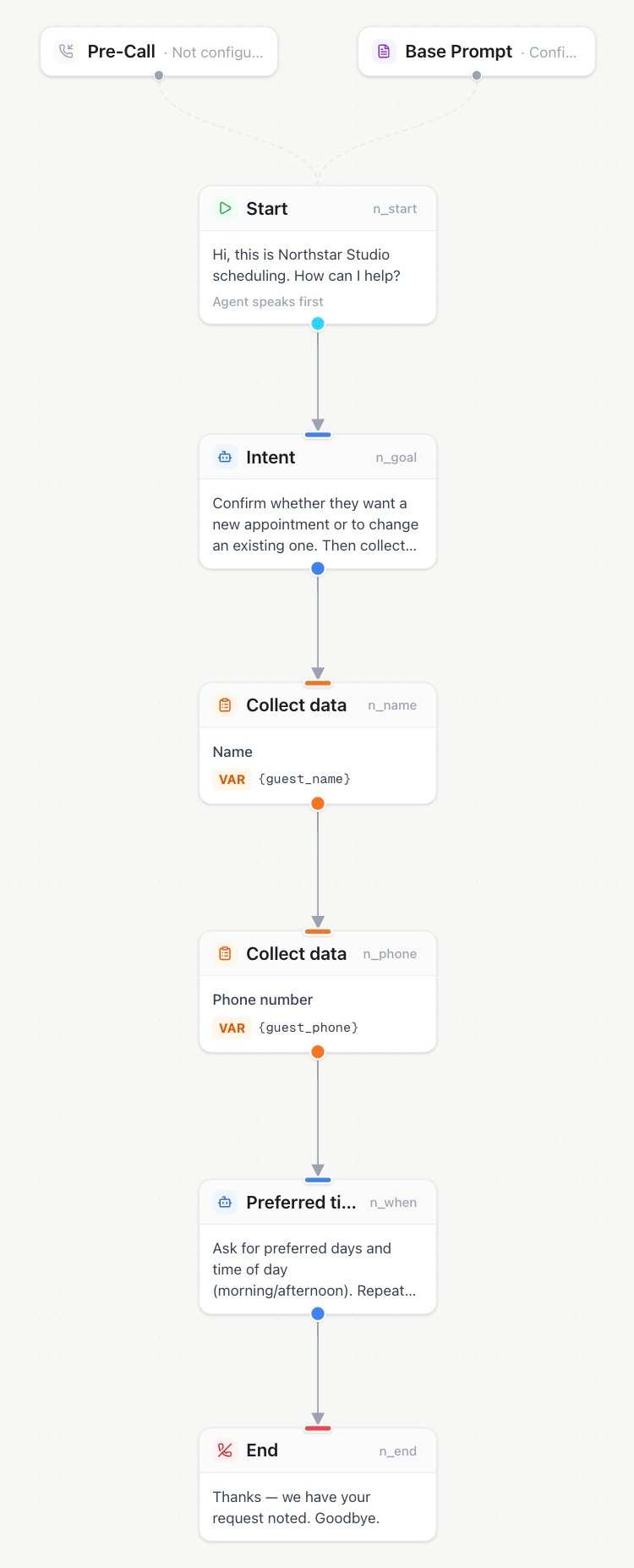
Flow builder — connect conversation steps on the canvas
Start from a use-case template
When you create an assistant, pick a role on the create page and start it from a Flow template. The catalog offers complete blueprints for common outcomes such as callback intake, lead qualification, surveys, concierge experiences, and website assistants. A blueprint can include:- a ready-to-edit flow graph, base prompt, and first message;
- the expected outcome and supported surfaces, such as inbound phone, outbound phone, web voice, or AI avatar;
- a setup checklist for anything the use case still needs, such as a knowledge base, calendar, transfer destination, or web widget.
An Avatar-ready blueprint prepares the conversation for a speaking virtual avatar on the web. The avatar is part of the web session’s presentation layer, not a node in the flow graph. After creating the assistant, connect it to a web widget and choose the virtual avatar there. The picture shown on a template or assistant card is only a portrait and does not enable an animated avatar.
Why edge and agent labels matter
This is the most important concept in the flow builder: Compare:
The same applies to Condition nodes: the node’s description explains what is being decided, and each edge label describes one outcome. The assistant must pick exactly one edge, so the labels should be mutually exclusive and cover all expected cases.
Agent node names matter too: they appear in handoffs and call details, so
Qualification agent is clearer than Agent 2.
A minimal useful flow
Flow variables
Collect nodes store results in flow variables such ascustomer_phone. Variables are included in the public call.completed webhook and the call details, so connected systems receive structured data, not just a transcript. Send DTMF nodes perform an action and continue along their outgoing edge; they do not create a result variable.
Fallback behavior
- An Agent node with empty instructions uses the assistant’s Base prompt as its base. Node-specific instructions are added to that base.
- A Collect node that fails after its retry allowance takes the outgoing edge labeled Failed if one exists, otherwise the normal edge.
- If a flow step cannot run, the call follows the available fallback path and records the issue in the call details.
Arrange and center the canvas
Use Center flow beside the zoom buttons to bring the entire graph into view. Use Tidy up flow to arrange nodes from top to bottom with spacing for branches and shared steps. Each branch stays in a straight column under its step, and a connection that skips steps gets a lane of its own instead of running behind other nodes. Retry connections stay intact. Only node positions change; instructions, tools, conditions and call settings are preserved. Click Save to keep the new layout. You can also ask Milian to “tidy up this flow and improve the spacing.” In the assistant editor, Milian arranges your current draft, including unsaved edits. For integrations,POST /api/v1/assistants/{id}/flow/layout arranges and saves the existing graph with assistant write access. No request body is needed. The response reports the assistant ID, whether it was saved, and node and edge counts; read the assistant to retrieve its new layout. The equivalent MCP tool is tidy_assistant_flow, and the CLI command is famulor tidy-assistant-flow <id>. Advanced flows require Flow Builder access.