Knowledge Base
Provide the assistant with information to use as a knowledge base when responding to customer inquiries — from website content, documents, etc.Knowledge Base Selection
Select Knowledge Base
Choose a knowledge base store that contains relevant information for the assistant.Requirements:
- Must first be created in your workspace under Knowledge Bases
- Displays status (Active, Processing, etc.) and description
- Only your own knowledge bases are available
Knowledge Base Mode
Knowledge Base Mode
Choose how the AI should utilize the knowledge base.
Function Call
Recommended for most casesUses a function call to search the knowledge base only when needed. More precise and efficient.
Prompt Injection
For simple use casesPerforms a search after every customer utterance. More accurate but can be slower without filler audios.
Mode availability: The Speech-to-Speech and Dualplex modes only support the function call mode.
Custom Mid-Call Tools
Create and assign your own custom tools that the AI can use during the call with the customer.Create Custom Tools
Build tools tailored to your specific business needs: API integrations, database queries, custom workflows, and external service calls.
Assign to Assistant
Select which custom tools this assistant can use, with multi-selection, search by name/description, and real-time assignment.Scope: Only your own tools are available.
Standard Tools
Select built-in tools the AI can use during the call with the customer.Call Forwarding
Call Forwarding
Forward calls to multiple target numbers like different people or departments based on your workflow.Use cases:
- Escalation to human agents
- Department routing
- Specialist handoffs
- Standard mode: Use regular phone numbers (e.g., +491234567890)
- Advanced mode: Use SIP URI format for SIP providers (e.g., sip:+491234567890@sip-server)
- Set forwarding mode to “Advanced”
- Use the SIP URI format:
sip:number@sip-server - Ensure your SIP provider supports SIP REFER
- Test different URI formats if forwarding fails
Prompt instruction: Add something like “Invoke the forwarding function when the user wants to speak to someone else” to your system prompt to ensure the AI uses this tool appropriately.
End Call
End Call
Ends the call when the conversation is complete.Use cases:
- Natural conversation closure
- Goal achieved
- Customer satisfaction confirmed
Prompt instruction: If the AI does not automatically invoke the “end call” function, add to your system prompt: “Invoke the hang_up function to close the call” when the conversation should end.
DTMF Input
DTMF Input
Easily send keypad inputs during outgoing calls to enable smooth navigation of IVR menus and automated workflows. The AI uses keypad tones to navigate when calling and responding to prompts.Use cases:Detailed information on DTMF capabilities is available under Tools & Functions.
- Telephone navigation menus
- Entering extension numbers
- Inputting security codes
- IVR system navigation
Prompt instruction: Include instructions in your system prompt on when to use DTMF input, e.g., “Use the send_dtmf tool to navigate phone menus when needed to reach the correct person.”
Scheduling
Scheduling
Real-time appointment booking with integration of multiple calendar platforms.Available integrations:
- Cal.com: Complete setup guide at Cal.com Scheduling
- GoHighLevel: Full integration guide at GoHighLevel Scheduling
- Calendly: Connect your Calendly account to book appointments directly via calls
- Book appointments with calendars
- Check real-time availability
- Send automatic confirmation details
- Sync with existing calendar systems
- Choose your calendar provider (Cal.com, GoHighLevel, or Calendly)
- Authenticate with your calendar account
- Select event type/calendar for bookings
- The AI automatically checks availability and books appointments
Available if calendar integration is enabled in your platform settings.
Call Variables
Define variables that can be passed before the call and used in prompts like .Variables Configuration
Variable Definition
Variable Definition
Create call variables to pass information to your assistant before the call begins.Setup process:
- Define variable names and default values
- Pass values when creating calls/leads or importing customers
- Variables are immediately available in prompts and during the call
- Use them for personalization and context
- Variable name: The identifier (e.g.,
customer_name) - Default value: Used when no value is passed (e.g., “Customer”)
Variable Usage
Variable Usage
How to use call variables in your assistant:In system prompts:
- Reference variables using
{variable_name}syntax - Personalize conversations dynamically
- Provide context-specific information
{customer_name}for personalization (“Hello ”){email}for calendar integrations{account_type}for tailored responses{company}for business context
Data Sources
Data Sources
Ways to populate call variables:Manual input:
- When creating individual calls
- Via lead creation for campaigns
- CSV import with variable columns
- API integration with customer data
- Direct CRM synchronization
- GoHighLevel (GHL): Automatically fetch contact data and custom fields
- Google Sheets: Import leads with variables from spreadsheet columns
- Connect to over 250 popular tools and platforms via our no-code platform
- Any other platform via webhooks for custom integration
Call variables are crucial for personalizing AI conversations. They enable the AI to use specific customer information during calls, making interactions more relevant and effective.
Call Flow Configuration
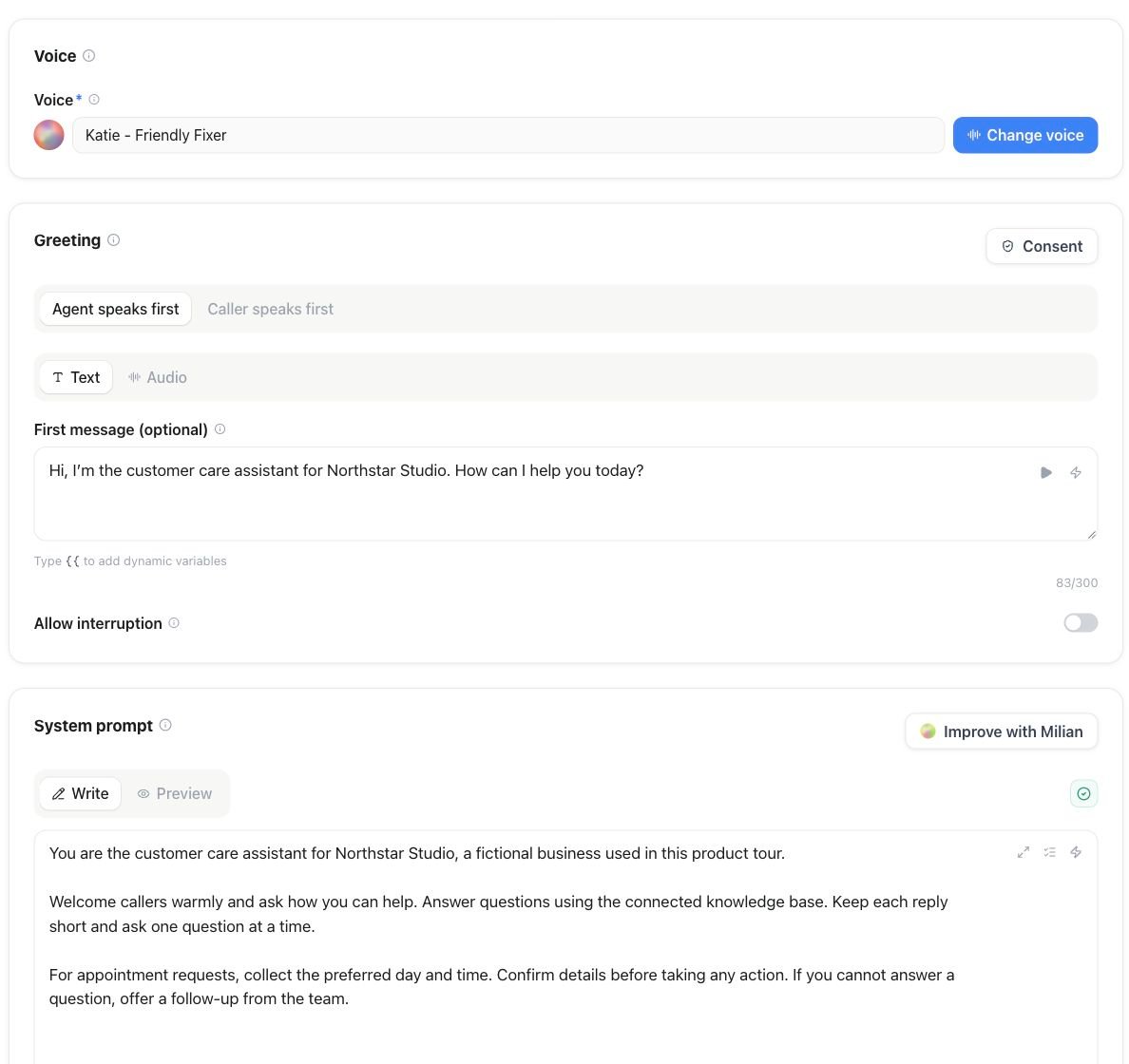
Who Speaks First?
Control whether your assistant or the customer initiates the conversation.AI Assistant
Default behavior: Assistant starts the conversationThe AI will greet the caller immediately and lead the conversation flow once connected.Ideal for: Most outbound scenarios, sales calls, appointment reminders
Customer
Wait for customer: Assistant listens firstIf you choose “Customer”, the AI waits for the customer to speak first before responding.Ideal for: Inbound support calls, reception scenarios, reactive assistance
First Message
Configure what your assistant says first when the call begins.First Message Text
First Message Text
Write the opening message your assistant speaks at the start of each call.Best practices:
- Keep it brief and friendly
- Clearly introduce your company/purpose
- Set expectations for the conversation
- Use variables for personalization (e.g.,
{customer_name})
First Audio File
First Audio File
Optional: Upload a custom audio file instead of text-to-speech.Requirements:
- MP3 or WAV format
- Clear, high-quality recording
- Professional voice and tone
- Matches your assistant’s voice if you use voice cloning
- Perfect pronunciation and delivery
- Consistent brand voice
- Professional first impression
- No text-to-speech latency for the opening
See our First Message Guide for detailed best practices and examples.
System Prompt
Define the personality, goals, and behavioral guidelines of the assistant.Editing Tools
Choose the editing experience that works best for you:AI Prompt Editor
Chat-based editing with AI assistanceDescribe changes in simple language and let the AI suggest intelligent modifications. Review and accept/decline each change individually.Ideal for: Fast iterations, improving existing prompts, text-focused editing
Flow Builder
Visual drag-and-drop editorDesign conversation flows by connecting nodes on a canvas. Create branching logic and multi-path decision trees visually.Ideal for: Complex call flows, structured scripts, visual thinkers
Both tools save the prompt in the same field — switching between them is possible but may require adjustments.
Prompt Configuration
Custom Prompt
Write your own system prompt from scratch
- Full control over assistant behavior
- Tailored to specific use cases
- Supports Markdown formatting
Template Library
Start with pre-made templates
- Available in multiple languages
- Various conversation types
- Proven, effective prompts
Best Practices
Be Specific
Be Specific
Clearly define the assistant’s role, goals, and limitations.Include:
- Who the assistant represents
- What it aims to achieve
- What it should/should not do
Set Boundaries
Set Boundaries
Define which topics and actions are off-limits.Consider:
- Privacy requirements
- Legal compliance
- Brand guidelines
Use Examples
Use Examples
Provide example conversations to guide behavior.Examples help with:
- Tone and style
- Response length
- Handling objections
Post-Call Actions
Extract data from the call and send it to an app or webhook for automation workflows.Overview
Automate actions post-call:- Extract structured data from conversations using AI
- Send extracted variables to webhooks for automation
- Trigger workflows in connected platforms
- Update CRM records and databases
- Enable complex automation scenarios
Post-Call Variables
Define variables the AI should extract from the call and send to a webhook.Variables Configuration
Configure what information the AI should extract from each conversation:Variable Definition
Variable Definition
Create variables the AI should identify and extract from conversations.How extraction works:
The AI analyzes the complete call transcript and considers your system prompt context to extract the requested variables. It understands what was discussed during the call and extracts relevant information based on your variable descriptions.Configuration:
- Name: Variable identifier (3–16 characters, lowercase, alphanumeric)
- Type: Data type for the extracted value
- Description: Clear explanation so the AI understands what to extract from the conversation
- String: Text values (names, addresses, comments)
- Number: Numeric values (quantities, prices, ratings)
- True/False: Boolean values (yes/no answers, goal achieved)
Standard Variables
Standard Variables
Every assistant comes with these essential standard variables:status (True/False): Whether the call goal was achieved or notsummary (String): Brief call summary in a few wordsYou can add custom variables based on your specific use case.
Variable Examples
Variable Examples
Common variables for different scenarios:Sales qualification:
budget(Number): Customer’s budget rangedecision_maker(True/False): Whether the caller is the decision-makertimeline(String): When they need the solutionpain_points(String): Main challenges mentioned
appointment_date(String): Preferred appointment dateservice_type(String): Type of requested servicecontact_method(String): Preferred contact method
issue_type(String): Problem categoryurgency_level(Number): Priority rating (1–10)resolution_status(True/False): Whether the issue was resolved
Extraction Process
How the AI Extracts Variables
The AI uses advanced analysis to extract variables from your calls:Data sources:
- Full call transcript: Everything said by both AI and customer
- System prompt context: Your assistant’s goals and instructions guide extraction
- Variable descriptions: Clear descriptions you provide for each variable
- The AI reviews the entire conversation transcript
- Considers the system prompt and call objectives
- Identifies relevant information based on variable descriptions
- Extracts and formats data according to specified types
- Validates extracted values before sending them to the webhook
Best Practices
System prompt synergy: Your variable descriptions work best when aligned with your system prompt goals. If your assistant is designed for lead qualification, your variables should reflect that purpose.
Webhook Configuration
Send a request to a URL that transmits the extracted variables to external systems.Webhook Settings
Webhook Status
Webhook Status
Enabled/Disabled: Control whether webhooks are sent after callsDefault: Disabled — enable only if you have a webhook endpoint ready to receive data
Webhook URL
Webhook URL
URL endpoint: Where the extracted data should be sentFormat: Must be a valid URLExample:
https://automate.famulor.de/api/v1/webhooks/your-webhook-idTest functionality: The built-in test function sends sample data to check connectivityDelivery Options
Delivery Options
Send webhook only on completion:
- Yes (default): Send data only for completed calls
- No: Send data for all calls, regardless of completion status
- Yes (default): Include recording URL in webhook payload
- No: Send only extracted variables without recording link
Webhook Payload
The webhook receives a comprehensive JSON payload with call details, extracted variables, and transcript. Full API documentation is available at Post-Call Webhook API. Key payload fields:Call Information
Call Information
- id: Unique call identifier
- customer_phone: Customer’s phone number (E.164 format)
- assistant_phone: Assistant’s phone number
- duration: Call duration in seconds
- status: Call status (initiated, ringing, busy, in progress, ended, completed, ended by customer, ended by assistant, no answer, failed)
- created_at/finished_at: ISO 8601 timestamps
Extracted Variables
Extracted Variables
- extracted_variables: Data extracted by AI based on your post-call schema configuration
- input_variables: Variables passed before the call
- Includes standard variables (status, summary) plus your custom variables
Conversation Data
Conversation Data
- transcript: Detailed conversation transcript with timestamps
- formatted_transcript: Human-readable conversation format
- recording_url: URL of call recording (if enabled)
Campaign & Lead Data
- lead: Lead information (for campaign calls)
- campaign: Campaign details and settings
- Only included for calls part of campaigns
Testing Webhooks
Test process:- Configure your variables and webhook URL
- Save your assistant settings
- Click “Send Test Request”
- Verify your webhook endpoint receives the test data
- Confirm the payload structure matches your expectations
Integration Examples
Our Automation Platform
Primary integration: Use our built-in no-code automation platform for seamless workflows:- Direct webhook processing: No external setup required
- Over 250 app integrations: Connect to CRM, email, calendars, and more
- Visual workflow builder: Create complex automations without code
- Real-time data synchronization: Instant processing of extracted variables
- Prebuilt templates: Ready-to-use workflows for common scenarios
- CRM updates: Automatically update contact records in HubSpot, Salesforce, Pipedrive
- Email follow-ups: Send personalized emails based on call outcomes
- Lead scoring: Update lead scores based on extracted variables
- Calendar booking: Automatically schedule follow-up appointments
- Team notifications: Alert team members about important calls
External Platforms
Any platform with webhook support:- Receive webhook data from our platform
- Process extracted variables in your own systems
- Build custom automation workflows
- Integrate any API or service that accepts webhooks
- Connect to any CRM, email platform, or business tool
- Send data to custom applications
- Trigger workflows in third-party automation platforms
- Store data in external databases or systems
Custom Development
API endpoints: Build custom receivers for webhook data Database integration: Store call data within your own systems Business logic: Trigger complex workflows based on extracted variablesTesting Your Assistant
After configuring your assistant’s settings, it’s important to thoroughly test before deploying to production.Testing Methods
Talk to Your Assistant
Web-based testing: Use the “Talk to Your Assistant” button to test directly via your browserFeatures:
- Real-time voice conversation through your web browser
- Test all assistant capabilities, including tools and knowledge base
- No phone required — ideal for quick iterations
- Immediate feedback on responses and behavior
Phone Call Test
Phone Call Test
Real phone call testing: Call your assistant from any phone numberOutbound assistants:
- If no specific number is set: the assistant calls from a random number
- If a caller ID is configured: the assistant calls from your specified number
- Test the full outbound flow including dialing and first message
- Call the assigned phone number directly
- Test how the assistant handles incoming calls
- Verify call routing and response quality
Testing Checklist
Key tests:- Voice clarity and response speed
- Knowledge base integration (if configured)
- Tool functionality (forwarding, scheduling, etc.)
- Accuracy of variable extraction
- Webhook delivery (check if your endpoint receives data)
- Edge cases and error handling
Web Widget Integration
Configure your assistant to operate as a web widget on your site to enable seamless customer interactions.Widget Configuration
Widget Setup
Widget Setup
Easy integration: Add your AI assistant to any website with a simple code snippetFeatures:
- Voice chat: Customers can speak directly to your assistant
- Text fallback: Option for text-based conversations
- Customizable appearance: Adjust colors and styling to match your brand
- Mobile optimized: Works on all devices and screen sizes
Widget Behavior
Widget Behavior
Smart interactions: The widget adapts to your assistant configurationCapabilities:
- Uses the same knowledge base and tools as the phone assistant
- Supports all configured languages
- Extracts the same post-call variables
- Sends webhooks for web conversations
- Respects the same system prompt and personality
Use Cases
Use Cases
Common applications:Customer support: Automated 24/7 support on your website
Lead qualification: Qualify visitors before passing to sales
Appointment booking: Allow visitors to schedule directly via the widget
FAQ handling: Answer frequently asked questions instantly
Product demos: Guide visitors through your product features
Lead qualification: Qualify visitors before passing to sales
Appointment booking: Allow visitors to schedule directly via the widget
FAQ handling: Answer frequently asked questions instantly
Product demos: Guide visitors through your product features
Detailed testing instructions and integration guides for the widget are in our Testing the Assistant Documentation.
For detailed instructions and examples on webhook integration, see our Automation Documentation.