

This page is about writing good instructions. For where the system prompt lives, and when to reach for a flow instead of a single prompt, see System prompt vs. flow builder.
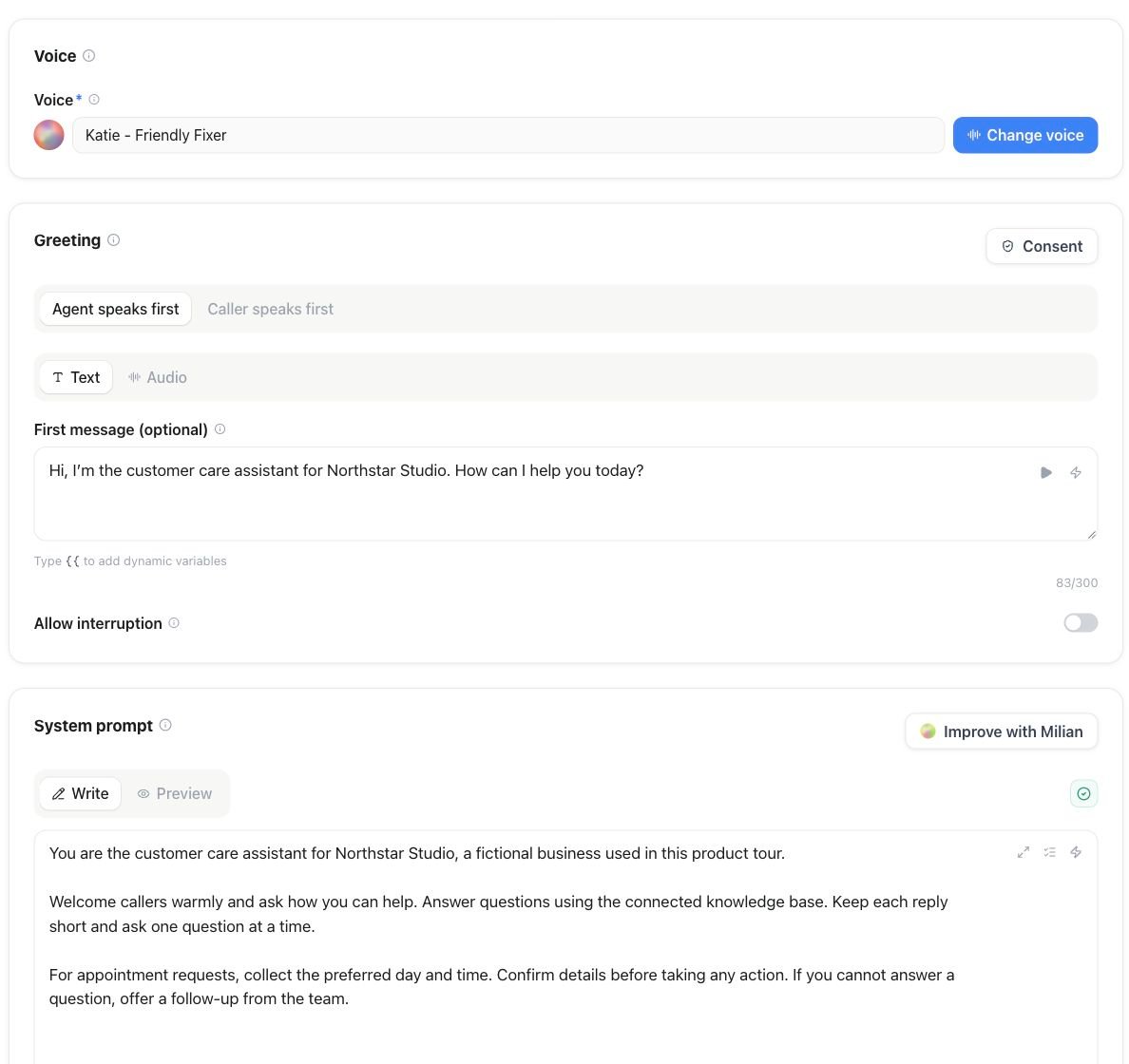
In the assistant editor, use System prompt → Write to edit instructions; Improve with Milian helps refine them.
Structure your prompt in named sections
For a One Prompt assistant, open the Prompt guide icon next to the lightning icon in System prompt. Choose Add beside a section to append its Markdown heading and an empty bullet, or choose Add missing sections to insert the remaining outline at once. Existing text stays in place, and headings already present are marked as added. The guide is also available in the expanded system-prompt editor. Fill in the bullets, then save the assistant as usual. Don’t write one long paragraph. Break the prompt into labeled sections, each with a single job. It’s easier to write, easier to update later without breaking something else, and easier for the model to follow:Be specific, not vague
“Be helpful and professional” gives the model nothing to act on. Pair every rule with a concrete example:
Avoid the opposite failure, too. Scripting every possible sentence removes the natural flow that makes a voice assistant pleasant to talk to — give rules and examples, not a transcript to recite.
Handling what you didn’t anticipate
Every prompt eventually meets a question it doesn’t cover. Decide in advance how the assistant should react — pick one pattern (or combine them):- Default, then transfer. “If you don’t know the answer, say so plainly and offer to connect the caller with someone who does,” then rely on call transfer.
- Ask a clarifying question. “If the request is unclear, ask one short follow-up before deciding how to route it.”
- Check the knowledge base first. If you’ve connected one, instruct the assistant to search it before falling back to a transfer — see Knowledge bases.
Writing clear conditions for tools and transfers
Every built-in tool and every flow edge is only as reliable as the condition text describing when it should fire. Vague conditions produce vague behavior. Two valid levels of detail for an end-call condition, depending on how much control you want:- Simple: “End the call once all questions are answered and the caller no longer needs help.”
- Detailed: “Also end the call after a successful booking, an explicit goodbye, or when the conversation is clearly finished — but never while the caller is still speaking.”
How long should a prompt be?
- Short (roughly 50–200 words) — simple, single-purpose assistants.
- Medium (roughly 200–500 words) — several scenarios, each with a clear rule.
- Long (500+ words) — slows the model down and raises the odds it loses track of an earlier instruction.
Common prompt-writing mistakes
Rolling out and iterating
No prompt is finished at launch — treat it as a living document.1
Cover the common cases first
Write clear instructions for your most frequent scenarios before chasing every edge case. A prompt that handles the majority of real calls well beats one that half-handles everything.
2
Test before anyone else hears it
Use the editor’s Test button for a quick voice or chat check, or set up Simulations to run common scenarios, edge cases, and a difficult caller or two automatically before the prompt meets a real one.
3
Go live and watch closely
Review new call transcripts closely right after launch — they show exactly where the assistant hesitated, guessed, or handled something the wrong way.
4
Refine from what you saw
Add the specific example, rule, or fallback that would have fixed each miss. Small, targeted edits beat rewriting the whole prompt.
Full coverage of every possible call isn’t a realistic target — language is too varied for that. Aim to shrink the gap steadily, and lean on guardrails and a transfer to a person as the safety net for whatever’s left.