

Prepare the Famulor destination
- Open Settings → Phone numbers → Add a number → Add SIP integration. Select the SIP region and copy the displayed SIP URI.
- For a static SIP connection, agree the exact called number, transport and inbound authentication with your provider or PBX administrator. Enter that number as the DID in Famulor. Use the provider’s complete SIP-signaling source list, or SIP credentials if the provider supports Digest toward this destination.
- Enter the provider or PBX termination hostname and its outbound authentication if you will place calls through this connection. Save the integration and assign the number to your assistant.
What to enter in Famulor
The screenshots use the English app labels.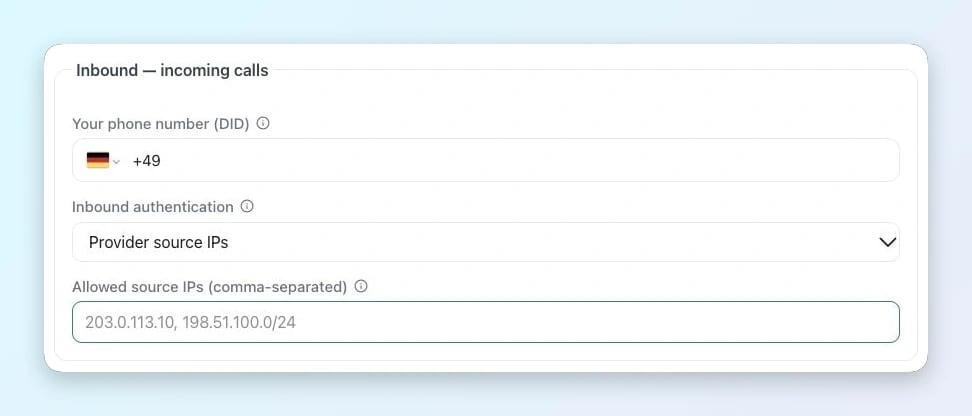
Incoming calls in Famulor
- Your phone number (DID) · Enter the exact number delivered by Asterisk / FreePBX, with its country code and leading + for an E.164 DID.
- Inbound authentication / Allowed source IPs · Choose Provider source IPs and enter the complete SIP signaling list for Asterisk / FreePBX and the selected route.
- If the provider sends Digest authentication to Famulor, select SIP username/password and use the same inbound credentials configured on the provider side.
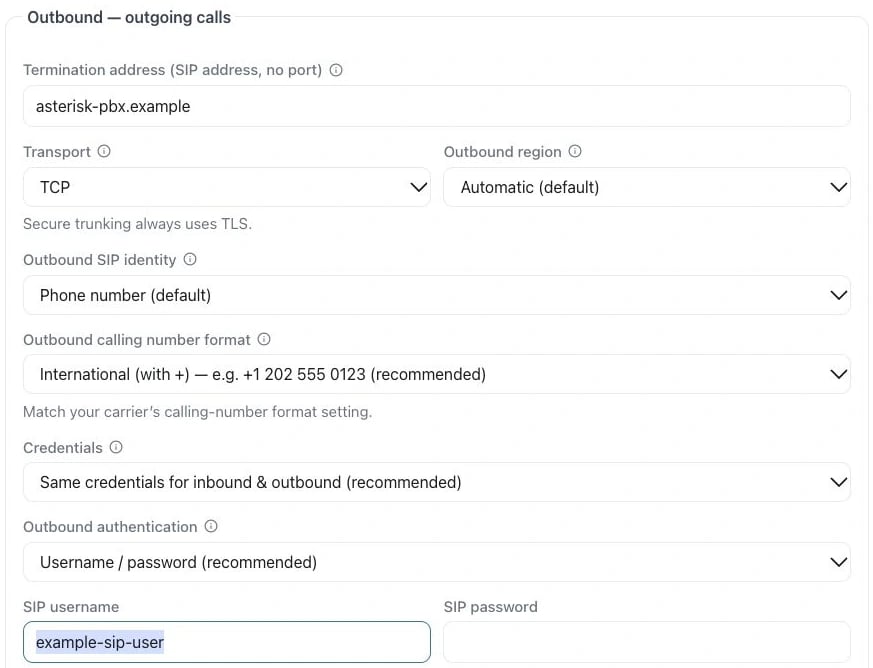
Example in the English app
- Termination address · Use the provider hostname from the setup above (Asterisk / FreePBX). Enter only the hostname, without a SIP prefix or port.
- Outbound authentication / SIP username / SIP password · Select Username / password when using Digest. Enter the SIP login and password from platform-auth.
Configure Asterisk / FreePBX
Configure a static, non-registering trunk in both directions — Asterisk never sends the platform a SIP REGISTER, and the platform never expects one.FreePBX (GUI)
- In Connectivity → Trunks → Add Trunk → Add SIP (chan_pjsip) Trunk, give the trunk a name.
- Under pjsip Settings → General, set SIP Server to the Famulor hostname for your region, SIP Server Port to 5060, Transport to your TCP transport, Registration to None, and Authentication to Outbound. Enter the SIP username and secret you configured as Famulor inbound credentials.
- Under Advanced, use the same hostname as From Domain. Set From User to the exact DID stored in Famulor. Enable ulaw and alaw, then Submit → Apply Config.
- In Connectivity → Outbound Routes, add a route for the exact Famulor DID and select this trunk in Trunk Sequence. In the incoming DID’s destination or queue overflow, dial that DID through this route. Check the SIP request still contains the leading
+when the Famulor DID uses it.
Raw config (pjsip.conf)
The sample uses the Europe (EU) hostname. Use the Famulor hostname for the region selected in your SIP integration. Inbound SIP addresses by region. The sample uses one SIP login for both directions. Enter it as the inbound credentials and the outbound credentials in Famulor. Asterisk’soutbound_auth answers Famulor’s challenge; auth challenges calls coming back from Famulor. If you use different logins, create separate auth sections.
match= line for each Famulor outbound source range you authorize. Map the from-platform context to the extension or outbound route you intend to expose.
In extensions.conf, route only the DID you configured in Famulor to this endpoint. This example uses +12025550123; replace it with your DID and connect this context to the intended incoming route or queue.
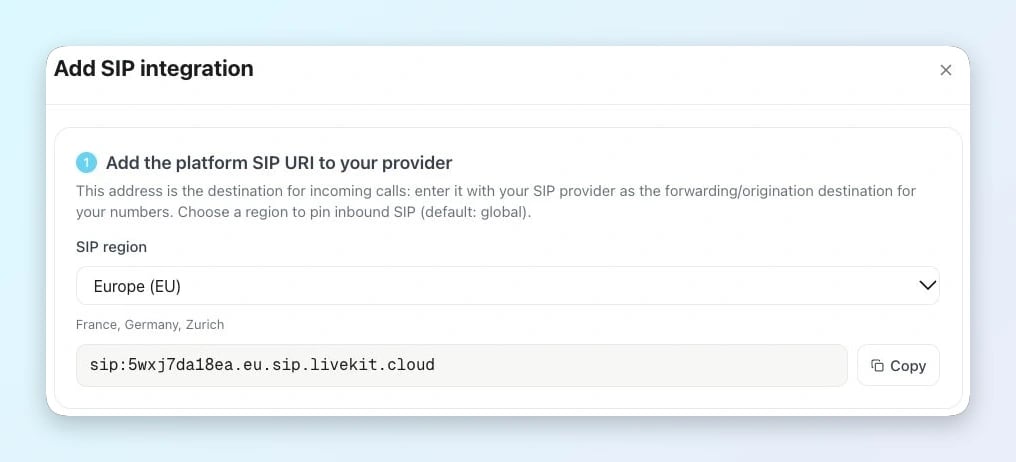
The SIP integration form provides the region-specific inbound destination.