

Set up a mission from an example
- Open Milian Missions, select New mission, and replace the prefilled text with a prompt below.
- Replace each bracketed placeholder. Use
@in Milian to attach the assistant, campaign, or automations from your workspace. - Review the draft in Mission Studio. Set the schedule and time zone under Trigger and check the permissions under Access. A workspace owner or admin can publish the version.
- Select Run now and review the output under Runs. For the email example, use your own address for the first run.
Improve a booking assistant’s prompt
Run daily with Read access. Attach the assistant that handles bookings.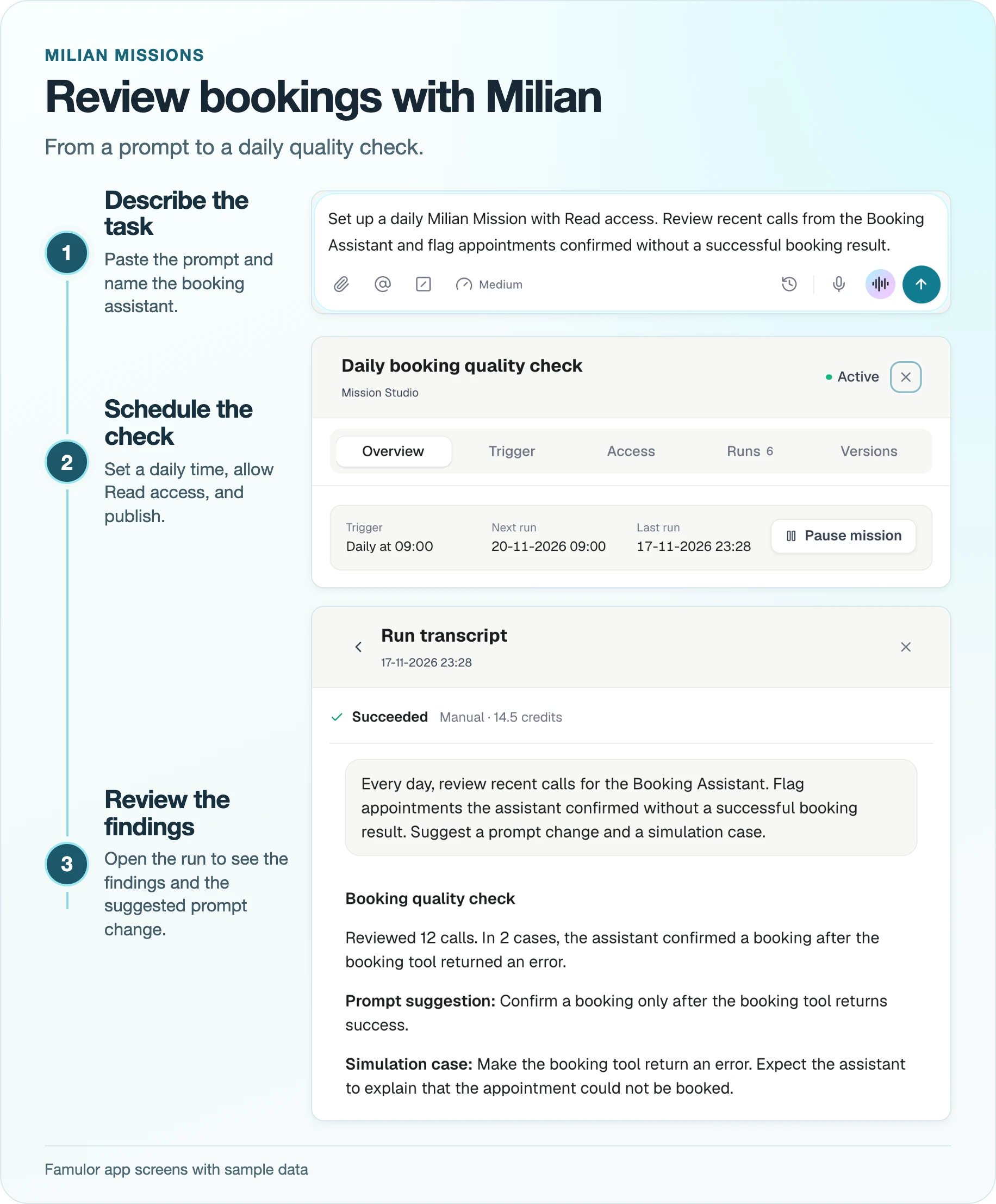
Example from the Famulor app using sample calls.